Configure SSO
To configure SSO, fill in the following connection parameters based on the data from the IdP service:
To configure SSO, follow these steps:
- Go to Access management → SSO.
- Select Edit connection.
- Specify the following parameters:
- Base URL—the service URL;
- Application ID—the service ID;
- Application secret—the client key or secret from the service;
- Redirect URI—the redirect URL after the authentication and authorization process completes (TRON.ASOC);
- Requested permissions—the parameters that define the permissions and data the application receives after authentication.
note
The parameters must match the data from the IdP service. Also, refer to the IdP documentation for configuration instructions.
- Fill in the attributes for mapping with the SSO service:
- Username;
- Last name;
- Display name;
- Group;
- Role.
info
For information about field mapping when integrating with SSO services, see below.
If users don't fill in the field values, the default field mapping is used.
- If needed, select the checkbox for Extract CN from group DNs.
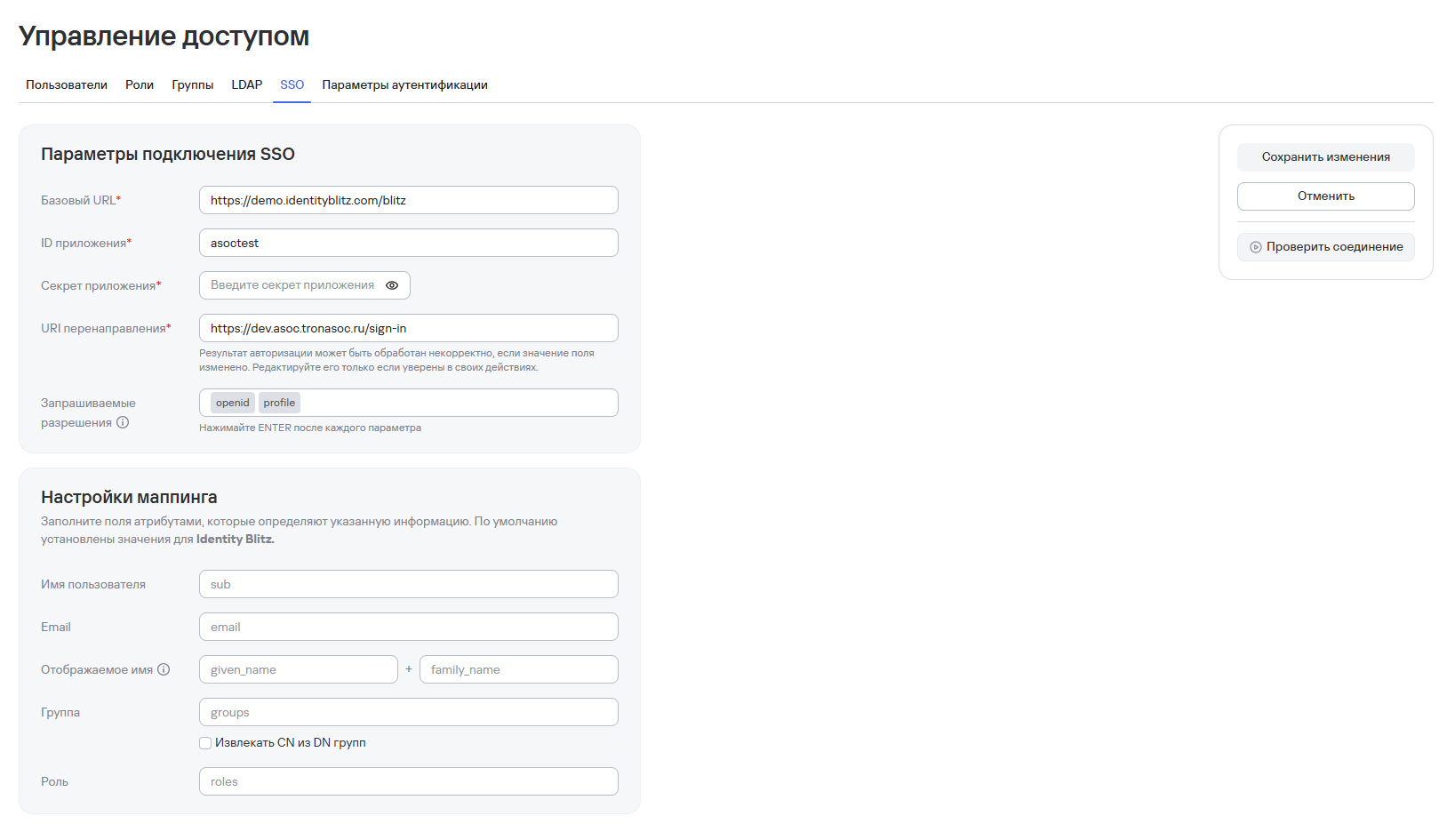
- Select Save changes.
You also need to create roles and groups for SSO mapping. For more information, see Configure the authentication method.
Field mapping when integrating with SSO services
The default field mapping when integrating ASOC with SSO services is shown in the table below.
| SSO service user attributes | ASOC user attributes | Value | Required |
|---|---|---|---|
sub | username | Username | Yes |
email | email | Email address | Yes |
| - | password (ASOC generates a random password when it creates the account) | Password | Yes |
family_name + given_name | display_name | Display name (first name + last name) | No |
groups.name | Group | Group | No |
roles | Role | Role | No |