Project report
The system provides two types of project reports:
- summary;
- detailed.
The ability to view and download reports depends on whether the user has access to the projects included in the report.
Creating a summary report
To create a summary report for projects, follow these steps:
- Go to Projects.
- Select projects using the checkboxes (
 ).
). - Select Create report.
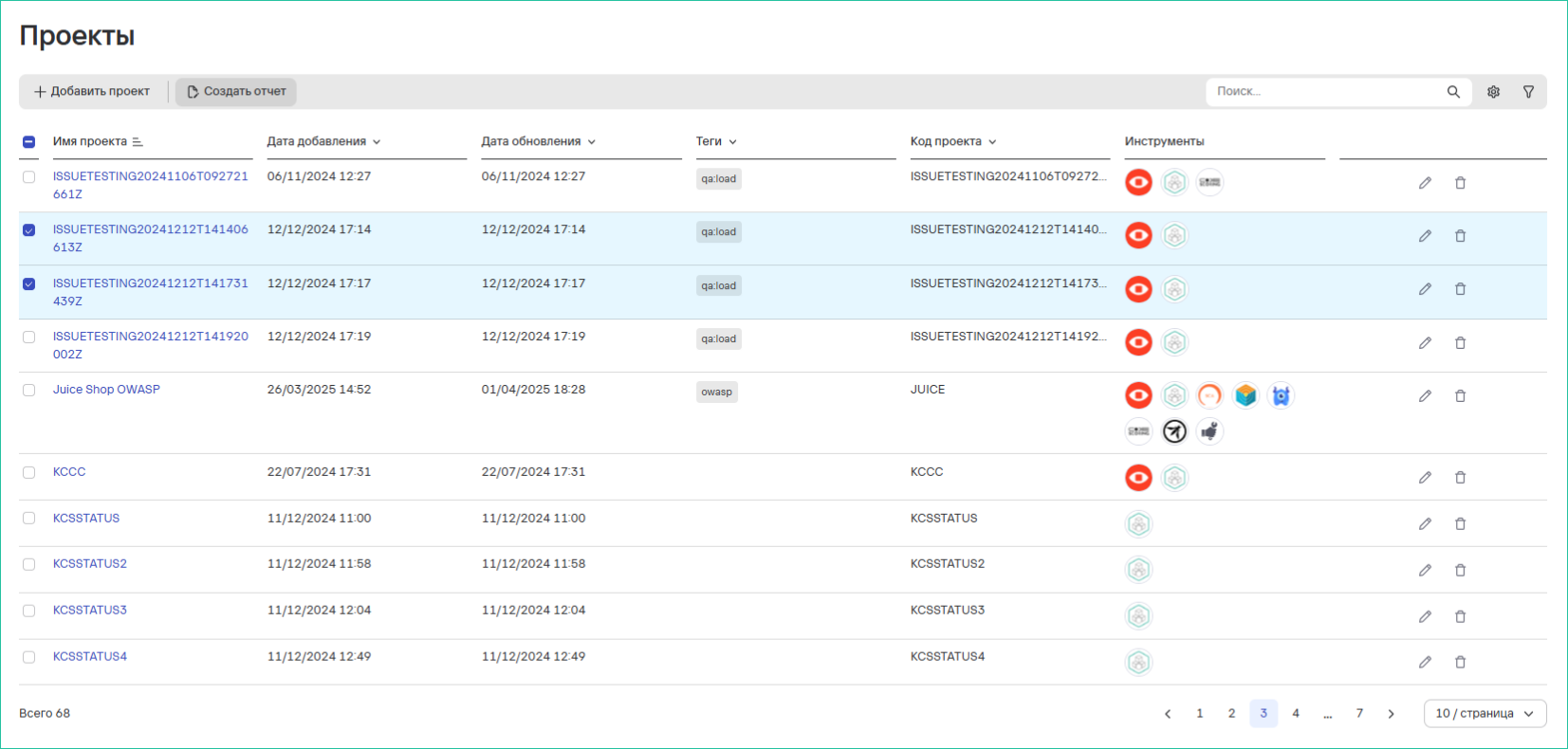
- Specify the report parameters and filters in the form that opens.
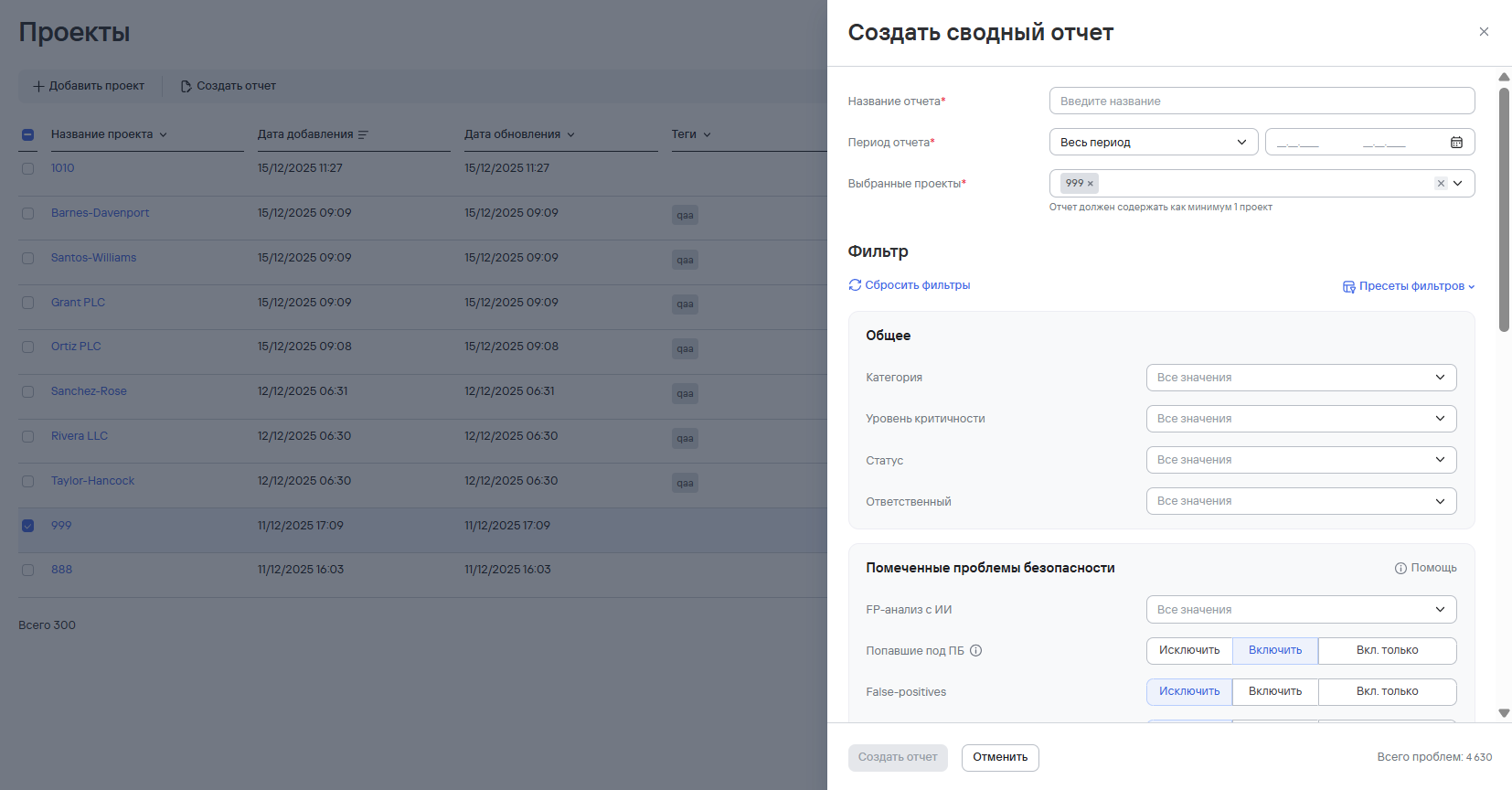
Charts in summary reports are generated ONLY for projects where security issues were found.
If you select multiple projects with configured filters, some filters might not apply to the metrics because of the internal logic settings.
- Select Create report.
You can find the created report in Reports → Summary.
Creating summary reports for all projects
To create summary reports for all projects in the system, follow these steps:
-
Go to Dashboard.
-
Select Create report.
-
Specify the report parameters:
- name;
- report period.
infoYou can specify specific dates as the report period or select Year, Quarter, Month, Week, or Day.
-
Set the report filters.
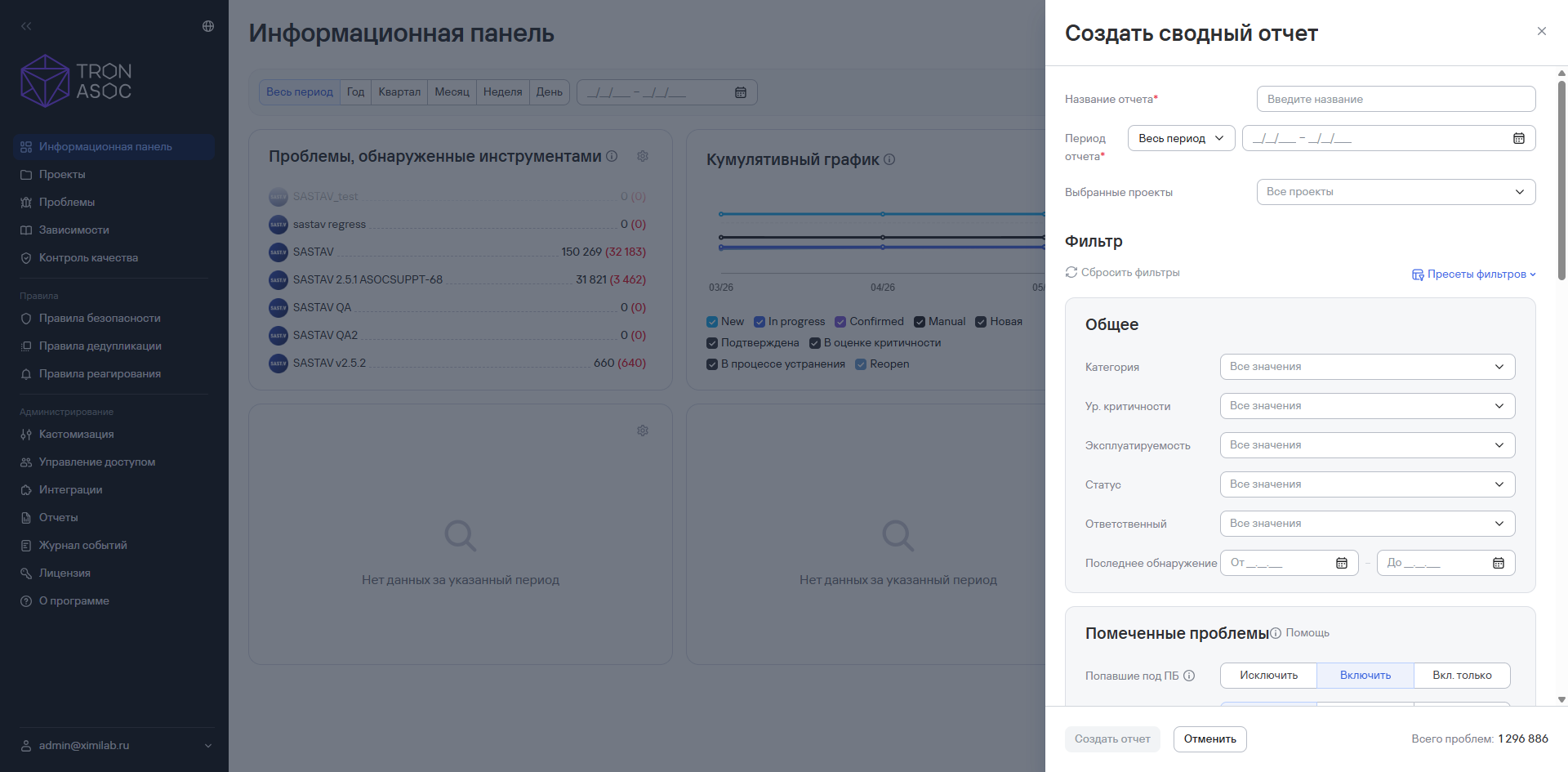
- Select Create report.
You can find the generated report in Reports.
When you select all projects in the system, only a summary report is available.
Charts in summary reports are generated ONLY for projects that have security issues.
Also, if you select multiple projects with configured filters, some filters might not apply to the metrics because of the internal logic settings.
Creating a detailed report
To create a detailed report, follow these steps:
- Go to Projects.
- Open the project card by selecting the project ID.
- Select Create report → Detailed.
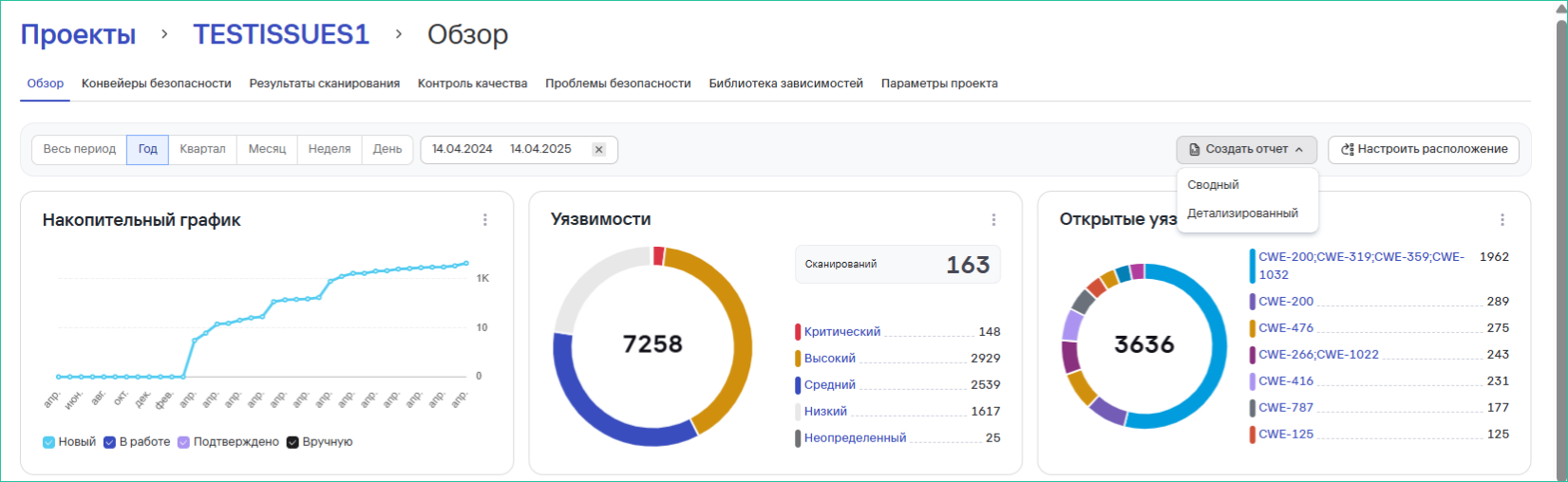
- Complete the Report name field.
- Add the required filters for the report fields.
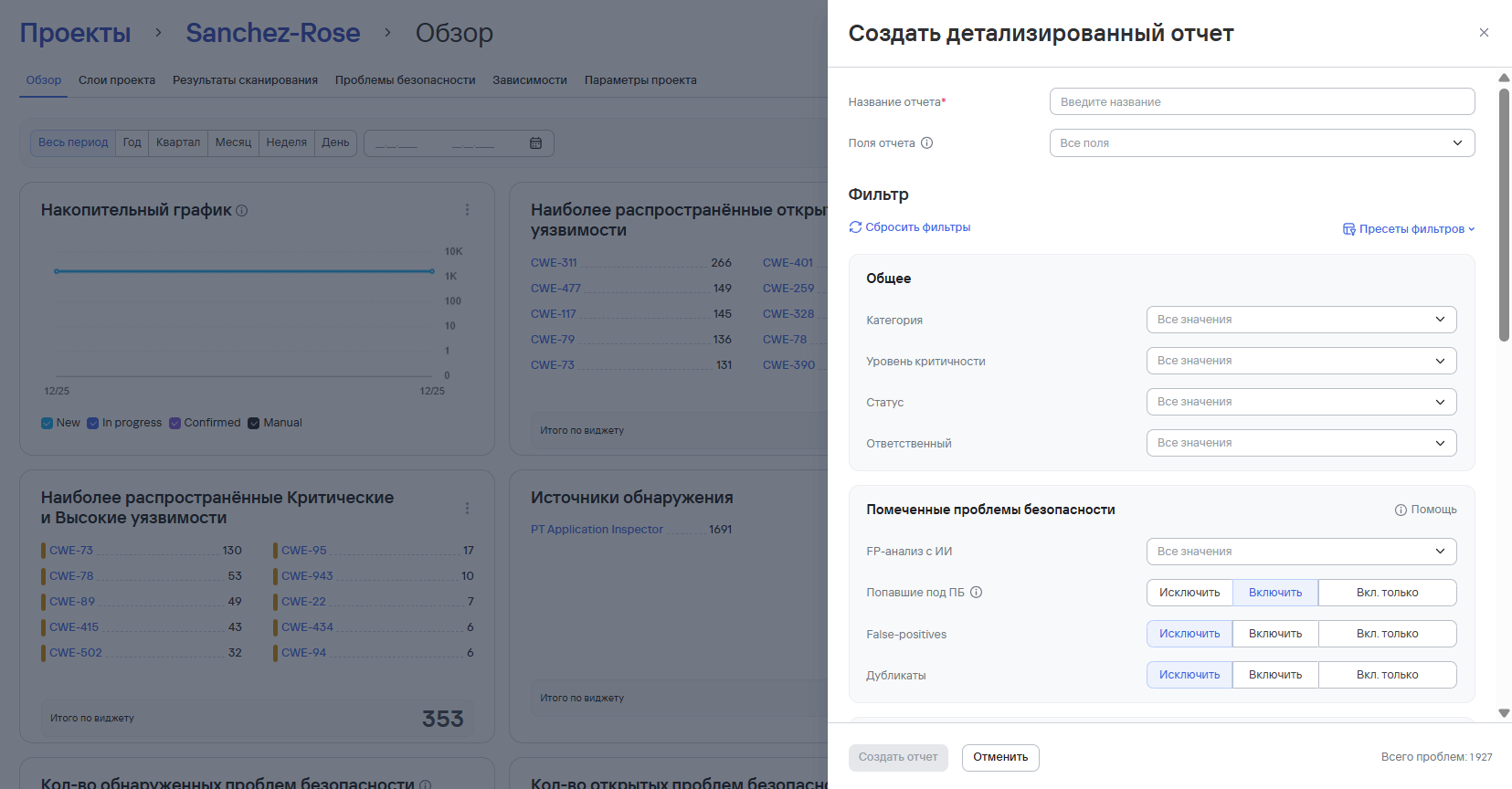
If you select multiple projects with configured filters, some filters might not apply to the metrics because of the internal logic settings.
- Select Create report.
You can find the created report in Reports → Detailed.
Exporting reports
You can export reports from the system in the following formats:
- PDF (up to 3 projects in one report);
- JSON;
- CSV;
- HTML.
To export a report, follow these steps:
- Go to Reports.
- Go to the required tab.
- Select the report download button for the required format.

Deleting reports
To delete a report, follow these steps:
- Go to Reports.
- Go to the required tab.
- Select the additional actions button (
 ) in the report row.
 - Select Delete.
- Confirm the report deletion in the modal window that opens.
To delete multiple reports, follow these steps:
- Select the required reports using the checkboxes ().
- Select the delete button (
 ) above the reports table.
 - Confirm the report deletions in the modal window that opens.