Actions with roles and user permissions
The system administrator can perform the following actions with user roles:
- add new roles;
- configure permissions for roles;
- delete one or more roles.
System permissions
When you create a new role, you can assign permissions to perform various operations, such as creating projects, security checks, and integrations.
The list of system permissions appears in the table below.
| Section | Permissions |
|---|---|
| Projects | - View projects; - Create and edit projects; - Archive and restore projects; - Delete projects; - Field builder; - Manage tags |
| Reports | - View, create, and download reports; - Delete reports |
| Information panel | Edit information panels |
| Dashboards | Edit dashboards |
| Security layers | - View layers; - Create and edit layers; - Delete layers |
| Filter presets (Issues list) | - Manage the user preset; - View and apply shared presets; - Create shared presets; - Edit shared presets; - Delete shared presets |
| Status model | - View workflows; - Edit workflows; - Delete statuses and transitions |
| Quality control | - View templates; - Manage templates; - Delete templates |
| Security rules | - View rules; - Create and edit rules; - Delete rules |
| Deduplication rules | - View rules; - Create and edit rules; - Delete rules |
| Response rules | - View rules; - Create and edit rules; - Delete rules |
| Policies | - View policies; - Create and edit policies; - Delete policies |
| Users (Access management) | - View users; - Create and edit users; perform password resets; - Archive users; - Restore users |
| Roles (Access management) | - View roles; - Create and edit roles; - Delete roles |
| Groups (Access management) | - View groups; - Create and edit groups; - Delete groups |
| LDAP (Access management) | - View LDAP settings; - Create and edit LDAP settings; - Delete LDAP settings |
| SSO (Access management) | - View SSO settings; - Create and edit SSO settings |
| Global scan sources | - View sources; - Manage sources; - Delete sources |
| Project scan sources | - View sources; - Manage sources; - Delete sources |
| Global security tools | - View tools; - Manage tools; - Delete tools |
| Project security tools | - View tools; - Manage tools; - Delete tools |
| Notification tools (Integrations) | - View tools; - Manage tools; - Delete tools |
| Issue trackers (Integrations) | - View trackers; - Manage trackers; - Delete trackers; - Create issues for the tracker |
| Security checks | - View checks and download results; - Create and edit checks; - Run scans and upload results; - Delete checks |
| Issues | - View and comment; - Delete comments; - Apply rules and change statuses; - Perform AI false-positive analysis; - Delete issues; - Change the False-positive attribute; - Change the Duplicate attribute; - Assign an owner |
| Events | - View events; - View errors |
| Settings | Manage connection settings |
| Dependencies | - View dependencies; - Import SBOM |
| License | - View license information and limits; - Activate a new license key and get the Machine ID |
Adding a new role
tip
We recommend assigning the minimum base role and adding extra permissions through groups. Role and group permissions are cumulative.
To add a role, follow these steps:
- Go to Access management → Roles.
- Select Create role.
- In the window that opens, enter the following information:
- Role ID;
- role name;
- role description.
- Set permissions to view, create, edit, and delete entities in the system, such as projects, reports, and rules, using the checkboxes.
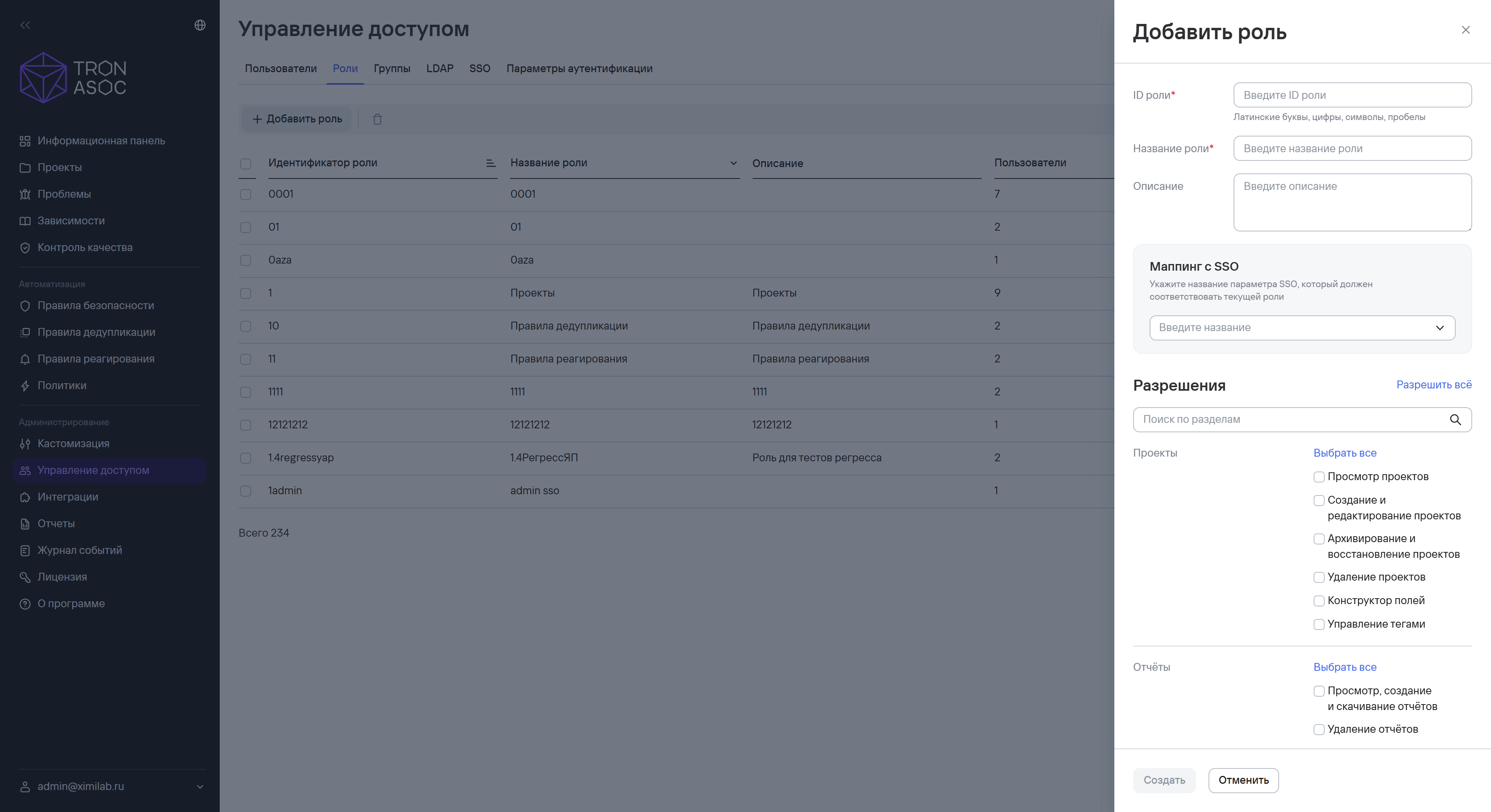
- Select Create.
Deleting one or more roles
To delete a role, follow these steps:
- Select the additional actions button (
 ) next to the required role.
 - Select Delete.
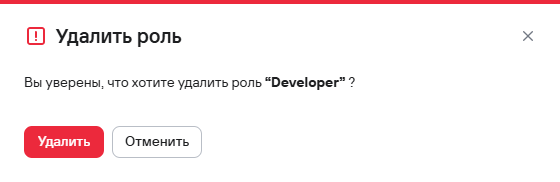
- In the modal window that opens, confirm the role deletion.
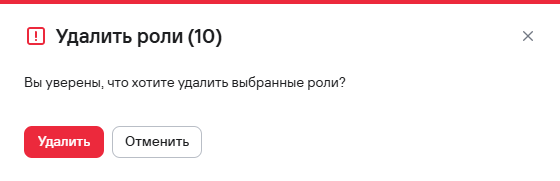
To delete multiple roles, follow these steps:
- Select the roles you want to delete using the checkboxes (
 )
) - Select the delete button (
 ) above the roles table.
 - In the modal window that opens, confirm the role deletion.