Running CLI tools in Kubernetes
The system can run CLI security tools as temporary Kubernetes pods. The pod runs for the duration of the scan, gets data from the repository, generates a report, and sends it to TRON.ASOC through a native integration. After the scan finishes, the pod stops automatically.
The following tools are currently supported:
- Semgrep;
- PVS;
- Trivy;
- Grype;
- KICS;
- TruffleHog;
- Manual.
Manual is a third-party tool that lets you upload scan results to the system. The system uses these results for further data processing.
You must run CLI tools in the same namespace as TRON.ASOC. Attempts to run tools in another namespace will fail.
Create and run a CLI tool in Kubernetes
Follow these steps to create and run a tool:
- Go to Integrations → Security tools.
- Select Add security tool.
- Select a tool that supports running in Kubernetes (see the list above).
- In the window that opens, enter information about the security tool.
- Turn on the Run in Kubernetes toggle.
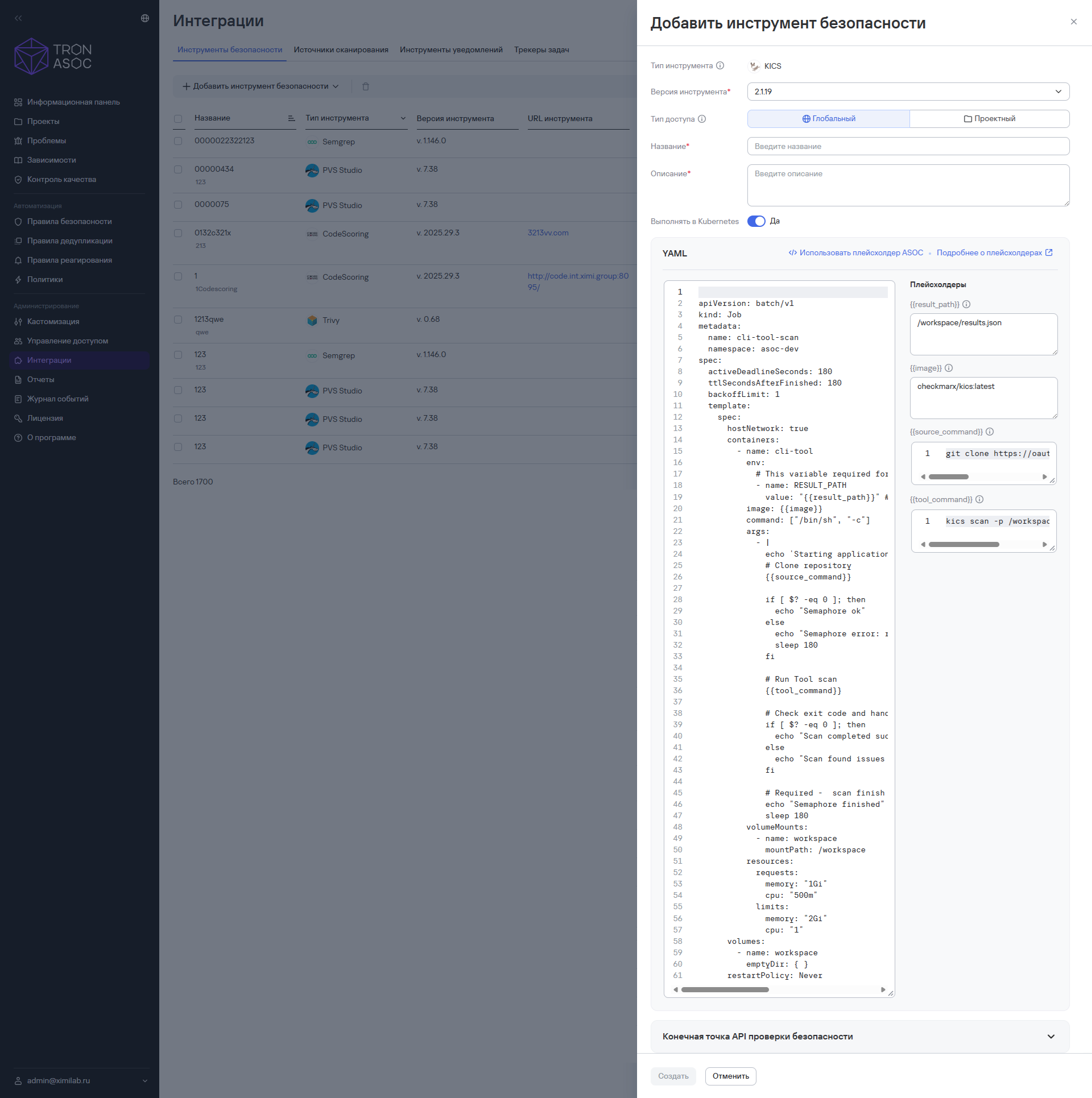
- Fill in the YAML template for running the tool in Kubernetes.
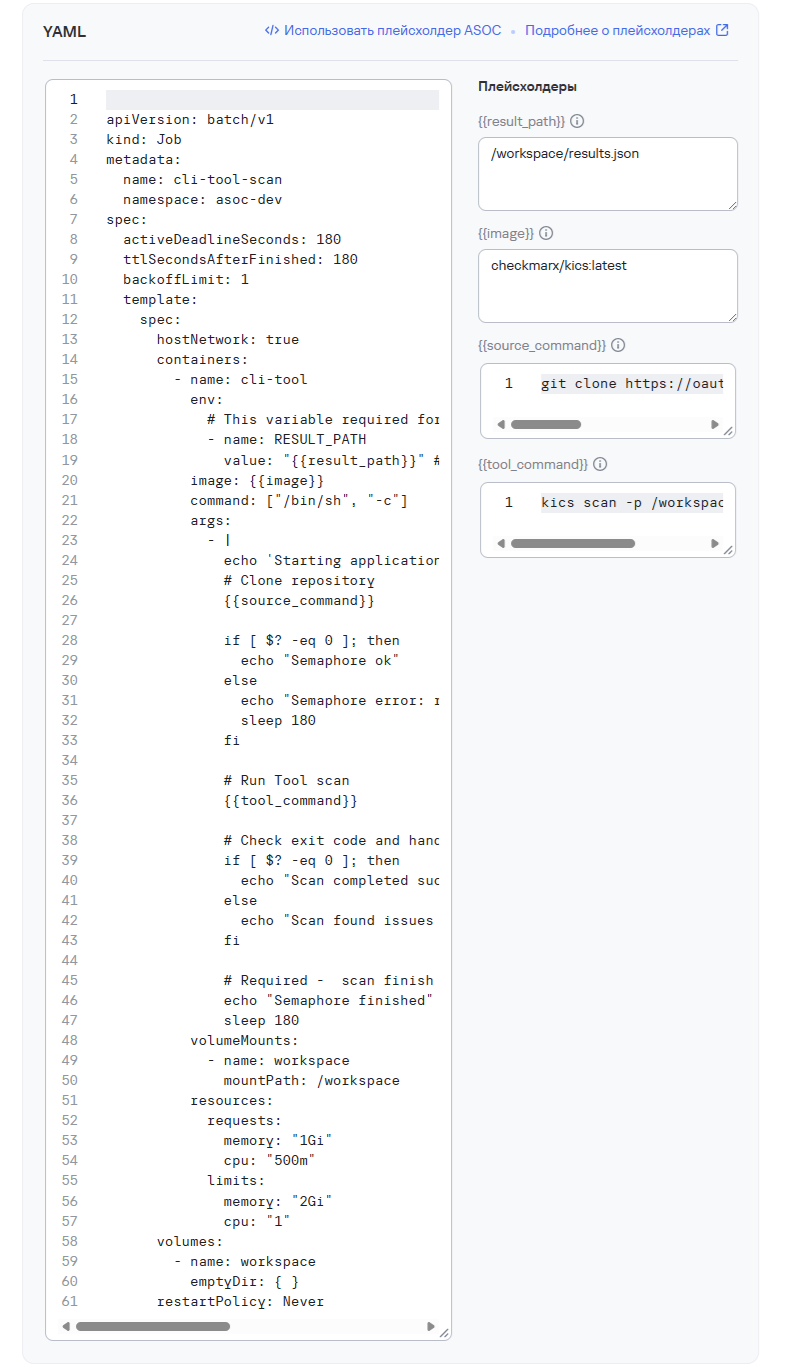
The YAML template must contain the following required elements:
- the
RESULT_PATHvariable—the path inside the container where the tool saves the scan report and sends it to the system. The system populates the variable value through the{{result_path}}placeholder; - a completion marker—a string that the container outputs to its log to notify TRON ASOC about the task status.
The completion markers are listed below:
Semaphore finished—this marker indicates that the scan finished successfully and the report is available at the path specified in theRESULT_PATHvariable;Semaphore error:—this marker indicates that the scan finished with an error.
- After you fill in the template, select Create.
Next, create a check and start the scan.
You can find examples of YAML templates below.
Considerations for running CLI tools
Keep the following considerations in mind when you create and run tools:
- Tasks are sent to the Kubernetes cluster without a queue. Each task starts immediately when received. The
k8workerruns tasks in parallel. By default, 10 workers are available, so the system can run up to 10 tasks at the same time.
You can change the number of workers in the configuration file. An example configuration is provided below:
k8s:
	k8s-workers-count: ${K8S_WORKERS_COUNT|10}
	k8s-tasks-channel-size: ${K8S_TASKS_CHANNEL_SIZE|100} #
	k8s-tasks-timeout-minutes: ${K8S_TASKS_TIMEOUT_MINUTES|60}
	k8s-client-outside-mode: ${K8S_OUTSIDE|false}
	k8s-namespace: ${K8S_NAMESPACE|default}
- You can set resource limits for tasks in two ways:
- in the YAML template parameters (
resources.requestsandresources.limits); - through Kubernetes cluster limits configured by the administrator.
YAML template examples
Below are examples of YAML templates that users fill in to run CLI tools in Kubernetes.
YAML template for running Trivy
apiVersion: v1
kind: Secret  # Тип ресурса: секрет Kubernetes для хранения чувствительных данных
metadata:
  labels:
    app: asoc
  name: int-pullsecret      # Название секрета—по нему ссылаются другие ресурсы
  namespace: {{namespace}}  # Название namespace—обязательный параметр
data:
  .dockerconfigjson: >-
    # Base64-encoded JSON с credentials для реестра repo.kcs.kaspersky.com
    cipheredCodejson==
type: kubernetes.io/dockerconfigjson  # Специальный тип секрета для Docker-реестров
# Простой Docker-образ
apiVersion: batch/v1
kind: Job  # Тип ресурса: одноразовое задание
metadata:
  labels:
    app: asoc
  name: trivy-scan-image    # Название задания
  namespace: {{namespace}}  # Название namespace—обязательный параметр
spec:
  ttlSecondsAfterFinished: 3600  # Время в секундах, по истечении которого задание и его поды удаляются
  template:
    spec:
#      imagePullSecrets:          # Раскомментировать, если образ берется из приватного реестра
#        - name: {{pull_secret_name}}
      containers:
        - name: trivy
          env:
            - name: RESULT_PATH
              value: "/workspace/report.sarif"  # Путь для сохранения SARIF-отчета
            - name: TRIVY_SEVERITY
              value: "HIGH,CRITICAL"   # Фильтр уязвимостей: только высокий и критический уровни
          image: aquasec/trivy:latest  # Официальный образ Trivy
          command: ["/bin/sh", "-c"]
          args:
            - |
              echo 'Starting Trivy image scan...'

              # Сканирование образа и сохранение SARIF-отчета
              trivy image \
                --severity $TRIVY_SEVERITY \    # Фильтр по переменной TRIVY_SEVERITY
                --format sarif \                # Формат отчета
                --output $RESULT_PATH \         # Путь из переменной RESULT_PATH
                graylog/graylog:6.1             # Целевой образ для сканирования

              echo "Scan completed. Report saved to $RESULT_PATH"
              echo "Semaphore finished" # Маркер завершения
              sleep {{job_timeout}}  # Обязательное значение timeout в секундах
          volumeMounts:
            - name: workspace
              mountPath: /workspace  # Точка монтирования тома—сюда записывается отчет
          resources:
            requests:
              memory: "128Mi"  # Гарантированный минимум памяти
              cpu: "100m"      # Гарантированный минимум CPU (0.1 ядра)
            limits:
              memory: "1Gi"    # Максимум памяти
              cpu: "1"         # Максимум CPU (1 ядро)
      volumes:
        - name: workspace
          emptyDir: {}      # Временный том: существует только во время выполнения пода, данные не сохраняются после завершения
      restartPolicy: Never  # Если значение Never, то при ошибке задание не перезапускается
YAML template for running Grype
apiVersion: batch/v1
kind: Job  # Тип ресурса: одноразовое задание
metadata:
  labels:
    app: asoc
  name: grype-scan-python   # Название задания
  namespace: {{namespace}}  # Название namespace—обязательный параметр
spec:
  ttlSecondsAfterFinished: 3600  # Время в секундах, по истечении которого задание и его поды удаляются
  template:
    spec:
      containers:
      - name: grype
        image: alpine:latest  # Базовый образ—Grype устанавливается внутри
        command:
        - /bin/sh
        - -c
        - |
          # Загрузка и установка Grype из официального репозитория Anchore
          wget -qO- https://raw.githubusercontent.com/anchore/grype/main/install.sh | sh

          # Сканирование образа python:3.10.14-alpine3.20
          # -o json: формат вывода—JSON
          # Результат сохраняется в /workspace/report.json
          grype python:3.10.14-alpine3.20 -o json > /workspace/report.json

          echo "Scan completed. Report saved to /workspace/report.json"

          # Предпросмотр отчета: вывод первых 20 строк в лог пода
          echo "First 20 lines of report:"
          cat /workspace/report.json | head -20

          sleep {{job_timeout}}  # Required: specify timeout in seconds
        volumeMounts:
        - name: workspace
          mountPath: /workspace  # Точка монтирования тома—сюда записывается отчет
        resources:
          requests:
            memory: "256Mi"  # Гарантированный минимум памяти
            cpu: "200m"      # Гарантированный минимум CPU (0.2 ядра)
          limits:
            memory: "1Gi"    # Максимум памяти
            cpu: "1"         # Максимум CPU (1 ядро)
      volumes:
      - name: workspace
        emptyDir: {}        # Временный том: существует только во время выполнения пода, данные не сохраняются после завершения
      restartPolicy: Never  # Если значение Never, то при ошибке задание не перезапускается
YAML template placeholders
Placeholders automatically insert data from the scan source. When you create a check, the system inserts the current values into the corresponding YAML template fields. The table below lists the placeholders and their descriptions.
| Placeholder | Placeholder description |
|---|---|
{{type}} | Repository or registry type |
{{vcs_url}} | URL of the repository's version control system |
{{source_url}} | Repository URL |
{{file_path}} | Path to the file in the repository |
{{file_path_route}} | Part of the path to the file in the repository that ends with /, without the file name |
{{source_url_token}} | Repository URL token |
{{auth_method}} | Repository authentication method |
{{api_token}} | Repository API token |
{{login}} | Repository or registry login |
{{password}} | Repository or registry password |
{{branch_name}} | Repository branch name |
{{ssh_key}} | Repository SSH key |
{{ssh_user}} | Repository SSH user |
{{ssh_passphrase}} | SSH key passphrase |
{{http_url}} | Repository HTTP(S) URL |
{{api_url}} | Registry API URL |
{{registry_url}} | Registry URL |
{{image_name}} | Image name in the registry |
{{path_method}} | Method for constructing the path in the registry |
{{result_path}} | Path to the result file for parsing detected issues |
{{image}} | Tool Docker image |
{{source_command}} | Source code clone command |
{{tool_command}} | Tool run command |