Actions with task trackers
Adding a task tracker
info
To add a task tracker, the user must have at least the following permissions:
- View trackers;
- Manage trackers;
- Create tasks for the tracker;
- View and comment (within the access scope for security issues).
To add a task tracker, follow these steps:
-
Go to Integrations → Task trackers.
-
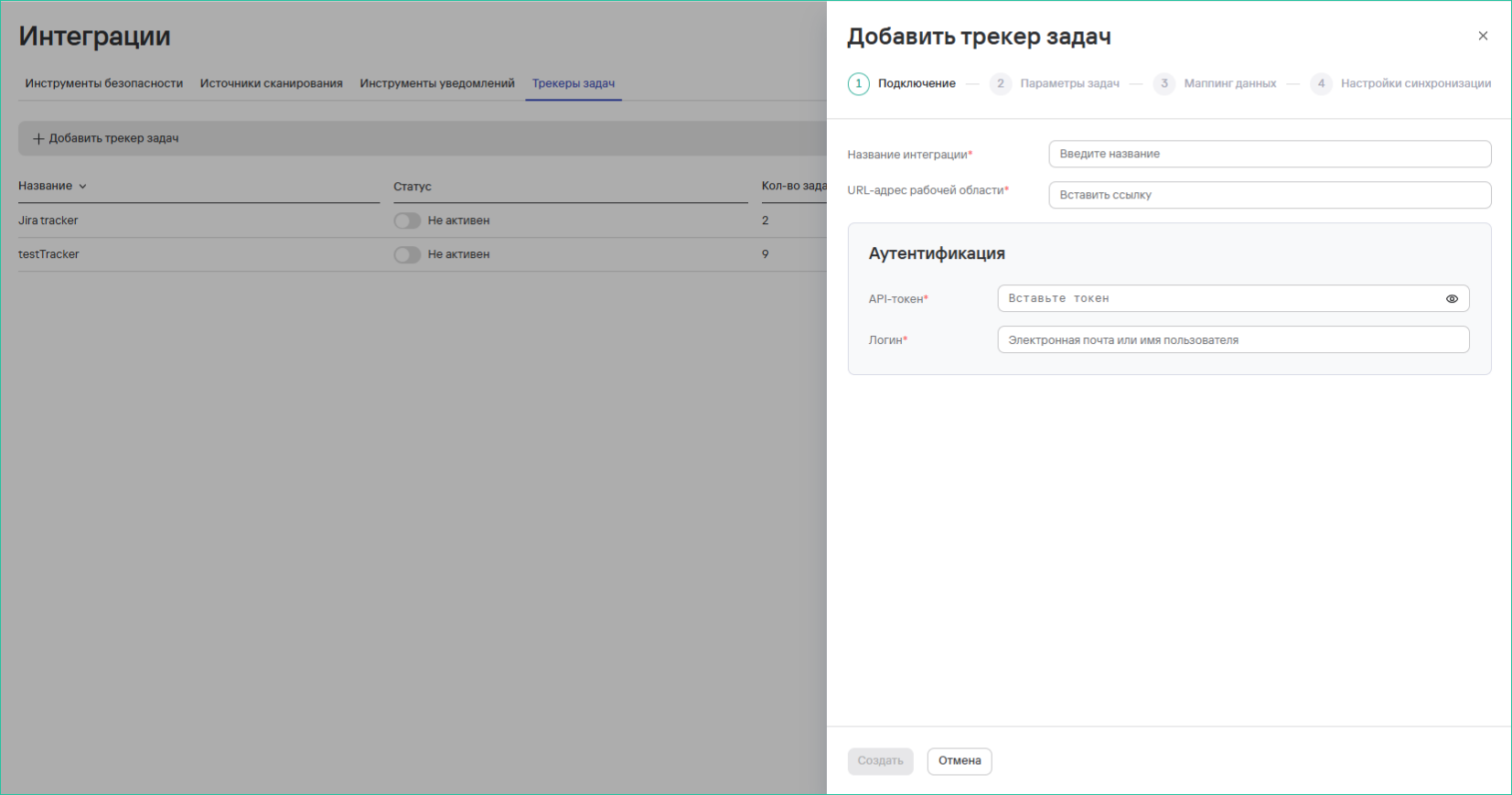
In the window that opens, enter the connection parameters:
- Integration name (for example, Jira Tracker);
- Workspace URL;
- Authentication API token;
- Authentication username.
-
Select Create.
-
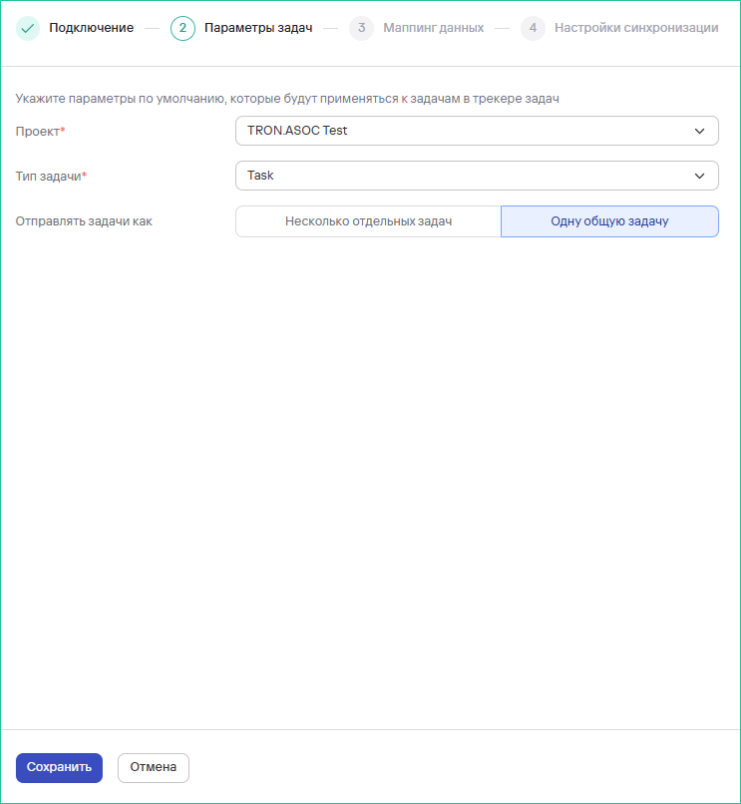
Specify the task parameters:
- Project;
- Task type:
- Epic;
- Improvement;
- Task;
- Subtask;
- New feature;
- Bug;
- Task submission format:
- Multiple separate tasks;
- One combined task.
-
Select Save.
-
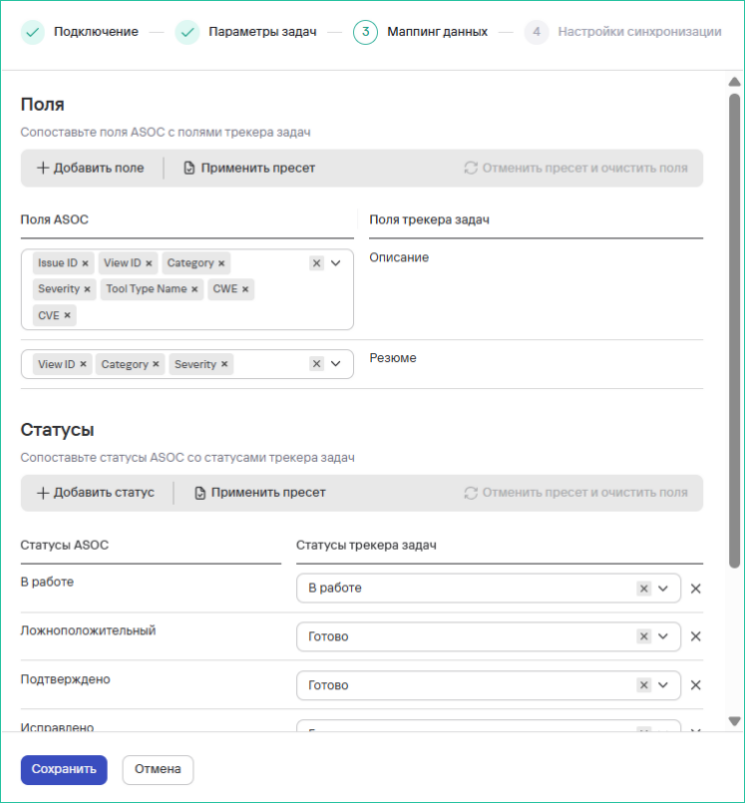
Complete the task mapping parameters. To do this:
- select Apply preset to prepopulate the data;
- map ASOC fields to tracker fields in the Fields section;
- map ASOC statuses to tracker statuses in the Statuses section.
-
Select Save.
-
If necessary, enable the Send changes represented in the task tracker to ASOC option.
tip
This action lets you avoid tracking task status in the tracker and update the data in TRON.ASOC manually.
- Select Save.
After the connection succeeds, the tracker appears in the list with the Active status.
Deleting one or more task trackers
To delete one task tracker, follow these steps:
- Go to Integrations → Task trackers.
- Select the additional actions button (
 ) next to the task tracker you need.
 - Select Delete.
- Confirm the task tracker deletion in the modal window that opens.

To delete multiple task trackers, follow these steps:
- Select the trackers using the checkboxes (
 )
) - Select the delete button (
 ) above the task tracker table.
 - Confirm the task tracker deletion in the modal window that opens.