Actions with groups
A system administrator can perform the following actions with groups:
- add new groups;
- add users to groups;
- delete one or more groups.
Creating a user group
To create a user group, follow these steps:
- Go to Access management → Groups.
- Select Create group.
- In the window that opens, enter the following information:
- group name;
- roles;
- project Tags;
- users.
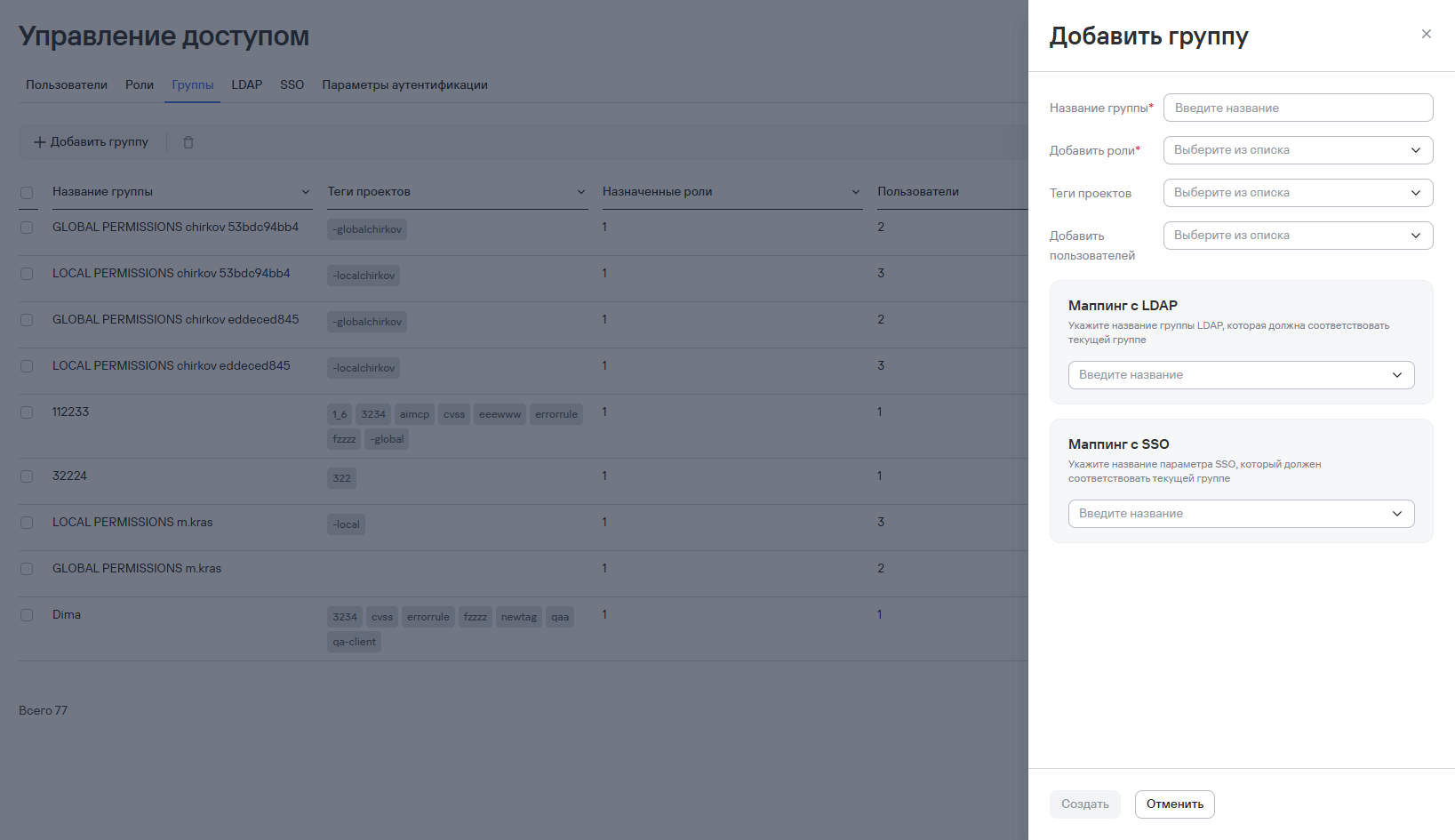
- Set up LDAP/SSO mapping.
info
To add an LDAP group, add an LDAP/AD integration. The LDAP/AD group then appears in the group list in the LDAP mapping section.
For more information about adding LDAP/SSO groups, see LDAP setup and SSO setup.
- Select Create.
Deleting one or more user groups
To delete one group, follow these steps:
- Select the additional actions button (
 ) next to the required group.
 - Select Delete.
- In the modal window that opens, confirm the deletion of the user group.

To delete multiple groups, follow these steps:
- Select the groups to delete using the checkboxes (
 )
) - Select the delete button (
 ) above the user groups table.
 - In the modal window that opens, confirm the deletion of the user groups.