Actions for security rules
Creating a security rule
To create a security rule, follow these steps:
- Go to the Security rules section.
- Select Add rule.
- Complete the form with the following information:
- name;
- security check type;
- tool type;
- tool name;
- severity level;
- CVSS score (v.2, v.3x, v.4, v.?);
- exploitability;
- category;
- source;
- source branch/tag;
- file;
- line;
- matching code;
- library name;
- library version;
- CVE;
- CWE;
- assignee;
- issue status;
- scope—all projects or a specific project/scanning source;
- expiration time.
- If you select Specific project/source for the scope, also provide the following information:
- project;
- project layer;
- scanning sources.
- Select Create.
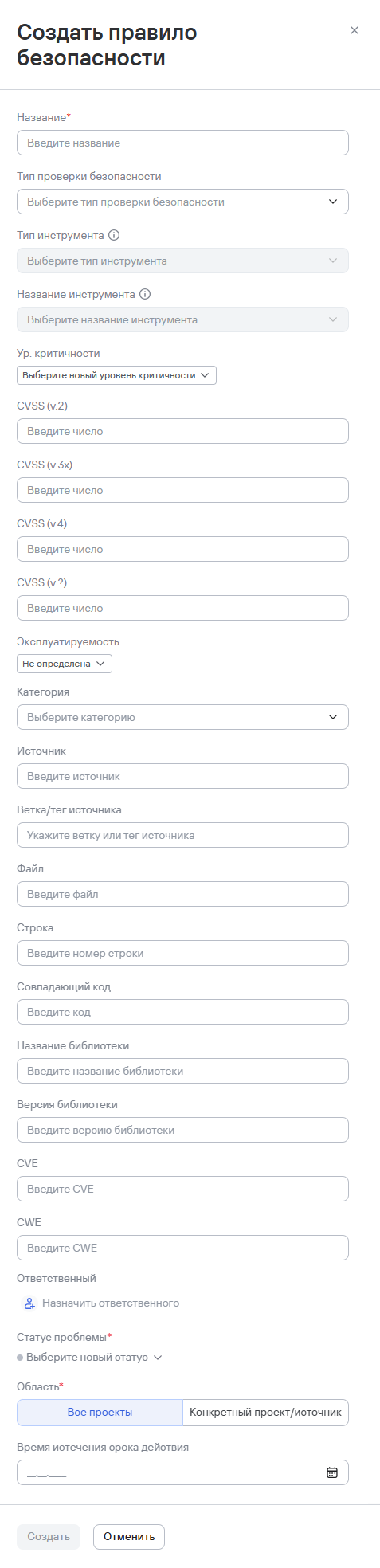
The rule will apply to all new and existing issues that meet the criteria.
Activating a security rule
To activate a security rule, follow these steps:
- Go to the Security rules section.
- Select the additional actions button (
 ) next to the required rule.
 - Select Edit.
- In the window that opens, set the rule's expiration time if needed.
- Select the status to assign to the issue after the rule expires.
- Select Activate.
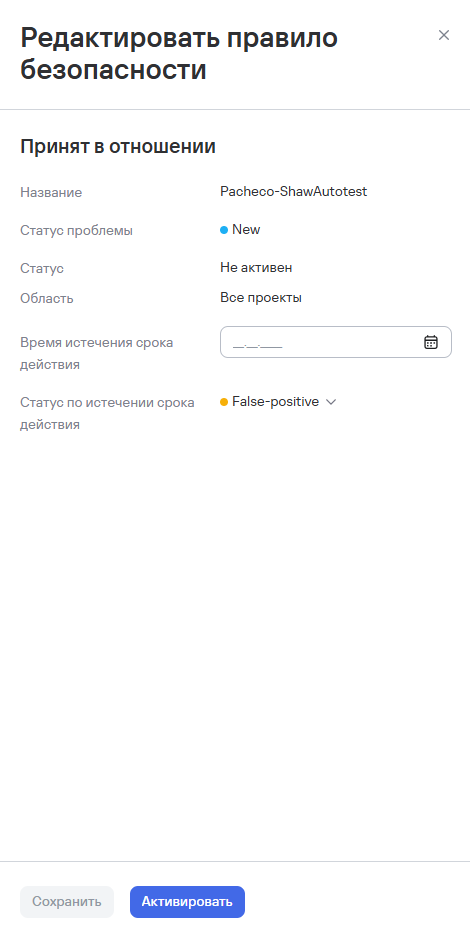
The system will activate the rule and apply it when the conditions specified in the rule are met.
Deleting security rules
To delete one security rule, follow these steps:
- Select the additional actions button () next to the required security rule.
- Select Delete.
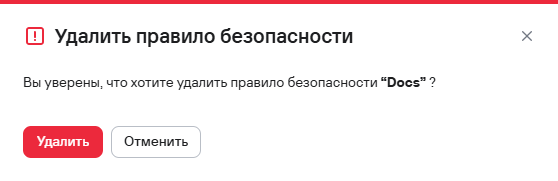
- In the modal window that opens, confirm the deletion of the security rule.
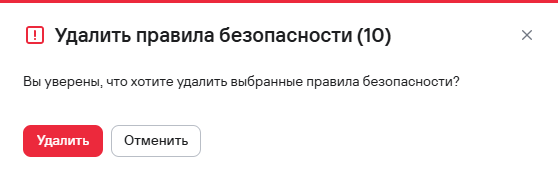
To delete multiple security rules, follow these steps:
- In the Security rules section, select the security rules using the checkboxes (
 ).
). - Select the delete button (
 ) above the rules table.
 - In the modal window that opens, confirm the deletion of the security rules.