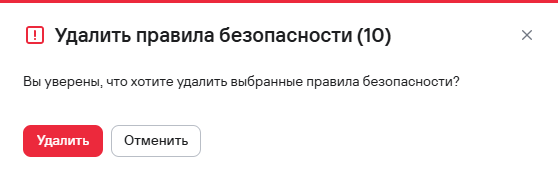
Actions with security rules
Creating a security rule
To create a security rule, follow these steps:
- Go to the Security rules section.
- Select the Add rule button
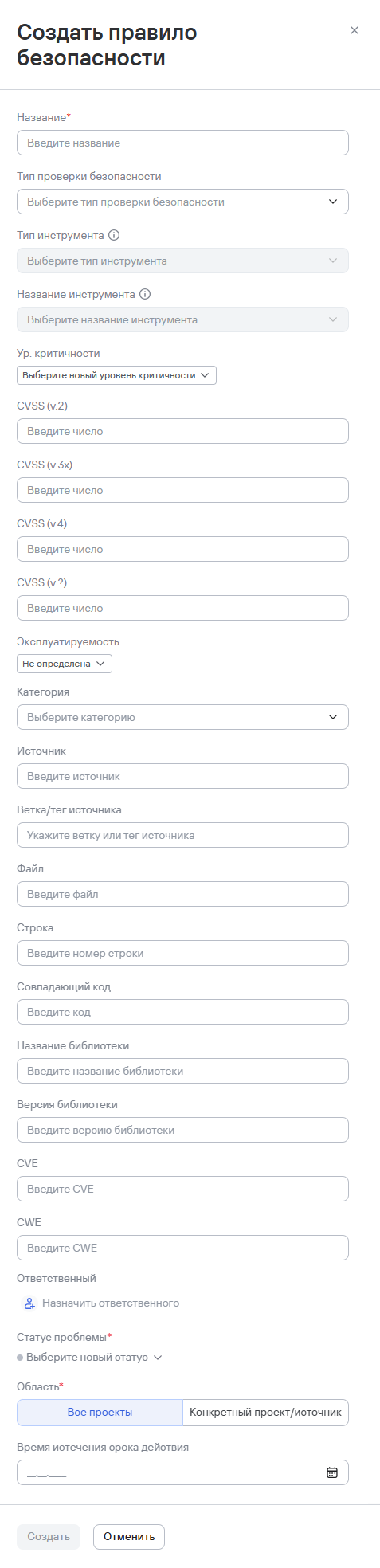
- Complete the form with the following information:
- name;
- security check type;
- tool type;
- tool name;
- severity level;
- CVSS score (v.2, v.3x, v.4, v.?);
- exploitability;
- category;
- source;
- source branch/tag;
- file;
- line;
- matching code;
- library name;
- library version;
- CVE;
- CWE;
- assignee;
- issue status;
- scope—all projects or a specific project/scanning source;
- expiration time.
- When you select Specific project/source for the scope, also provide the following information:
- project;
- project layer;
- scanning sources.
- Select the Create button
The rule applies to all new and existing issues that match the criteria.
Activating a security rule
To activate a security rule, follow these steps:
- Go to the Security rules section.
- Select the additional actions button (
 ) next to the rule you need.
 - Select Edit.
- In the window that opens, set the rule's expiration time if needed.
- Select the status to assign to the issue after the rule expires.
- Select the Activate button.
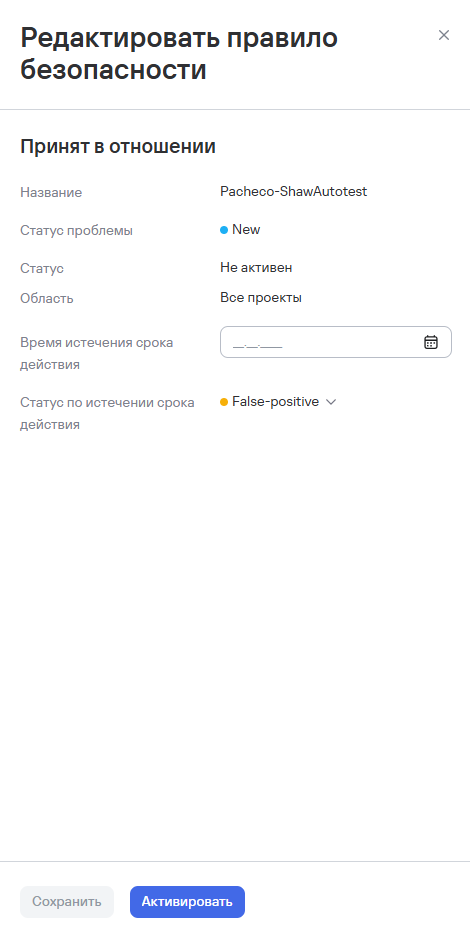
The rule is active in the system and triggers when the specified conditions are met.
Deleting security rules
To delete one security rule, follow these steps:
- Select the additional actions button () next to the security rule you need.
- Select Delete.
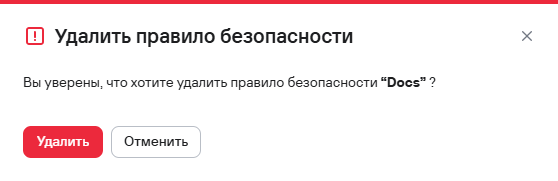
- In the modal window that opens, confirm the deletion of the security rule.
To delete multiple security rules, follow these steps:
- In the Security rules section, select the security rules using the checkboxes (
 )
) - Select the delete button (
 ) above the rules table.
 - In the modal window that opens, confirm the deletion of the security rules.