Customization
In the Customization section, users can:
- add, edit, or delete statuses for security issues;
- add, edit, or delete transitions between statuses;
- import or export statuses and transitions between statuses;
- add, edit, or delete project layer templates;
- add, edit, or delete project fields.
The section contains the following subsections:
- Status model;
- Project layer templates;
- Project fields.
The “Status model” subsection
This subsection contains two tabs:
- Statuses;
- Transitions.
The “Statuses” tab
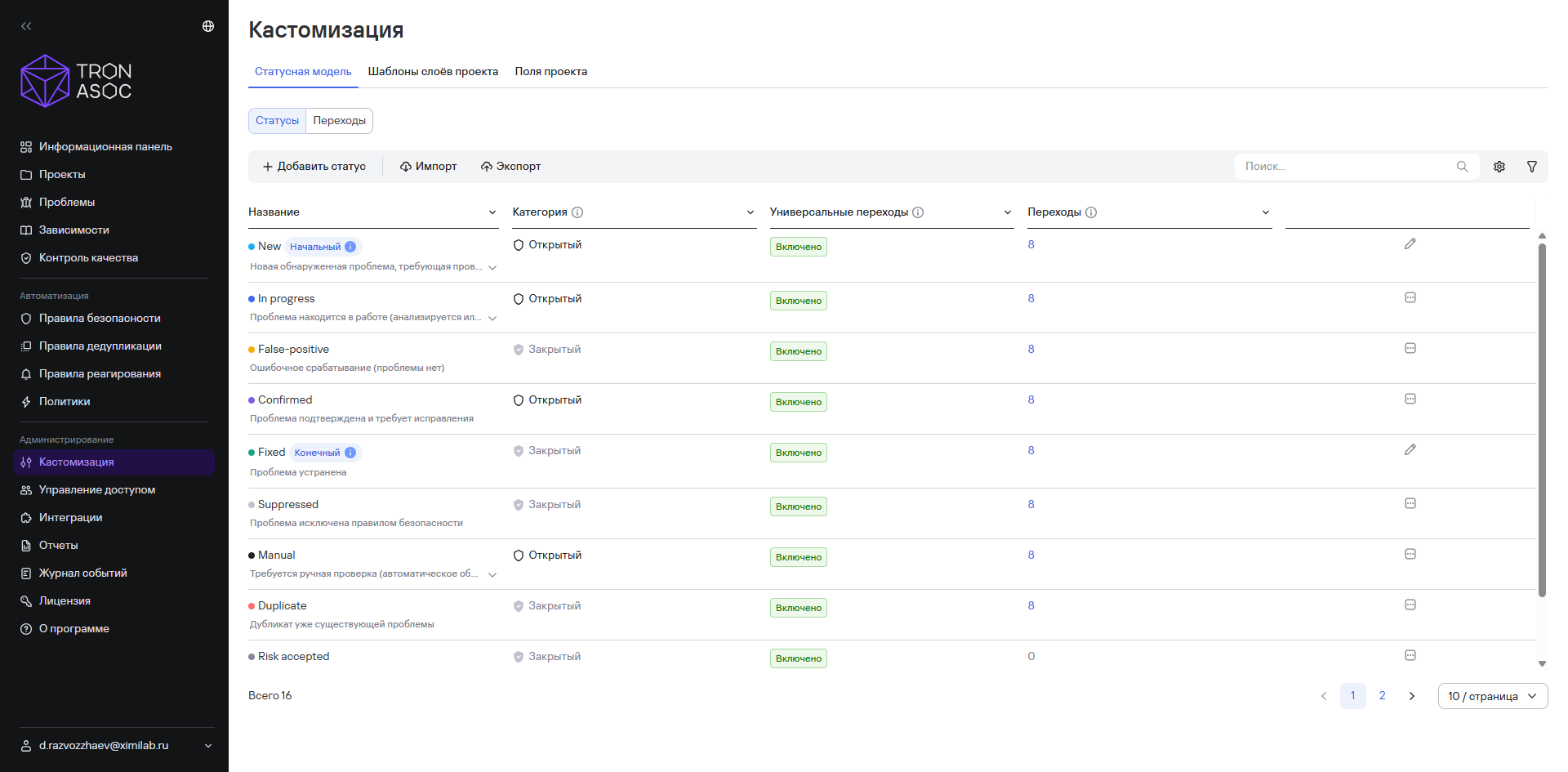
This tab displays a list of custom statuses for security issues. The status table contains the following columns:
- Status name - the status name and description
- Category - determines whether the status is open or closed. The system includes the following status categories:
- Open - an open security issue status (for example, New)
- Closed - a closed security issue status (for example, Fixed)
At least one status from each category must exist because these statuses indicate security issue activity and are used to collect statistics for reports and dashboards. To ensure this, the system doesn't allow you to delete the New, Fixed, and Reopen statuses.
- Universal transitions - determines whether you can transition to the status from any other status
- Transitions - the number of related transitions
When you select the number of transitions, the system opens a page that displays a list of related transitions. If the number of transitions is 0 but the universal transition is enabled for the status, the value appears in gray. If the number of transitions is 0 and the universal transition is disabled for the status, the value appears in red. This indicates that you can't assign the status to a security issue because it isn't part of the status workflow.
By default, the system includes the following statuses:
- New—a newly detected issue that requires review
The system automatically assigns the New status to issues it detects for the first time.
- In progress—the issue is being worked on (analyzed or fixed)
- Manual—the issue requires manual review (automatic detection isn't sufficient)
- Confirmed—the issue has been confirmed and requires remediation
- False-positive—a false detection (the issue doesn't exist)
- Duplicate—a duplicate of an existing issue
- Suppressed—the issue was excluded by a security rule
- Risk accepted—the risk was accepted (no remediation is required)
- Fixed—the issue was fixed
The system automatically assigns the Fixed status to issues it doesn't detect during the next scan.
- Reopen—the issue was detected again
The Duplicate, False-Positive, and Covered by security policy indicators (in the detailed security issue information) aren't issue statuses. Using these indicators doesn't change the issue status. To work with these indicators as statuses, use the corresponding statuses and, if necessary, add custom statuses to the status model.
The “Transitions” tab
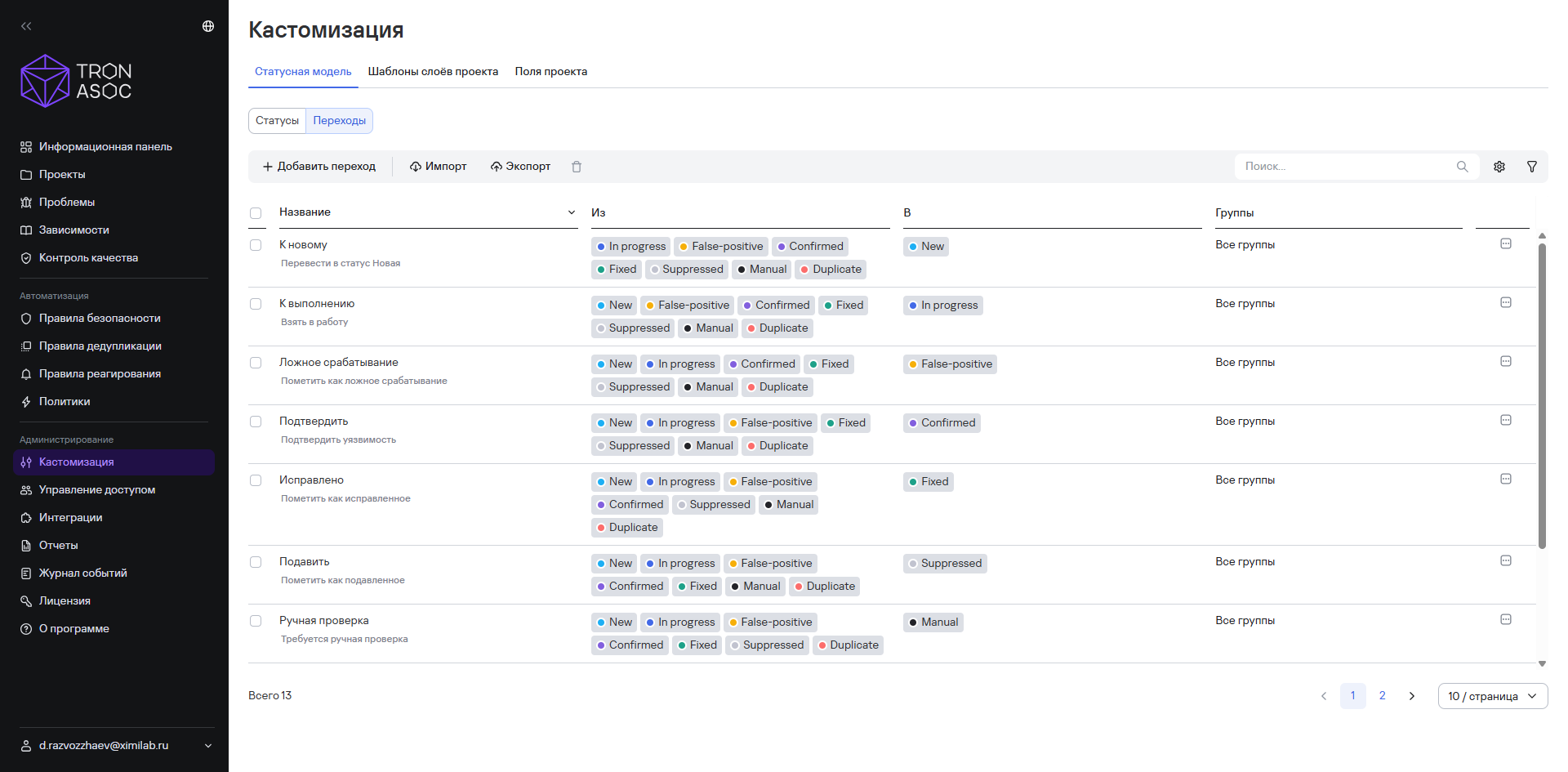
The Transitions tab displays a list of custom transitions from one status to another as part of the status model for security issues. The transition table contains the following columns:
- Transition - the transition name
- From - the status or statuses from which the transition is configured.
- To - the status or statuses to which the transition is configured.
- Groups - determines which groups can use the transition (if no values are specified, the transition is available to all system users)
By default, the system doesn't have any transitions configured. You can use the default system universal statuses.
The “Project layer templates” subsection
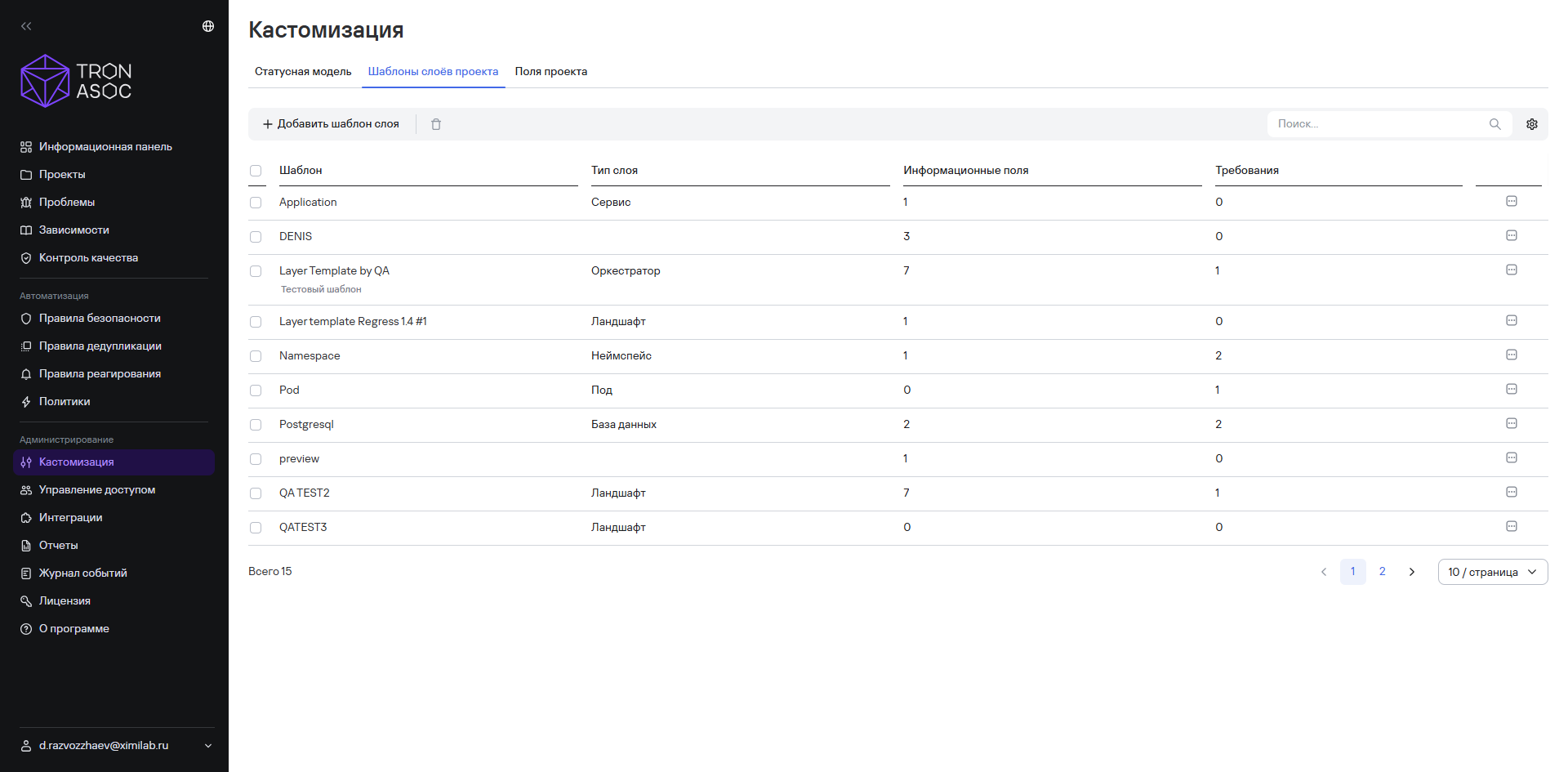
The Project layer templates subsection contains a list of custom templates for project layers.
The templates appear in a table with the following characteristics:
- Template - the template name and description;
- Layer type from the following options:
- Landscape;
- Network segment;
- Orchestrator;
- Namespace;
- Service;
- Gateway;
- Release;
- Virtual machine;
- Container;
- Pod;
- Docker;
- Storage;
- Database;
- Information fields - the number of additional fields or field groups displayed on the Information tab in the template;
- Requirements - the number of additional requirements or requirement groups displayed on the Requirements tab in the template, if applicable.
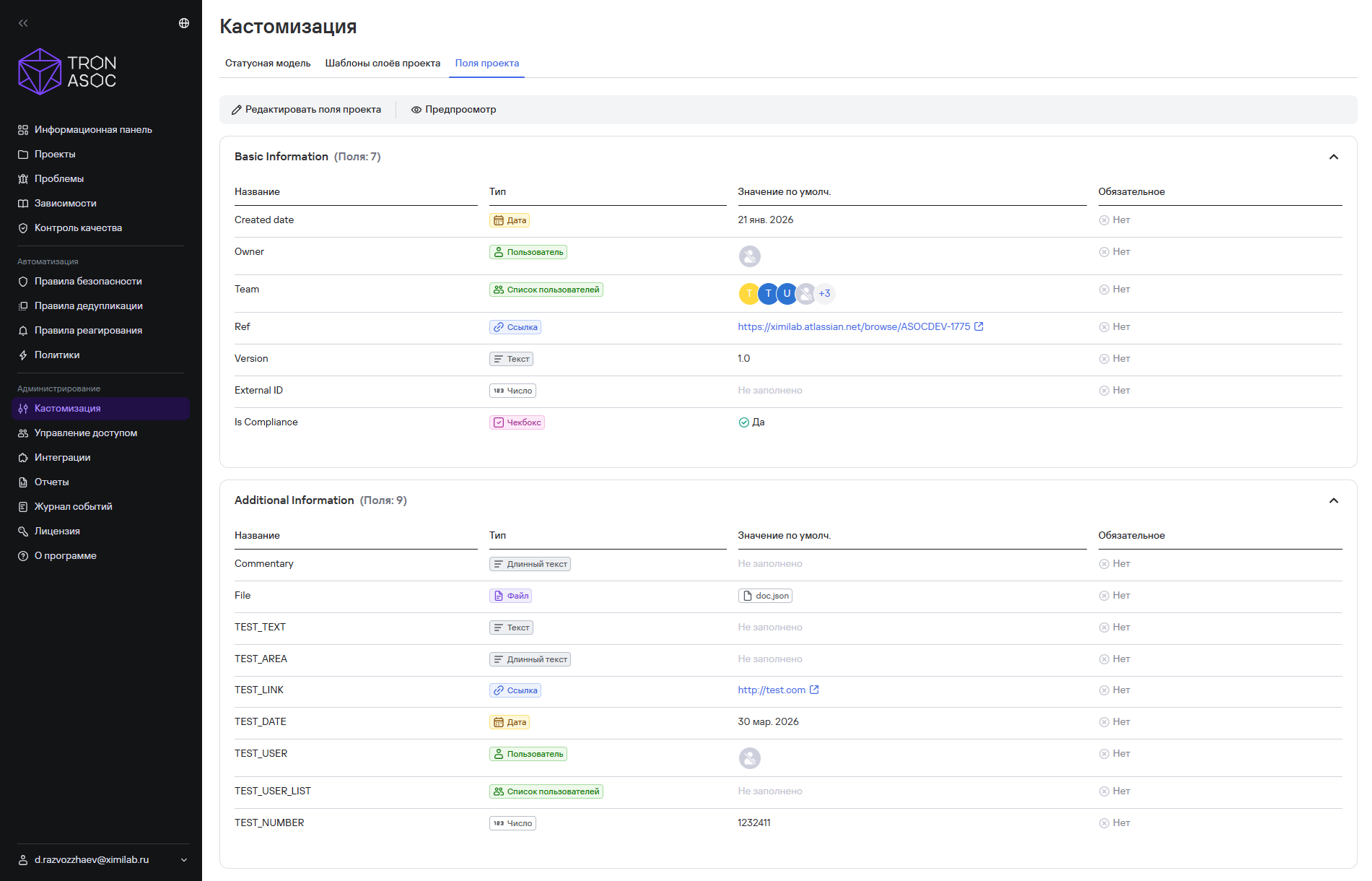
The “Project fields” subsection
In the Project fields subsection, you can create, configure, and delete custom project fields. By default, the system includes only system fields:
- Project code;
- Project name;
- Description;
- Tags.