Create a security check
A security check combines a scanning tool and a scan source. You use it to run security scans and get scan results.
Before you add security checks, make sure the system has an integration configured with the required scan sources. See Integrations → Security sources.
If you have system permissions to manage scan sources, you can add the required sources. For more information, see Scan sources.
Security check parameters
Security checks within a layer contain the following data:
- #—the security check sequence number;
- Source—the scan source name;
- Tool—the security tool name;
- Run (Manual/Automatic);
- Quality controls;
- Check status—the quality control status for an individual check;
If a quality control fails, you can find out which metrics caused the failure. To do this, select the Failed status. A window opens with a list of quality control metrics.
- Scan results for an individual check;
- Security issues for an individual check;
- Additional actions for the check:
- Start a new scan;
- Edit check;
- Import results;
- Import SBOM;
- Delete check;
- Add security issues manually (available for the Manual tool type);
Create a new security check
To add a security check, follow these steps:
- Go to Projects → Project name → Security layers → Project layer.
- Select Add if no checks have been added, or select Add security check.
- Enter the data in the security check creation form.
Keep the following in mind when you fill out the form:
- You can select an existing source for scanning, or enter the name of a new source and select Create "source name". The system creates a new source with the Custom type;
- When you configure a security check, selecting a security tool is required. You can select only a tool that an administrator previously added in the Integrations section;
- The form fields depend on the selected Source and Tool fields;
- You can add multiple source branches/tags when you create a check;
- For some security tools, you can select the scan run type (manual or automatic), the run frequency, and the scan run time for automatic runs;
- When you select the Appscreener SAST tool, you can generate and download an API request.
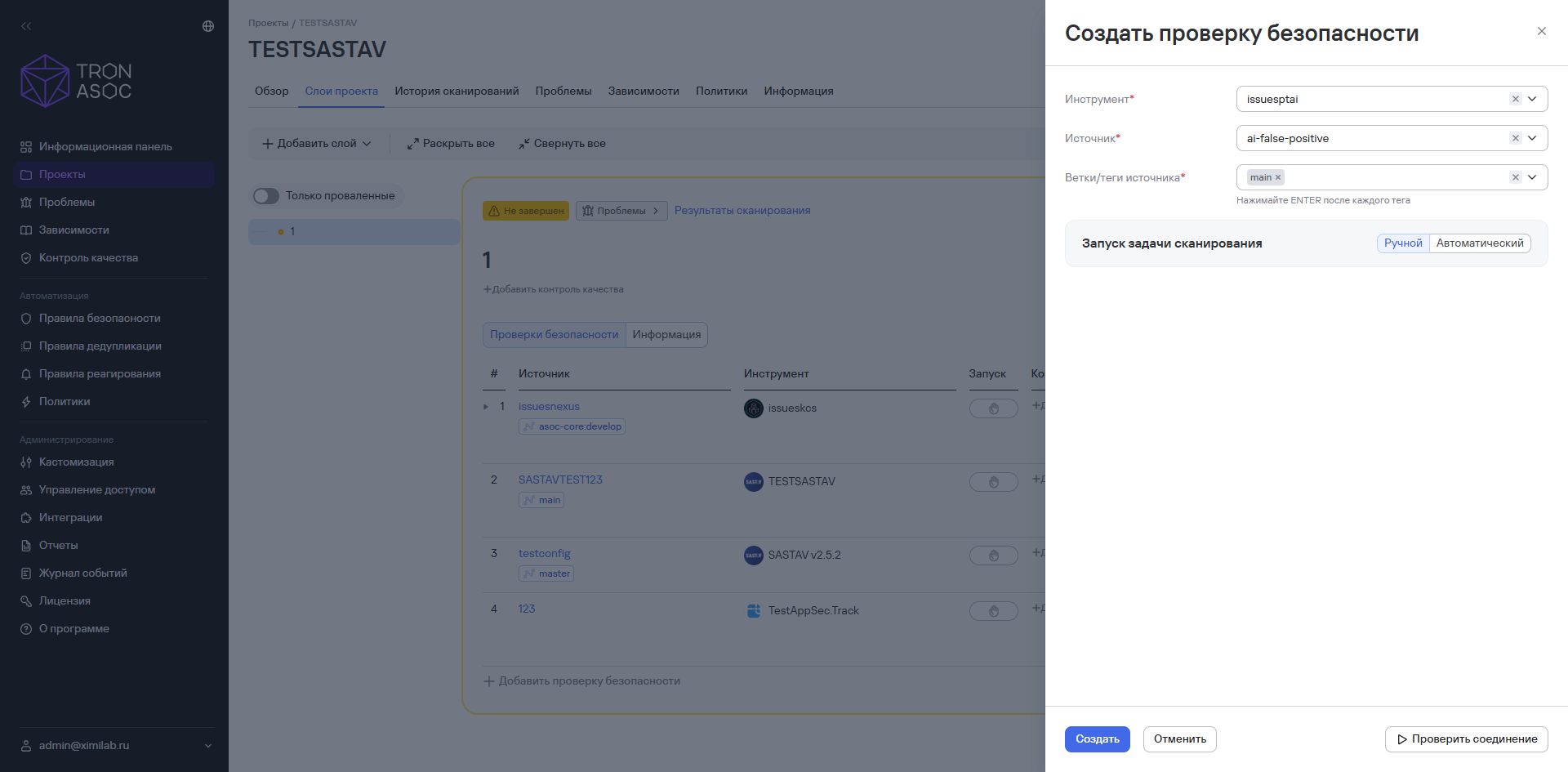
- Specify how to run the security check: manually or on a schedule.
- If you select On a schedule, specify the scan interval and scan time.
- Test the connection to the tool by selecting Test connection.
You can test the connection only if you previously entered the tool's authentication data correctly. If the data is correct, the connection test succeeds. If the connection fails, check the data and try again.
You can also test the connection to the security tool in Integrations → Security tools. To do this, select the additional actions button ( ) next to the integration, and select Test connection.
- Select Create.
Keep the following in mind when you create a security check:
- If the system administrator didn't specify an authentication method when creating the integration with the security tool or scan source, you must enter authentication data when you add the tool or source to a security check (API token, login/password).
- If you select an authentication method while creating a security check, you must enter authentication data.
- When you edit the scan source in an existing security check, the Source branches/tags field appears or disappears based on the new source type:
- If the new source doesn't use branches, the branch field is hidden;
- If it doesn't use images, the tag field is hidden.