Security Tools
Viewing all connected security tools is available in the Integrations → Security Tools section. The functionality also allows adding new tools, editing, and deleting existing ones.
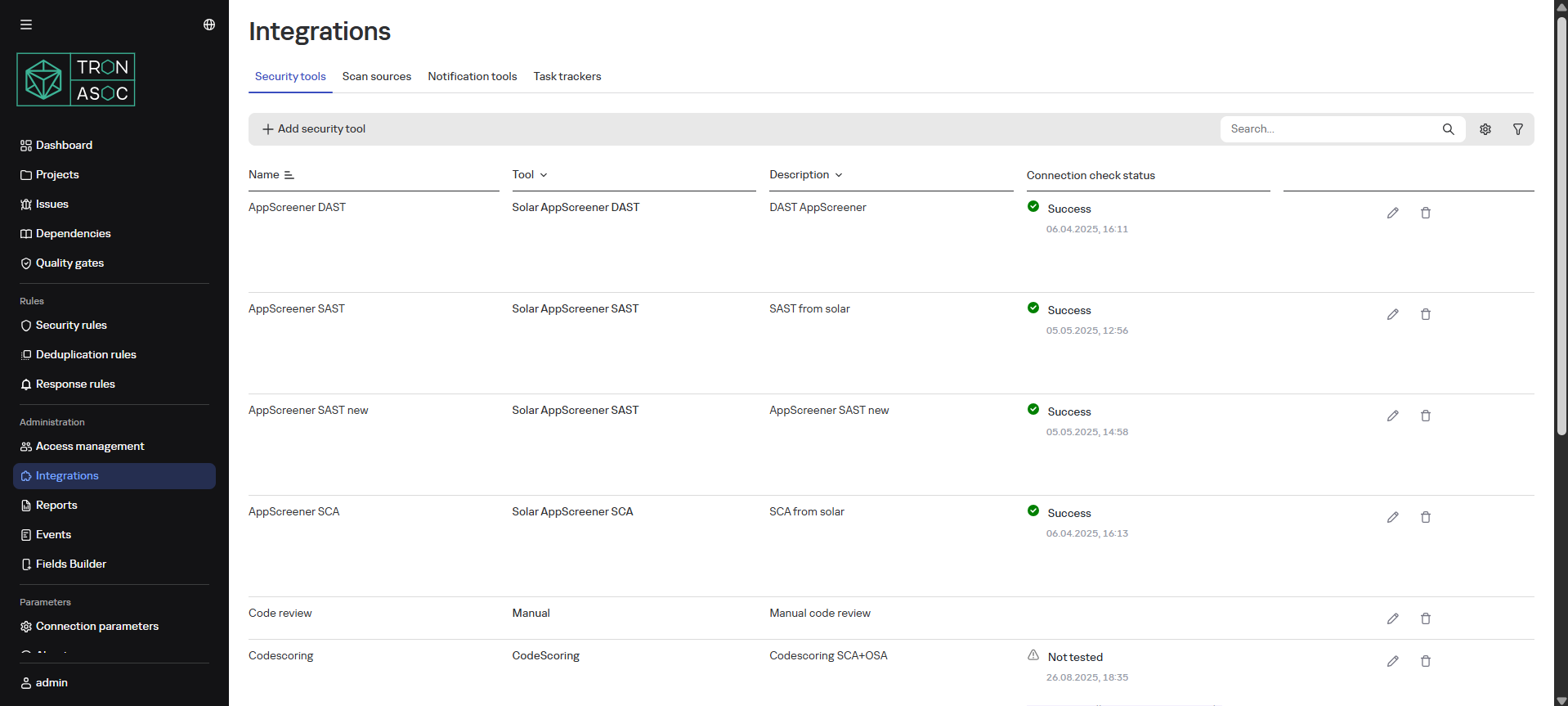
Supported Security Tools
- PT Application Inspector
- Kaspersky Container Security
- Solar AppScreener
- Aqua
- CodeScoring
- Grype
- KICS
- OWASP Dependency Track
- Trivy
- Semgrep
- ESLint
- PVS-Studio
Connecting Security Tools
To add a new security tool, follow these steps:
- In the Integrations → Security Tools section, click the Add Security Tool button
- Fill in the fields:
- Name
- Description
- Tool (select from the list)
- Depending on the tool, fill in additional fields:
- Tool description
- URL
- Scan results language
- Authentication method (optional at this stage)
info
Selecting an authentication method at this step is not mandatory, but without specifying an authentication method, you cannot test the connection to the tool. The fields to fill in may vary depending on the chosen authentication method.
- For authentication:
- API Token: fill in the "API Token" field
- Login/Password: fill in the "Login" and "Password" fields
note
Additionally, some tools offer advanced configuration options that rely on data obtained through the tool integration. This includes information such as license validation details, tool-specific limitations, and the availability or unavailability of certain features. For the CodeScoring tool, existing authentication data can be utilized.
cautionWhen updating TRON.ASOC to version 1.3, it is necessary to reconfigure the integration with CodeScoring due to adaptations made for the new, non-backward compatible version CodeScoring 2025.29.3.
- Then click the Test Connection button (only available when an authentication method is specified)
- Click the Create button
Editing a Tool
To edit a tool, follow these steps:
- Click the edit button
 in the tool row
 - In the opened form, modify the necessary parameters
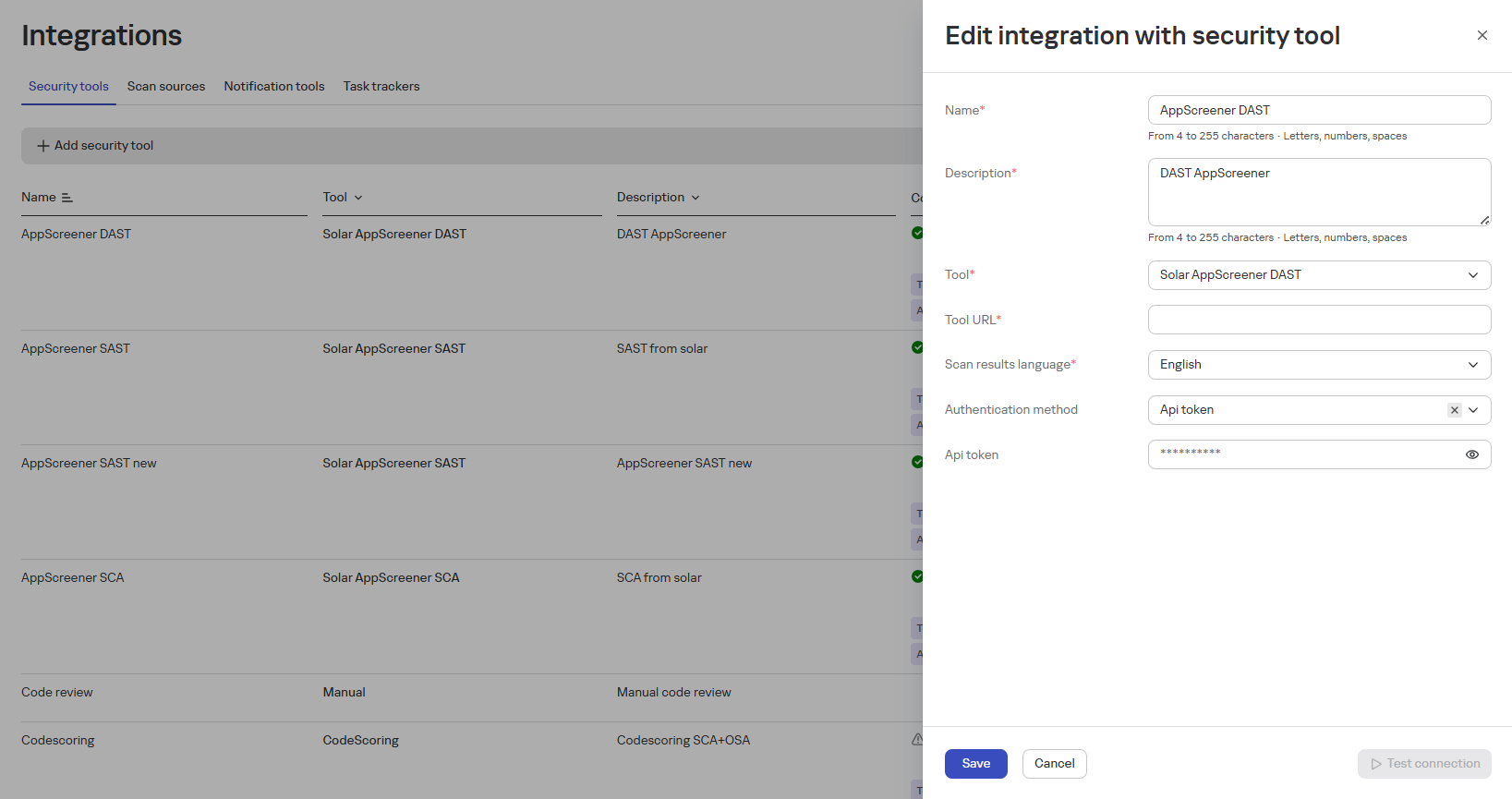
- Click the Save button
Deleting a Tool
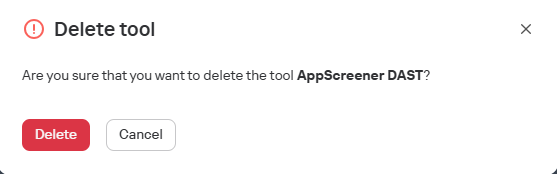
To delete a tool, follow these steps:
-
Click the delete button
 in the tool row
 -
In the opened window, confirm the deletion
Integration Examples with Tools
Adding PT Application Inspector Tool
To add the tool to the platform, follow these steps:
- Navigate to the Integrations → Security Tools section
- Click the Add Security Tool button
- Fill in the fields:
- Integration Name - e.g., Inspector (name must be unique)
- Description - for easy identification, e.g., Positive Inspector
- Tool - select the tool from the dropdown list (in this example, PT Application Inspector)
- Configure connection parameters:
- API URL - e.g., https://your.company.ptsecurity/api/v1
- Scan results language
- Authentication method (Login/Password or API Token)
info
The authentication method can be specified later when adding a security check
- Click the Test Connection button. If the fields are filled correctly, the test status should be successful. If the connection fails, check the correctness of the entered data and try again.
- Click the Save button
Adding Kaspersky Container Security (KCS) Tool
To add the tool, follow these steps:
- Navigate to the Integrations → Security Tools section
- Click the Add Security Tool button
- Fill in the required fields:
- Name
- Description
- Tool (Kaspersky Container Security)
- Specify additional parameters:
- URL: https://your.company.kcs/api/v1
- Scan results language
- Authentication method: API Token
info
The authentication method can be specified later when adding a security check
- Add the token in the API Token field
- Click the Test Connection button. If the fields are filled correctly, the test status should be successful. If the connection fails, check the correctness of the entered data and try again.
- Click the Save button