Import reports from security tools
The system supports importing scan results from external security tools. It processes scan results in the following ways:
- parsing based on universal output formats (SARIF);
- parsing based on report formats supported by security tools.
The following list shows the formats supported by security tools.
| Security tool | File format | Format name |
|---|---|---|
| Aqua | HTML inside JSON | Custom HTML Report |
| CodeScoring | JSON | Custom CodeScoring JSON |
| ESLint | JSON | ESLint Report JSON |
| External | JSON | SARIF 2.1.0 |
| GitLab Advanced SAST | JSON | GitLab SAST Report JSON |
| Gitleaks | JSON | Gitleaks JSON Report |
| Grype | JSON | Grype Vulnerability Report JSON |
| KCS | JSON | KCS (Kubescape) JSON |
| KICS | JSON | KICS Scan Results JSON |
| Manual | JSON | ASOC Manual Issue Format JSON |
| OWASP Dependency Track | JSON | CycloneDX-based JSON |
| PT AI | JSON | PT Application Inspector JSON |
| PVS | JSON | SARIF 2.1.0 |
| SASTAV | JSON | SASTAV Security Scan Report JSON |
| Semgrep | JSON | Semgrep Results JSON |
| Solar Appscreener | JSON | Custom JSON (SCA/DAST/SAST) |
| Stingray | JSON | Stingray Defect Report JSON |
| Trivy | JSON | Trivy Vulnerability Report JSON |
The system doesn't limit the size of an imported report or the number of vulnerabilities it contains. However, importing a large amount of data might slow down the import process. If the file content doesn't match the format, the system returns a parsing error and doesn't upload the report.
When you upload another scan report from the same tool:
- The system doesn't create issues that were absent from previously uploaded reports—it considers the issues present in the uploaded report.
- The system updates the last detected time for issues that appear again in the new report.
When you enable the Partial import option, the system doesn't overwrite issues imported from earlier reports when it imports subsequent reports. For example, if the first report contains 5 issues and the second contains 2 new issues, the total number of detected issues with Partial import enabled is 7. Without this option, the total would be 2.
Upload a report to the system
To upload a scan report generated outside the system, follow these steps:
- Go to Projects → Project name → Security layers.
- Select the more actions button (
 ) next to the required check.
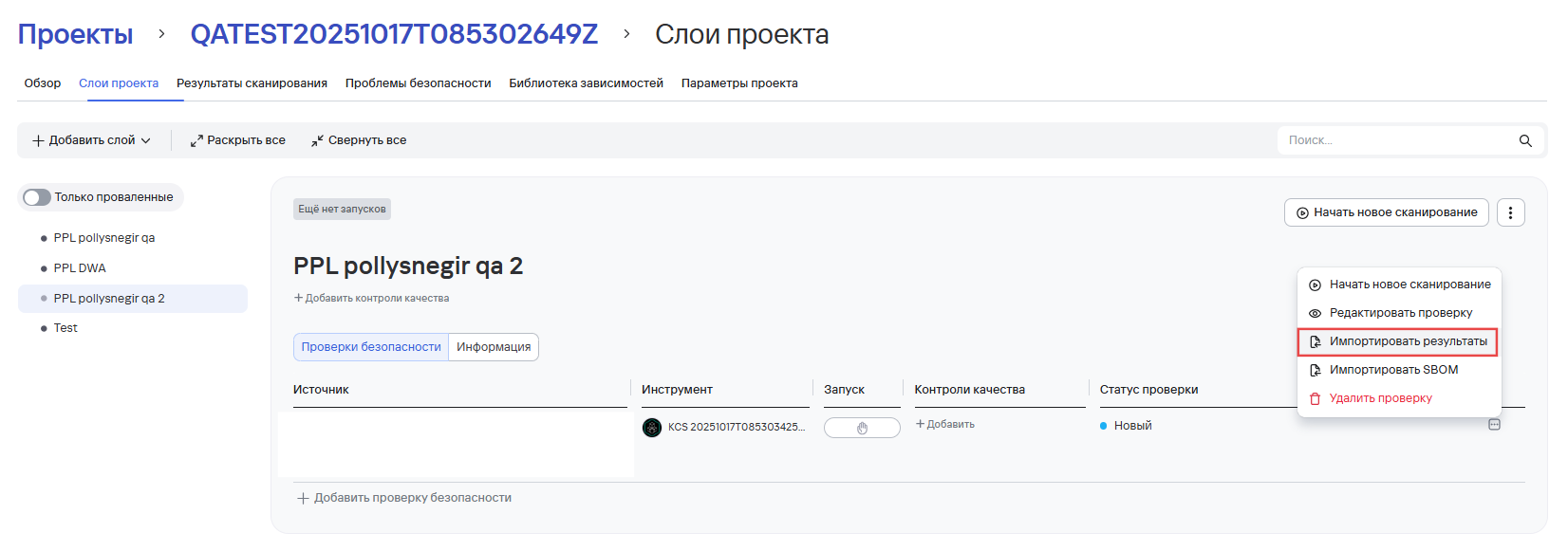
You can upload SBOM reports for some tools. For more information about uploading SBOM reports, see SBOM reports.
- Select Import results.
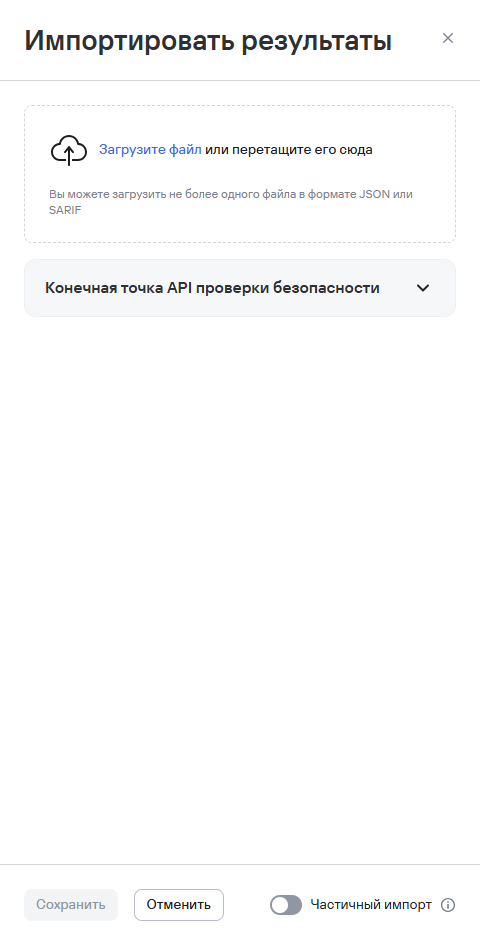
- In the form that opens, upload the SARIF file with the results.
- Select Partial import if you don't want to close missing issues.
- Select Save.
The following example shows a report in SARIF format.
{
  "version": "2.1.0",
  "runs": [
    {
      "tool": {
        "driver": {
          "name": "MySecurityScanner",
          "rules": [
            {
              "id": "SEC001",
              "name": "InsecureLibraryUse",
              "helpUri": "https://example.com/rules/SEC001-CVE-2023-12345",
              "properties": {
                "tags": ["security", "CWE-79", "injection"],
                "references": [
                  "https://cwe.mitre.org/data/definitions/79.html",
                  "https://nvd.nist.gov/vuln/detail/CVE-2023-12345"
                ]
              }
            }
          ]
        }
      },
      "properties": {
        "category": "dependency-analysis"
      },
      "results": [
        {
          "ruleId": "SEC001",
          "level": "error",
          "message": {
            "text": "Vulnerable library detected: lodash@4.17.11"
          },
          "locations": [
            {
              "physicalLocation": {
                "artifactLocation": {
                  "uri": "src/utils/parser.js"
                },
                "region": {
                  "startLine": 42,
                  "snippet": {
                    "text": "const _ = require('lodash');"
                  }
                }
              }
            }
          ],
          "codeFlows": [
            {
              "threadFlows": [
                {
                  "locations": [
                    {
                      "location": {
                        "physicalLocation": {
                          "artifactLocation": {
                            "uri": "src/utils/parser.js"
                          },
                          "region": {
                            "startLine": 42
                          }
                        }
                      }
                    }
                  ]
                }
              ]
            }
          ],
          "properties": {
            "input_issue_id": "ISSUE-00123",
            "security-severity": 8.5,
            "info_links": [
              "https://cwe.mitre.org/data/definitions/79.html",
              "https://nvd.nist.gov/vuln/detail/CVE-2023-12345"
            ],
            "library_name": "lodash",
            "library_version": "4.17.11"
          }
        }
      ]
    }
  ]
}