Security scan results
You can view the following scan results:
- View all scan results for a project
- View scan results for a project layer
View all security scans
To view all security scans, follow these steps:
- Go to Projects.
- Select the required project from the list.
- Go to the Scan history tab.
The page shows information about all scans performed for the selected project.
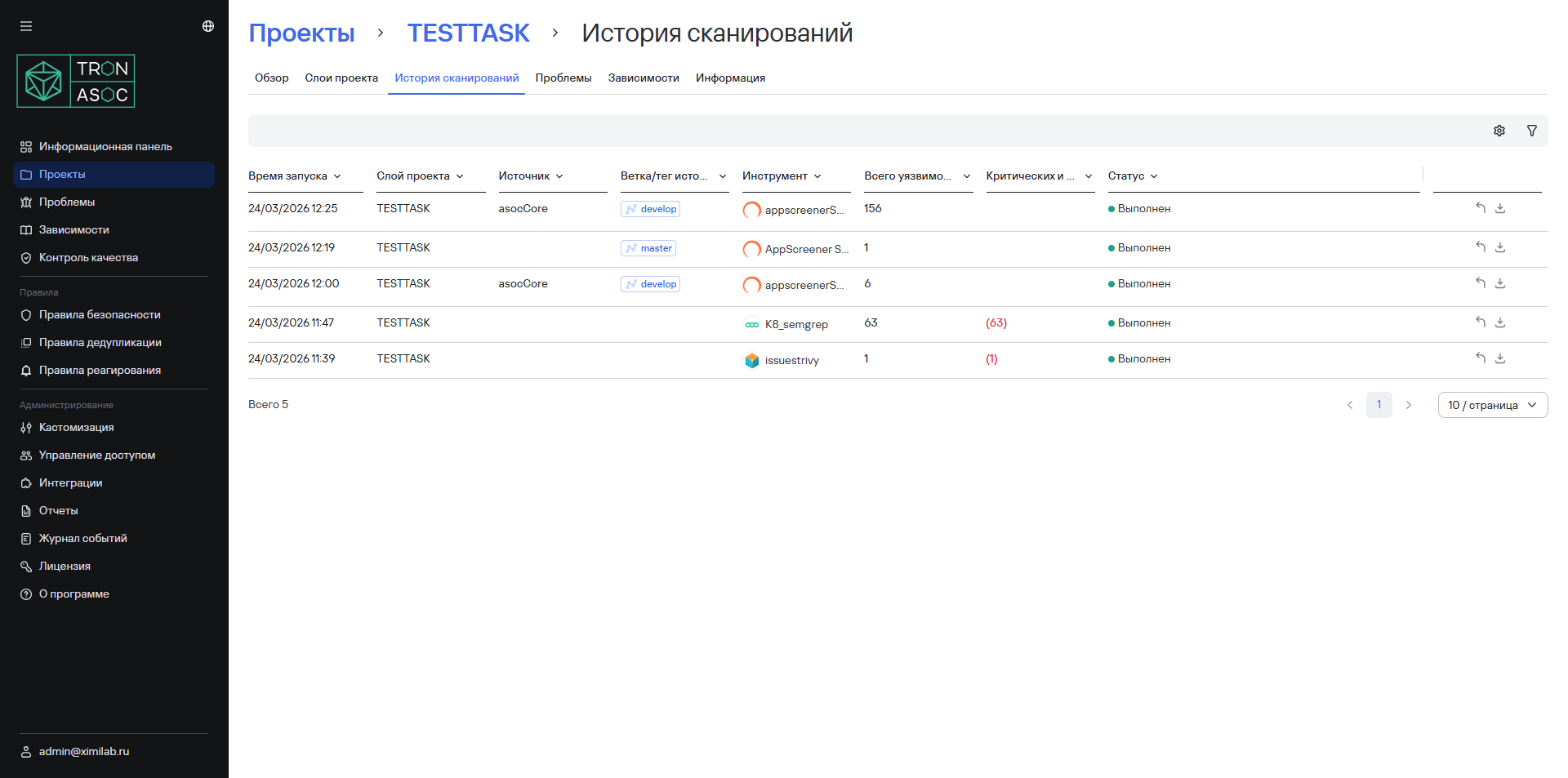
Filter scan results
Security scan results can be displayed according to the filters you set. The Scan history tab includes the following filters:
- Creation period (From and To fields in DD.MM.YYYY format);
- Project layer;
- Source;
- Source branch/tag;
- Tool;
- Status.
View security scans for a project layer
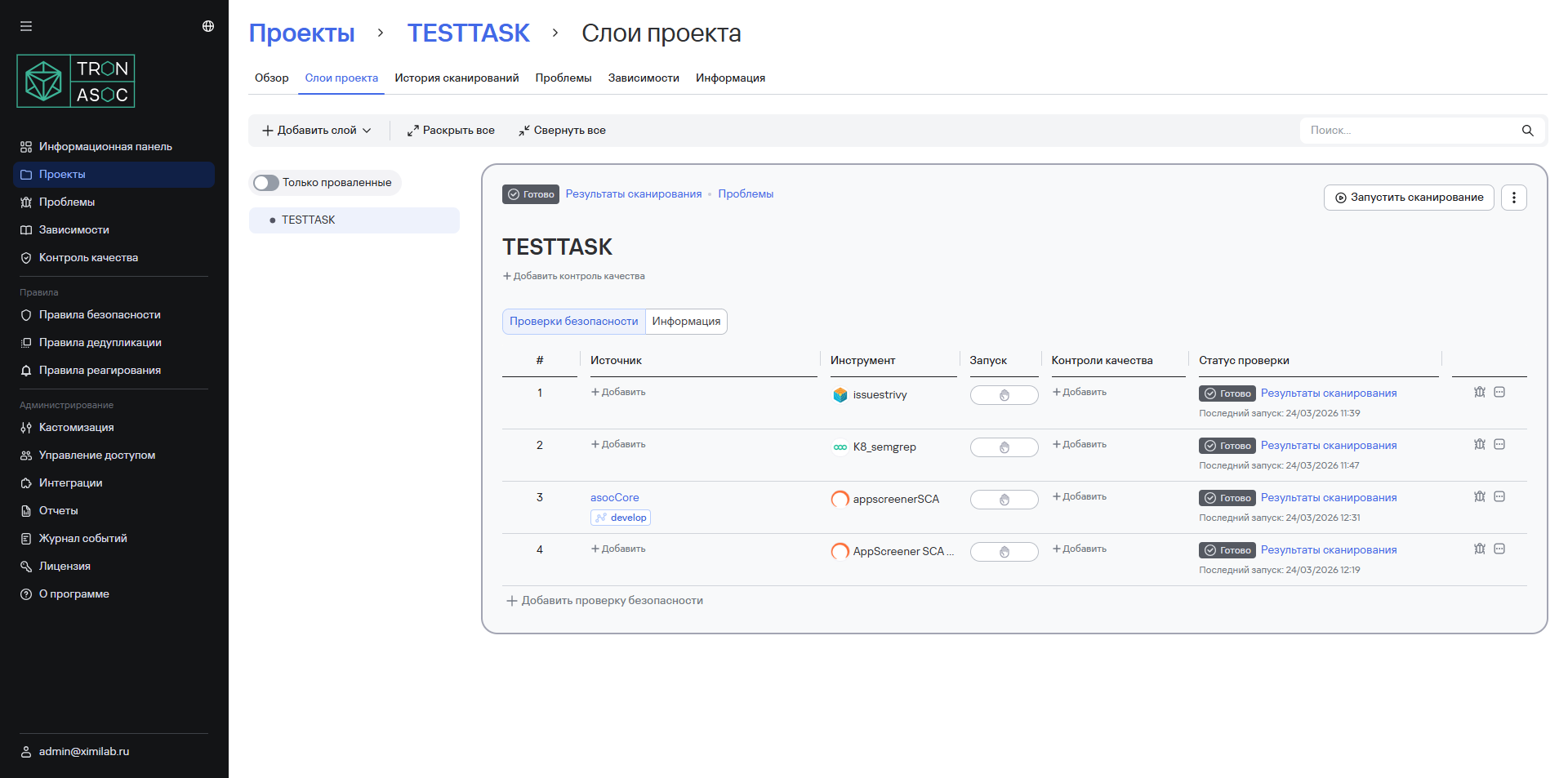
To view security scan results for a project layer, follow these steps:
- Go to Projects.
- Select the required project from the list.
- Go to the Project layers tab.
- Select the Scan results link in the row for the scan source within the layer.
The page shows information about the selected scan.
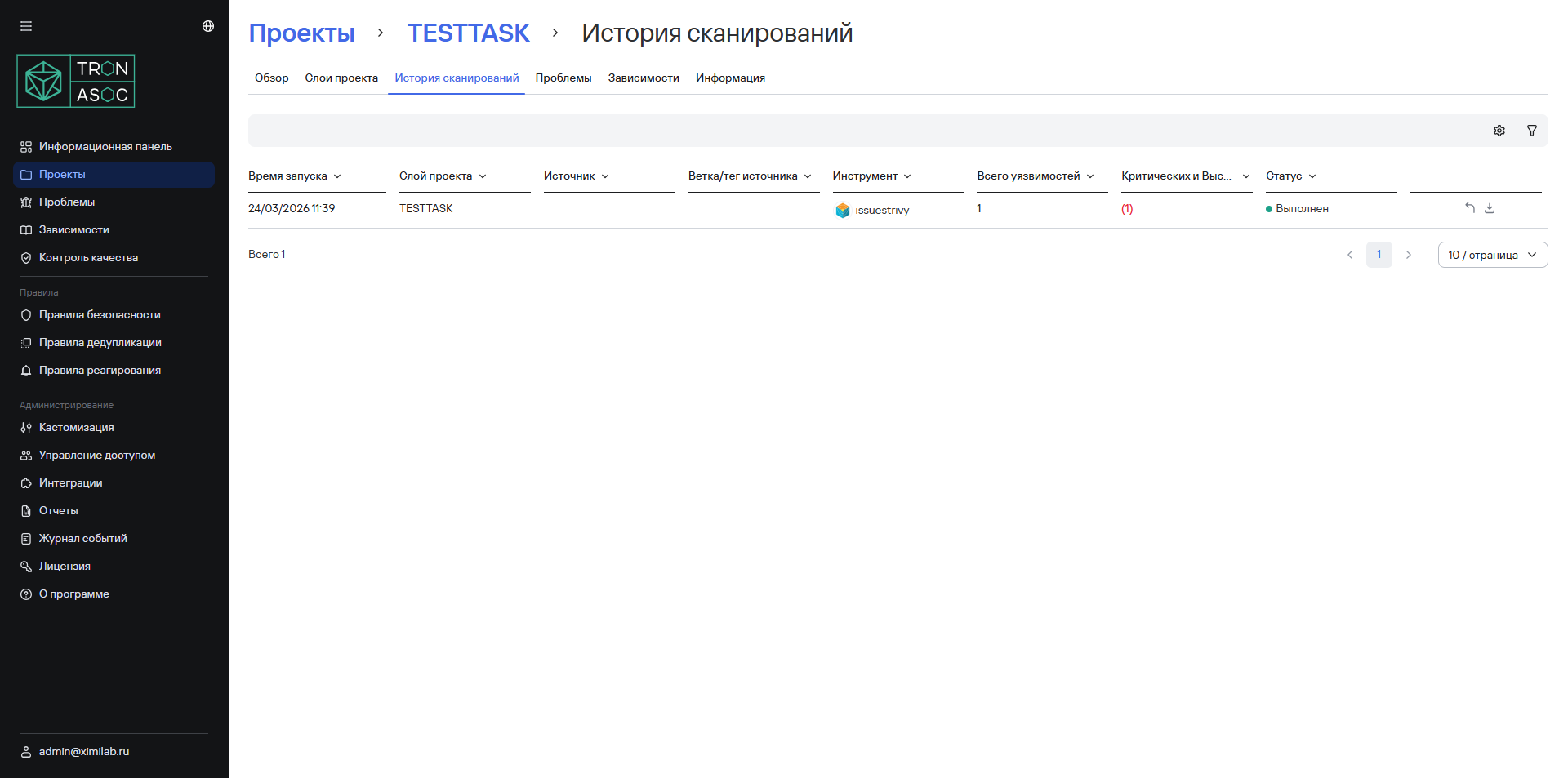
Security scan results content
Security scan results include the following data:
- scan start time;
- project layer;
- scan source;
- source branch/tag;
- security tool;
- total number of security issues found;
- number of critical and high-severity security issues;
- scan status.
Scan results show the number of vulnerabilities found during the scan. The number of vulnerabilities in the Security issues table might be lower than the reported number because some vulnerabilities might be duplicates identified through hash checks.
You can also go to the security scan by selecting Go to security scan ( ), or download a report of the scan results by selecting Download report (
 ).
).
If you've changed the scan source, security tool, or quality control since the last scan run, the scan results list displays a corresponding notification.
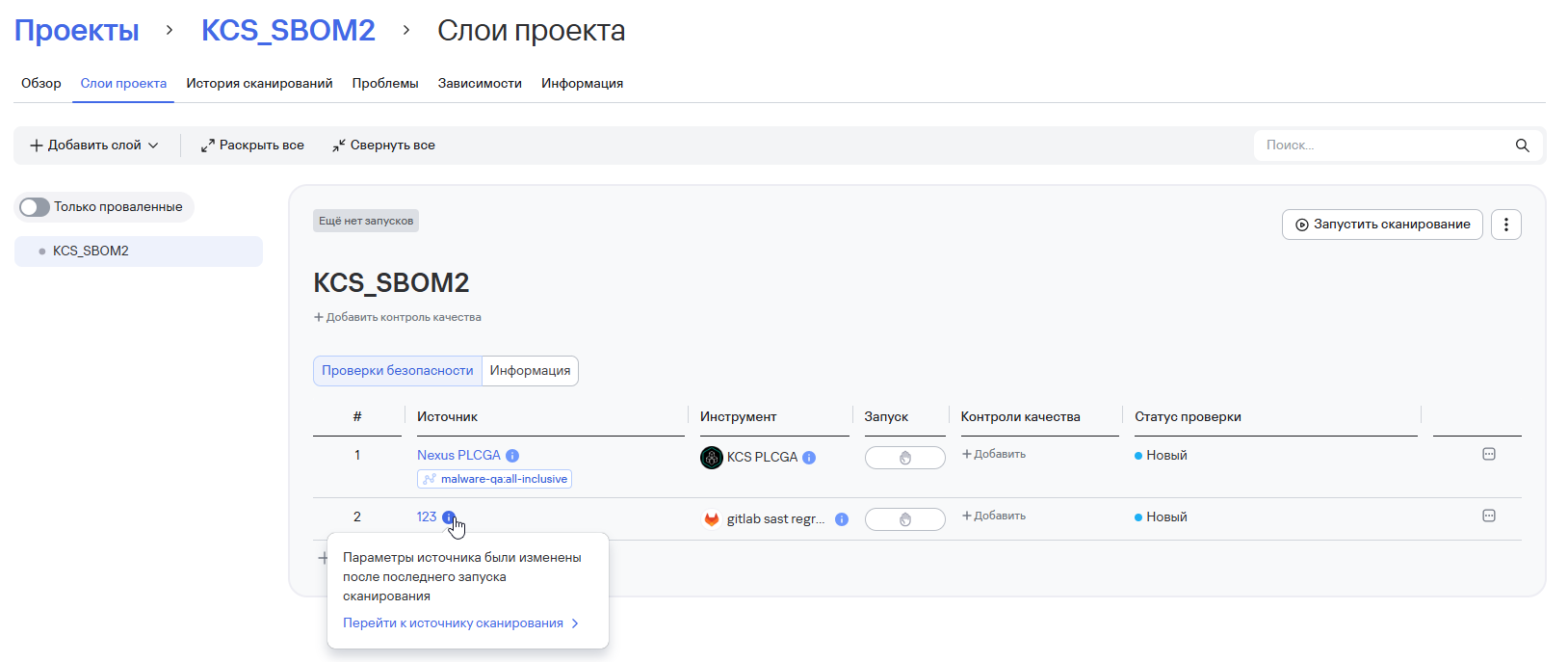
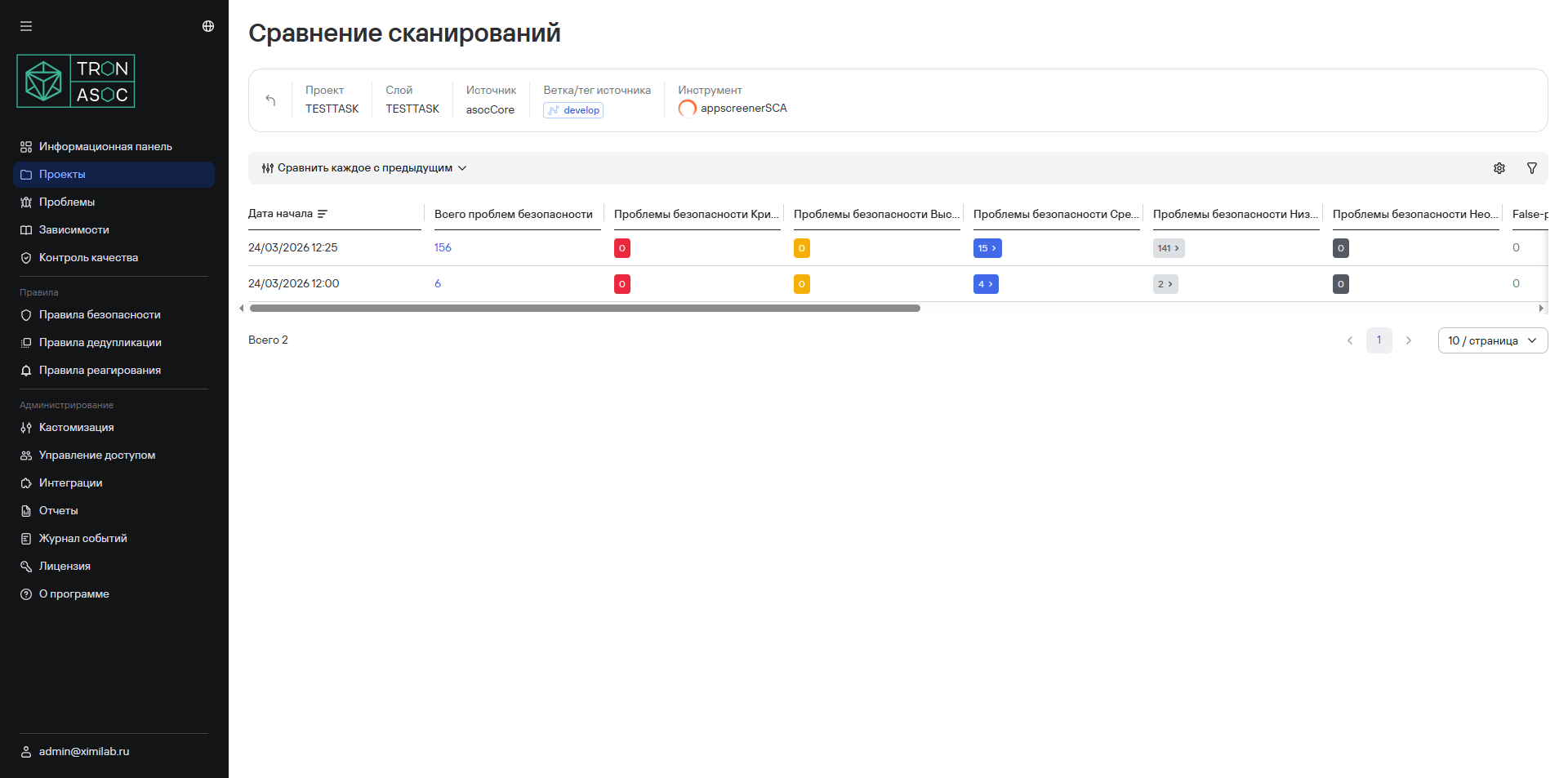
Scan comparison
To compare security scan results, follow these steps:
- Go to Projects.
- Select the required project from the list.
- Go to the Project layers tab.
- Select the additional actions button
 in the row for the scan source.
 - Select Compare scans.
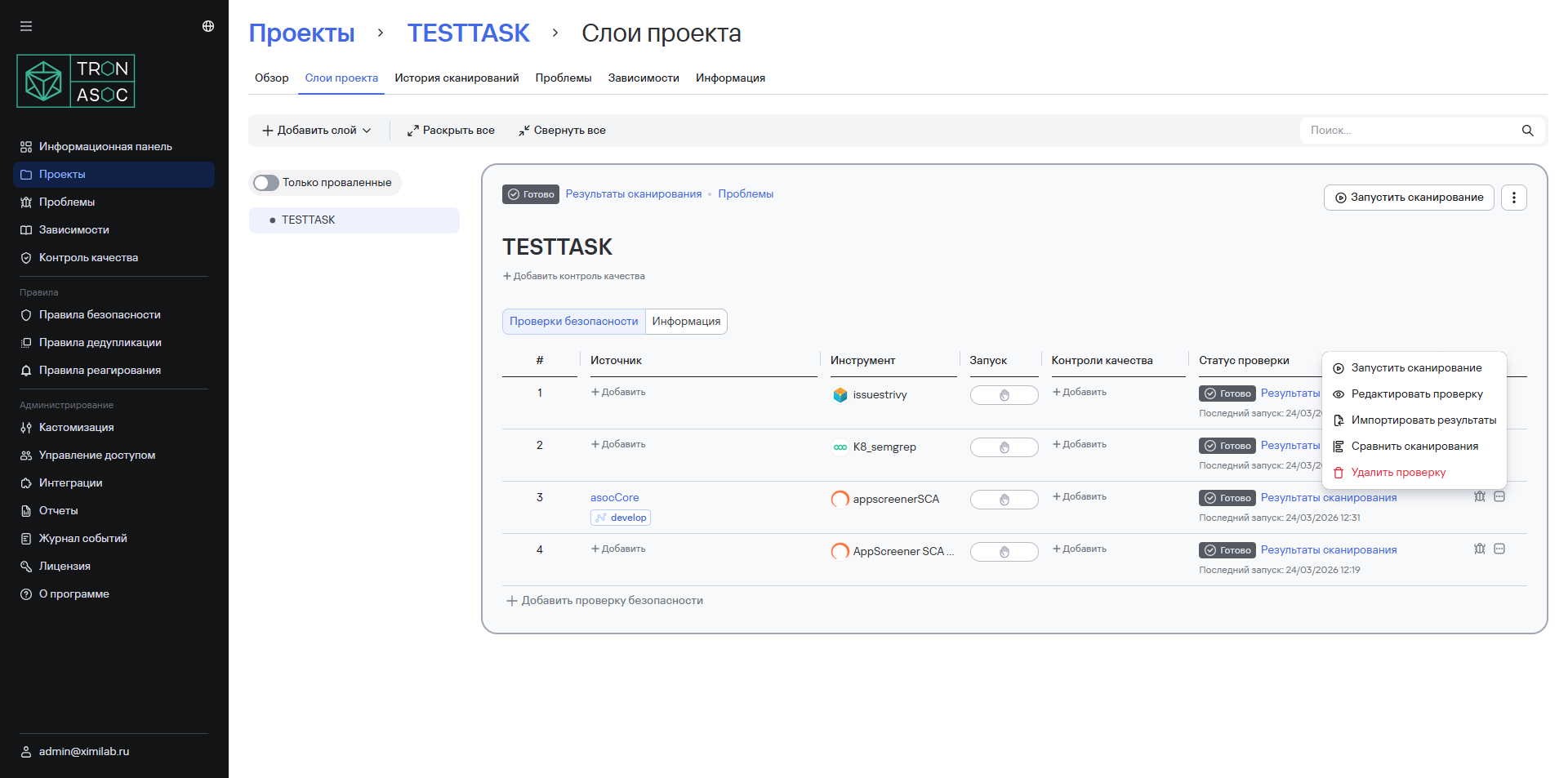
The scan comparison results appear on the Scan comparison page, which opens in a new browser tab.