SBOM reports
You can upload SBOM reports for security checks with the following tools:
- KCS;
- OWASP Dependency-Track;
- Trivy;
- Grype;
- CodeScoring SCA;
- Solar AppScreener SCA.
The system supports uploading SBOM reports in the following formats:
- SPDX;
- CycloneDX.
Upload an SBOM report
To upload an SBOM report, follow these steps:
- Go to Projects → Project name → Security layers.
- Select the project you need from the list.
- Go to the Security layers tab.
- Select the additional actions button (
 ) next to the security check.
 - Select Import SBOM.
- In the window that opens, upload the report's JSON file in one of the supported formats.
- Select Save.
You’ll see a notification that the SBOM upload has started. The upload will take some time.
note
For more information about exporting reports from security tools or using the command line, see CLI tools.
SBOM report processing statuses
SBOM report uploads can have the following statuses:
- After you upload an SBOM report, its status changes to In progress.
- When the system processes the report successfully, its status changes to Processed, and a link to the discovered dependencies appears in the Dependencies library.
The upload status appears for each security check in Projects → Project name → Security layers.
You can find the complete list of dependencies in Dependencies.
Report export examples
Export a report from CodeScoring
To export a report from CodeScoring, follow these steps:
- Sign in to CodeScoring.
- Go to SCA → Projects → Project name.

- Select Export SBOM.
- Select one of the available versions.
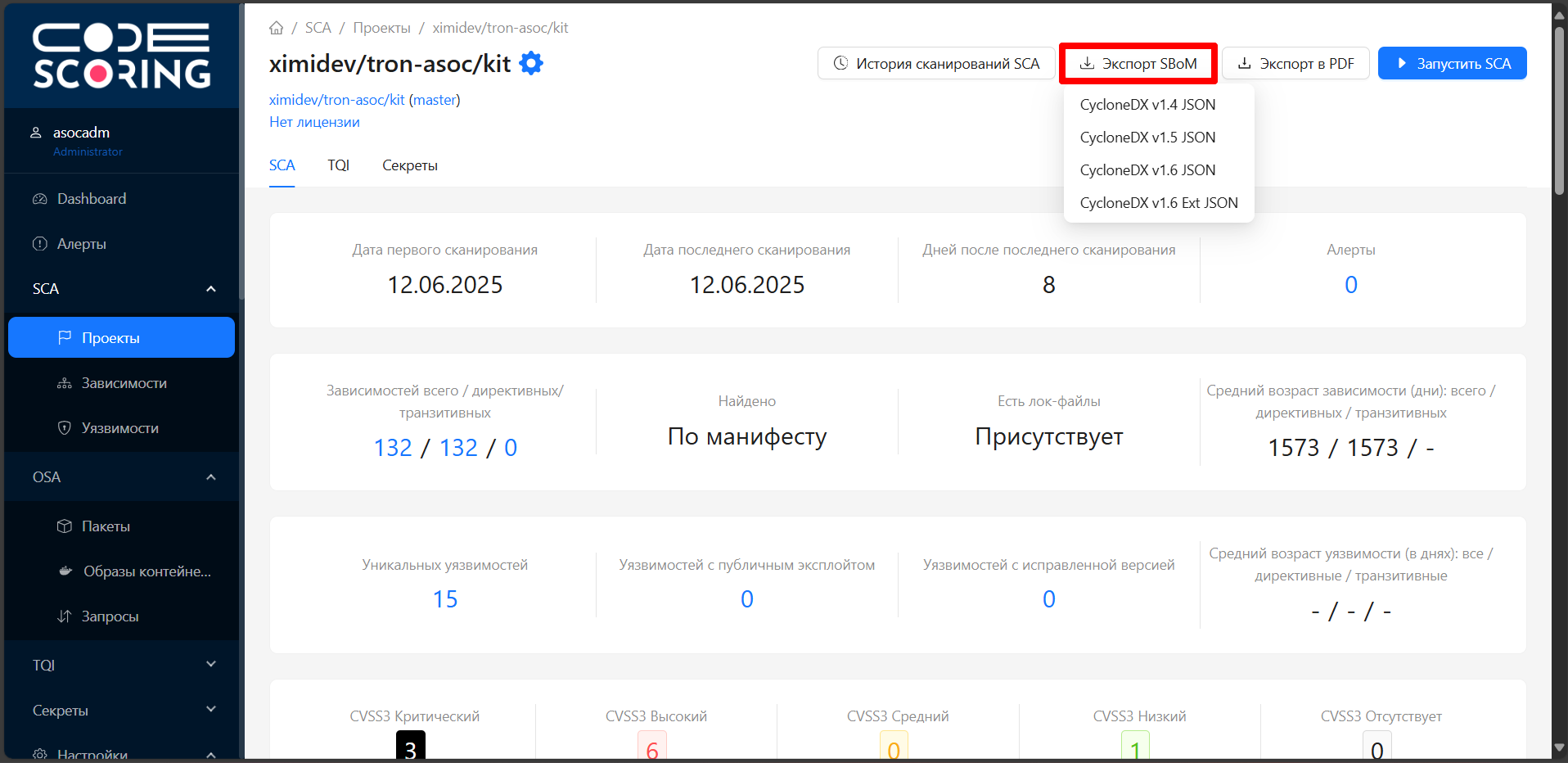
- Upload the SBOM report to TRON.ASOC by following the instructions in Upload an SBOM report.
Export a report from PT AI
To export a report from PT AI, follow these steps:
- Sign in to PT AI.
- Go to Projects.

- Go to the detailed information page for the selected project.
- Select Release report.
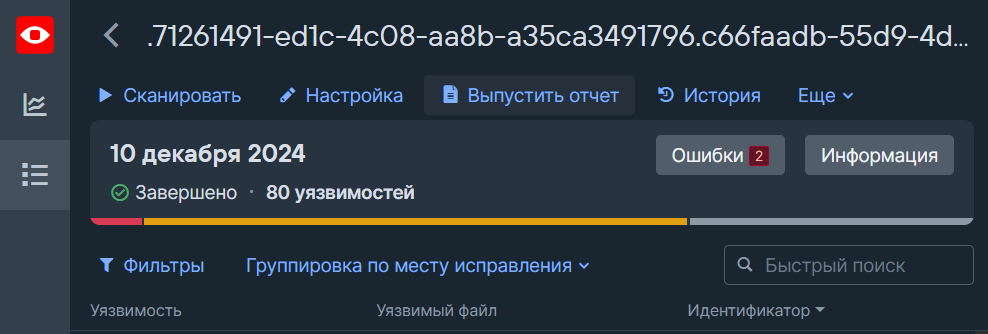
- In the Release report window, select the JSON report report template.
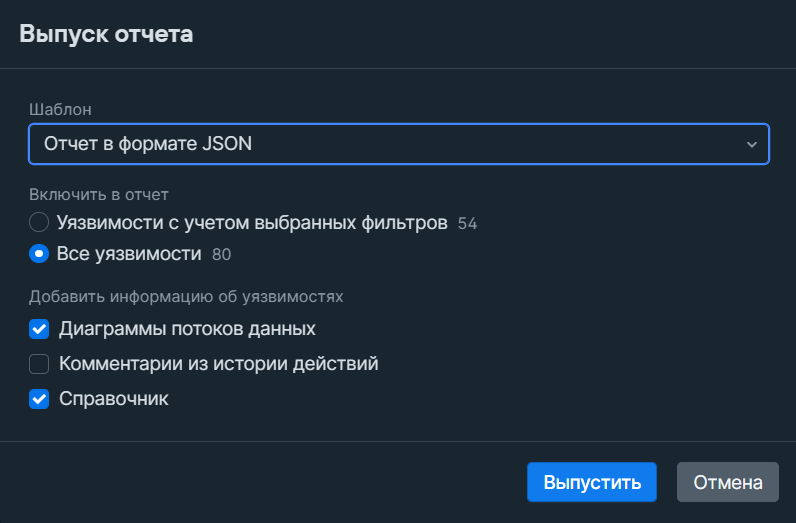
- Select Release.
- Upload the report to TRON.ASOC by following the instructions in Upload an external report.