Actions with security tools
This section describes how to add, edit, and delete integrations with security tools, lists the available security tools and their versions, explains how to work with SASTAV, and provides examples of integrations with security tools.
Available tools and their versions
The current system version supports the following security tools (see the table below).
| Tool | Version |
|---|---|
| PT Application Inspector | 5.0 |
| Kaspersky Container Security | 2.3 |
| Solar AppScreener | 3.15.5 |
| Aqua | 2022.4.759 |
| CodeScoring | 2025.29.3 |
| Grype | 0.106.0 |
| KICS | 2.1.19 |
| OWASP Dependency Track | 4.12.1 |
| Trivy | 0.68 |
| Semgrep | 1.146.0 |
| ESLint | 9.39.2 |
| PVS-Studio | 7.38 |
| GitLab Advanced SAST | 3.0.0 |
| AppSec.Sting | 2025.5 |
| AppSec.Track | 3.19 |
| Gitleaks | 8.30.0 |
| SASTAV | 2.4.0 |
When you create a security check with Solar AppScreener, you can select the analysis type (SAST, DAST, or SCA).
Working with SASTAV
Keep the following points in mind when you work with SASTAV:
- When you authenticate, use a SASTAV service account when you configure the SASTAV integration.
- SASTAV repositories must be unique across all system projects. If you create security checks with identical scan sources in different projects, SASTAV creates only one repository.
- SASTAV scan results appear in the corresponding security checks and projects during report parsing.
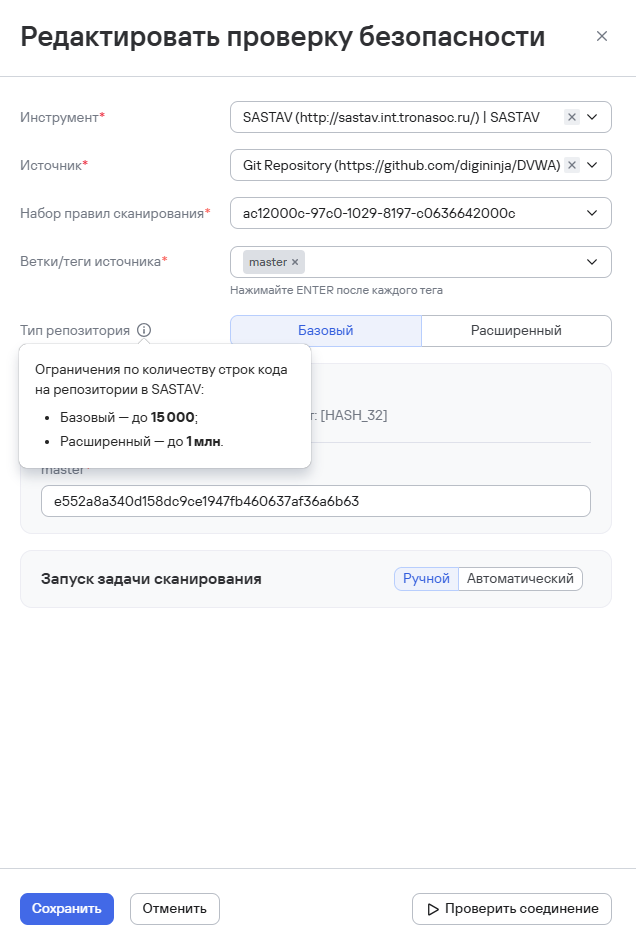
- When you edit a security check, you can select the repository type:
- Basic—limited to 15,000 lines of code;
- Advanced—limited to 1 million lines of code. This value is set by default.
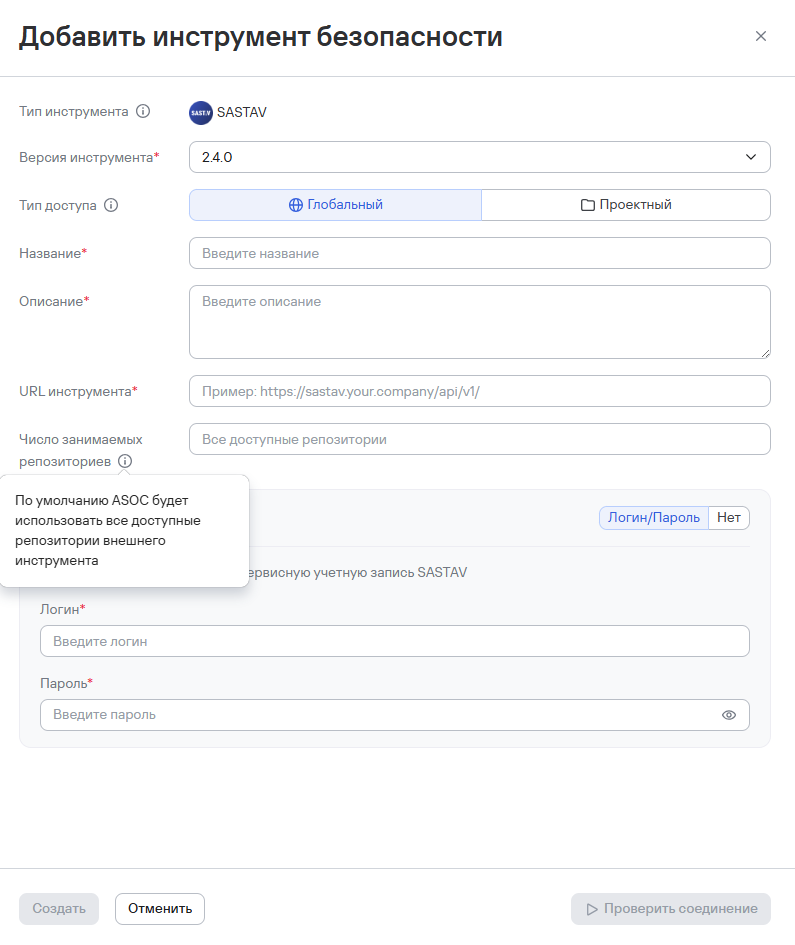
- Because of technical limits on the number of SASTAV repositories, TRON ASOC lets you specify the maximum number of repositories. To do this, use the Maximum number of repositories setting in the SASTAV integration settings. When you enter a numeric value, the system controls the number of active repositories. If you don't specify a value, the system applies the maximum limit available under the SASTAV license.
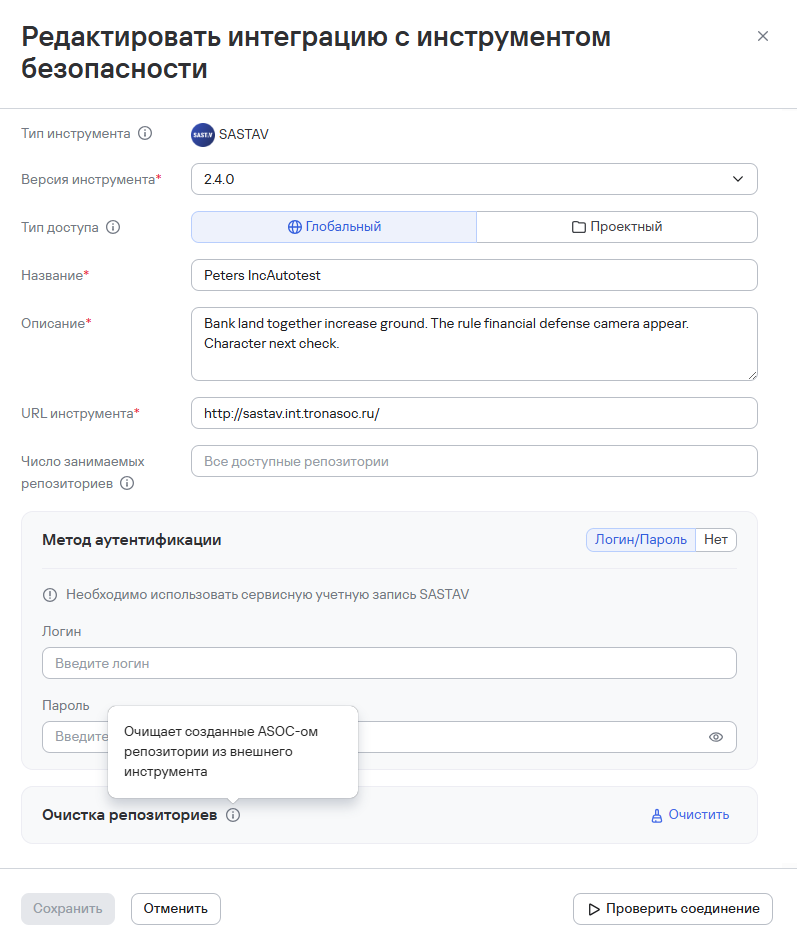
- You can also clean up SASTAV repositories created by TRON ASOC. You can clean up repositories manually or automatically. For example, when you delete a security check, TRON ASOC deletes the associated SASTAV repository if no other security checks in TRON ASOC use it.
Connecting a security tool integration
To configure integrations with security tools, the user must have at least the following permissions:
- View tools;
- Manage tools.
To add a new security tool integration, follow these steps:
- Go to Integrations → Security tools.
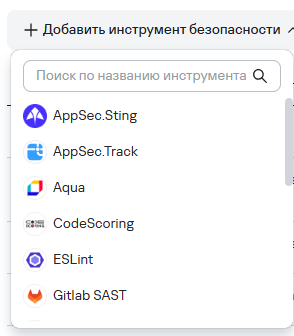
- Select Add security tool.
- Select the required security tool from the list of integrations.
-
Fill in the required Name and Description fields.
-
Select the access type for the tool:
- Global—the integration is available in all projects;
- Project—the integration is available only in selected projects. After you select this access type, select one or more projects where the integration will be available.
-
Fill in the additional fields:
- Tool description;
- URL;
- Scan result language;
- Authentication method.
infoThe set of additional fields depends on the selected security tool.
Selecting an authentication method isn't required at this step. However, you can't test the connection to the tool without specifying an authentication method.
-
Fill in the fields based on the selected authentication method:
- API token: API token field
- Login/password: Login and Password fields
- None. If you select the None authentication method, scanning isn't available, but the user can manually import scan results.
noteSome tools also provide additional settings based on data retrieved from the tool integration, such as license verification data and tool limitations. For CodeScoring, you can use existing authentication data. The integration settings also include additional parameters.
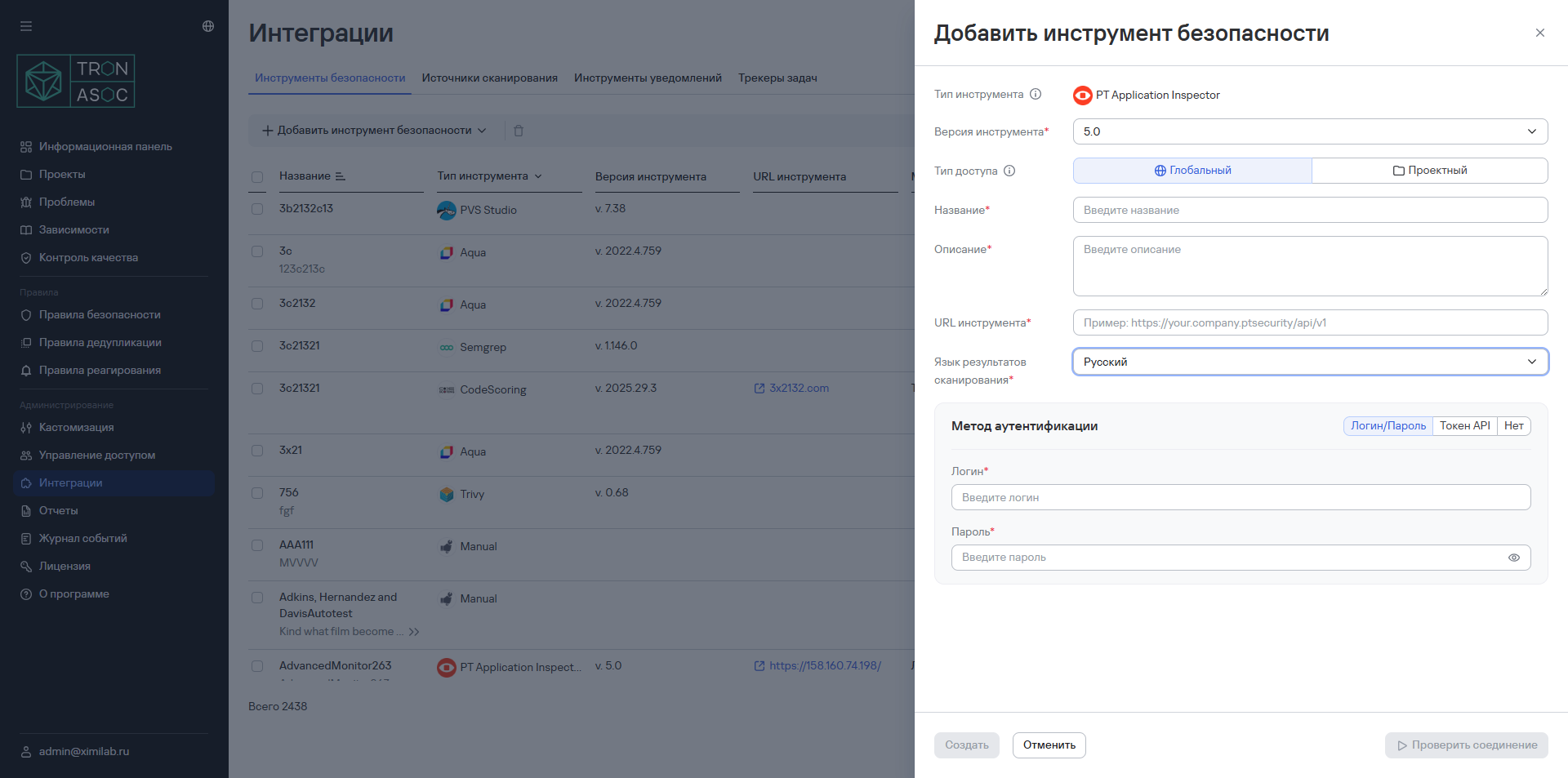
- If necessary, test the connection by selecting Test connection.
You can test the connection only with the API token and Login/password authentication methods.
You can test the connection only after you correctly enter the authentication data for the security tool. If the data is correct, the connection test succeeds. If the connection fails, check the data and try again.
- Select Create
Editing a security tool integration
To edit a security tool integration, follow these steps:
- Select the edit button (
 ) in the tool row.
 - Change the required settings in the form that opens.
- Select Save
Deleting a security tool integration
To delete a security tool integration, follow these steps:
- Select the delete button
 in the tool row.
 - Confirm the tool deletion in the modal window that opens.
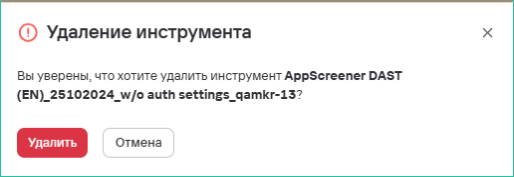
To delete multiple security tool integrations, follow these steps:
- Select the tools using the checkboxes (
 ).
). - Select the delete button () above the tools table.
- Confirm the tool deletions in the modal window that opens.
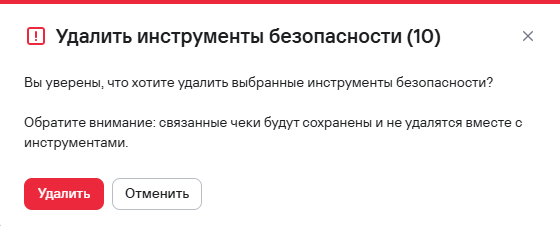
Examples of integrations with security tools
Adding an integration with PT Application Inspector
To add an integration with the tool to the system, follow these steps:
-
Go to Integrations → Security tools.
-
Select Add security tool.
-
Select PT Application Inspector from the list of tools.
-
Fill in the fields in the form that opens:
- Integration name—the name must be unique;
- Description.
-
Configure the connection settings:
- API URL (for example, https://your.company.ptsecurity/api/v1);
- Scan result language;
- Authentication method.
infoYou can specify the authentication method later when you add a security check.
-
Select Test connection.
You can test the connection only after you correctly enter the authentication data for the security tool. If the data is correct, the connection test succeeds. If the connection fails, check the data and try again.
- Select Save.
Adding an integration with Kaspersky Container Security (KCS)
To add an integration with the tool to the system, follow these steps:
-
Go to Integrations → Security tools.
-
Select Add security tool.
-
Select Kaspersky Container Security from the list of tools.
-
Fill in the required fields:
- Name;
- Description.
-
Configure the connection settings:
- URL;
- Scan result language;
- Authentication method (API token).
infoYou can specify the authentication method later when you add a security check.
-
Enter the API token in the API token field.
-
Select Test connection.
You can test the connection only after you correctly enter the authentication data for the security tool. If the data is correct, the connection test succeeds. If the connection fails, check the data and try again.
- Select Save.