Actions with security tools
This section describes how to add, edit, and delete integrations with security tools, lists the available security tools and their versions, explains how to work with SASTAV, and provides examples of integrations with security tools.
Available tools and their versions
The current system version supports the following security tools (see the table below).
| Tool | Version |
|---|---|
| PT Application Inspector | 5.0 |
| Kaspersky Container Security | 2.3 |
| Solar AppScreener | 3.15.5 |
| Aqua | 2022.4.759 |
| CodeScoring | 2025.29.3 |
| Grype | 0.106.0 |
| KICS | 2.1.19 |
| OWASP Dependency Track | 4.12.1 |
| Trivy | 0.68 |
| Semgrep | 1.146.0 |
| ESLint | 9.39.2 |
| PVS-Studio | 7.38 |
| GitLab Advanced SAST | 3.0.0 |
| AppSec.Sting | 2025.5 |
| AppSec.Track | 3.19 |
| Gitleaks | 8.30.0 |
| SASTAV | 2.4.0 |
| TruffleHog | 3.95.2 |
When you create a security check with Solar AppScreener, you can select an analysis type (SAST, DAST, or SCA).
Working with SASTAV
Keep the following points in mind when working with SASTAV:
- When you authenticate while configuring the SASTAV integration, use a SASTAV service account.
- Repositories in SASTAV must be unique across all system projects. If you create security checks with identical scan sources in different projects, SASTAV creates only one repository.
- SASTAV generates scan results in the corresponding security checks and projects during report parsing.
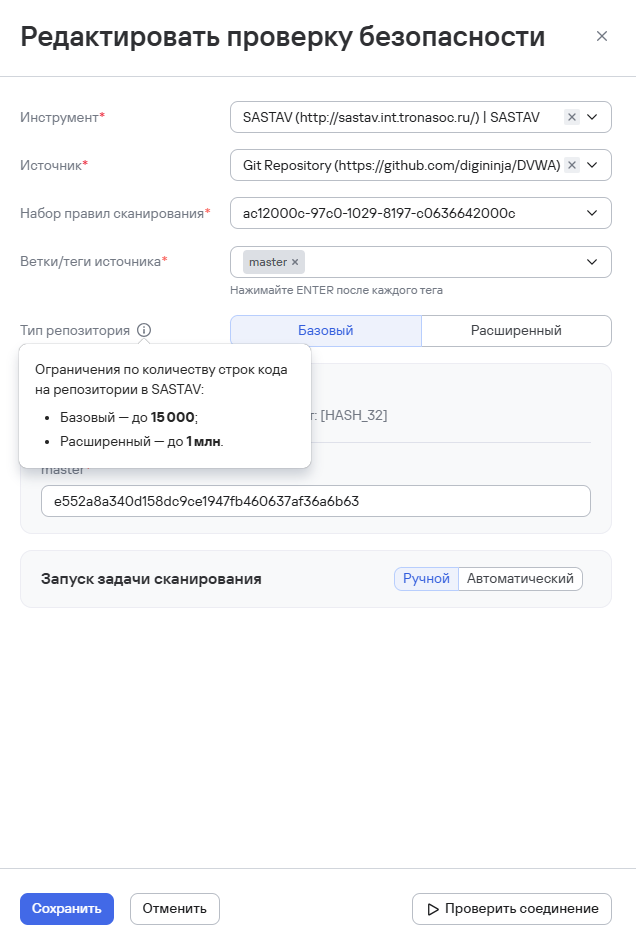
- When you edit a security check, you can select a repository type:
- Basic—limits the number of lines of code to 15,000;
- Advanced—limits the number of lines of code to 1 million. This value is set by default.
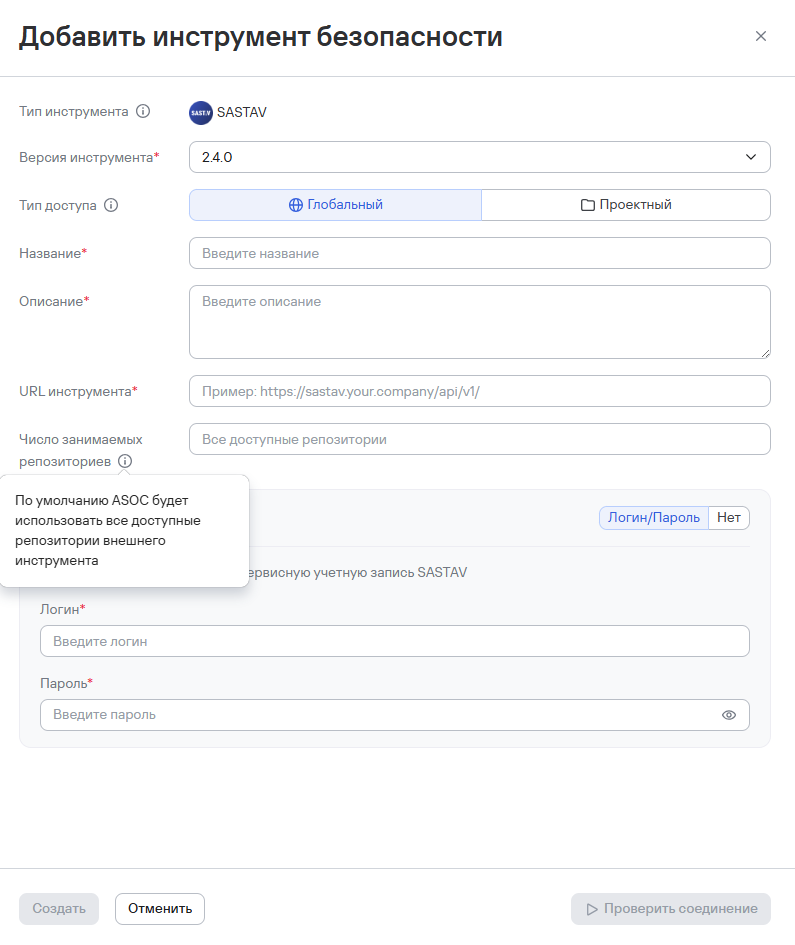
- Because of technical limits on the number of SASTAV repositories, TRON.ASOC lets you specify the maximum number of repositories. To do this, use the Maximum number of repositories parameter in the SASTAV integration settings. When you enter a numeric value, the system tracks the number of active repositories. If you don't specify a value, the system applies the maximum limit available under the SASTAV license.
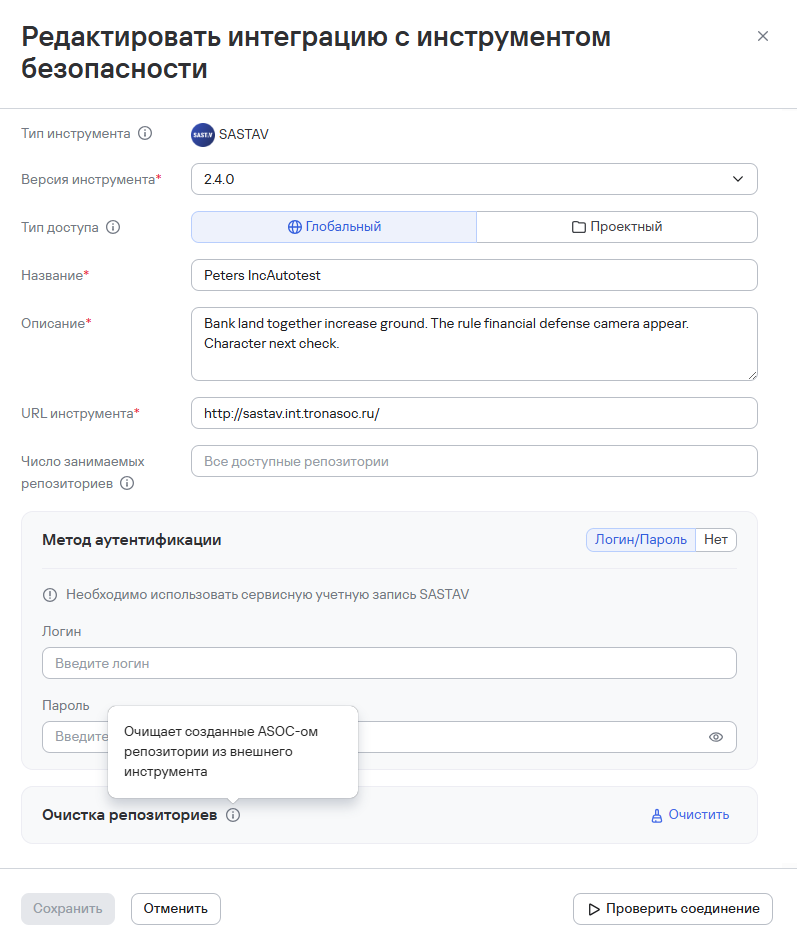
- You can also clean up SASTAV repositories created by TRON.ASOC. You can clean up repositories manually or automatically. For example, when you delete a security check, the system deletes the associated SASTAV repository if no other security checks in TRON.ASOC use it.
Connecting an integration with a security tool
To configure integrations with security tools, users must have at least the following permissions:
- View tools;
- Manage tools.
To add a new integration with a security tool:
- Go to Integrations → Security tools.
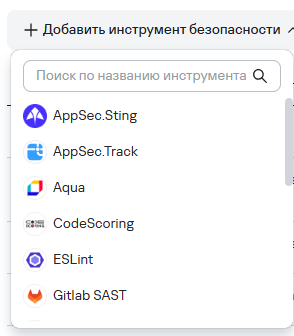
- Select Add security tool.
- Select the required security tool from the list of integrations.
-
Complete the required Name and Description fields.
-
Select the access type for the tool:
- Global—the integration will be available in all projects;
- Project—the integration will be available only in the selected projects. After you select this access type, select one or more projects where the integration will be available.
tipWhen you select the Project access type, you can use checkboxes to select the projects where the integration will be available.
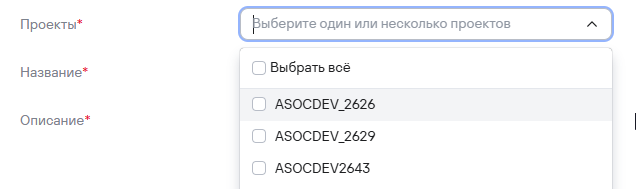
-
Complete the additional fields:
- Tool description;
- URL;
- Scan results language;
- Authentication method.
infoThe set of additional fields depends on the selected security tool.
You don't have to select an authentication method at this step. However, you can't test the connection to the tool without specifying an authentication method.
-
Complete the fields based on the selected authentication method:
- API token: API token field
- Login/password: Login and Password fields
- None. If you select the None authentication method, scanning won't be available, but you can manually import scan results.
noteSome tools also provide additional settings based on data received from the tool integration, such as license verification data and tool restrictions. CodeScoring can use existing authentication data and provides additional integration settings.
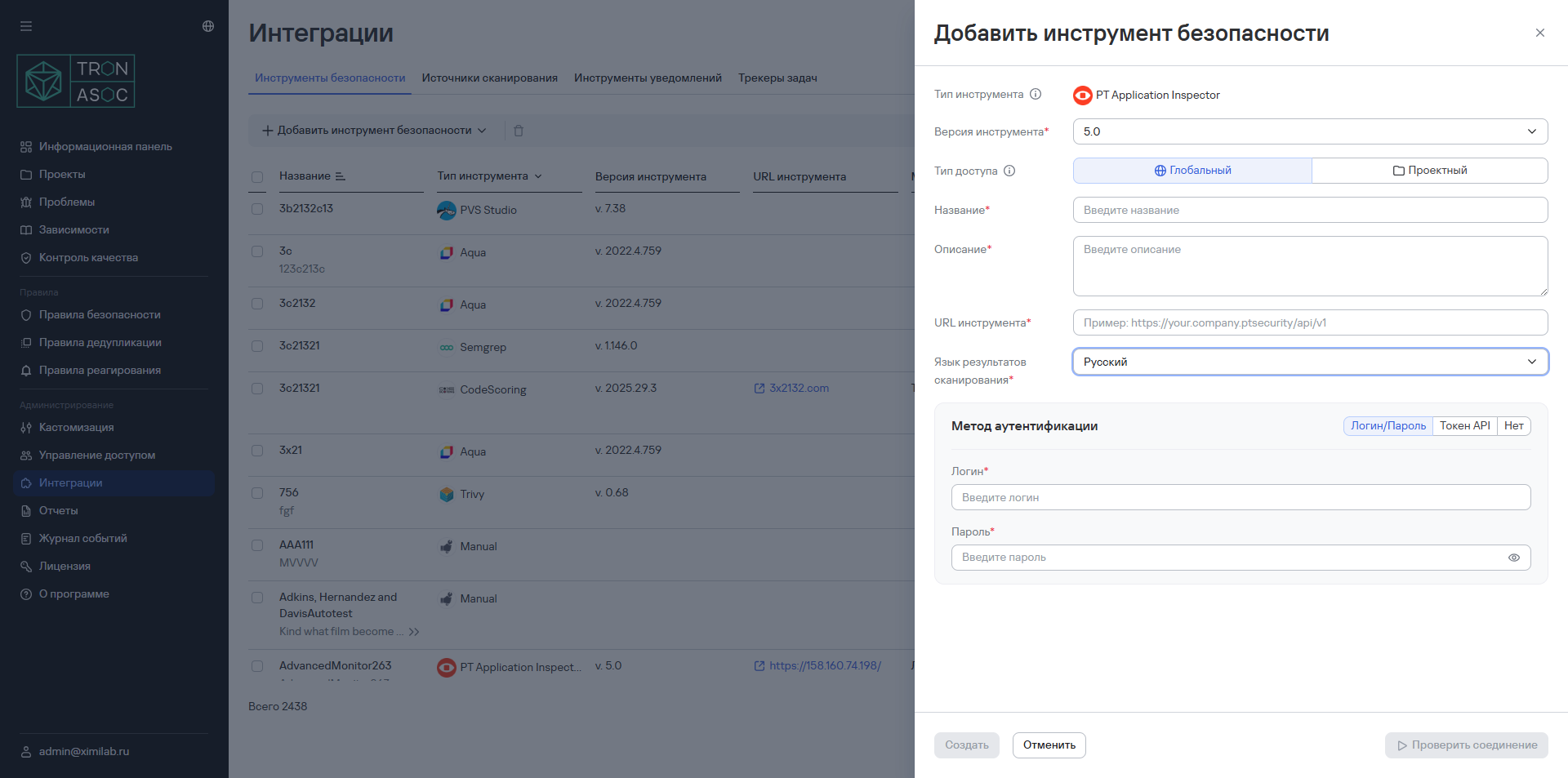
- If necessary, select Test connection.
You can test the connection only with the API token and Login/password authentication methods.
You can also test the connection if you previously entered valid authentication data for the security tool. If the data is correct, the connection test succeeds. If the connection isn't established, verify the data and try again.
- Select Create
Connecting an integration with a custom security tool
TRON.ASOC lets you connect an integration with a custom security tool. You can use the tool to run security checks in TRON.ASOC or Kubernetes and import the results of checks performed by the tool.
To connect a custom security tool:
-
Go to Integrations → Security tools.
-
Select Add security tool.
-
Select Add custom tool.
-
Select Run scans.
-
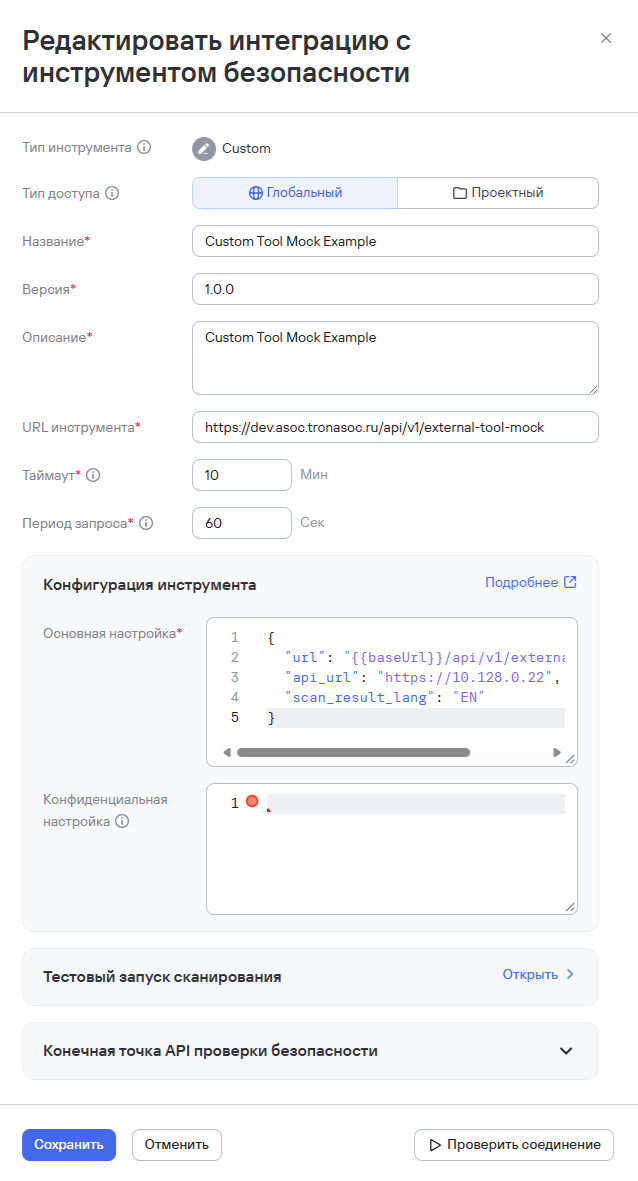
In the window that opens, specify the following tool parameters:
- access type (global or project);
- tool name;
- tool version;
- tool description;
- tool URL;
- timeout—the time after which the system stops trying to connect to the tool (for example, 10 minutes);
- polling interval—the time between requests to the tool (for example, every 30 seconds).
warningSetting a long timeout (more than 10 minutes) can cause a timeout during a test scan with the created integration.
-
Enter the main and confidential configuration settings for the tool.
infoSee the section below for examples of tool configurations.
-
Select Create.
Examples of custom integration configuration settings
When you create a custom integration, you can specify two types of settings:
- main setting—contains the configuration parameters required for the integration to work and available for users with the appropriate permissions to view and edit;
- confidential setting—contains sensitive data that isn't displayed to users when they view or edit the tool.
We recommend specifying general connection and tool operation parameters in the main setting, such as the service address, report format, scan results language, authentication method, and other configuration parameters. We recommend specifying data that must have restricted access in the confidential setting, such as API tokens, passwords, secret keys, and other credentials.
The contents and structure of the parameters in the main and confidential settings depend on the requirements of the specific external tool. Parameters can be strings, numbers, Boolean values, arrays, or nested JSON objects.
The following example shows the settings and describes their parameters:
Main setting:
{
  "url": "https://10.128.0.22",
  "scan_result_lang": "EN",
  "auth_method": "Api Token",
  "report_type": "Sarif",
  "is_encrypted": false,
  "timeout_minutes": 15,
  "poll_interval_seconds": 10
}
Confidential setting:
{
   "api_token": "xxxxxxxxxxxxxxxxxxxxxxxx",
   "client_secret": "xxxxxxxxxxxxxxxxxxxxxxxx",
   "password": "xxxxxxxxxxxxxxxxxxxxxxxx"
}
| Parameter | Parameter description |
|---|---|
url | Tool address |
scan_result_lang | Scan results language |
auth_method | Authentication method |
report_type | Format of the report generated by the tool |
is_encrypted | Indicates whether encryption is used |
timeout_minutes | Maximum time to wait for the scan to complete |
poll_interval_seconds | Scan status polling interval |
api_token | Access token for the tool |
client_secret | Client secret key |
password | Password for access to the tool |
Test scanning with a custom integration
When you create a custom integration, you can also run a test scan. You can do this only if you've entered valid configuration settings.
To run a test scan:
-
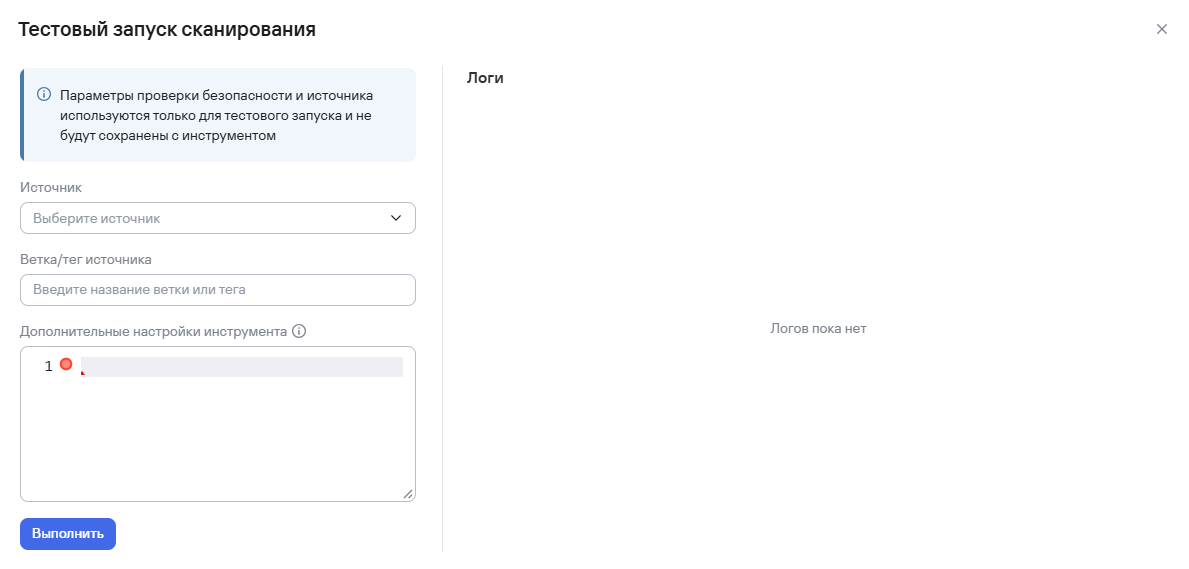
Select Open in the Test scan run block.
-
In the window that opens, specify the following data:
- source to scan;
- branch or tag of the source;
- additional tool settings.
infoThe data you enter in the additional settings applies only to the test scan and isn't saved in the general tool configuration.
-
Select Run.
Custom integration API contract in TRON.ASOC
Custom integrations connect to TRON.ASOC through an HTTP custom integration contract. A custom integration implements a fixed set of endpoints, and TRON.ASOC uses HTTP to manage the complete scan lifecycle.
Request URL format
The system builds the request URL using the following template:
POST {url}/{endpoint}
Content-Type: application/json
where url is the value of the field with the same name in the custom integration settings:
{
  "tool_settings": {},
  "tool_secret_settings": {},
  "is_encrypted": false,
  "extra_settings": {},
  "url": "https://external-service"
}
Execution order
The contract endpoints run in the following order:
/validate—validates and normalizes the custom integration settings./test-connection—checks the availability of the custom integration and credentials./join-settings—combines the custom integration settings and check settings injoin_tool_settings./run—starts the scan./scan-status—polls the status until it receives a final status.- When the system receives the
uploaded,uploaded_minio, ordonestatus, it calls the/get-resultendpoint. - When the user cancels the scan, the system calls the
/stopendpoint.
Contract endpoints
POST /validate
Purpose: validates and normalizes the custom integration settings.
Request:
{
  "tool_settings": { "project_id": "example" },
  "tool_secret_settings": { "api_token": "secret" }
}
Expected response:
{
  "tool_settings": { "project_id": "example" }
}
You can also return updated tool_secret_settings.
TRON.ASOC behavior: saves tool_settings from the response as the current integration settings.
POST /test-connection
Purpose: checks the availability of the custom integration and credentials.
Request: tool_settings, tool_secret_settings.
Successful response:
{ "status": "ok" }
Error response:
{ "status": "error", "error_msg": "Invalid credentials" }
TRON.ASOC behavior: considers the connection test successful when status: ok; when status: error, it shows the user the text from error_msg.
POST /join-settings
Purpose: combines the custom integration settings and check settings.
Request: tool_settings, tool_secret_settings, extra_settings.
Expected response:
{
  "join_tool_settings": {
    "project_id": "example",
    "profile": "default",
    "api_token": "secret"
  }
}
TRON.ASOC behavior: saves join_tool_settings and passes them without additional interpretation to /run, /scan-status, /get-result, and /stop.
POST /run
Purpose: starts a scan with the custom integration.
Request:
{
  "scan_result": {
    "id": "asoc-scan-result-id",
    "task_uniq_name": "task-name",
    "tool_internal_task_id": "",
    "security_check_id": "check-id",
    "source_type_id": 1,
    "status": "in_queue",
    "result_details": {}
  },
  "join_tool_settings": {},
  "source_settings": {}
}
Expected response:
{
  "scan_result": {
    "id": "asoc-scan-result-id",
    "tool_internal_task_id": "external-task-id",
    "status": "in_progress"
  }
}
Requirement: the integration must return its own task ID in scan_result.tool_internal_task_id.
TRON.ASOC behavior: saves tool_internal_task_id, changes the task status to in_progress, and starts polling /scan-status.
POST /scan-status
Purpose: gets the current scan status.
Request: scan_result.id, scan_result.tool_internal_task_id, join_tool_settings, source_settings.
Expected response:
{
  "scan_result": {
    "id": "asoc-scan-result-id",
    "tool_internal_task_id": "external-task-id",
    "status": "in_progress"
  }
}
The table below lists the allowed status values and the system action for each status.
| Status | TRON.ASOC action |
|---|---|
in_queue | Continues polling |
in_progress | Continues polling |
uploaded | Calls /get-result |
uploaded_minio | Calls /get-result |
done | Calls /get-result |
failed | Ends the scan with an error |
cancelled | Ends the scan as canceled |
POST /get-result
Purpose: gets the scan result after the scan completes successfully.
Request: same as /scan-status.
Expected response:
{
  "scan_result": {
    "id": "asoc-scan-result-id",
    "tool_internal_task_id": "external-task-id",
    "result": { "version": "2.1.0", "runs": [] }
  }
}
Requirement: scan_result.result must be a JSON object in SARIF format.
TRON.ASOC behavior: saves the result and starts standard SARIF parsing.
POST /stop
Purpose: stops the scan.
Request: same as /scan-status.
Expected response:
{
  "scan_result": {
    "id": "asoc-scan-result-id",
    "tool_internal_task_id": "external-task-id",
    "status": "cancelled"
  }
}
TRON.ASOC behavior: stops local polling and changes the scan result status to cancelled.
Error handling
The system handles errors as follows:
- Any HTTP response outside the 2xx range is considered a custom integration error.
- A 2xx response that contains an
errorfield in the body, such as{"error": "Something went wrong"}, is also considered an error. - The system takes the error text from the response body without changes.
Execution result
After the complete cycle (/validate → /test-connection → /join-settings → /run → /scan-status → /get-result), the system receives the scan result in SARIF format and starts standard parsing. When the user cancels the scan, the cycle ends with a call to /stop, and the result status changes to cancelled.
Keep the following points in mind:
- field names and status values must exactly match the contract;
- the
urlfield from the custom integration settings is used only to build the request URL and isn't passed to the integration.
Editing an integration with a security tool
To edit an integration with a security tool:
- Select the edit button (
 ) in the tool row.
 - In the form that opens, edit the required parameters.
- Select Save
Deleting an integration with a security tool
To delete an integration with a security tool:
- Select the delete button
 in the tool row.
 - Confirm the tool deletion in the modal window.
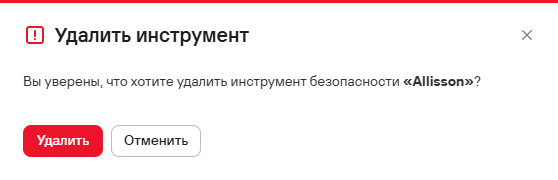
To delete multiple integrations with security tools:
- Select the tools using the checkboxes (
 )
) - Select the delete button () above the tools table.
- Confirm the tool deletion in the modal window.
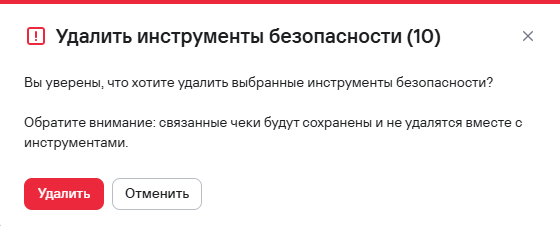
Examples of integrations with security tools
Adding an integration with PT Application Inspector
To add an integration with the tool to the system:
-
Go to Integrations → Security tools.
-
Select Add security tool.
-
Select PT Application Inspector from the list of tools.
-
Complete the fields in the form that opens:
- Integration name—the name must be unique;
- Description.
-
Configure the connection parameters:
- API URL (for example, https://your.company.ptsecurity/api/v1);
- Scan results language;
- Authentication method.
infoYou can specify the authentication method later when you add a security check.
-
Select Test connection.
You can test the connection only if you've entered valid authentication data for the security tool. If the data is correct, the connection test succeeds. If the connection isn't established, verify the data and try again.
- Select Save.
Adding an integration with Kaspersky Container Security (KCS)
To add an integration with the tool to the system:
-
Go to Integrations → Security tools.
-
Select Add security tool.
-
Select Kaspersky Container Security from the list of tools.
-
Complete the required fields:
- Name;
- Description.
-
Configure the connection parameters:
- URL;
- Scan results language;
- Authentication method (API token).
infoYou can specify the authentication method later when you add a security check.
-
Add the API token to the API token field.
-
Select Test connection.
You can test the connection only if you've entered valid authentication data for the security tool. If the data is correct, the connection test succeeds. If the connection isn't established, verify the data and try again.
- Select Save.