Actions with notification tools
Create a notification tool
To configure notification tools, users must have at least these permissions:
- View tools;
- Manage tools.
To create an Email notification tool, follow these steps:
-
Go to Integrations → Notification tools.
-
Select Add notification tool.
-
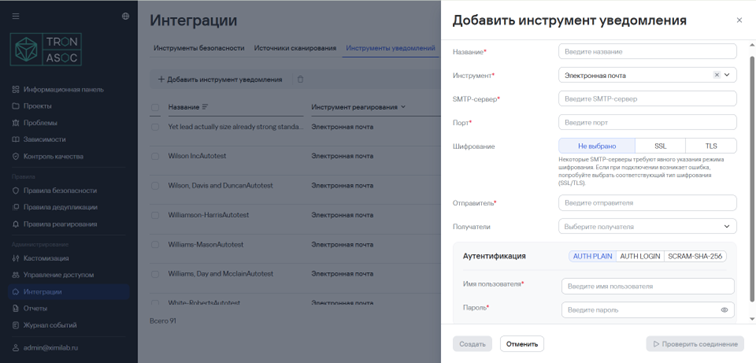
In the window that opens, fill in these fields:
- Name;
- Tool—select Email;
- SMTP server;
- Port;
- Username;
- Password;
- Sender;
- Recipients (if necessary, specify specific email addresses).
-
Select an authentication method. You can select one of these methods:
- AUTH PLAIN;
- AUTH LOGIN;
- SCRAM-SHA-256.
-
Enter the authentication credentials.
-
If necessary, test the connection by selecting Test connection.
You can test the connection only after you've entered the authentication credentials correctly in the notification tool. If the credentials are correct, the connection test succeeds. If the connection fails, check the credentials, select an encryption type (SSL/TLS), and try again.
- Select Create.
The notification tool appears in the list of tools in the Notification tools section.
To create a Webhook notification tool, follow these steps:
- Select Add notification tool.
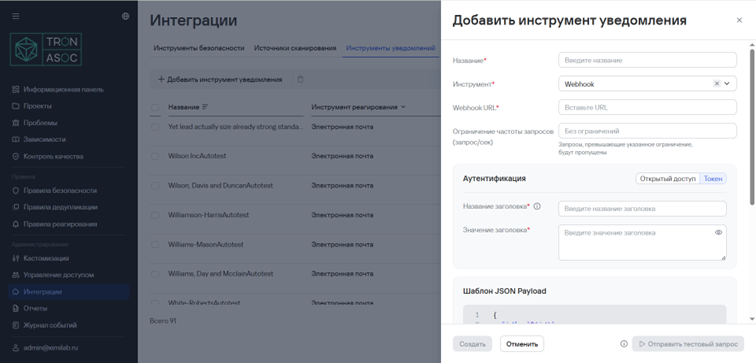
- In the window that opens, fill in these fields:
- Name;
- Tool—select Webhook;
- Webhook URL;
- Request rate limit (requests/sec).
- Select an authentication method:
- Open access;
- Token.
If you select the Token authentication method, specify the header name and value.
Example header name and value: X-Auth-Token: a334564e7dd50848bc20f8984a152f77
- If necessary, test the connection by selecting Test request.
- Select Create.
The notification tool appears in the list of tools in the Notification tools section.
Delete one or more notification tools
To delete one notification tool, follow these steps:
- Go to Integrations → Notification tools.
- Select the additional actions button (
 ) next to the required tool.
 - Select Delete.
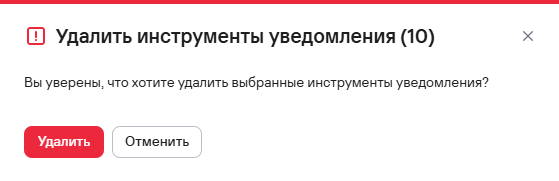
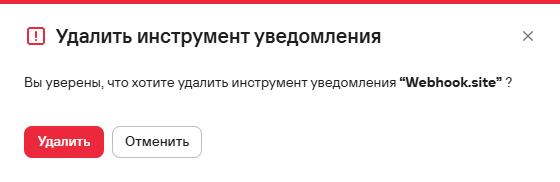
- Confirm the deletion of the notification tool in the modal window.
To delete multiple notification tools, follow these steps:
- Select the tools using the checkboxes (
 )
) - Select the delete button (
 ) above the notification tools table.
 - Confirm the deletion of the notification tools in the modal window.