Field builder
The field builder lets users create custom fields and use them in their projects.
Adding fields
To add a custom field, follow these steps:
-
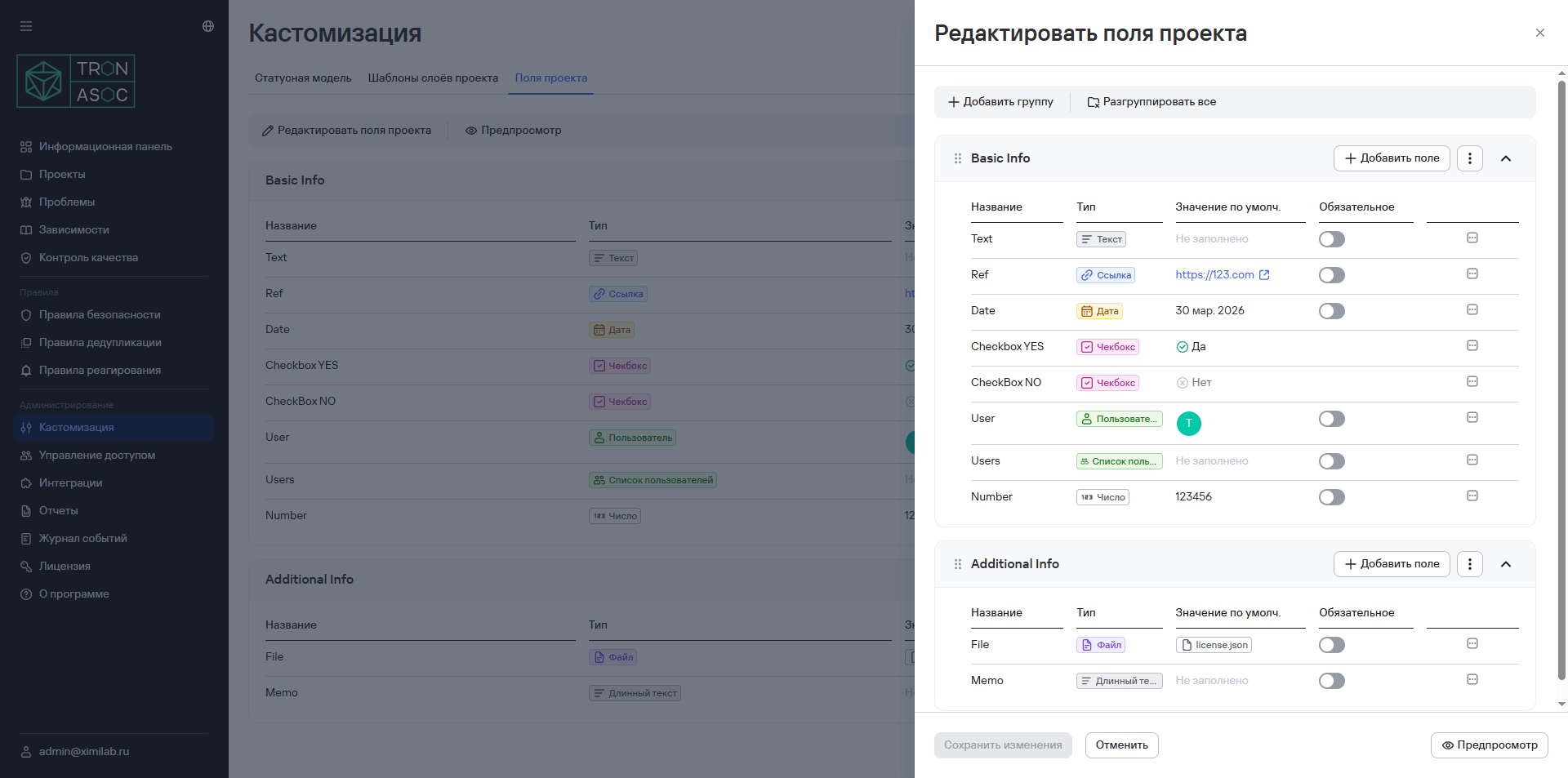
Go to Customization → Project fields.
-
Select Edit project fields.
-
In the window that opens, select Add field.
-
Select one of the options:
- Create a new field—a window opens where you must enter the parameters for the field you're adding;
- Use a previously created field—a window opens with the parameters configured when you added the previously created field.
-
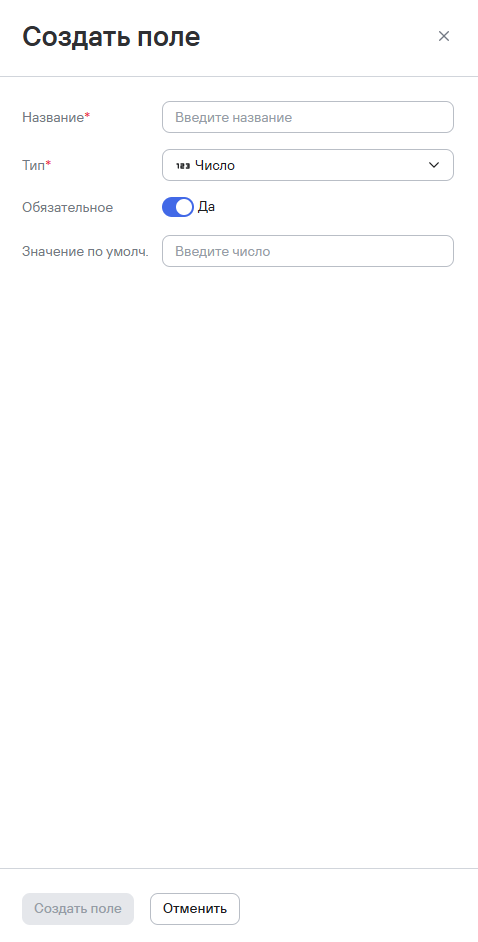
Enter the parameters for the field you're adding:
- Name;
- Type—you can select one of the following types:
- Text;
- Long text;
- Link;
- Date;
- Checkbox;
- User;
- User list;
infoOnly system users with permission to view users can change the User and User list fields.
- Number;
- File;
infoYou can upload only one file for the File parameter. The system configuration file defines the restrictions for file types and sizes.
- Required;
- Default field value;
-
If needed, change whether the field is required using the Required toggle.
-
Select Create field.
After you create a field or group of fields, they automatically appear blank in each project's parameters.
Filling in fields in projects
To fill in custom fields for a project, follow these steps:
- Go to the Projects section.
- Select the required project from the list.
- Go to the Information tab.
- Select Edit.
- In the window that opens, fill in the required fields.
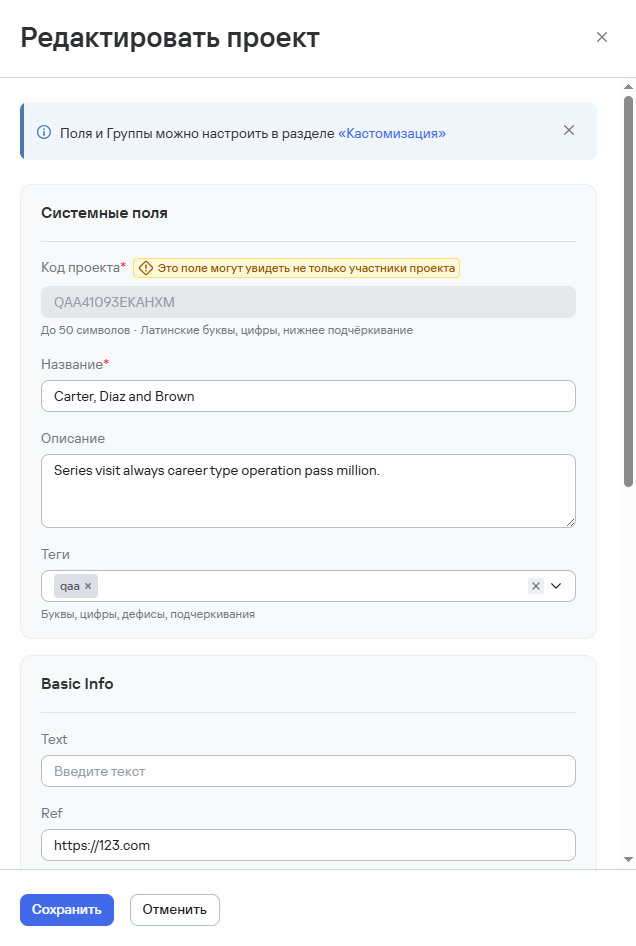
- After you fill in the fields, select Save.
You can also fill in fields as follows:
- Select the additional actions button (
 ) in the project row.
 - Select Edit.
- Fill in the required custom fields.
- Select Save.