Actions with scan sources
This section describes actions for adding, editing, and deleting scan sources, supported scan sources, and combinations of scan sources and security tools.
Supported scan sources
The system supports the following scan sources:
- Git Repository;
- Nexus;
- CLI Tool;
- Jfrog;
- Harbor;
- AppUrl.
The following version control system types are available for a Git repository source:
- GitHub;
- GitLab;
- BitBucket (cloud and server);
- Other (you can connect other types).
When you start scans with a BitBucket source, you can adjust the specified port (for example: ssh://git@bitbucket.int.tronasoc.ru:0000/test/command.git → https://bitbucket.int.tronasoc.ru:0000/test/command.git).
After you upgrade TRON.ASOC to a new version, you must reconfigure integrations with Git Repository sources that don't have a version control system type configured.
Connect a scan source
To connect scan sources, you must have at least the following permissions:
- View sources;
- Manage sources;
To connect a scan source, follow these steps:
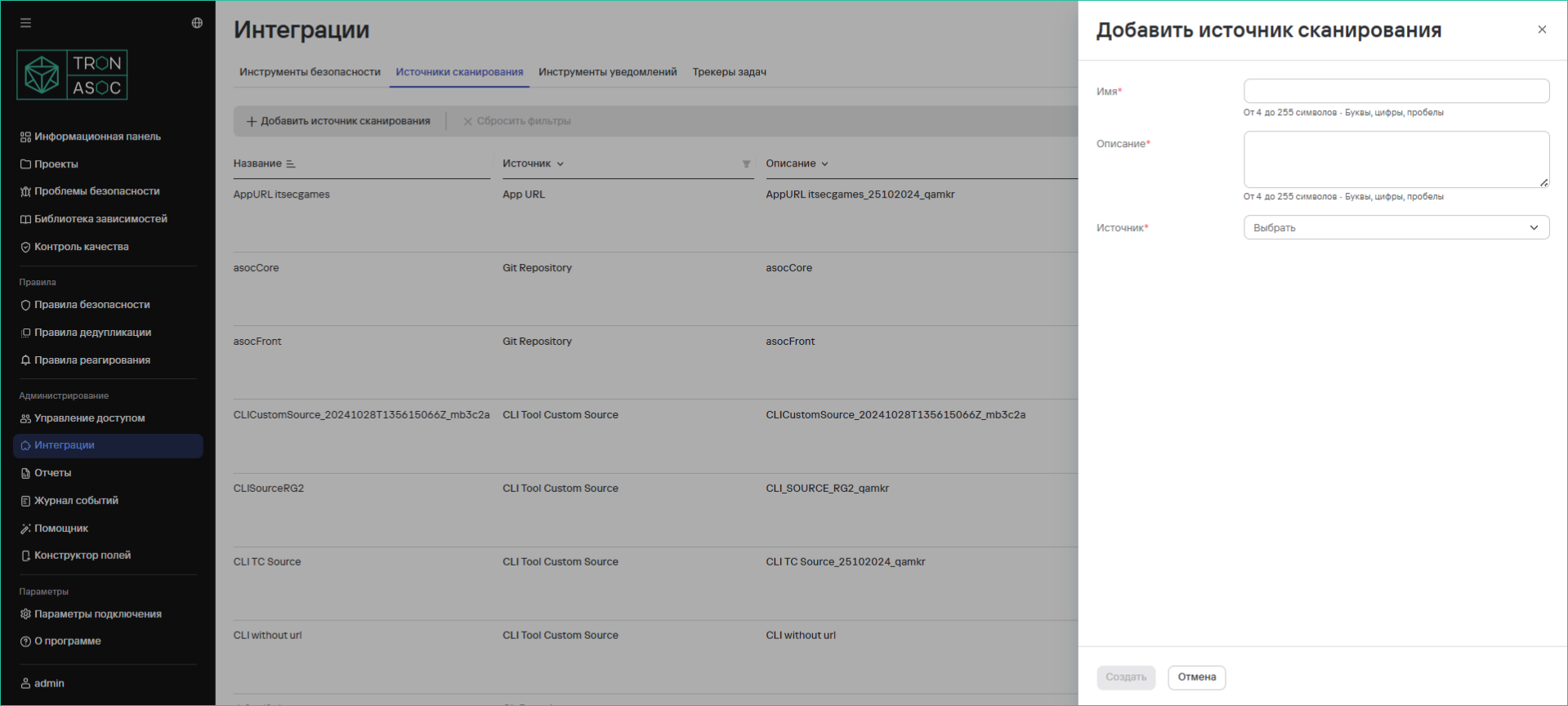
- Go to Integrations → Scan sources.
- Select Add scan source.
- Enter values in the Name and Description fields.
- Select an access type for the scan source:
- Global—the scan source will be available in all projects;
- Project—the scan source will be available only in the selected projects. After you select this access type, select one or more projects where the scan source will be available.
- Select a scan source from the Source drop-down list.
-
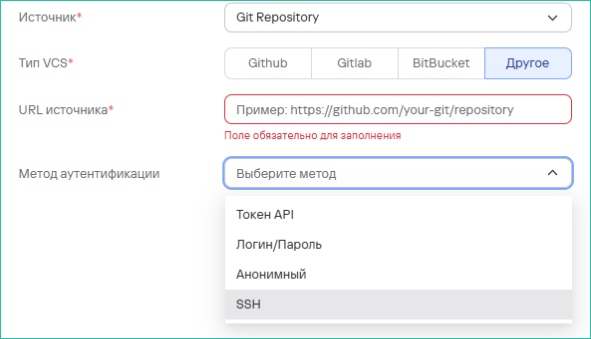
Complete the additional fields:
- Source URL;
- Authentication method;
- Skip connection check—the system won't check the connection to the source before starting the scan.
-
Complete the fields based on the selected authentication method:
- API token: API token field
- Login/password: Login and Password fields
- Anonymous;
- SSH (a secure SSH key-based authorization method; all SSH methods are available except
passphrase).
infoSelecting an authentication method isn't required at this step. However, you can't check the connection to the source without specifying an authentication method.
-
If needed, check the connection by selecting Check connection.
You can check the connection only if you've entered valid authentication data for the scan source. If the data is correct, the connection check succeeds. If the connection can't be established, verify the data and try again.
- Select Create.
Edit a scan source
To edit a scan source, follow these steps:
- Go to Integrations → Scan sources.
- Select the additional actions button (
 ) in the row for the required source.
 - Select Edit.
- Change the required data.
- Select Save.
Delete a scan source
To delete one scan source, follow these steps:
- Go to Integrations → Scan sources.
- Select the additional actions button () in the row for the required source.
- Select Delete.
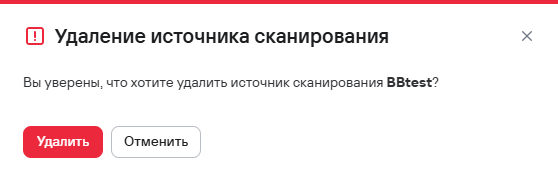
- Confirm the source deletion in the dialog box.
To delete multiple scan sources, follow these steps:
- Select the scan sources using the checkboxes (
 )
) - Select the delete button (
 ) above the sources table.
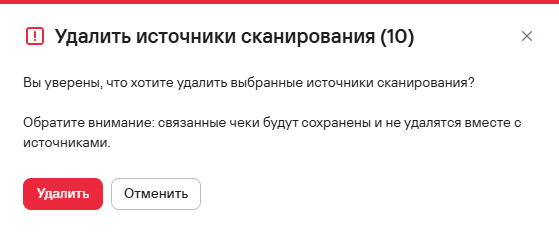
 - Confirm the source deletion in the dialog box.
Combinations of scan sources and security tools
The system supports the following combinations of scan sources and security tools:
- CLI tools (ESLint, Gitlab SAST, Trivy, Grype, KICS, Aqua, OWASP Dependency Track, Gitleaks) + CLI Custom source.
- CLI tools that can run in k8s + Git Repository. For the current list of CLI tools that can run in k8s, see Run CLI tools in Kubernetes.
- KCS + Nexus/Harbor/Jfrog.
- Appscreener Solar SAST/Solar SCA/PTAI + Git Repository.
- SASTAV + Git Repository.
- CodeScoring + Git Repository/Nexus/Harbor/Jfrog.
- Manual tool + CLI Custom source.
- Appscreener Solar DAST + App URL.
CLI tools from combination 1 can create security checks only with the CLI Custom Source source type.
When you create a check with combination 2, the tool runs in k8s as a job, gets data from the source, performs a security check, and returns a security issue report.
When you create a security check with combinations 3 and 4, you must also specify the source branch or tag. You can specify multiple branches or tags.
When you create a security check with combination 5, you must also specify a scan rule set and associate the source branch or tag with a commit.
When you create a security check with combination 6, you must also specify the security check type (SCA, container SCA, or secrets). If you select secrets, you must also select a secrets configuration or upload a new one. You must also specify the source branch or tag. You can specify multiple branches or tags.
The Manual tool type works only with the CLI Custom Source source type because tools of this type support only SARIF report uploads.