Scan sources
You can add scan sources for later use in projects.
Connect a scan source
To connect a scan source, follow these steps:
- Go to Integrations → Scan sources.
- Select Add scan source.
- In the scan source form, fill in these fields:
- Name;
- Description.
- Select a scan source from the Source drop-down list.
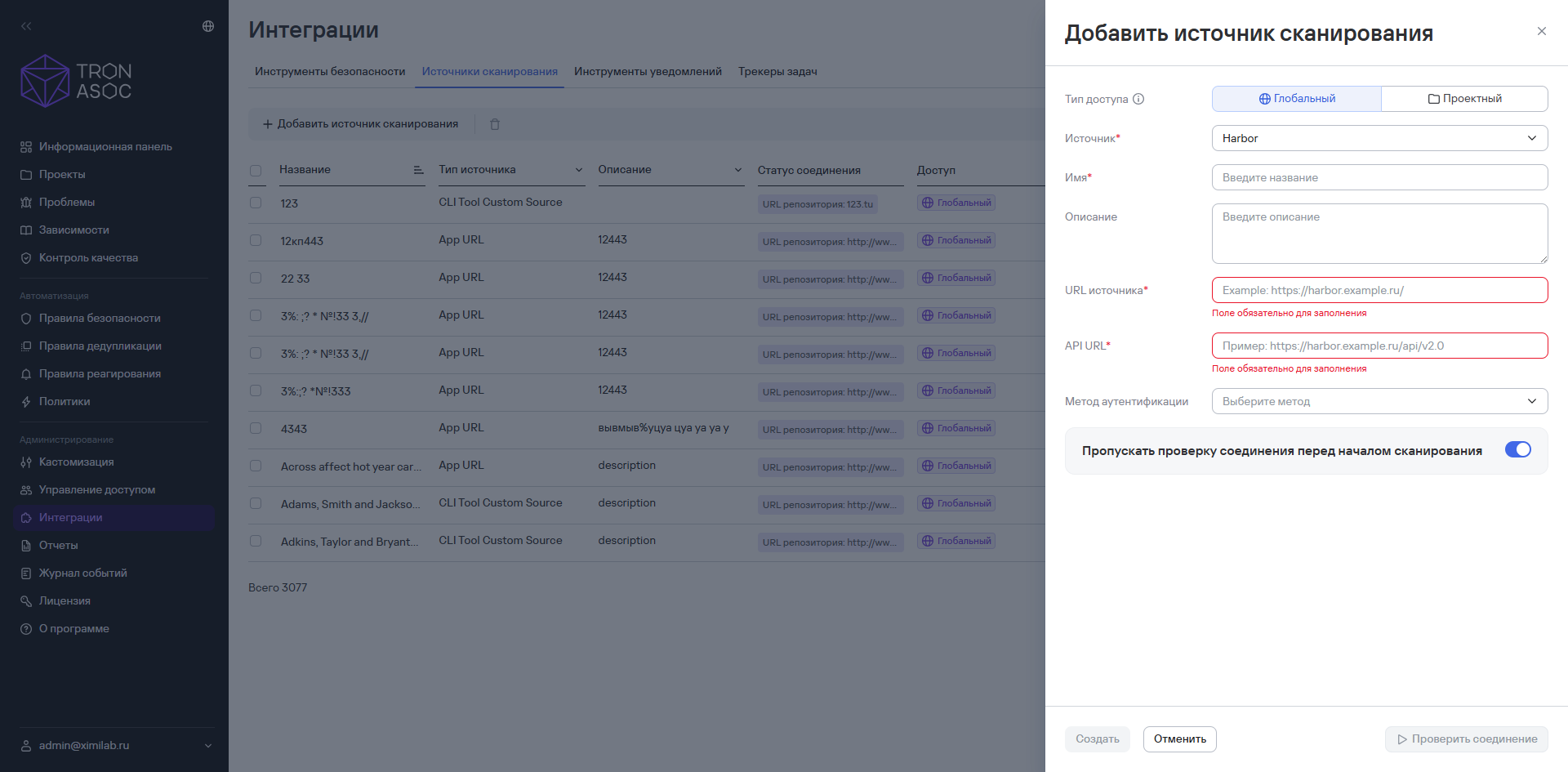
- After you select the source, fill in these additional fields:
- Source URL;
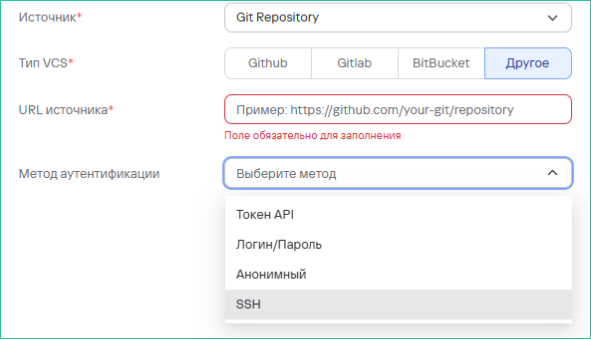
- Authentication method—this field is optional, but you can't check the connection to the source without it;
- Skip connection check—when you select this option, the system won't check the connection to the source before scanning starts. Use this option when the sources aren't accessible over the network.
info
The Git Repository source supports several authentication methods:
- API token;
- Login/Password;
- Anonymous;
- SSH (a secure SSH key-based authentication method; all SSH methods are available except passphrase).
- To check the connection, select Check connection.
info
You can check the connection only if you entered the authentication data correctly in the security tool. If the data is correct, the connection check succeeds. If the connection fails, verify the data and try again.
- Select Create.
Edit a scan source
To edit a scan source, follow these steps:
- Select the edit button (
 ) in the scan source row.
 - Make your changes.
- Select Save.
Delete scan sources
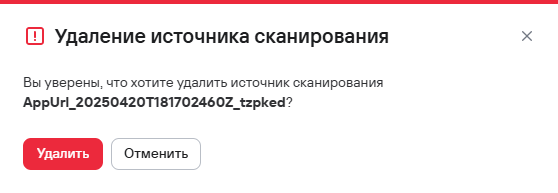
To delete one scan source, follow these steps:
- Select the delete button (
 ) in the row for the scan source you want to delete.
 - In the window that opens, confirm the deletion of the scan source.
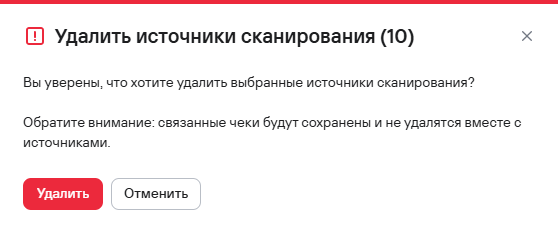
To delete multiple scan sources, follow these steps:
- Select the scan sources using the checkboxes (
 )
) - Select the delete button () above the source table.
- In the modal window that opens, confirm the deletion of the scan sources.