Viewing security issues
Filtering security issues
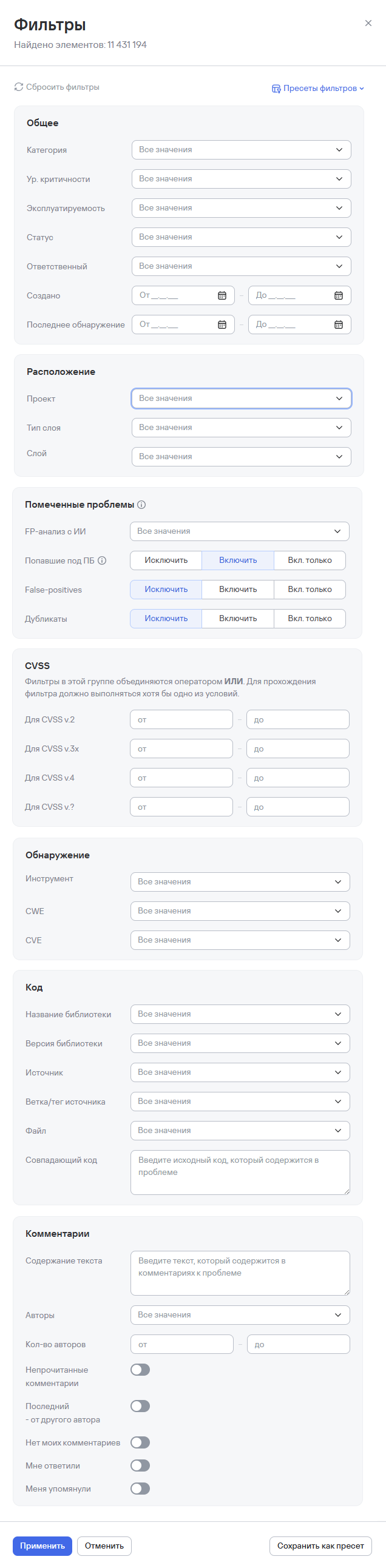
In the Security issues section, as well as in the issues for an individual project, you can filter the issue list to manage issues more easily.
You can filter by the following parameters:
- General parameters:
- Category—the name of the security issue category;
- Severity—the severity of the security issue;
- Exploitability—the exploitability level of the security issue;
- Status—the status of the security issue;
- Assignee—users or user groups assigned as assignees;
- Created—the date when the security issue was detected in the system;
- Last detection—the date of the latest security issue detection.
- Location:
- Project—the name of the project that contains the security issues;
- Layer type—the type of layer in the project;
- Layer—project layers and their nested layers.
- Flagged issues:
- AI FP analysis—security issues identified as false positives based on AI analysis;
- Covered by a security rule—security issues covered by a security rule;
- False positives—false-positive security issues;
- Duplicates—duplicate vulnerabilities.
- CVSS:
- CVSS v.2;
- CVSS v.3x;
- CVSS v.4;
- CVSS v.?.
- Detection:
- Tool—the name of the vulnerability detection tool;
- CWE—the CWE parameter name;
- CVE—the CVE parameter name.
- Code:
- Library name—the library name;
- Library version—the library version;
- Source—the name of the scanned object;
- Source branch/tag—the branch or tag of the scan source;
- File—the name of the file that contains the source code;
- Matching code—the source code contained in the security issue.
- Comments:
- Text content—the text contained in comments on security issues;
- Authors—the comment authors;
- Number of authors—the number of authors of comments on security issues;
- Unread comments—unread comments that mention the user;
- Last—from another author—the latest comment from another user;
- No comments from me—security issues with no comments from the current user;
- I received a reply—contains replies to the current user's comments;
- I was mentioned—the current user was mentioned in comments.
Creating filter presets
System users can use presets with previously configured filters, add new presets, or reset them.
caution
The system limits personal presets—users can add up to 10 presets.
To create a preset, follow these steps:
-
Go to the Security issues section.
-
Select the filter icon.
-
In the form that opens, set the required filter values.
-
Select Save as preset.
-
Enter the following preset parameters:
- Name;
- Access (personal or shared).
tipWhen you select shared access, you must also add the user group that will use the preset in the required Group field.
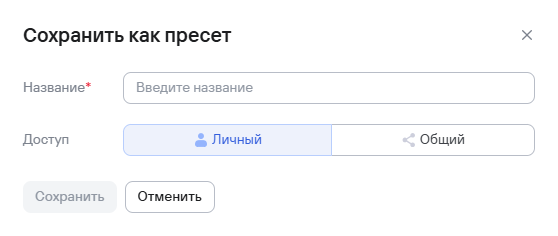
- Select Save.