Policies
A policy is a configurable automation rule for DevSecOps processes that uses an event-driven model. It lets the system respond to internal events or run on a schedule while performing specified actions on system entities.
A policy consists of three sequential components:
- Trigger—the event that causes the policy to run. This event can be a change to an entity, such as creating a project, updating a vulnerability, or completing a scan, or a scheduled time defined by a cron schedule.
- Conditions—a logical filter that determines whether the rule applies. Conditions use CEL (Common Expression Language), which supports complex operators, array aggregations, and time intervals.
- Action—the operation that runs when the conditions evaluate to true. It includes CRUD operations on entities such as projects, layers, and vulnerabilities; scan management; notification delivery; and task creation in task trackers.
Add a new policy
Add a standard policy
To add a new policy, follow these steps:
-
Go to the Policies section.
-
Select Add policy.
-
In the window that opens, enter the following information:
- policy name;
- policy description;
- scope, either across the entire system or within a single project.
infoYou can also add project policies from projects. Go to Projects → Project name → Policies, select Add policy, and follow the steps below.
-
In the If block, select the condition that should cause the policy to run from the Trigger drop-down list.
-
In the Then block, specify the action that should run when the trigger fires.
tipYou can enter your own conditions in CEL or use system presets. To select a preset, select Apply preset (
 ), and select the required preset from the list.
-
Verify that the configuration is valid by selecting Check syntax. If the input is valid, you'll see the notification The configuration syntax is valid. No errors found.
-
Select Create.
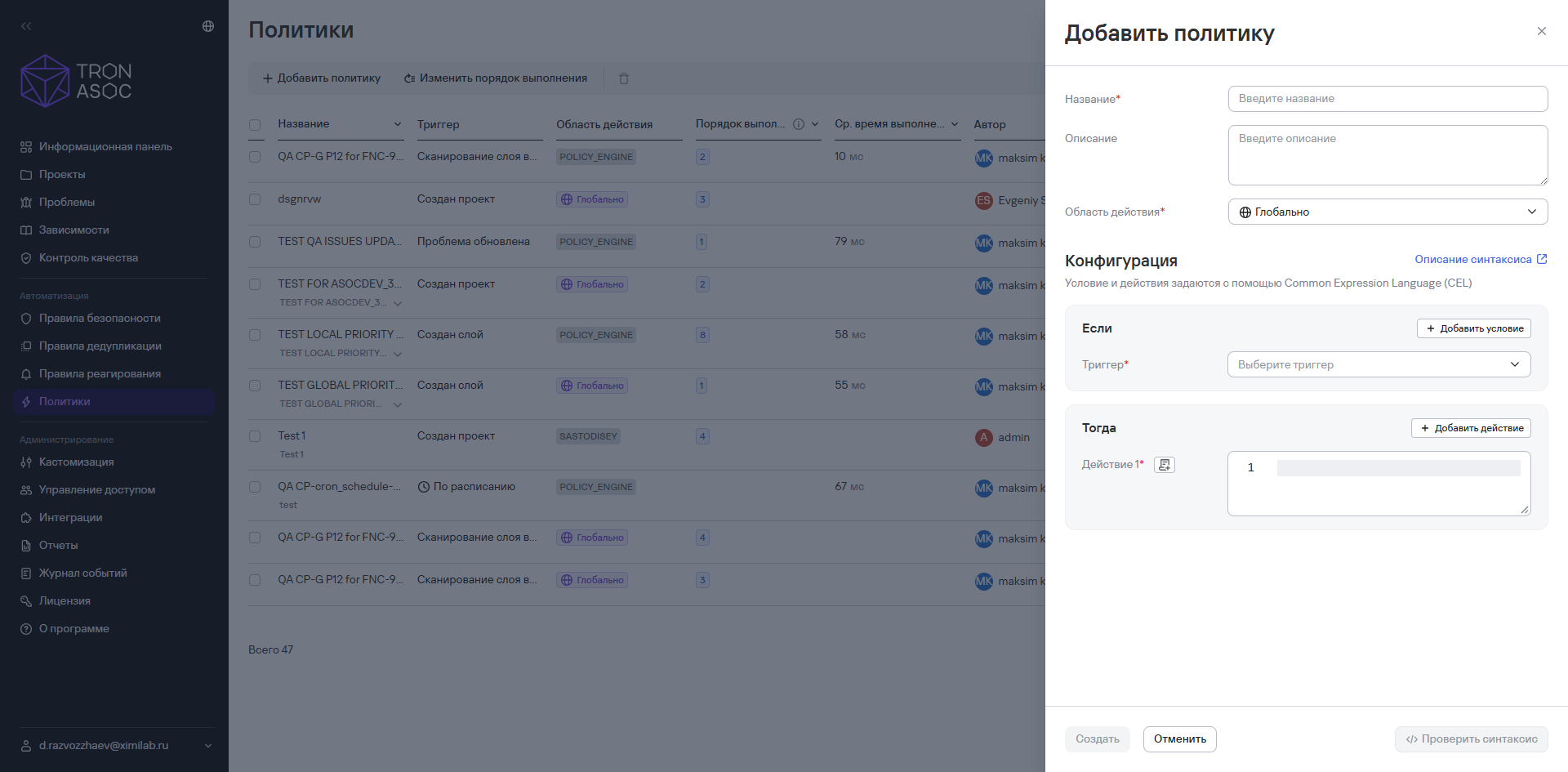
The new policy will appear in the list in the Policies section and run according to the specified conditions.
Add a cron policy
You can also add a policy that runs on a configured schedule. To do this:
-
Follow steps 1–3 in the previous instructions.
-
Select On a schedule from the Trigger list.
-
Set one of the following schedule options:
- one-time run: specify the execution date in the
DD/MM/YYYY HH:MMformat; - recurring schedule: turn on the Repeat toggle and enter a cron expression for running the policy.
warningTime processing depends on the schedule type:
- a cron expression schedule uses system time. If a user specifies a cron expression to run the policy every day at 10:00, the policy runs at 10:00 system time, regardless of the user's time zone;
- a specific date and time schedule uses the user's time, which is converted to system time based on the user's time zone. For example, if a user schedules the policy to run tomorrow at 10:00, the policy runs tomorrow at 10:00 in the user's time.
For more information about cron expressions, see Configure cron expressions for policies
tipYou can also use system presets to configure the schedule. To select a preset, select Apply preset (
), and select the required preset from the list.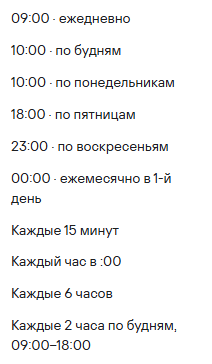
- one-time run: specify the execution date in the
-
Select the trigger that should run on schedule.
-
In the Then block, specify the action that should run when the trigger fires.
-
Select Create.
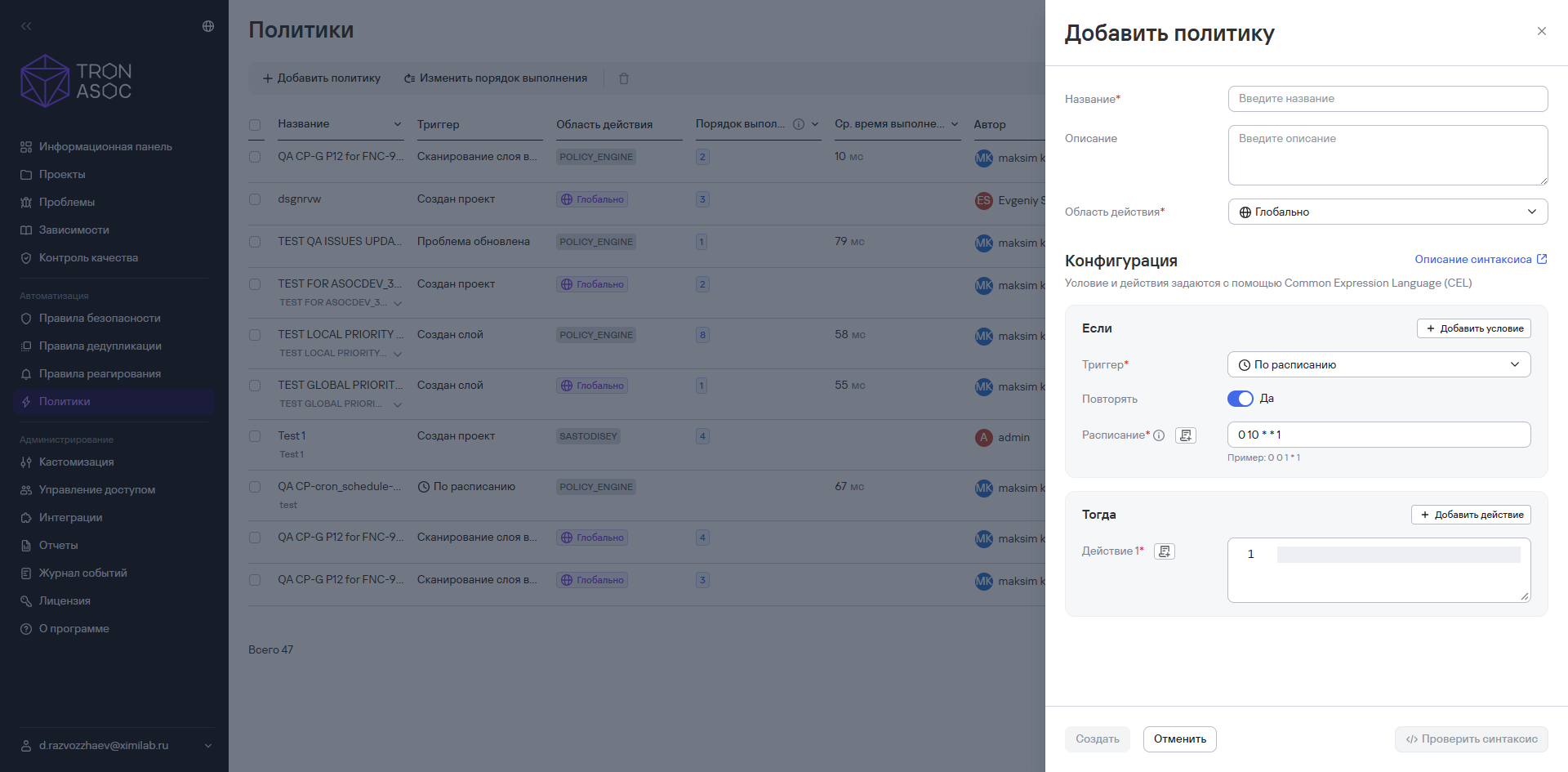
The new policy will appear in the list in the Policies section and run according to the specified conditions.
Edit a policy
To edit a policy, follow these steps:
- Go to the Policies section.
- Select the additional actions button (
 ) in the policy row.
 - Select Edit.
- In the window that opens, change the required information.
- Select Save.
The changed information will be applied to the policy.
Configure policy execution order
You can configure the order in which active policies run in the system.
To configure the policy order, follow these steps:
- Go to the Policies section.
- Select Change execution order.
- In the window that opens, select the policy group parameters:
- scope—across the system or within a project;
- trigger—when you select a trigger, the actions that run when the trigger fires are displayed.
- Move policies using the move button (
 ). The button appears when you hover over a policy.
 - Select Save changes.
Policies with the same trigger and same scope run in the order specified for the policy group. Scheduled policies run independently and don't have an execution order.
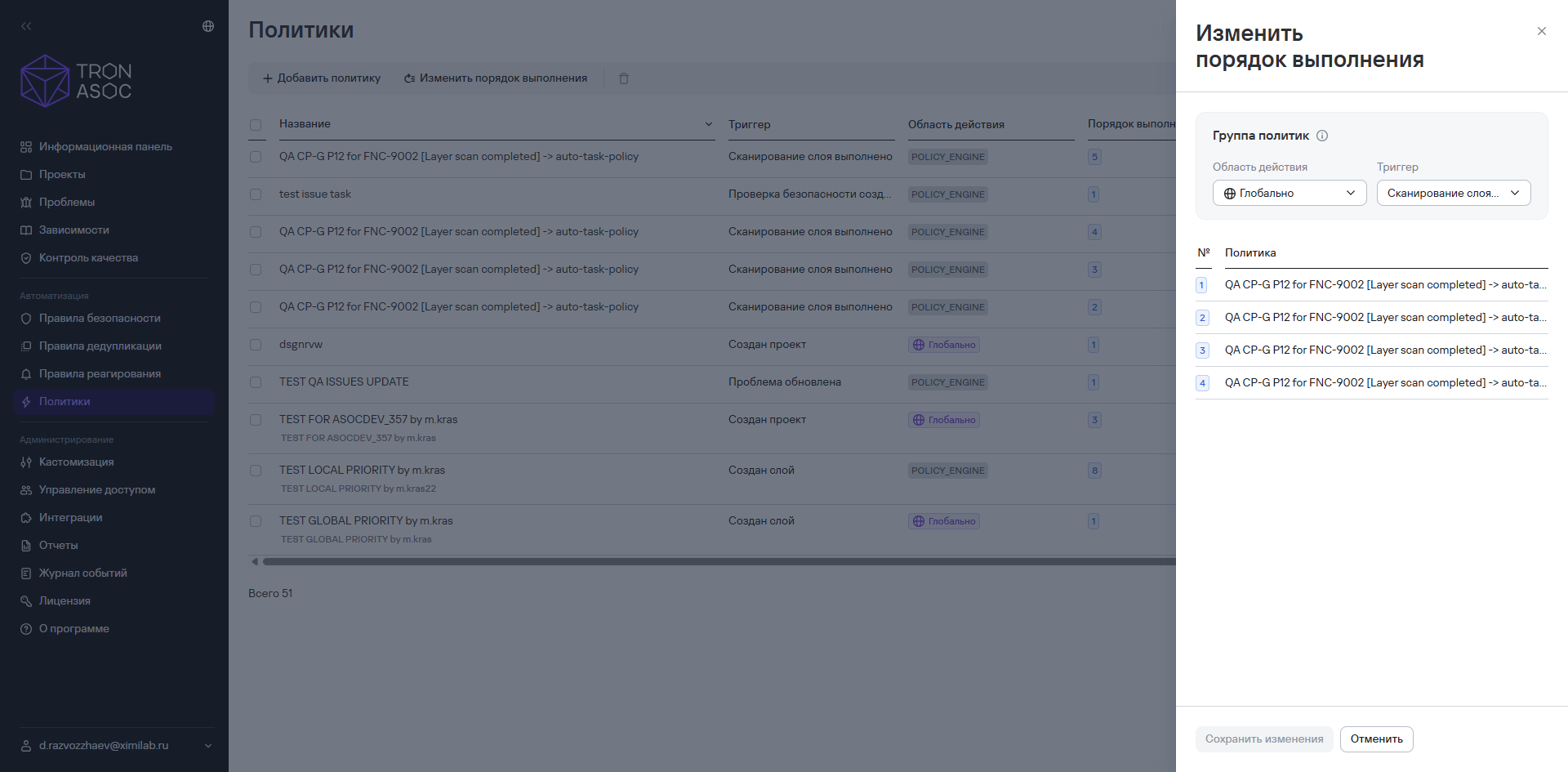
The changed information will be applied to the policy group.
Delete policies
To delete one policy, follow these steps:
- Go to the Policies section.
- Select the additional actions button () in the policy row.
- Select Delete.
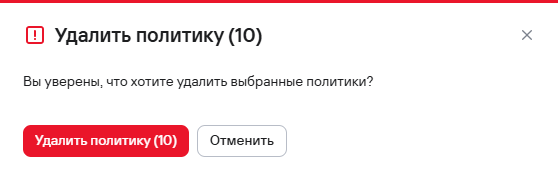
- Confirm the policy deletion in the modal window that opens.
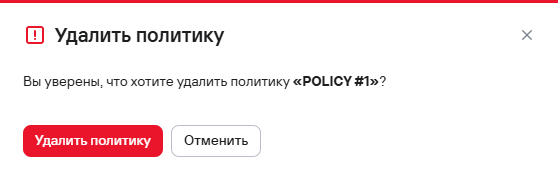
To delete multiple policies, follow these steps:
- Select the required policies using the checkboxes (
 ).
). - Select the delete button (
 ) above the policies table.
 - Confirm the policy deletions in the modal window that opens.