Configuring LDAP
To configure LDAP, follow these steps:
- Go to Access management → LDAP.
- Select Edit connection.
- Select the LDAP or Active Directory preset.
- Specify the following parameters:
- Server URL;
- Account name—the account name used to authenticate when connecting to the LDAP server;
- Account password—the LDAP account password;
- Base distinguished name—the main context path (Base Distinguished Name) where LDAP queries run;
- User filter—the user search filter;
- Group filter—the group search filter;
- Organizational unit name—the attribute that identifies the user's organizational unit;
- Distinguished name—the attribute that identifies the user's or group's distinguished name (DN);
- Username;
- User's last name;
- Group name;
- User login;
- User email;
- Group member;
- User groups.
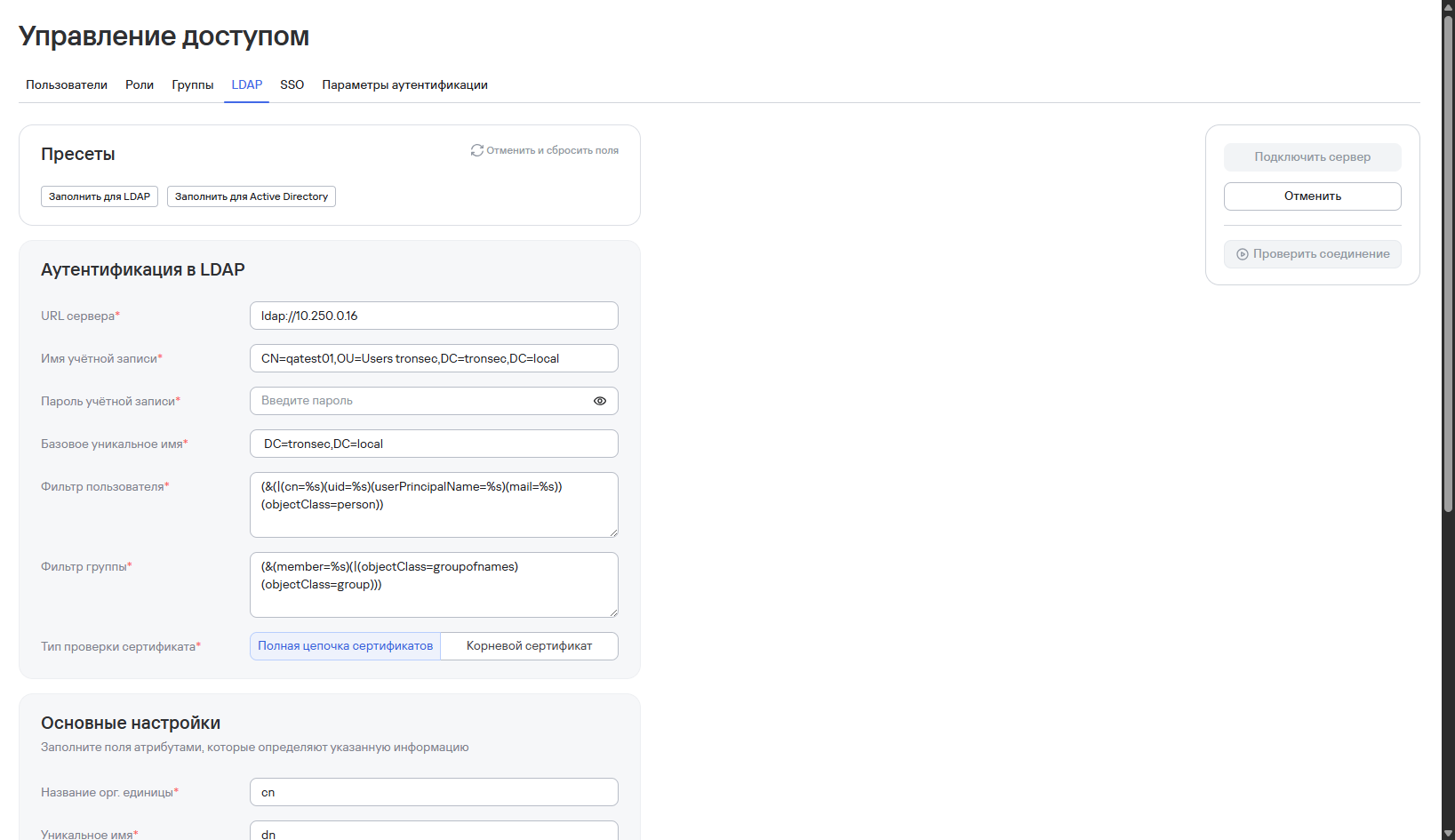
- Verify the settings and connection by selecting Check connection.
info
You can check the connection only if you entered the authentication details correctly.
If you entered the details correctly, the connection check succeeds. If the connection isn't established, check the authentication details and try again.
- Select Save.
info
When you check the connection again, the system uses the account name and password you entered before the last successful connection check.
When you edit the credentials, you can view these details and verify that you entered them correctly.