Actions with webhook triggers
Webhook triggers automatically run security checks in TRON ASOC when specific events occur, for example, immediately after a push (git push) or when you create a merge or pull request in a version control system (VCS).
For a list of supported VCSs and the events that trigger checks, see Webhook triggers.
Create a webhook trigger
To create a webhook trigger, follow these steps:
- Go to Webhook triggers.
- Select Add webhook trigger.
- In the window that opens, enter the following information:
- the webhook trigger name;
- the webhook trigger description;
- the project for which you’re creating the webhook trigger;
- the VCS type;
- the events that trigger the webhook trigger (Push, MR);
- the webhook trigger scope (layers, security checks).
- Select Add webhook trigger.
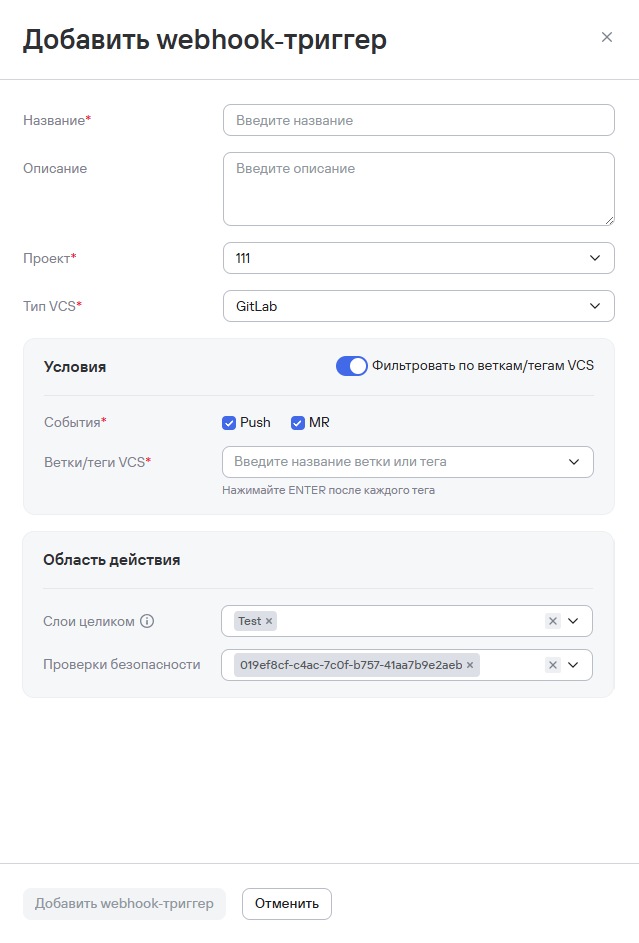
You can also create a webhook trigger from a project. Follow these steps:
- Go to Projects.
- Select the required project.
- Go to the Webhook triggers tab.
- Select Add webhook trigger.
- Follow step 3 in the preceding instructions.
- Select Add webhook trigger.
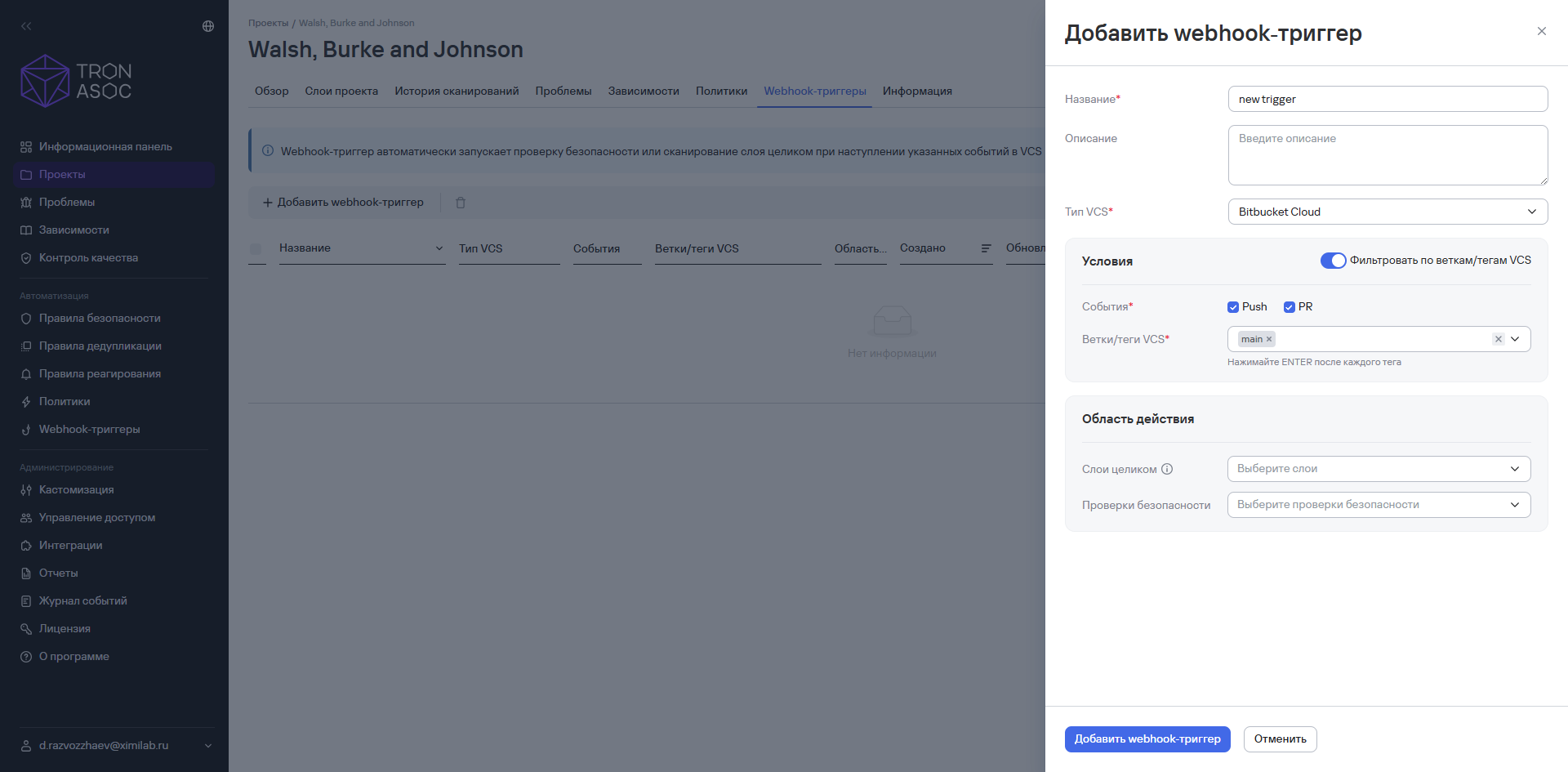
After you select Add webhook trigger, the page displays a modal window with the webhook URL. Add this URL to your VCS settings.
The webhook URL has the following format: https://<your TRON.ASOC URL>/api/v1/webhooks/vcs/<integration ID>?token=<TOKEN>. For <TOKEN>, use the API token you created in TRON.ASOC. For more information about creating an API token, see Create an API token.
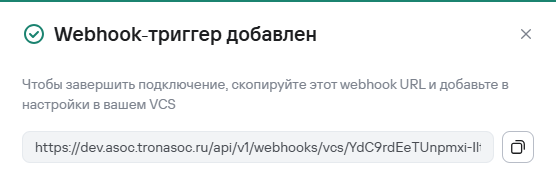
The webhook URL is displayed only once after you create the webhook trigger.
The created webhook trigger also appears in the trigger list in Webhook triggers.
Add a webhook trigger to a repository
To add a webhook trigger to a repository, follow these steps:
- Sign in to the VCS (GitHub, GitLab, Bitbucket, and so on) where your repository is located.
- In your repository settings, go to Webhooks.
- Enter the URL you received when you created the webhook trigger.
- Select the
application/jsoncontent type. - Enter the secret in the signature verification field (Secret/Token).
- Select the event types that correspond to those you selected when you created the webhook trigger (push, merge request, pull request, and so on).
- Save the webhook.
After you save the webhook, the VCS sends POST requests to the TRON.ASOC endpoint when the specified events occur.
Edit a webhook trigger
To edit a webhook trigger, follow these steps:
- Select the additional actions button next to the required webhook trigger in the Triggers section.
- Select Edit.
- Edit the webhook trigger information.
- Select Save changes.
The webhook trigger information is updated, but the webhook URL remains unchanged.
Delete a webhook trigger
To delete one webhook trigger, follow these steps:
- Select the additional actions button (
 ) next to the required webhook trigger.
 - Select Delete.
- In the modal window that opens, confirm the deletion of the webhook trigger.
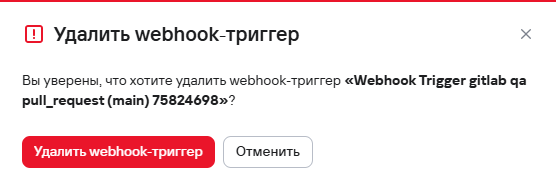
The webhook trigger is deleted from the system and no longer appears in the list of webhook triggers in Webhook triggers.
To delete multiple webhook triggers, follow these steps:
- Select the required webhook triggers using the checkboxes (
 ).
). - Select the delete button (
 ) above the webhook trigger table.
 - In the modal window that opens, confirm the deletion of the webhook triggers.
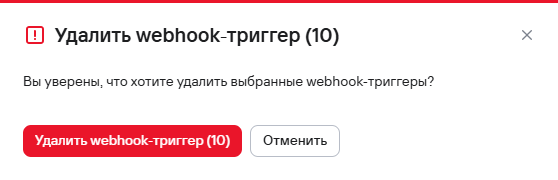
The webhook triggers are deleted from the system and no longer appear in the list in Webhook triggers.