Link a quality gate to a security check
You can use a quality gate in multiple projects.
You can add a quality gate to a specific project or from the shared template list in the Quality gates section.
Add a quality gate to a project
To add a Quality gate to a project, follow these steps:
- Go to Projects → Project name → Quality gates.
- Select Add control.
- In the list that opens, select the required quality gate, or select Create a new quality gate.
When you select Create a new quality gate, you'll go to the quality gate creation page. For more information about creating a quality gate, see Quality gate templates.
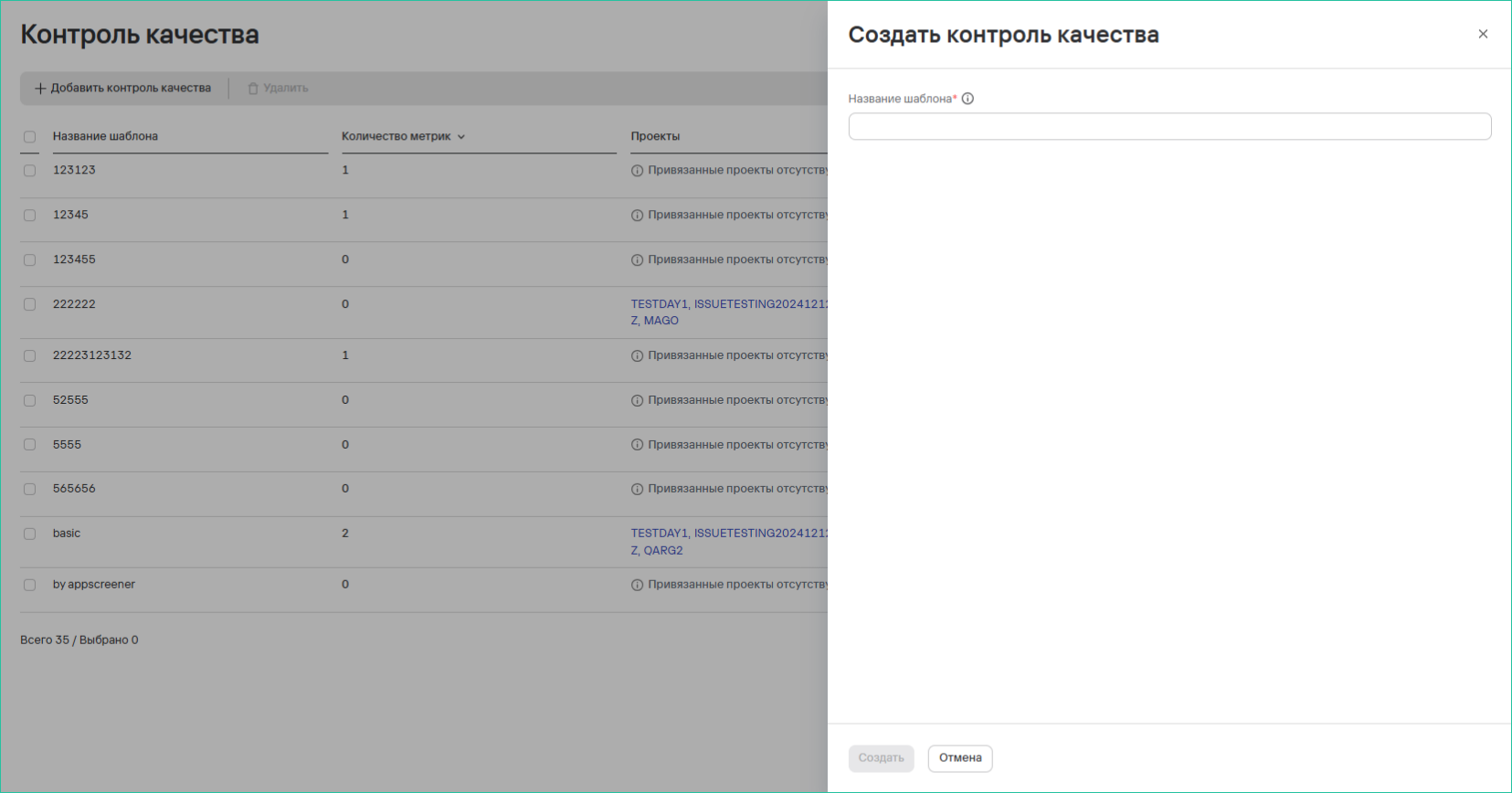
- Select Save.
View detailed quality gate metrics
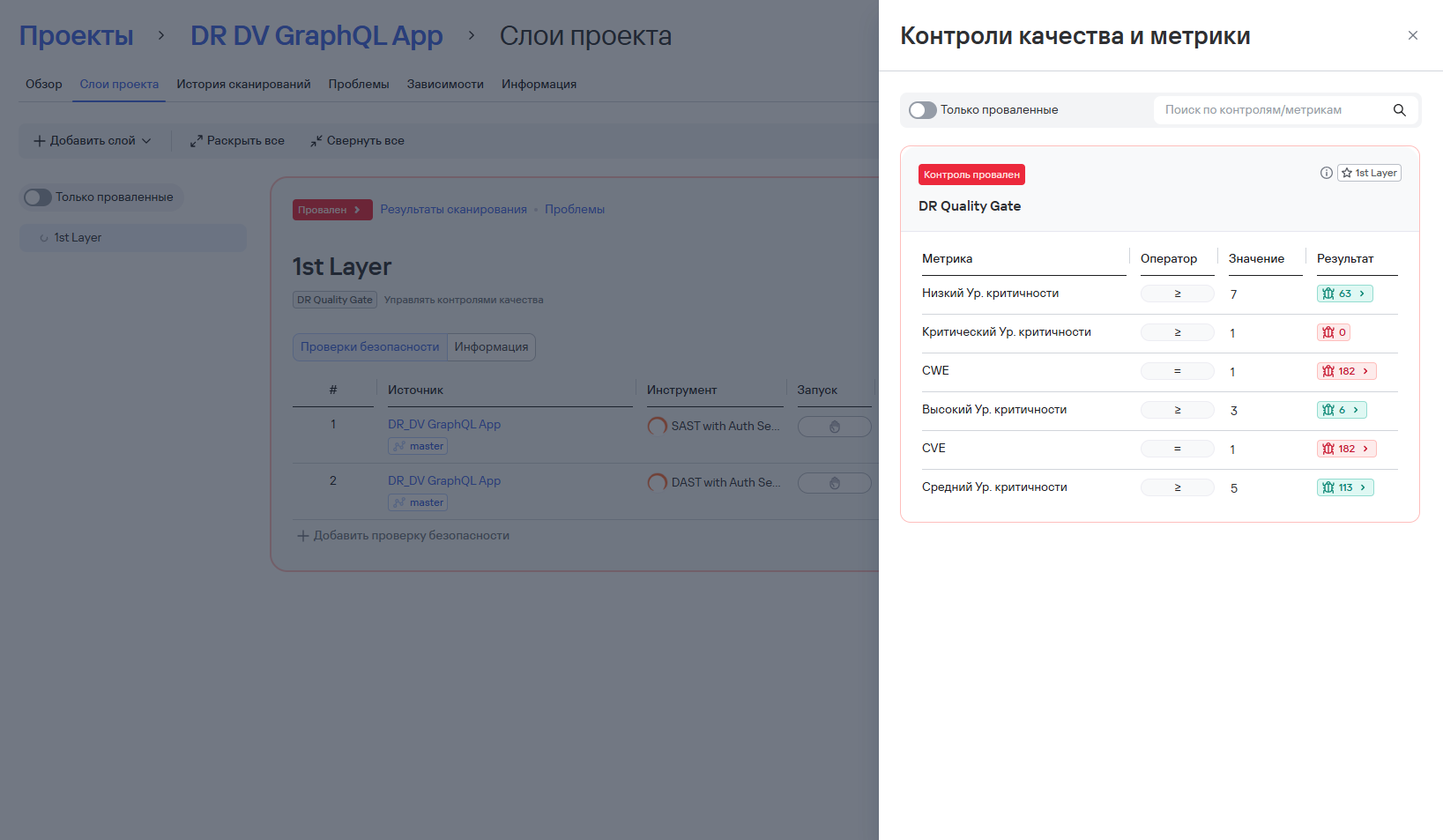
You can view the actual quality gate metric values in the sidebar. When you select the quality gate status, the system displays a list of all metrics with the results of the latest scan.
To view detailed quality gate metrics, follow these steps:
- Open the required project in the Projects section.
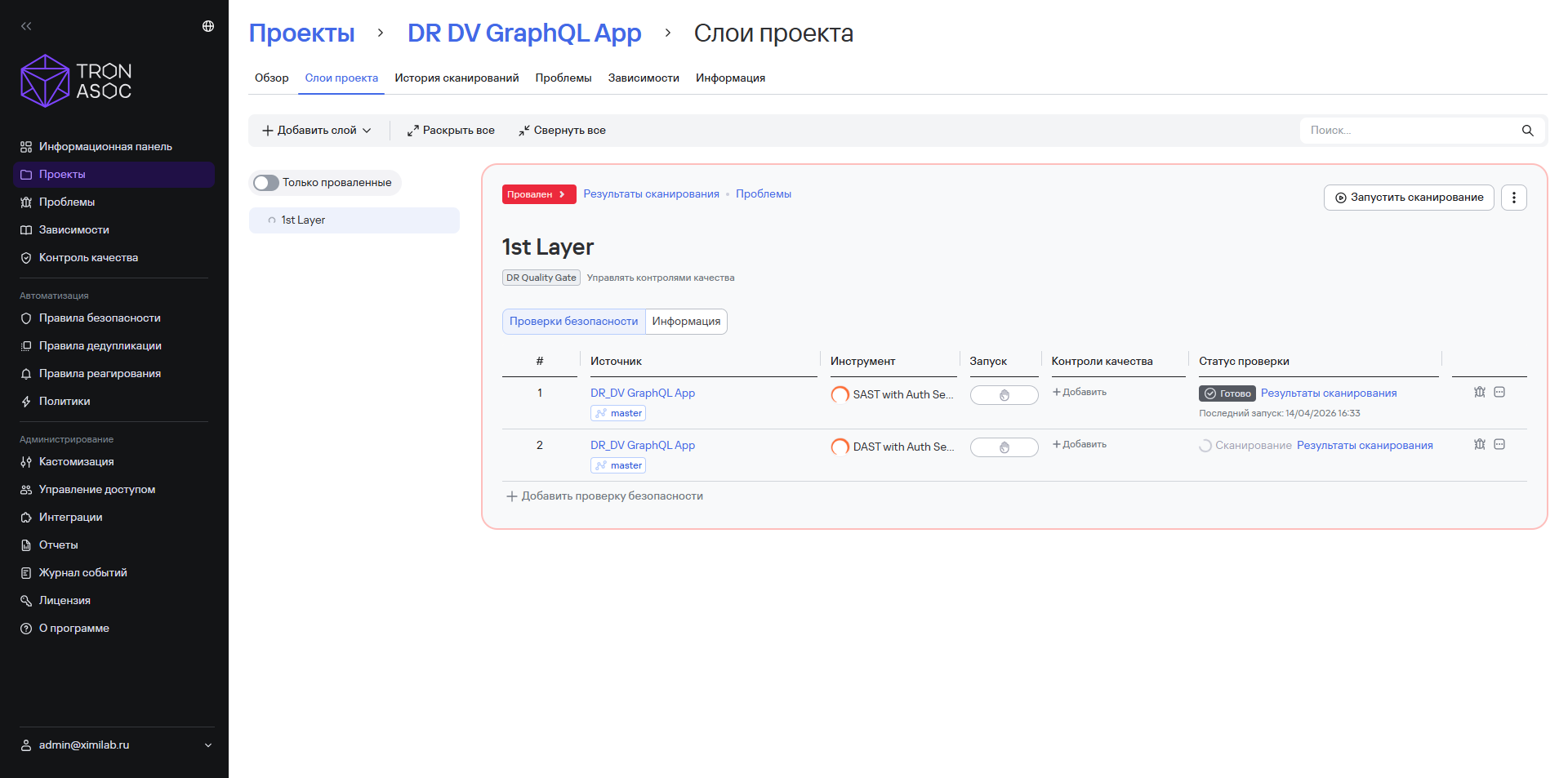
- Go to the Security layers tab.
- Select the project layer with the Passed or Failed status.
The sidebar opens and displays the following data:
- quality gate name;
- quality gate metric names;
- target metric values;
- actual metric values (for example,
 or
or  ).
).
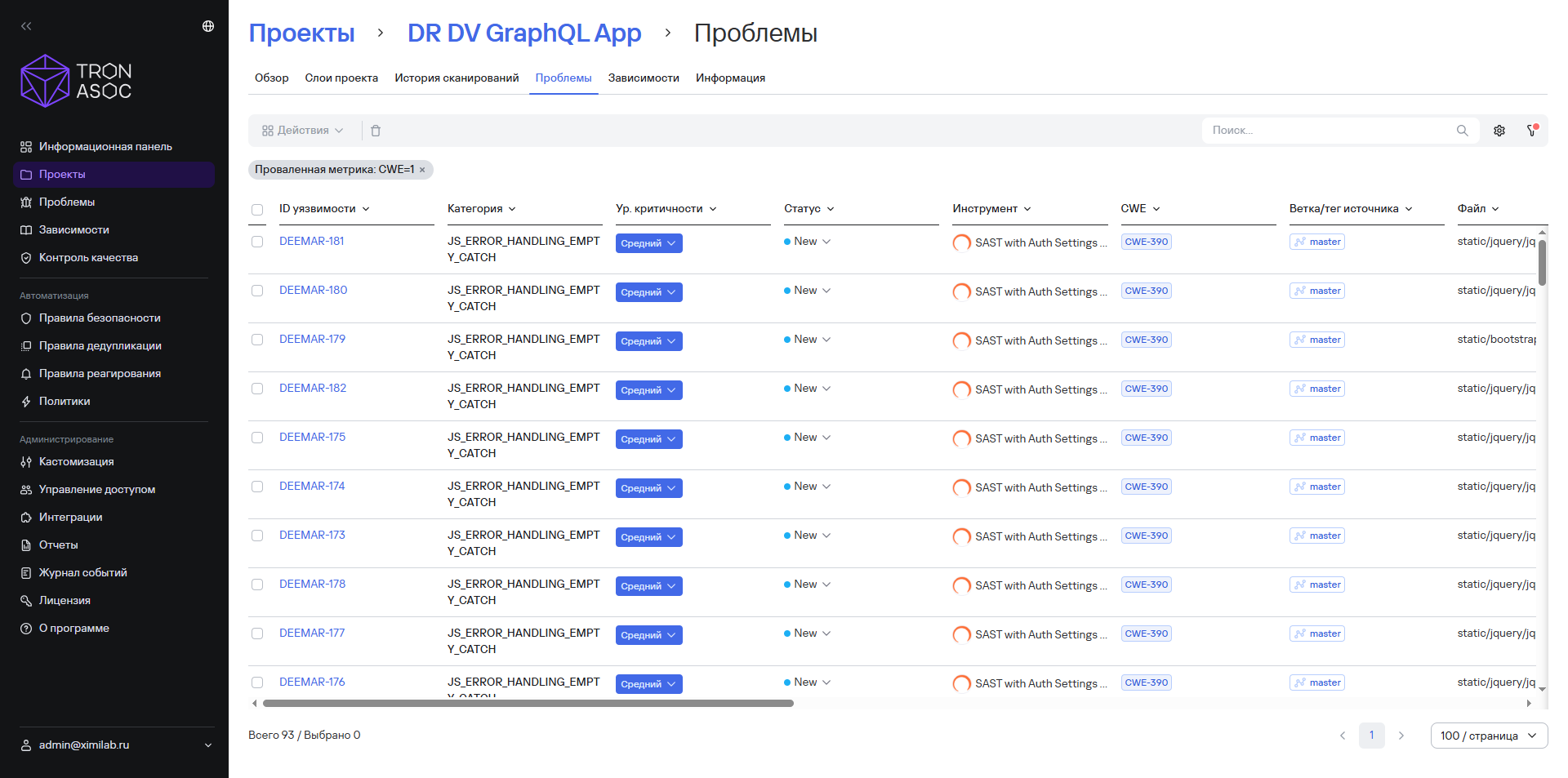
- Select the button to go to the metric's issues in the Result column.
The Issues page opens and displays a list of vulnerabilities filtered by the selected metric.