Working with quality gate templates
System users can add new quality gate templates, modify existing quality gates, or delete them in the Quality gates section.
Adding a quality gate template
To add a new quality gate template, follow these steps:
- Go to the Quality gates section.
- Select Add quality gate.
- In the form that opens, enter the template name.
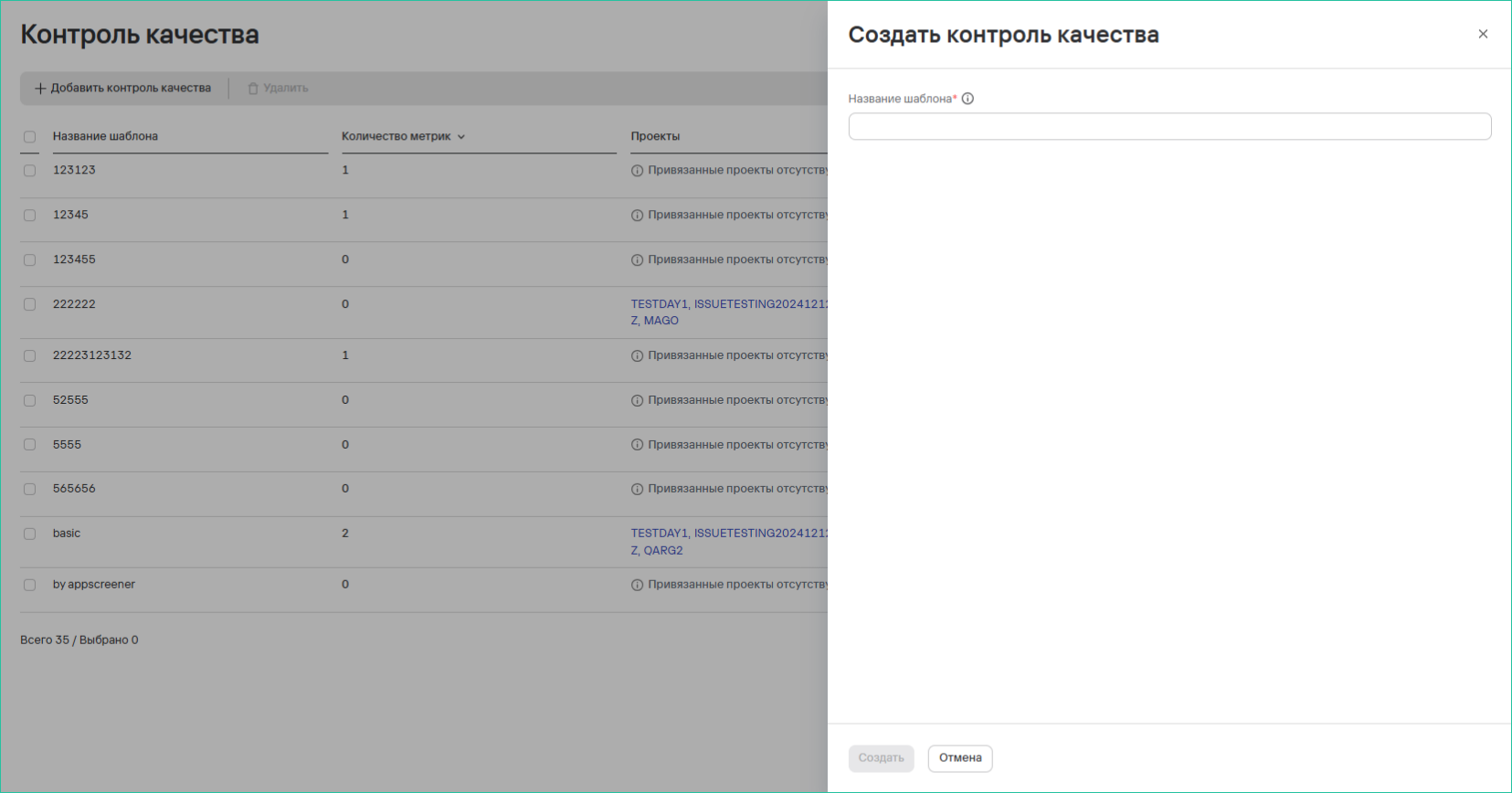
- Select Add metric to add a new metric and its threshold value.
info
You can select from the following metrics:
- severity level;
- tool type;
- tool name№
- category;
- source;
- CVE;
- CWE;
- file;
- matching code;
- library name;
- exploitability;
- CVSS.
tip
Quality gate metrics use the following format: Metric + Operator + Threshold value.
The following operators are available, depending on the metric you add:
- at most;
- at least;
- equals;
- doesn't equal.
- Select Create.
Editing a quality gate template
To edit a quality gate template, follow these steps:
- Select the edit button (
 ) next to the required template.
 - Specify the required metrics.
- Save the template.
Deleting quality gate templates
To delete one quality gate template, follow these steps:
- Select the more actions button (
 ) next to the required template.
 - Select Delete.
- In the modal window that opens, confirm the template deletion.

To delete multiple quality gate templates, follow these steps:
- Select the templates using the checkboxes (
 )
) - Select the delete button (
 ) above the template table.
 - In the modal window that opens, confirm the template deletion.