Linking a quality gate to a security scan
You can use a quality gate in multiple projects.
You can add a quality gate to a specific project or from the shared template list in the Quality gates section.
Adding a quality gate to a project
To add a Quality gate to a project, follow these steps:
- Go to Projects → Project name → Quality gates.
- Select Add gate.
- In the list that opens, select the required gate, or select Create new quality gate.
note
When you select Create new quality gate, you'll go to the quality gate creation page. For more information about creating a quality gate, see Quality gate templates.
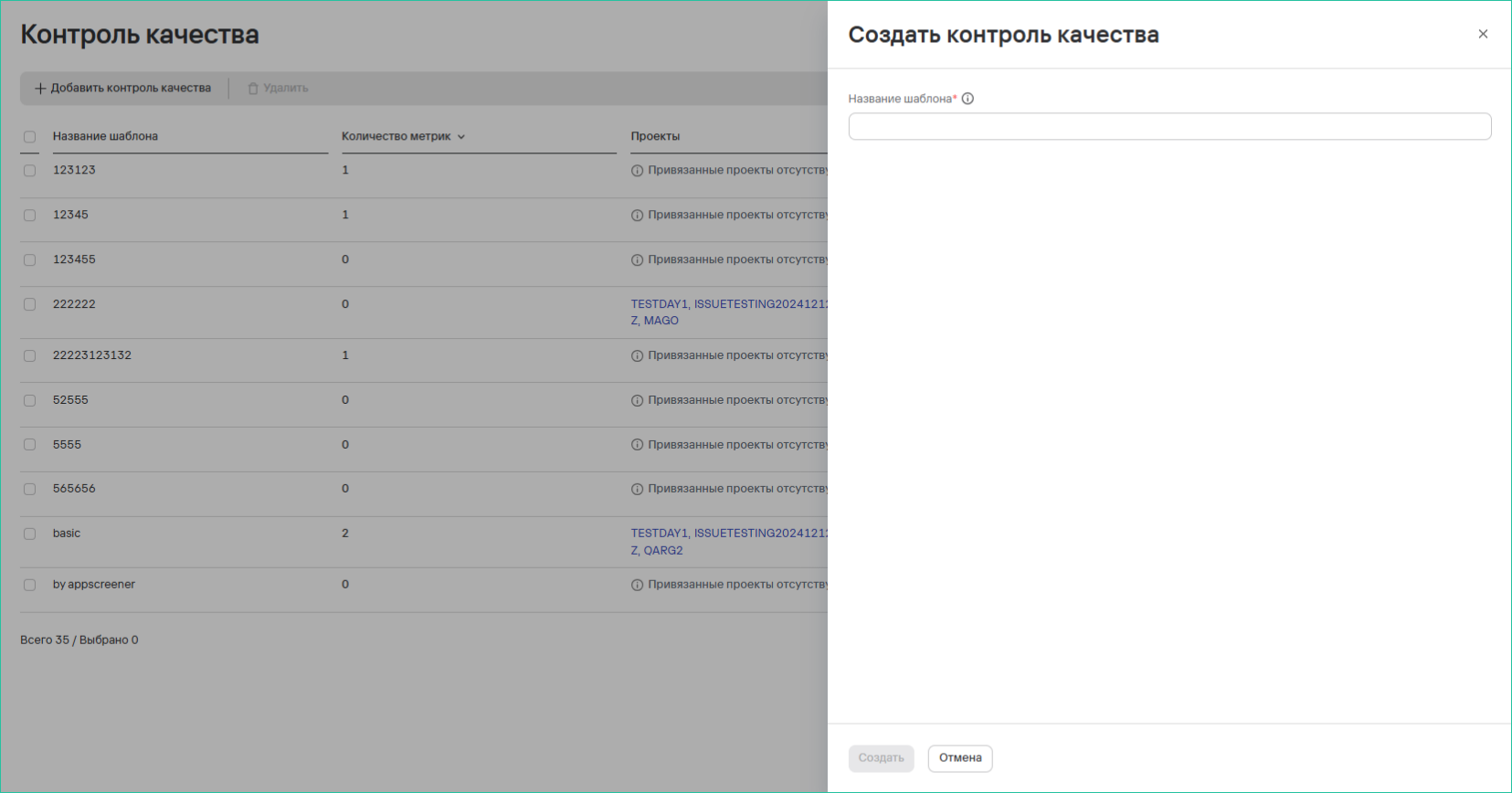
- Select Save.
Viewing detailed quality gate metrics
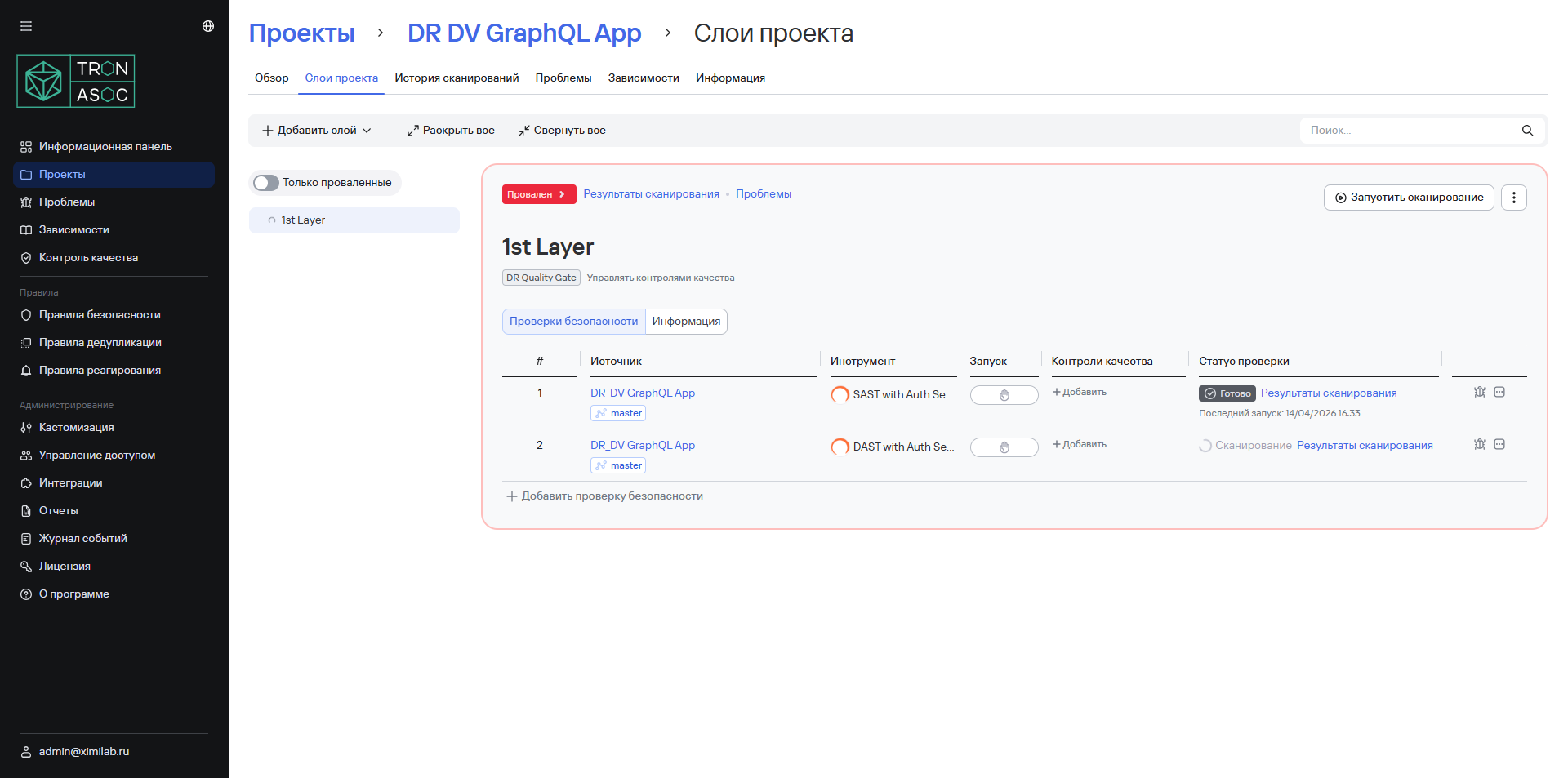
You can view the actual quality gate metric values in the side panel. When you select the quality gate status, the system displays a list of all metrics with the latest scan results.
To view detailed quality gate metrics, follow these steps:
- Open the required project in the Projects section.
- Go to the Security layers tab.
- Select the project layer with the Passed or Failed status.
A side panel opens with the following data:
- quality gate name;
- quality gate metric names;
- target metric values;
- actual metric values, for example,
 or
or  .
.
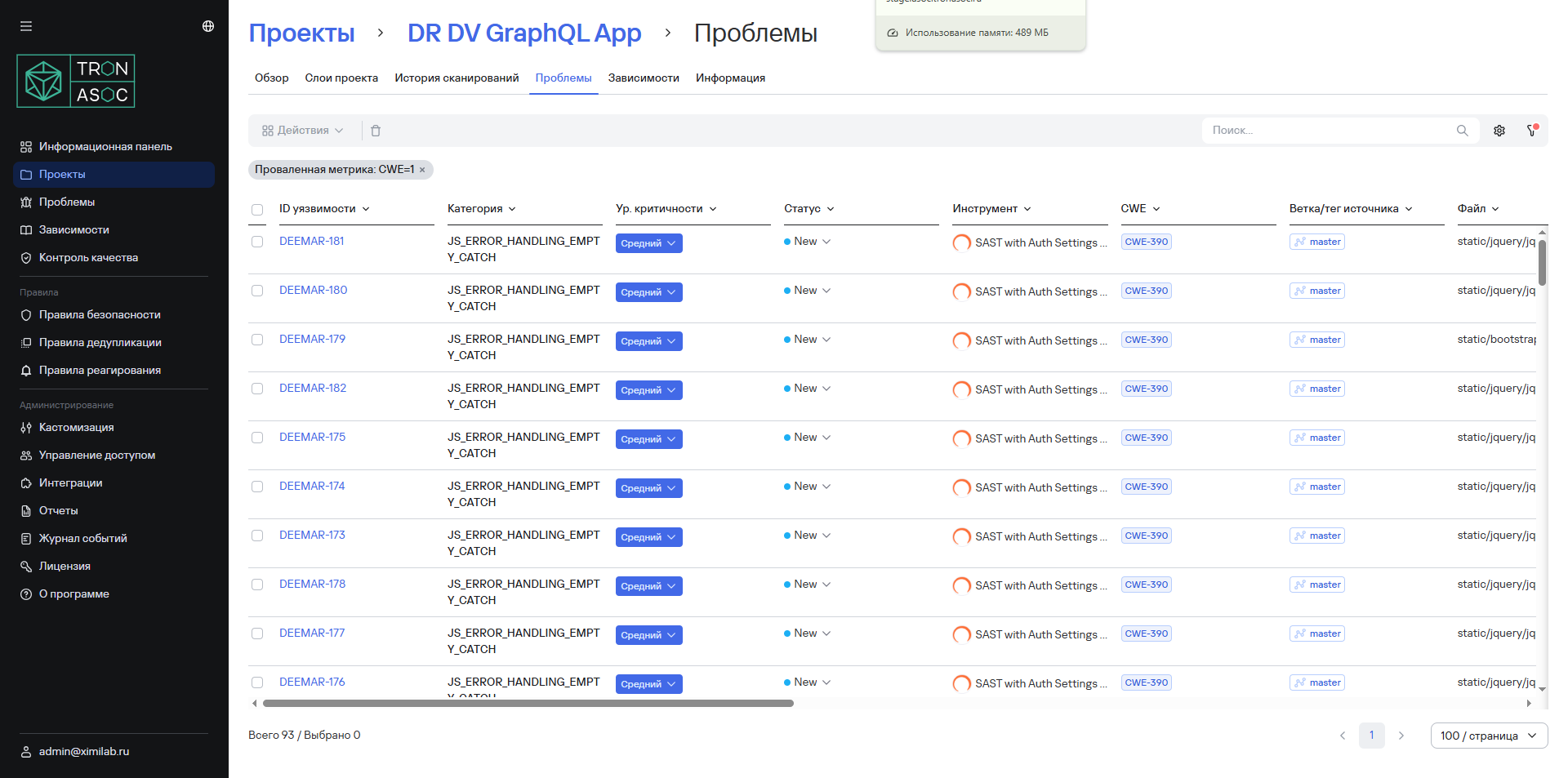
- Select the button for navigating to metric issues in the Result column.
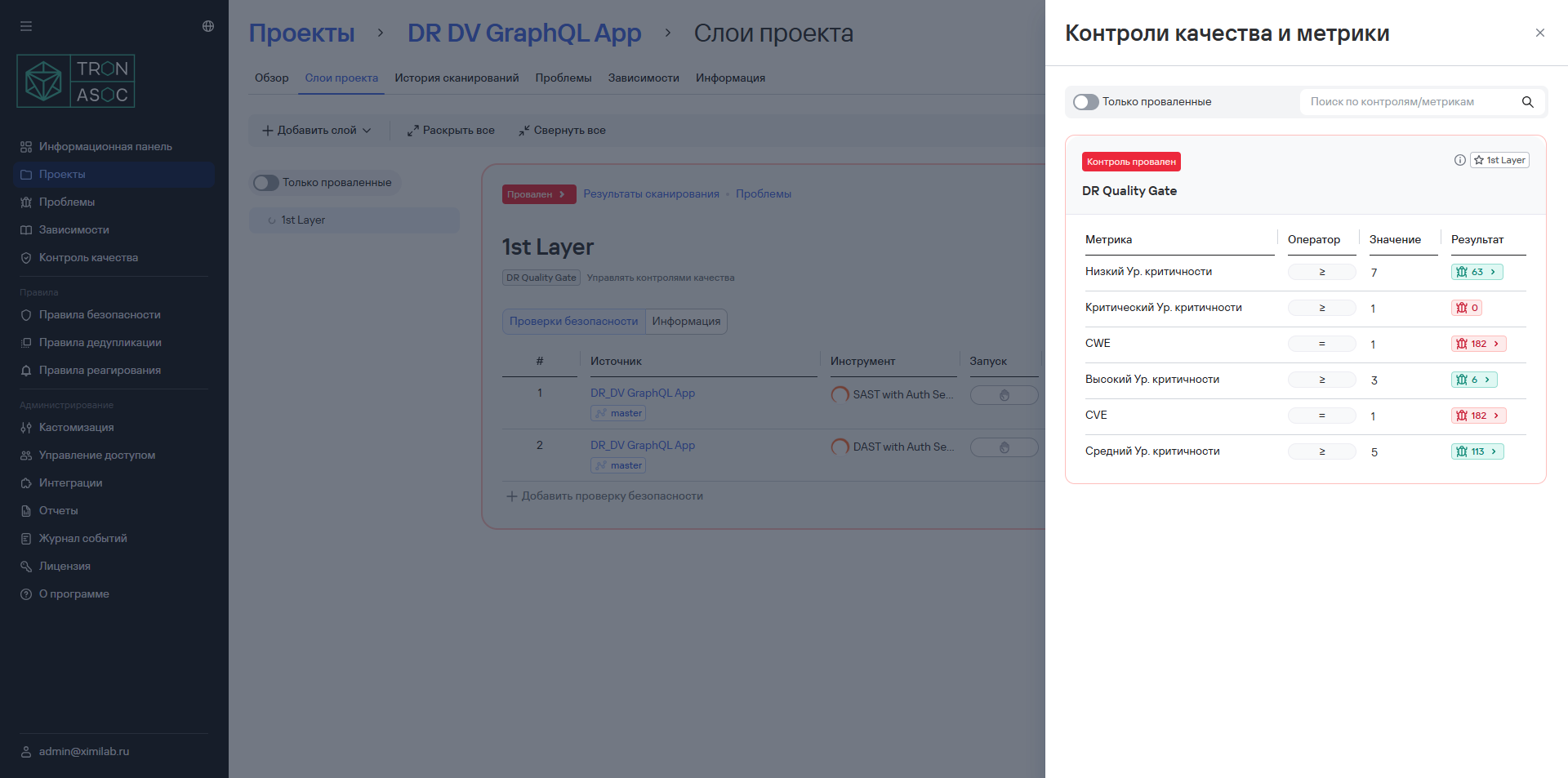
The Issues page opens with a list of vulnerabilities filtered by the selected metric.