Actions for deduplication rules
Create a new deduplication rule
To create a new deduplication rule, follow these steps:
- Go to Deduplication rules.
- Select Add deduplication rule.
- In the form that opens, specify the deduplication method:
- By combined fields—for this option, select the fields to use for deduplication;
- Using matching rules—for this option, select the fields and their values for the original and duplicate issue;
- Based on an existing issue—for this option, select the issue to use for deduplication.
- Select Create.
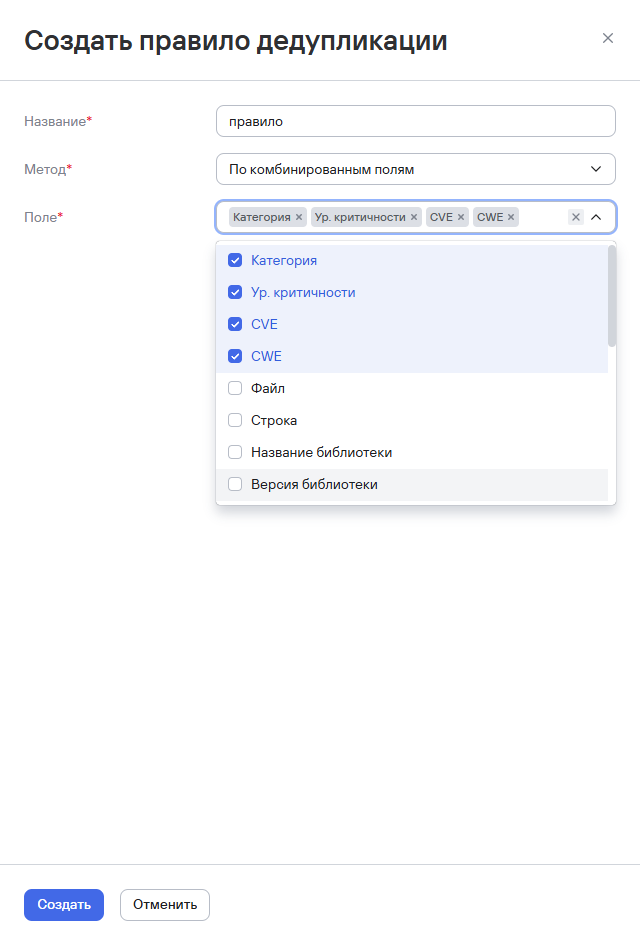
The rule applies to both new and existing records.
Activate a deduplication rule
To activate a deduplication rule, follow these steps:
- Go to Deduplication rules.
- Select the additional actions button (
 ) next to the required rule.
 - Select Edit.
- Select Activate.
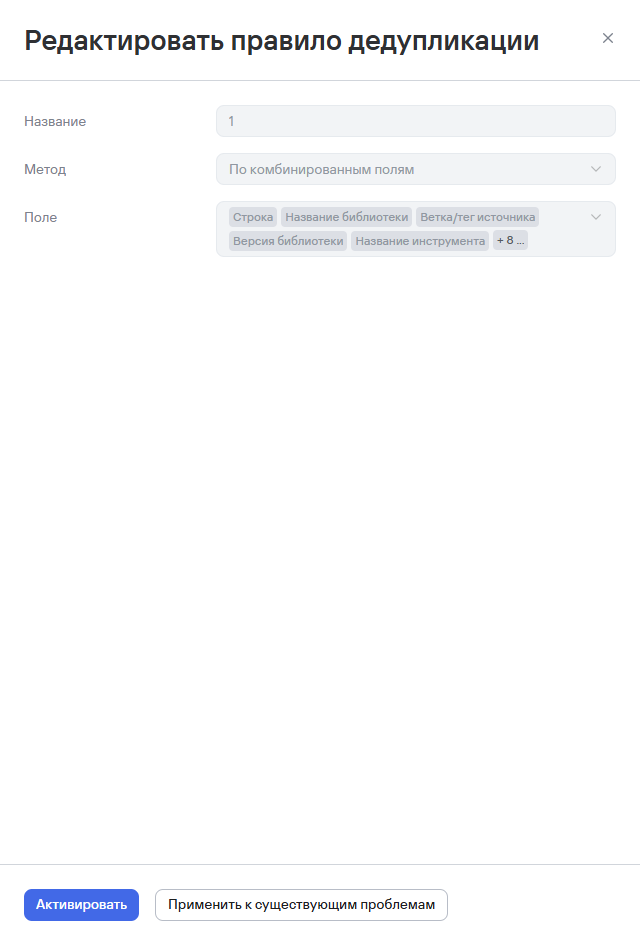
The system activates the rule, and it triggers when the conditions specified in the rule are met.
Apply a deduplication rule to existing issues
To apply a deduplication rule to existing issues, follow these steps:
- Follow steps 1–3 in the instructions above.
- Select Apply to existing issues.
warning
Before you apply the deduplication rule, make sure it's active. If it isn't, activate it by selecting Activate.
- Confirm the action in the window that opens.

Find duplicate security issues
To find duplicate security issues, follow these steps:
- Go to Issues.
- Open the security issue that deduplication might apply to.
- Select Find and deduplicate similar issues from the Actions drop-down list.
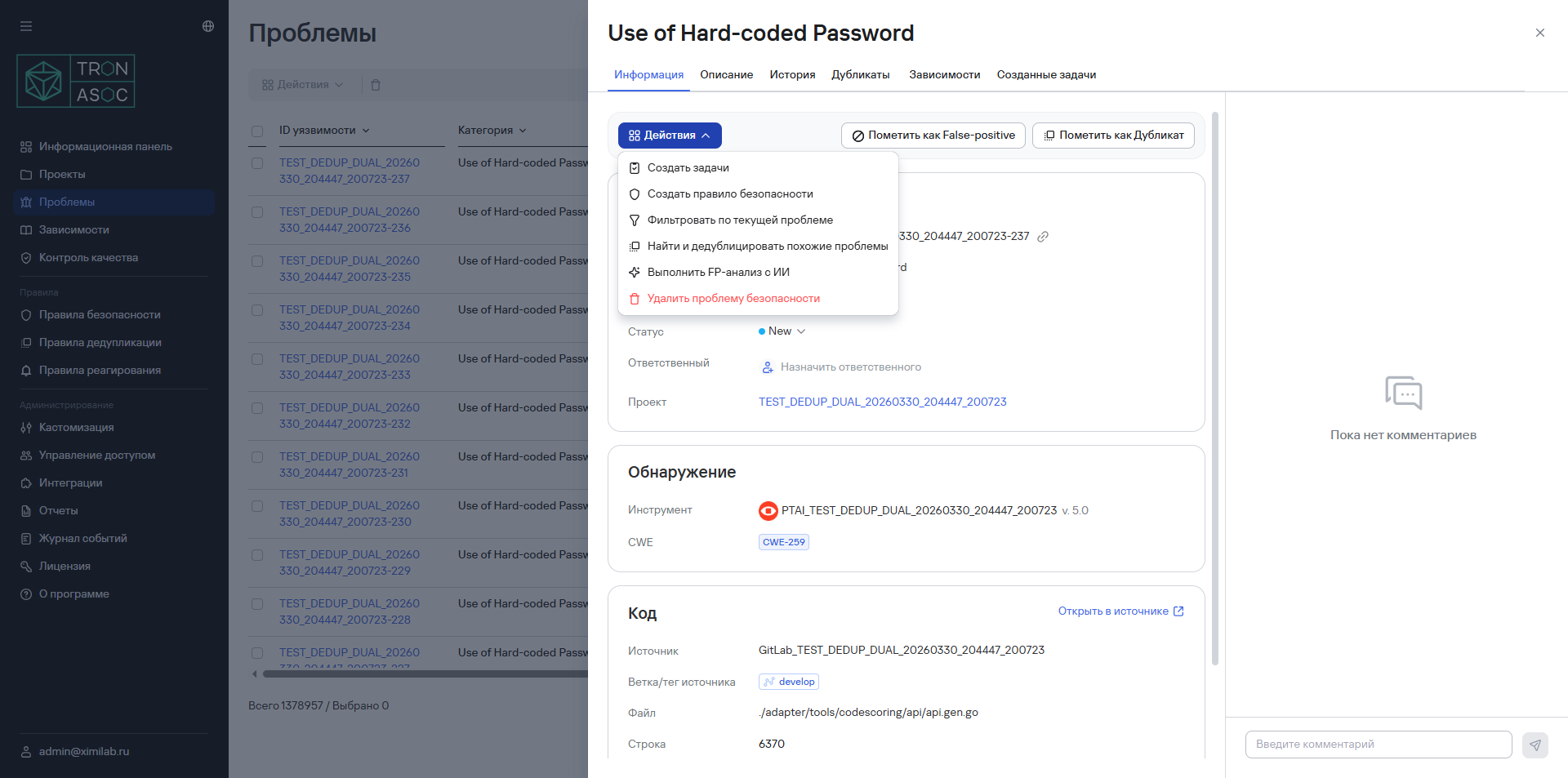
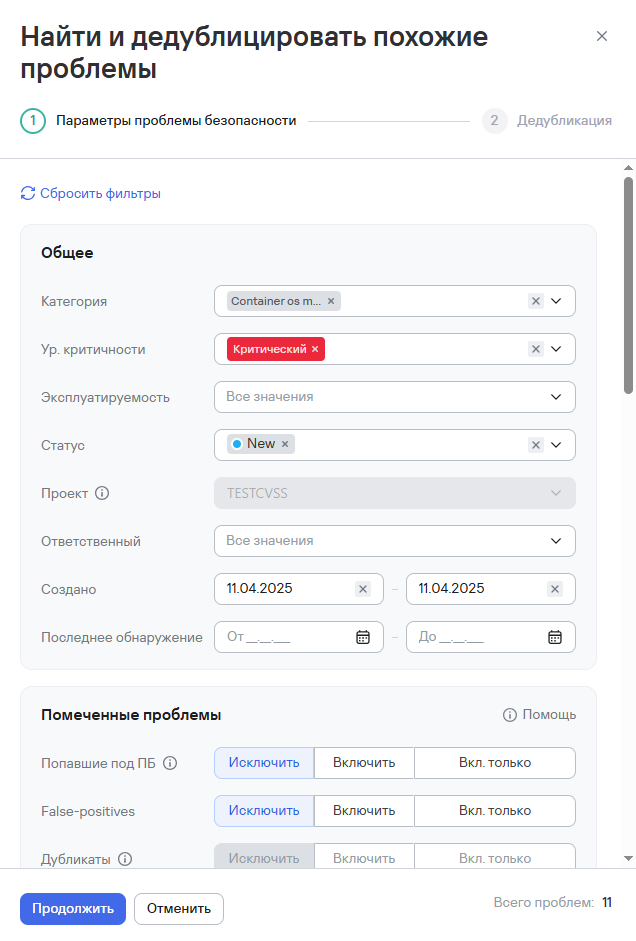
- Set the required filters in the window that opens.
- Select Continue.
- In the new window, select vulnerabilities from the list on the right.
- Select Mark as duplicate.
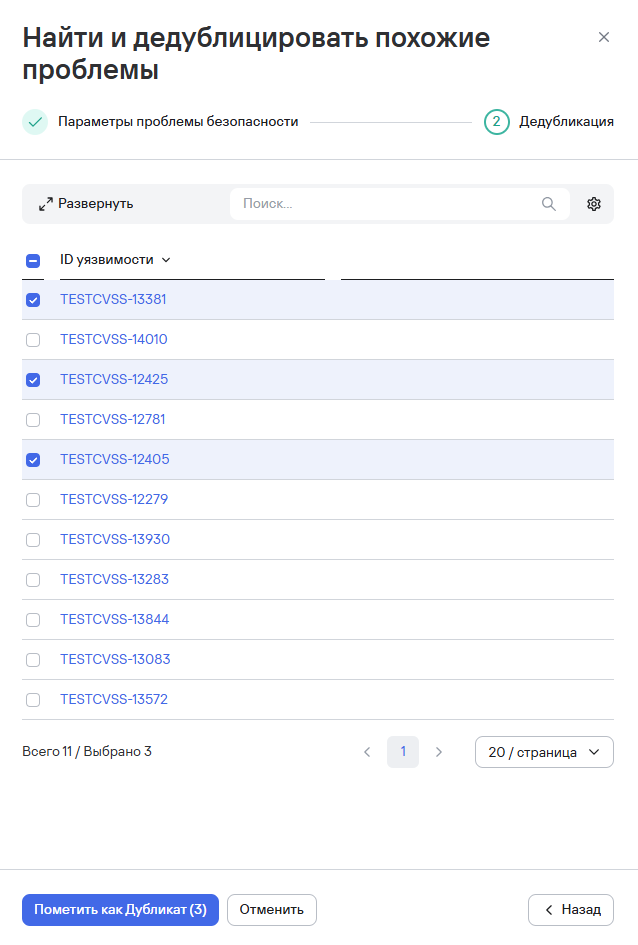
The system marks the issues as duplicates and links them to the new issue. It also displays a deduplication notification.
Delete deduplication rules
To delete one deduplication rule, follow these steps:
- Select the additional actions button () next to the required deduplication rule.
- Select Delete.
- Confirm the deletion of the deduplication rule in the modal window that opens.
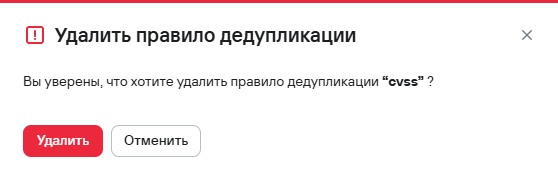
To delete multiple deduplication rules, follow these steps:
- Select the security rules using the checkboxes (
 ).
). - Select the delete button (
 ) above the rules table.
 - Confirm the deletion of the deduplication rules in the modal window that opens.