Scan Sources
Viewing all connected scan sources is available in the Integrations section under the Scan Sources tab. It also provides the ability to sort by name, source type, description, and navigate to add, edit, or delete scan sources.
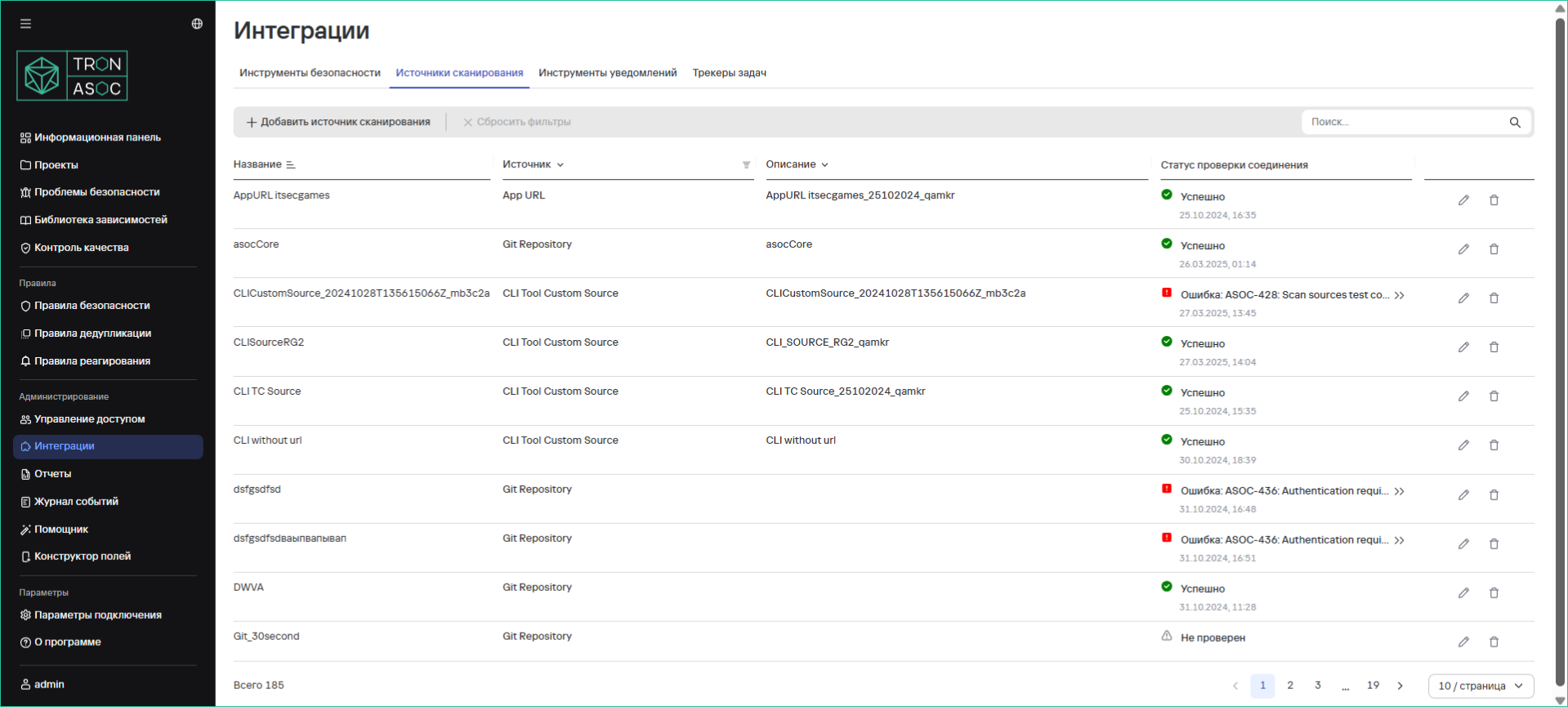
Supported Scan Sources:
- GitLab
- Nexus
- CLI Tool
- Jfrog
- Harbor
- AppUrl
Connecting a Scan Source
To connect a scan source, follow these steps:
- Navigate to the Integrations section and select the Scan Sources tab
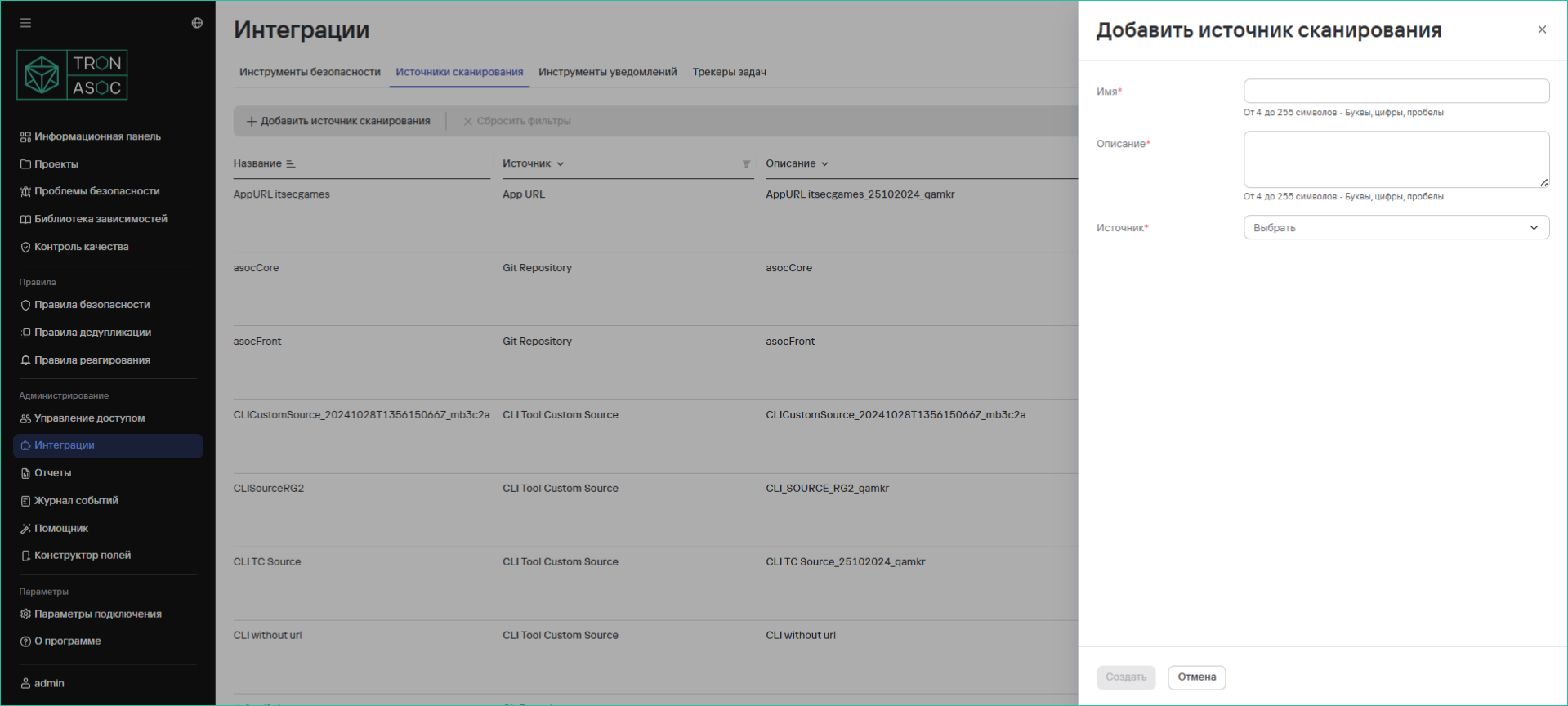
- Click the Add Scan Source button
- In the opened form, fill in:
- Name
- Description
- Source (select from the dropdown list)
- Fill in additional fields for the selected source:
- Source URL
- Authentication Method (optional, but required for connection testing)
- Depending on the authentication method:
- For API Token: fill in the "API Token" field
- For Login/Password: fill in the corresponding Login and Password fields
- Click the Test Connection button (available when an authentication method is specified)
- Click the Create button
Editing a Scan Source
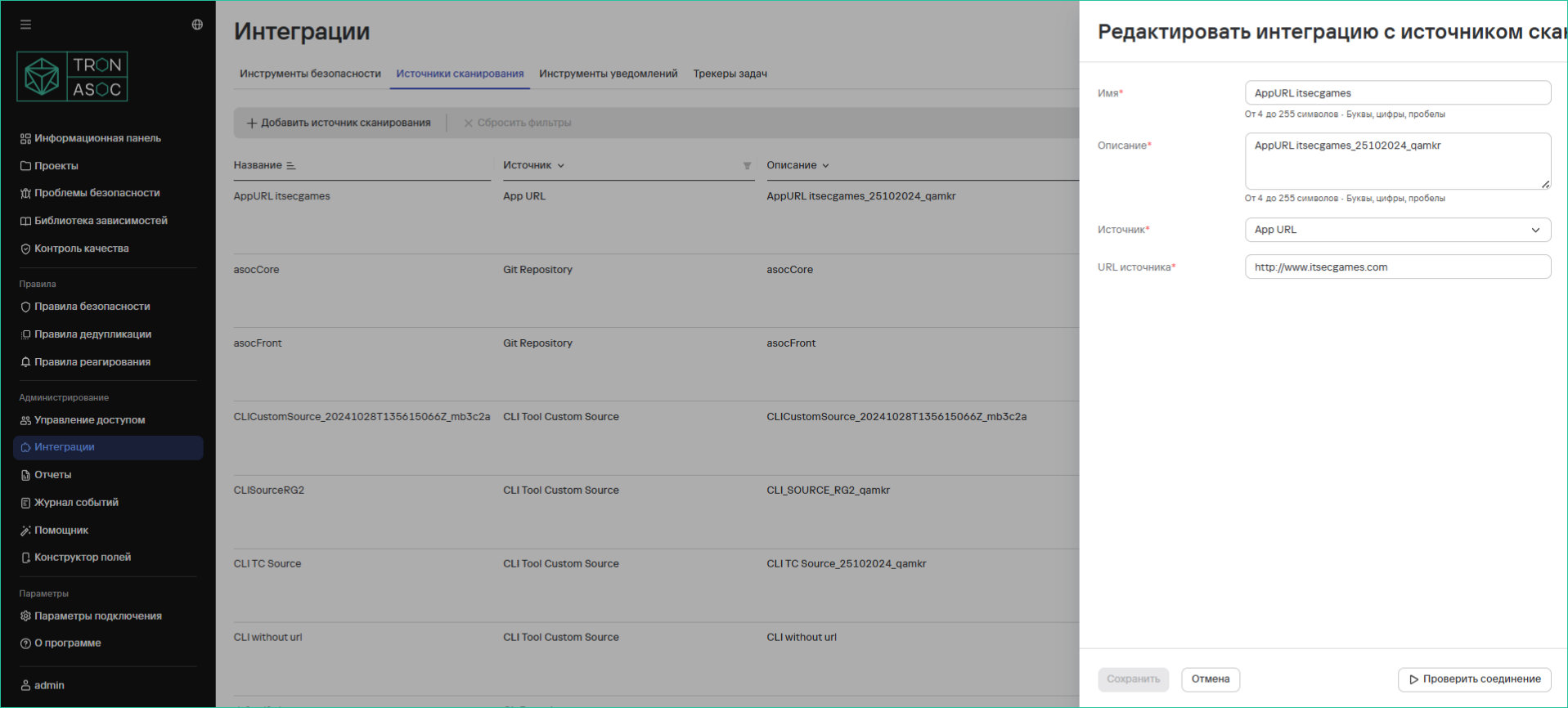
To edit, click the edit button  in the row of the desired source.
The editing form is similar to the addition form, but the fields are pre-filled with current data.
in the row of the desired source.
The editing form is similar to the addition form, but the fields are pre-filled with current data.
Deleting a Scan Source
To delete a source, follow these steps:
- In the Integrations → Scan Sources section, click the delete button
 in the source row
 - In the opened confirmation window, click the Delete button