Managing security issues
System users can perform the following actions on security issues:
- view the issue history;
- change the issue status;
- change the issue severity;
- create tasks from issues;
- assign assignees to issues;
- add comments to issues;
- delete issues.
Viewing the security issue history
You can view the history of security issue detections and actions, as well as the reasons for changes, on the History tab.
The system includes the following reasons for changes to security issues:
- Reason not specified—the reason for detecting the security issue isn't specified;
- System—the security issue was detected when the specified rules were triggered;
- Manually—the security issue was detected when a scan was started manually;
- Not detected—the security issue wasn't detected during a rescan;
- Detected again—the security issue was detected during a rescan.
Changing the security issue severity
You can manually change security issue severity levels in the following ways:
- In the main Issues section;
- On the Issues tab of the selected project.
Method 1
To change the security issue severity, follow these steps:
- Go to the Issues section.
- Select a new issue severity from the drop-down list in the Severity column.
Method 2
You can also change the issue severity within a selected project. Follow these steps:
- Go to the Projects section.
- Select the required project from the list.
- Go to the Issues tab.
- Select a new issue severity from the drop-down list in the Severity column.
The Duplicate and False-Positive attributes aren't issue statuses, and using these attributes doesn't change the issue status.
You can configure a status model for manually or automatically switching statuses according to their transitions. For more information about configuring the status model, see Status model.
Changing the security issue status
You can manually change security issue statuses in the following ways:
- In the main Issues section;
- On the Issues tab of the selected project.
Method 1
To change the security issue status, follow these steps:
- Go to the Issues section.
- Select a new issue status from the drop-down list in the Status column.
Method 2
You can also change the issue status within a selected project. Follow these steps:
- Go to the Projects section.
- Select the required project from the list.
- Go to the Issues tab.
- Select a new issue status from the drop-down list in the Status column.
Creating tasks from security issues
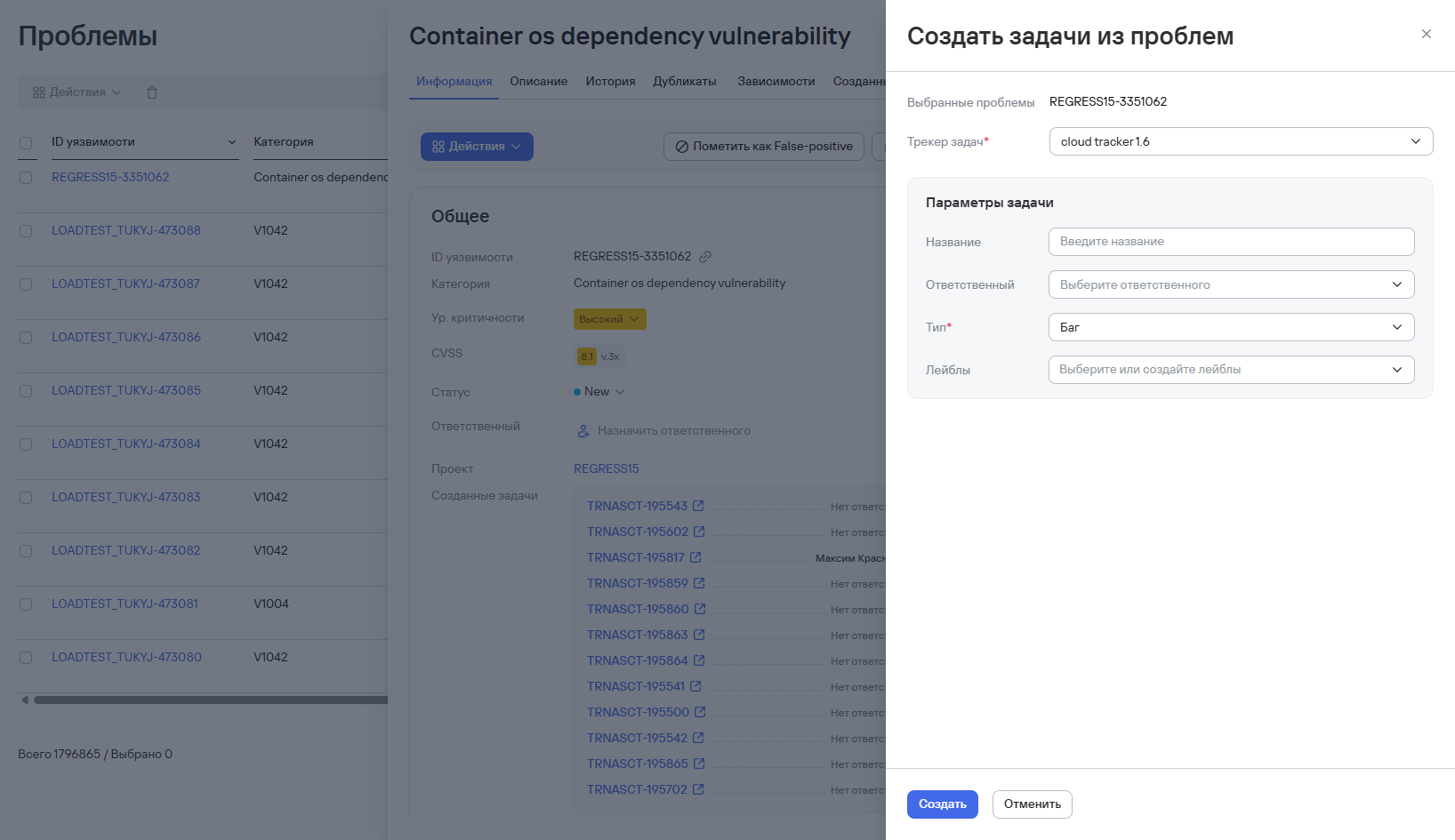
To create a task from a security issue, follow these steps:
- Go to the Security issues section.
- Open the issue card by selecting its ID in the Vulnerability ID column.
- On the Information tab, select the Actions button.
- Select Create tasks.
- In the window that opens, select the task tracker where you want to create the task from the Task tracker drop-down list.
- Specify the following task parameters:
- name;
- assignee;
- type (bug, task, or story);
- labels.
- Select Create.
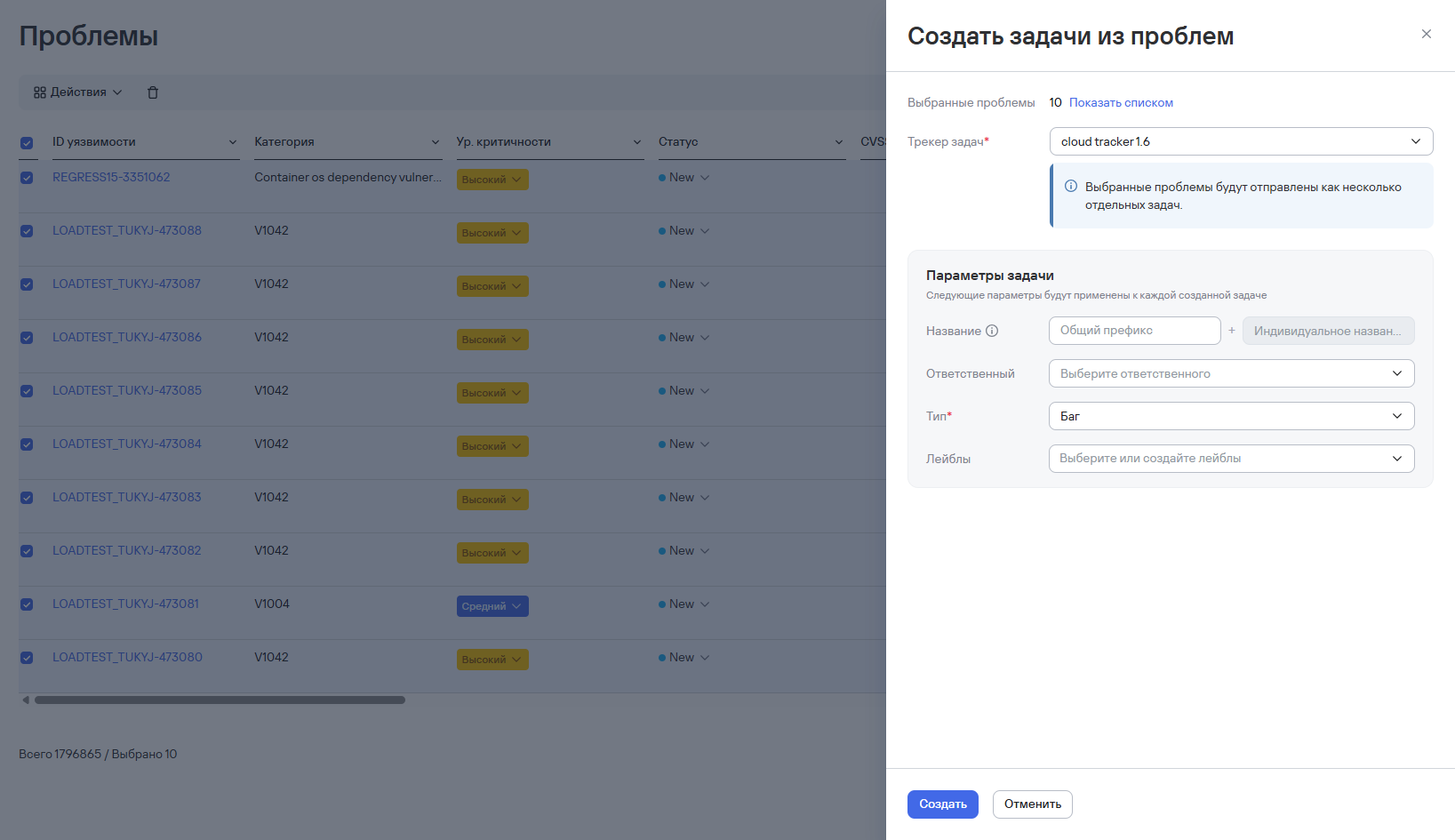
To create tasks from multiple security issues, follow these steps:
-
Go to the Security issues section.
-
Select the required issues using the checkboxes.
-
Select the Actions drop-down list above the issue table.
-
Select Create tasks from issues.
-
In the window that opens, select the task tracker where you want to create the task from the Task tracker drop-down list.
-
Specify the following task parameters:
- name;
infoWhen you create tasks from multiple issues, each task name includes:
- an editable common prefix;
- a noneditable summary that's unique to each task.
- assignee;
- type (bug, task, or story);
- labels.
-
Select Create.
Assigning assignees to security issues
You can assign a user or group of users to each security issue to handle the issue. Assigning assignees helps you track issue processing and distribute the workload among specialists.
To assign an assignee to one issue, follow these steps:
- Go to the Security issues section.
- Open the issue card by selecting its ID in the Vulnerability ID column.
- Go to the Information tab.
- Select a user or group of users from the Assignee drop-down list.
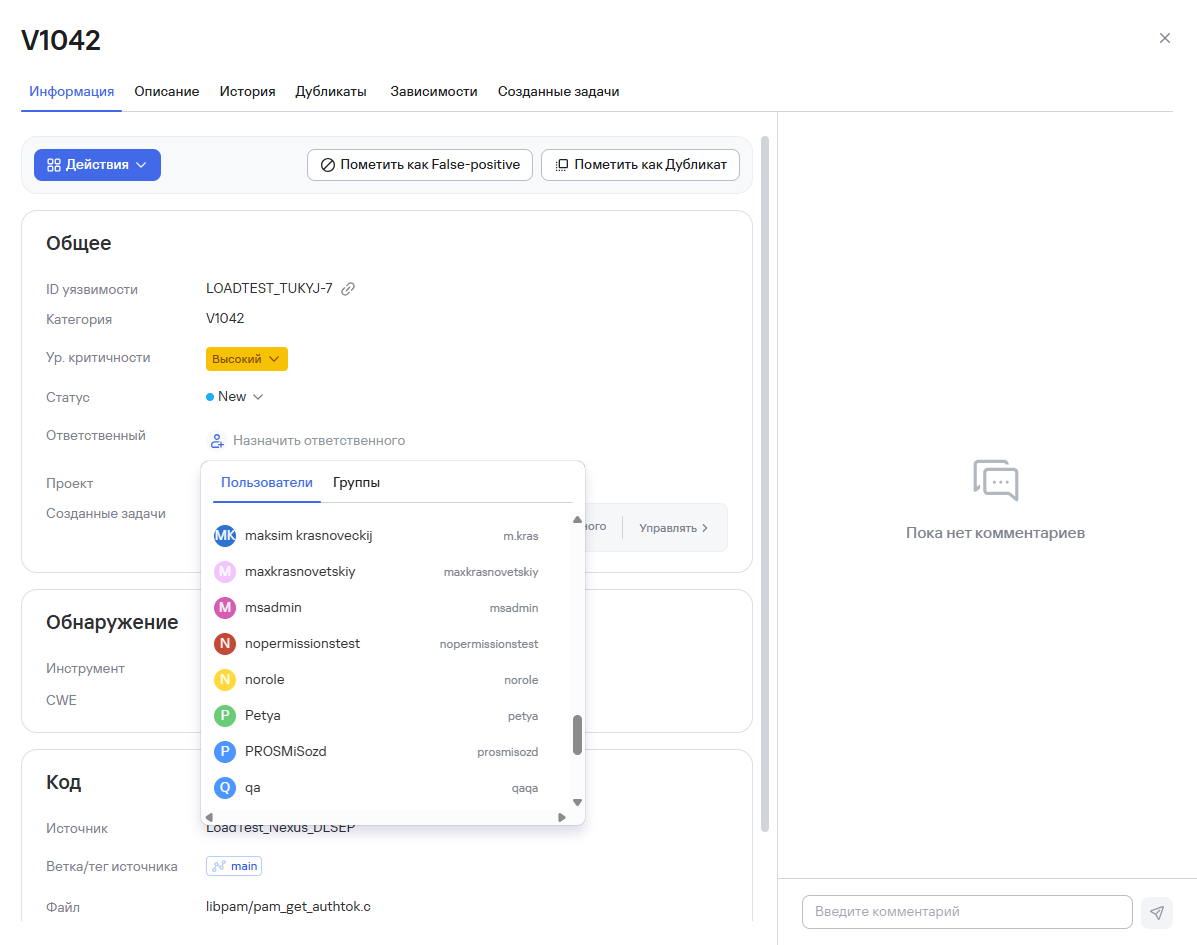
Changes are saved automatically. After you select an assignee, the Assignee assigned notification appears in the upper-right corner of the page.
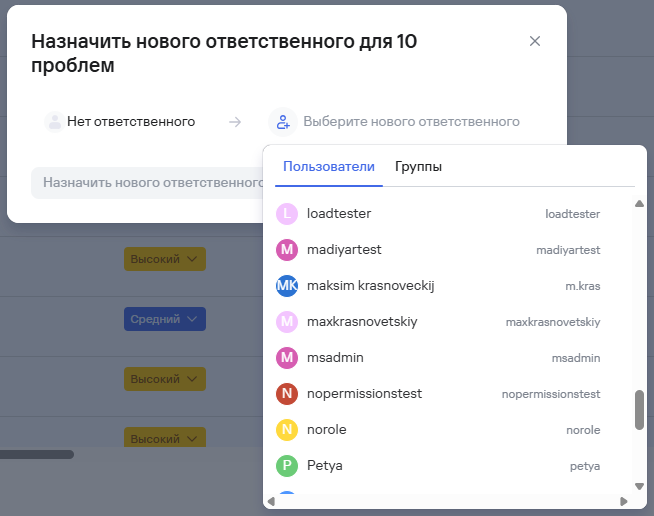
To assign an assignee to multiple issues, follow these steps:
- Go to the Security issues section.
- Select the required issues using the checkboxes.
- Select the Actions drop-down list above the issue table.
- Select Assign assignee.
- In the window that opens, select a user or group of users.
- Select Select new assignee.
Adding comments to security issues
System users can add comments to security issues. Comments allow the team to discuss the issue and its progress.
In addition to adding regular comments, users can:
- mention colleagues in their comments;
- reply to a specific comment;
- track unread comments.
- delete other users' comments (this feature is available only to system administrators).
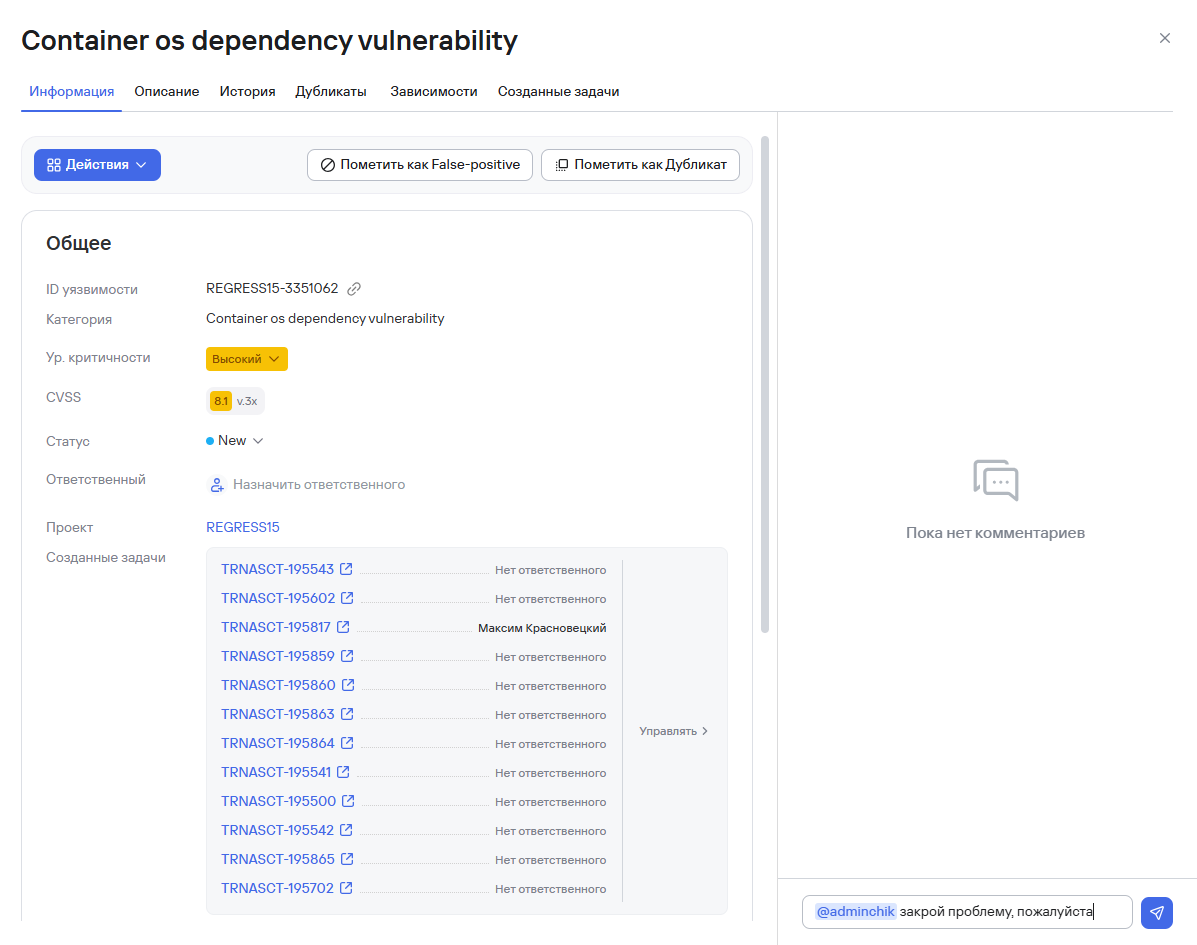
To add a comment to an issue, follow these steps:
- Go to the Security issues section.
- Open the issue card by selecting its ID in the Vulnerability ID column.
- Enter the comment text in the comment field on the right side of the issue card.
- If necessary, mention a user by using
@. - Select Enter to send the comment.
To add the same comment to multiple issues at once, follow these steps:
- Go to the Security issues section.
- Select the required issues using the checkboxes.
- Select the Actions drop-down list above the issue table.
- Select Add comment.
- Enter the comment text in the form that opens.
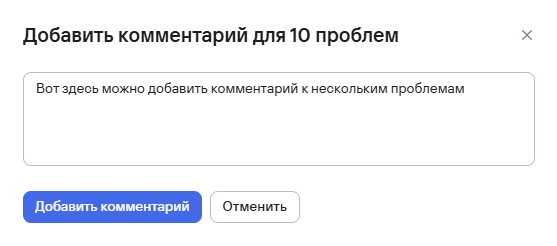
- Select Add comment.
For more information about filtering by comment parameters, see Viewing security issues.
Deleting security issues
To delete one security issue, follow these steps:
- In the Issues section, select the Delete button (
 ) next to the required issue.
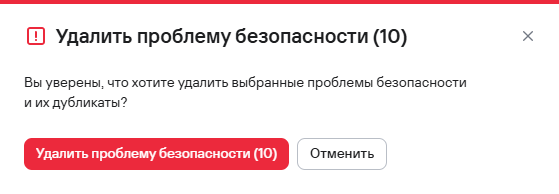
 - In the modal window that opens, confirm the deletion of the security issue.
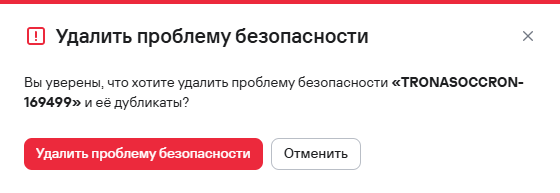
To delete multiple security issues, follow these steps:
- In the Issues section, select the security issues using the checkboxes (
 ).
). - Select the delete button () above the security issue table.
- In the modal window that opens, confirm the deletion of the security issues.