Actions for users
The system administrator can perform the following actions for users:
- add new users;
- change user data;
- archive one or more users;
- reset a user's password.
Adding a new user
To add a new user, follow these steps:
- Go to the Access management section.
- Select Add user.
- In the Create user window, fill in the following fields:
- Username;
- Display name (optional);
- Email address.
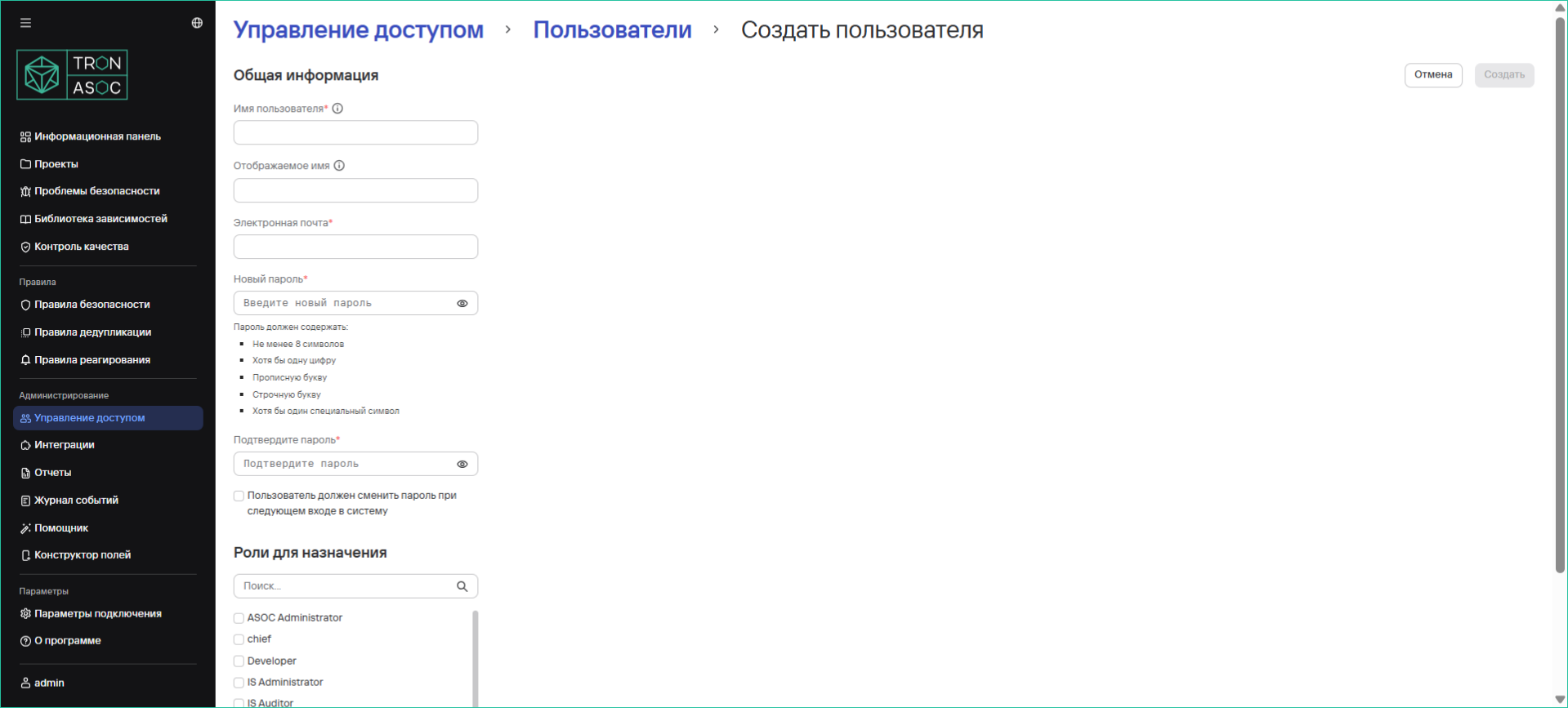
- Enter a password that meets the authentication requirements.
- Confirm the password in the Repeat password field.
- Assign the required roles to the new user in the Roles to assign section.
- If necessary, enable the password reset option.
- Select Create.
Editing a user
To edit a user's settings, follow these steps:
- Go to the Access management section.
- Select the required user by their name.
- Change the user's data on the page that opens.
- Select Save.
Archiving one or more users
info
TRON ASOC 1.5 lets you archive users instead of permanently deleting them from the system.
To archive a user, follow these steps:
- Go to Access management → Users.
- Select the additional actions button (
 ) next to the required user.
 - Select Archive.
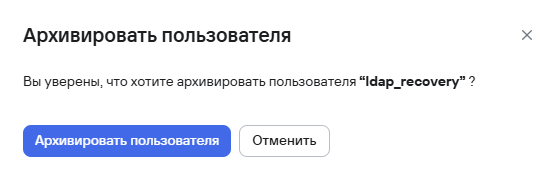
- In the modal window that opens, confirm the archive operation by selecting Archive user.
To archive several users, follow these steps:
- Select users using the checkboxes (
 ).
). - Select the archive button (
 ) above the user table.
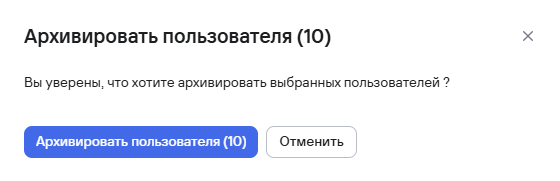
 - In the modal window that opens, confirm the archive operation by selecting Archive users.
Password reset
To reset a user's password, follow these steps:
- Go to Access management → Users.
- Select the additional actions button () next to the required user.
- Select Reset password.
After you select this option, the user's password will be reset, and the system will display the notification Password reset for user [username] completed successfully.
note
The user must change the password the next time they sign in.