Working with quality gate templates
Adding a quality gate template
To add a new quality gate template, follow these steps:
- Go to the Quality gates section.
- Select Add quality gate.
- In the form that opens, enter the template name.
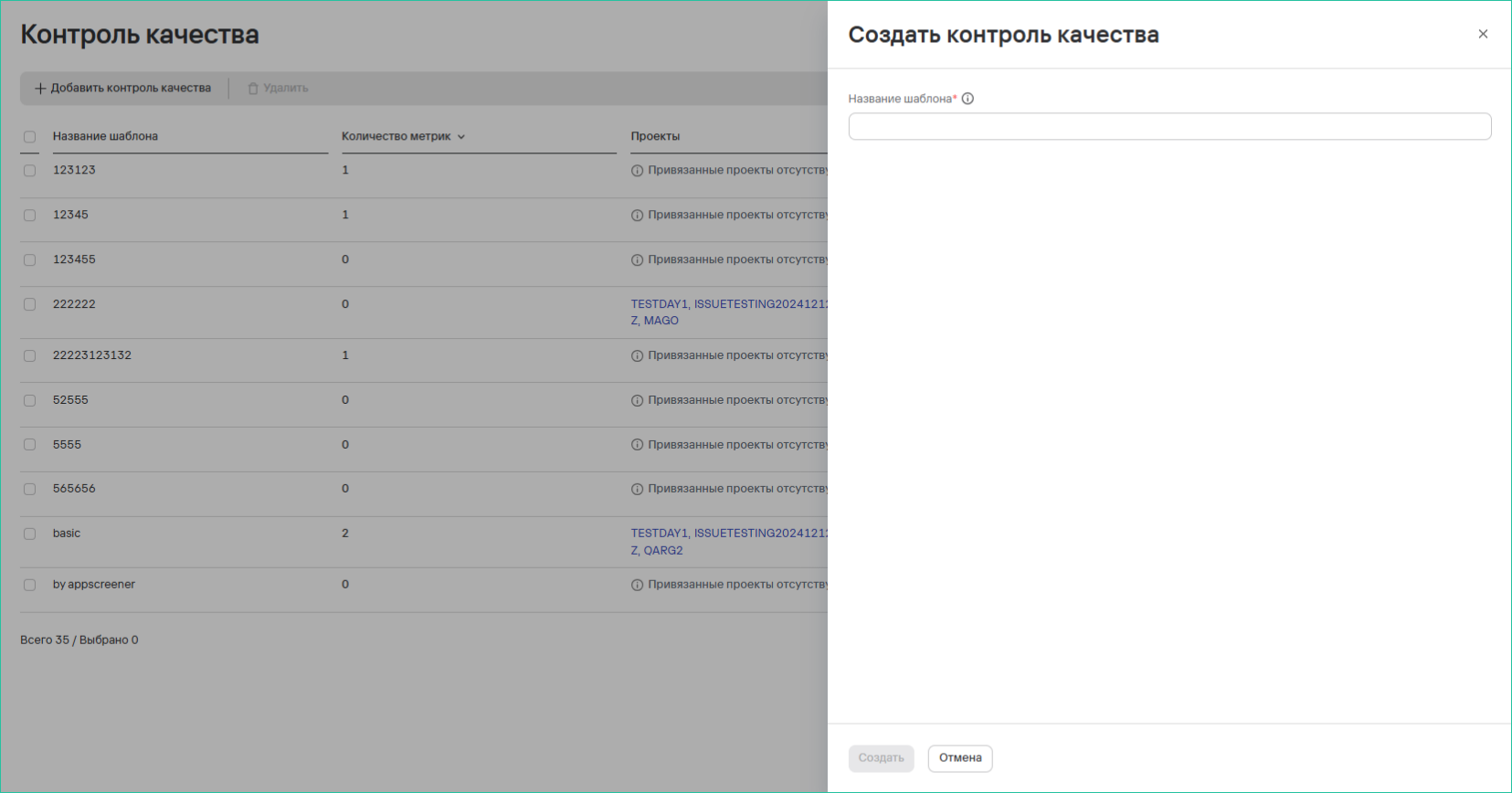
- Select Create.
Editing a quality gate template
To edit a quality gate template, follow these steps:
- Select the edit button (
 ) next to the template you need.
 - Specify the required metrics.
- Save the template.
Deleting quality gate templates
To delete one quality gate template, follow these steps:
- Select the additional actions button (
 ) next to the template you need.
 - Select Delete.
- In the modal dialog that opens, confirm that you want to delete the template.

To delete multiple quality gate templates, follow these steps:
- Select the templates using the checkboxes (
 )
) - Select the delete button (
 ) above the template table.
 - In the modal dialog that opens, confirm that you want to delete the templates.