Actions with response rules
Creating a response rule
To create a new response rule, follow these steps:
-
Go to the Response rules section.
-
Select Add response rule.
-
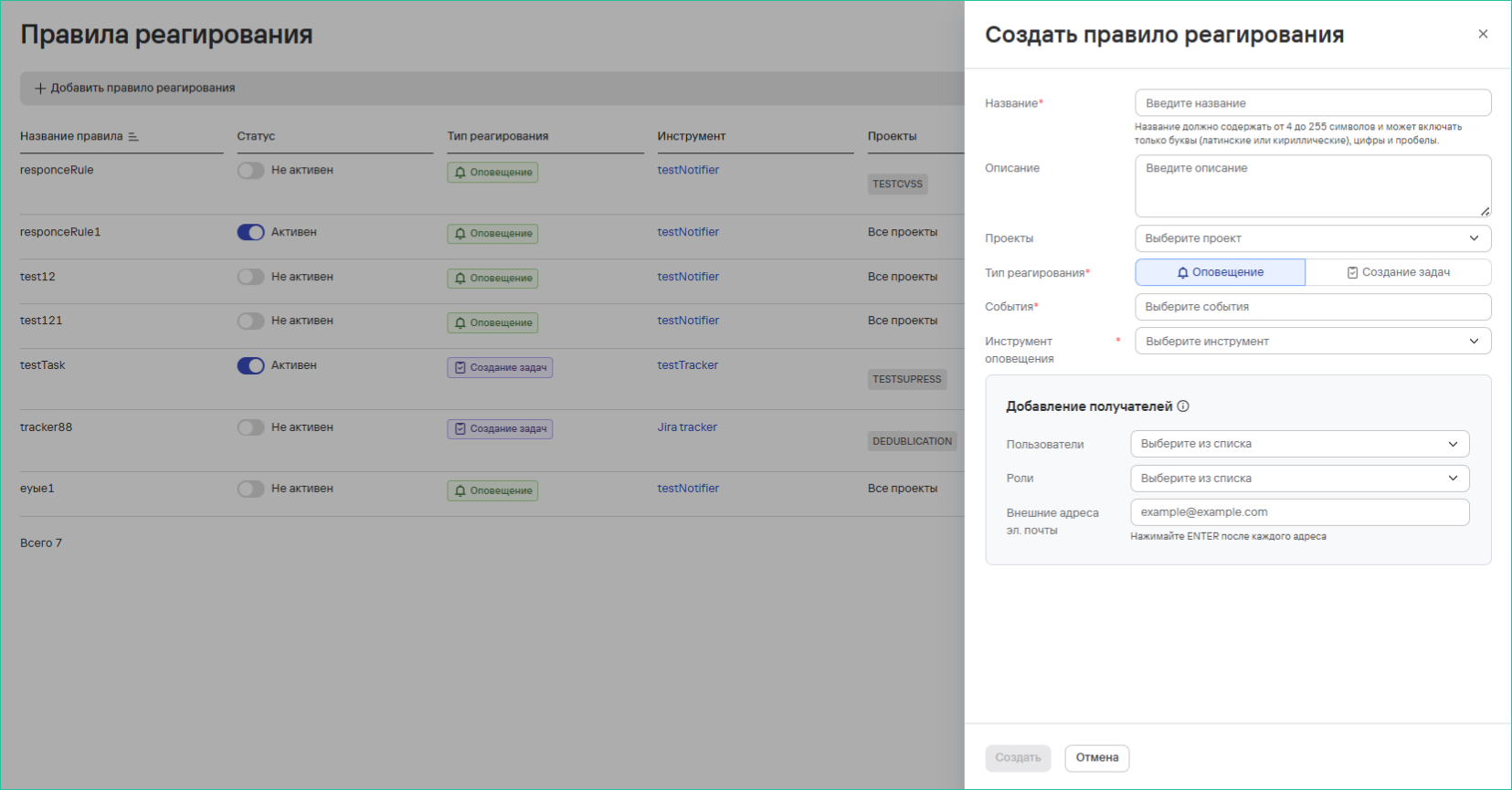
In the form that opens, fill in the fields:
- Project name;
- Description;
- Projects—select the projects where the system will collect security events or issues;
- Response type—select the response type for events or issues;
-
If you select the Notification type, fill in the additional fields:
- Events—select one or more events from the system event list;
- Notification tool—select one of the configured integrations;
- Add recipients block:
- Add specific users using the email addresses in their profiles;
- Add roles to send notifications to users with those roles;
- Add external email addresses in the "External email addresses" field.
-
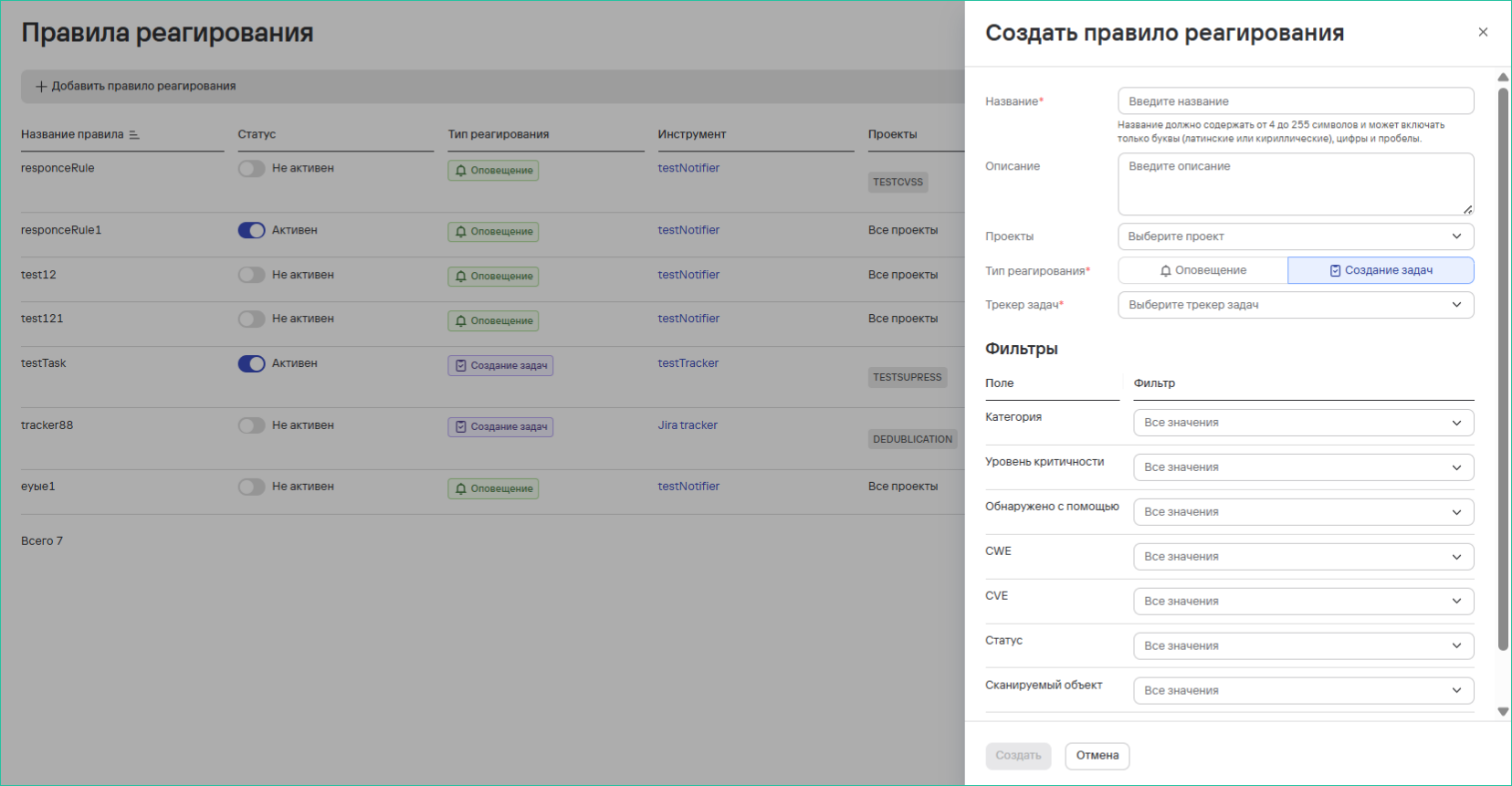
If you select the Task creation type, fill in the fields:
- Task tracker—select one of the configured integrations;
- Filters—filtering conditions for security issues.
 tip
tipThe Task creation response type lets you configure which security issues to send to the task tracker.
-
Select Create.
Deleting response rules
To delete one response rule, follow these steps:
- Select the additional actions button (
 ) next to the response rule.
 - Select Delete.
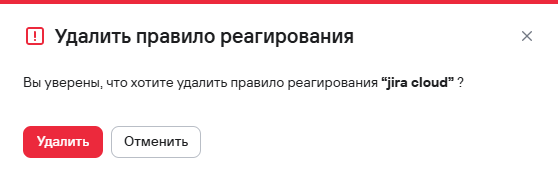
- In the modal window that opens, confirm the deletion of the response rule.
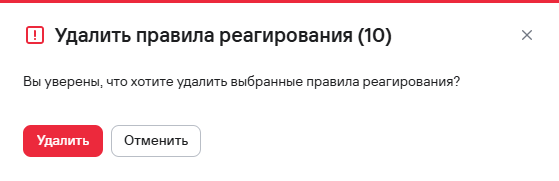
To delete multiple response rules, follow these steps:
- Select the security rules using the checkboxes (
 ).
). - Select the delete button (
 ) above the rules table.
 - In the modal window that opens, confirm the deletion of the response rules.