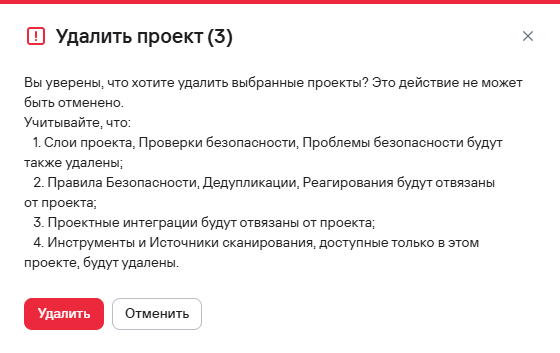
Other actions for projects
Project overview
The Overview subsection within a project provides a dashboard with information about frequently occurring vulnerabilities, their severity levels, detection sources, and the ranking of the most critical vulnerabilities in the project. Cumulative chart values update once a day.
info
Cumulative chart values update once a day. You need the appropriate permissions to work with projects.
The Overview subsection contains the following widgets:
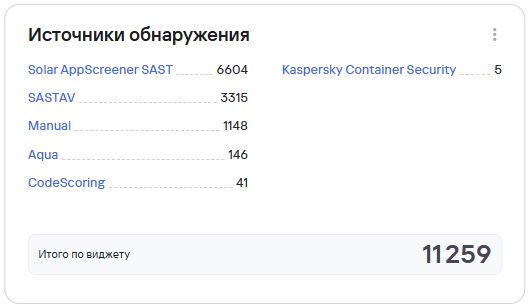
- Detection sources—the sources of scans used in the project;
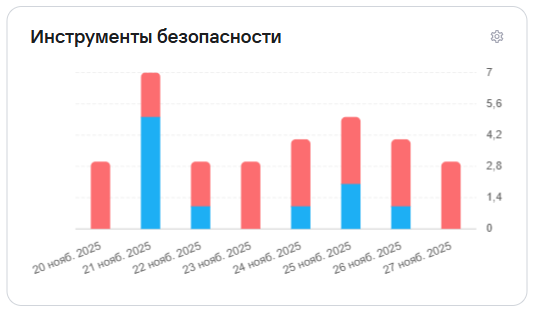
- Security tools—the security tools used and not used in the project, with options to configure which tools appear in the widget.
Editing a project
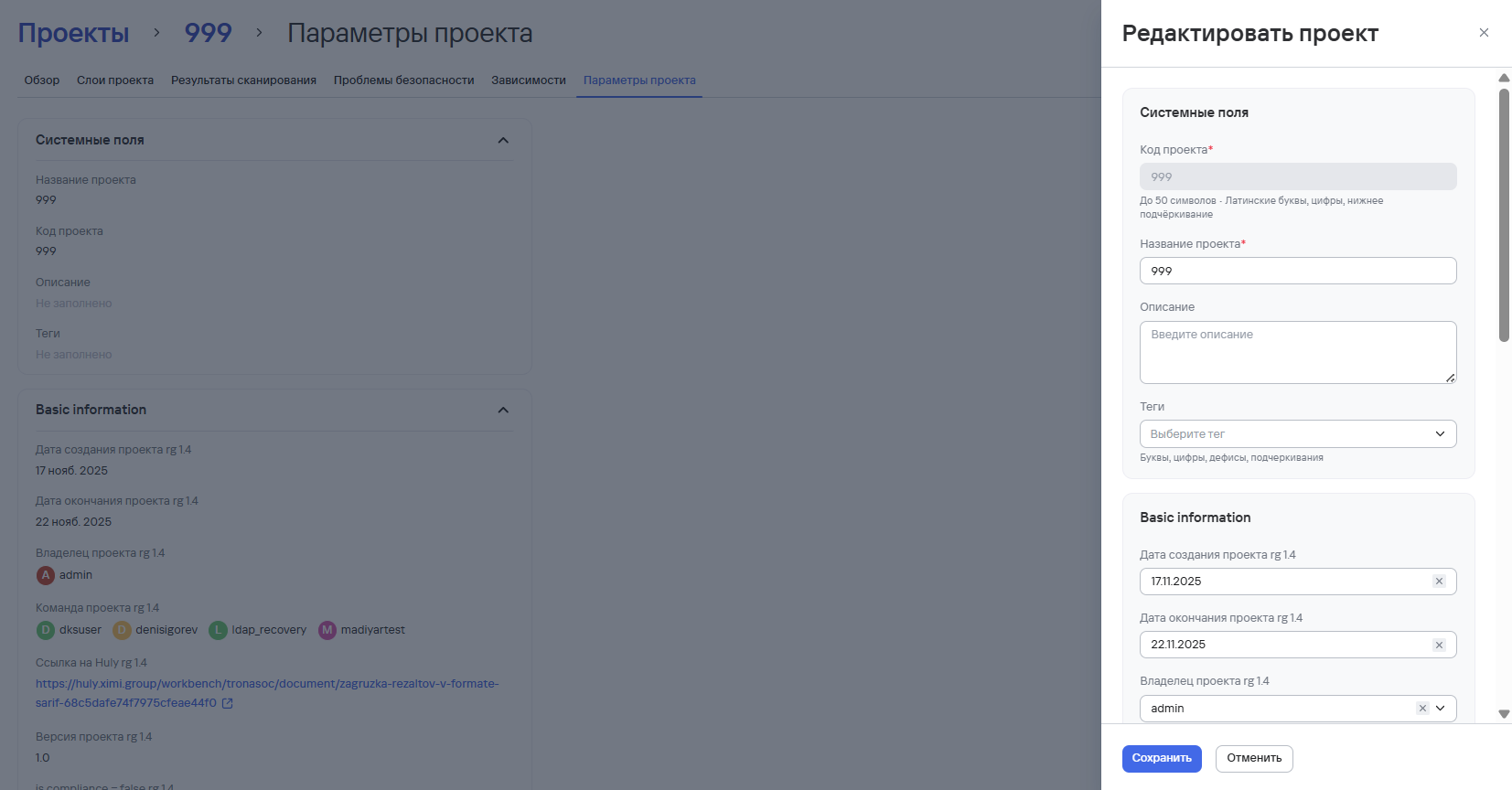
You can edit a project using one of the methods below.
Method 1:
- Go to the Projects section.
- Select the edit button (
 ) in the project row.
 - Make the necessary changes.
- Select Save.
Method 2:
- Go to the Projects section.
- Select the project name to open its page.
- Open the Project settings tab.
- Select Edit project.
- Make the necessary changes.
- Select Save.
Archiving and restoring a project
Archiving projects
To archive one project, follow these steps:
- Select the more actions button (
 ) next to the required project.
 - Select Archive.
- Confirm the archive action in the modal window.
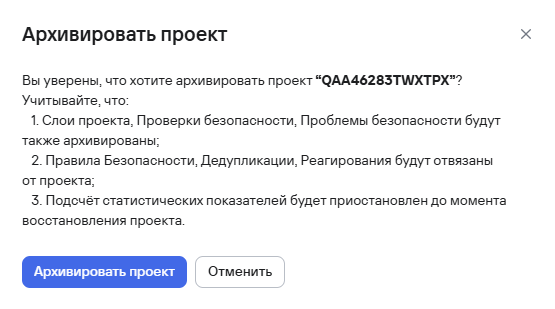
To archive multiple projects, follow these steps:
- Select the projects using the checkboxes (
 )
) - Select the archive button (
 ) above the project table.
 - Confirm archiving the projects in the modal window.
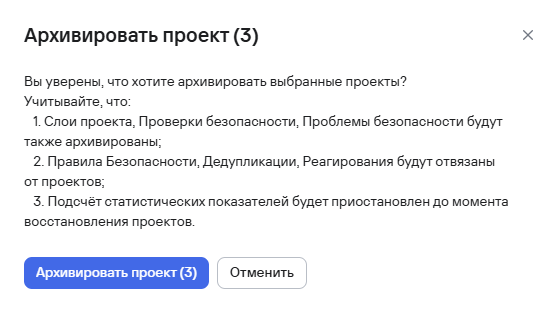
Restoring a project
To restore a project from the archive, follow these steps:
- In the Projects section, select the filter button.
- Move the Archived projects only slider to the active position.
- Select Apply.
- Select a project from the list, then select the restore project button.
- Confirm restoring the project in the modal window.

Deleting a project
To delete one project, follow these steps:
- Select the more actions button () next to the required project.
- Select Delete.
- Confirm deleting the project in the modal window.
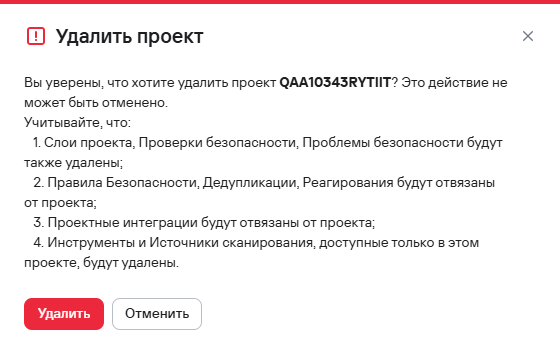
To delete multiple projects, follow these steps:
- Select the projects using the checkboxes ()
- Select the delete button (
 ) above the project table.
 - Confirm deleting the projects in the modal window.