Other actions for projects
Project overview
In the Overview subsection, users can access a project dashboard with information about frequently occurring vulnerabilities, their severity levels, detection sources, and the most critical vulnerabilities in the project. Values on cumulative graphs are updated once a day.
You need the appropriate access rights to work with projects.
The Overview subsection contains the following widgets:
- Open vulnerabilities;
- Detection sources;
- Cumulative graph;
- Most common Critical and High vulnerabilities;
- Security tools;
- Metrics;
- Mean Time to Resolve;
- Number of detected issues;
- Scan Frequency;
- Number of open issues;
- Most common open vulnerabilities.
For a description of the widgets, see Information panel.
Changing the widget type in the “Overview” subsection
You can change the type (bar chart, pie chart, or card) of the following widgets:
- Open vulnerabilities;
- Detection sources;
- Most common Critical and High vulnerabilities;
- Most common open vulnerabilities.
To change the widget type:
- Select the widget type button (
 ).
). - Select a widget type from the available options.
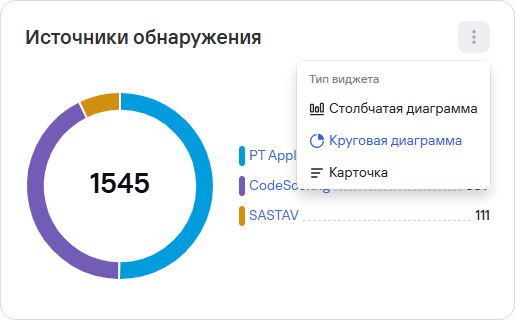
Displaying security tools and metrics
You can configure which security tools appear in the Security tools widget.
To configure the security tools display:
- Select the settings button (
 ) in the Security tools widget.
 - Turn on the toggles for the tools you want to display in the widget.
- Select Apply.
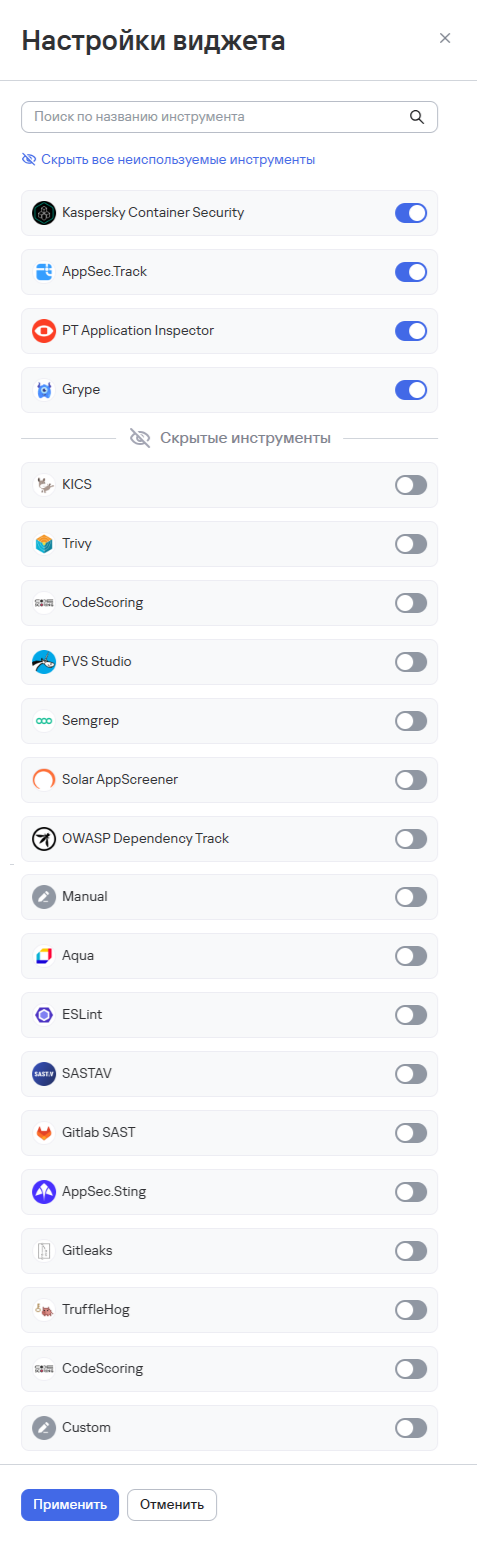
You can configure the metrics display in the same way:
- Select the settings button () in the Metrics widget.
- Turn on the toggles for the metrics you want to display in the widget.
- Select Apply.
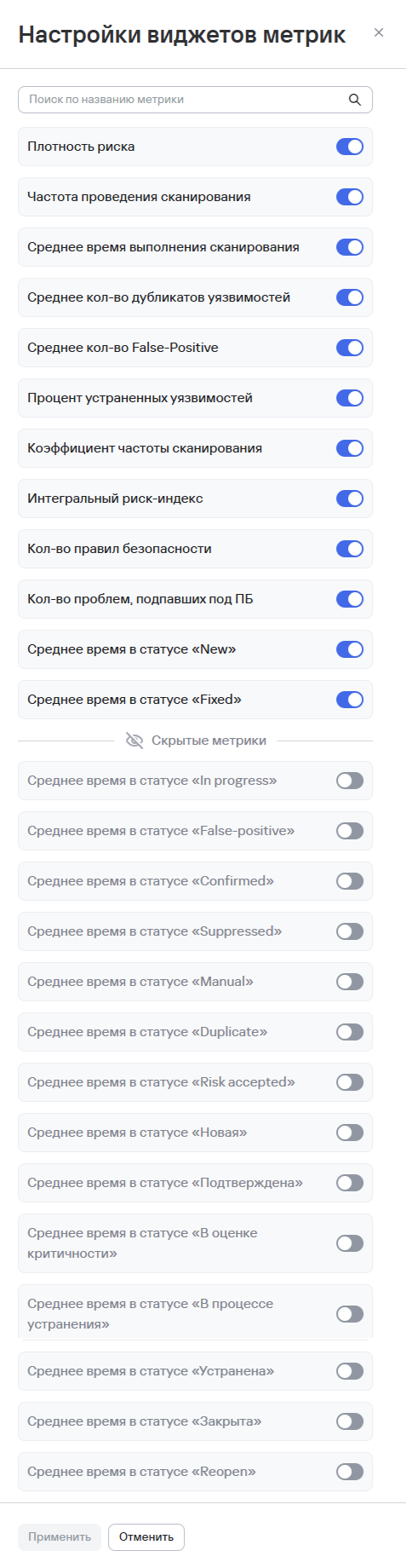
Editing a project
You can use one of the methods below to edit a project.
Method 1:
- Go to the Projects section.
- Select the edit button (
 ) in the project row.
 - Make the necessary changes.
- Select Save.
Method 2:
- Go to the Projects section.
- Select the project name to open its page.
- Open the Project settings tab.
- Select Edit project.
- Make the necessary changes.
- Select Save.
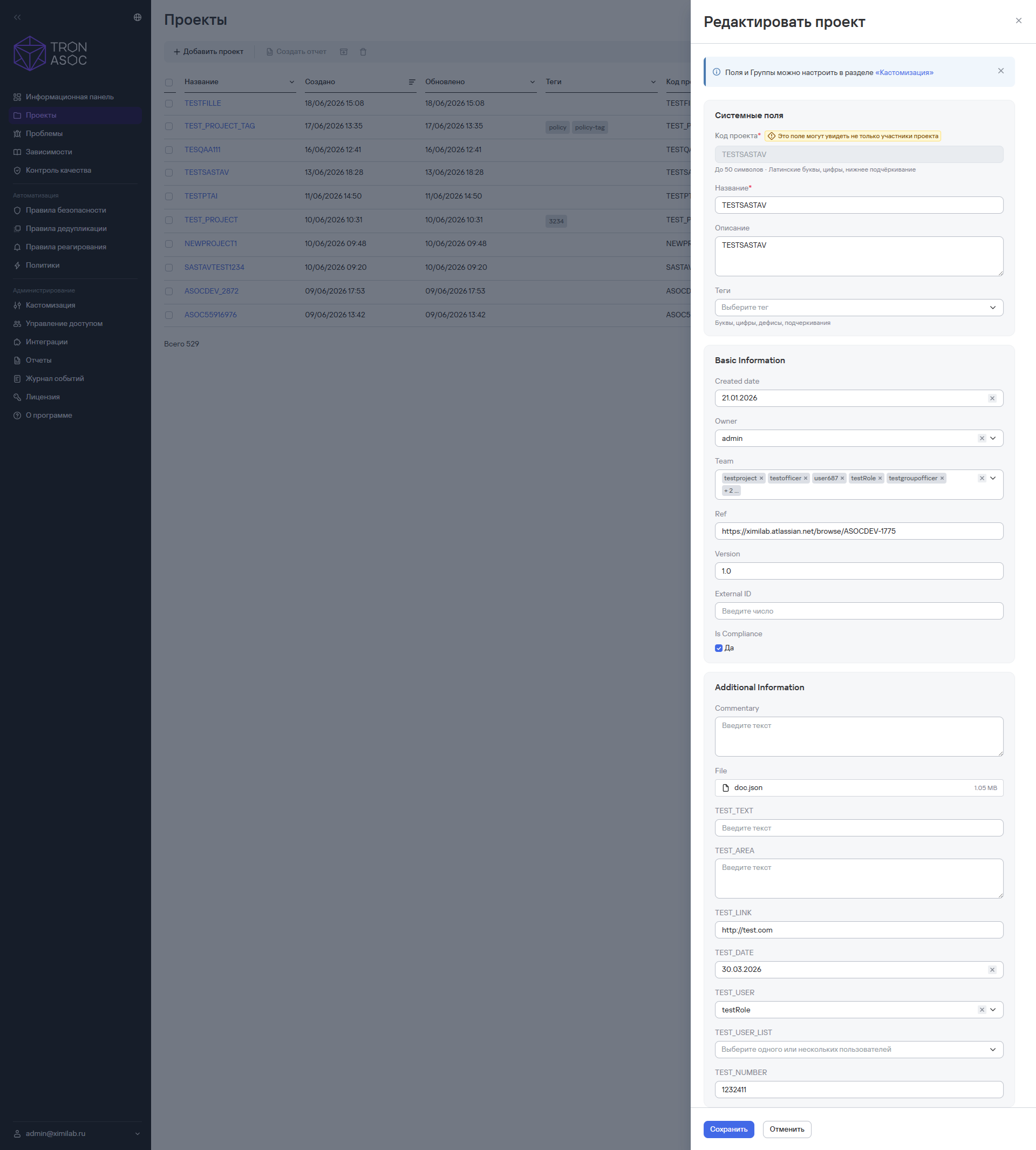
Archiving and restoring a project
Archiving projects
To archive one project:
- Select the more actions button (
 ) next to the required project.
 - Select Archive.
- Confirm the archiving in the modal window.
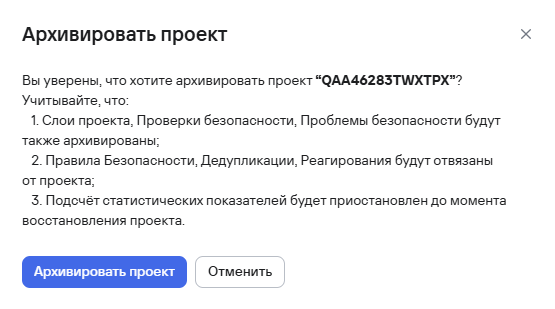
To archive multiple projects:
- Select the projects using the checkboxes (
 )
) - Select the archive button (
 ) above the project table.
 - Confirm the archiving of the projects in the modal window.
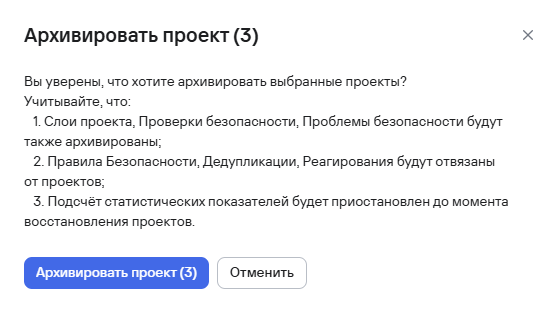
Restoring a project
To restore a project from the archive:
- In the Projects section, select the filter button.
- Turn on the Archived projects only toggle.
- Select Apply.
- Select a project from the list and select the restore project button.
- Confirm the project restoration in the modal window.

Deleting a project
To delete one project:
- Select the more actions button () next to the required project.
- Select Delete.
- Confirm the project deletion in the modal window.
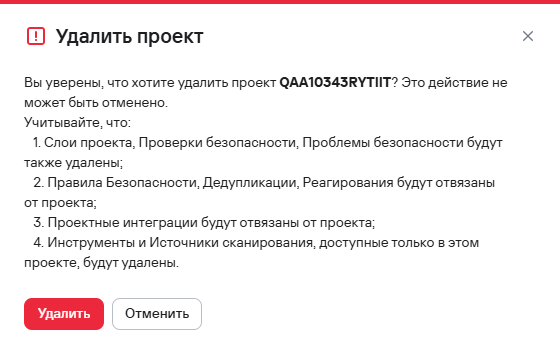
To delete multiple projects:
- Select the projects using the checkboxes ()
- Select the delete button (
 ) above the project table.
 - Confirm the deletion of the projects in the modal window.
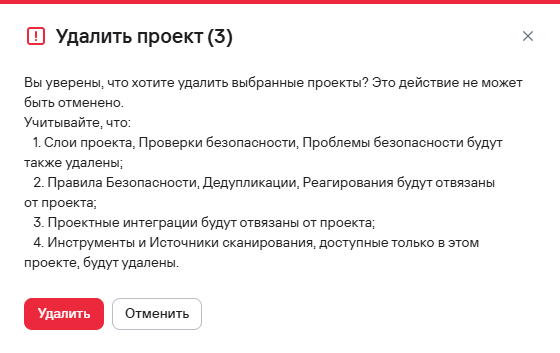
If the project has at least one running security scan when you try to delete it, the project won't be deleted.