Uploading SBOM Reports
Supported Tools
The ability to upload SBOMs is available for security checks using the following tools:
- KCS
- OWASP Dependency-Track
- Trivy
- Grype
- CodeScoring SCA
- Solar AppScreener SCA
Status Display
The SBOM upload status is displayed for each security check in the Projects → Project Name → Security Pipelines section.
Supported Formats
The system supports uploading SBOM files in the following formats:
- SPDX
- CycloneDX
SBOM Upload Procedure
To add an SBOM, follow these steps:
- Navigate to Projects → Project → Security Pipelines
- In the additional actions menu (button
 ) next to the desired security check, select Import SBOM
 - In the opened window:
- Upload a JSON file in one of the supported formats
- Click Save
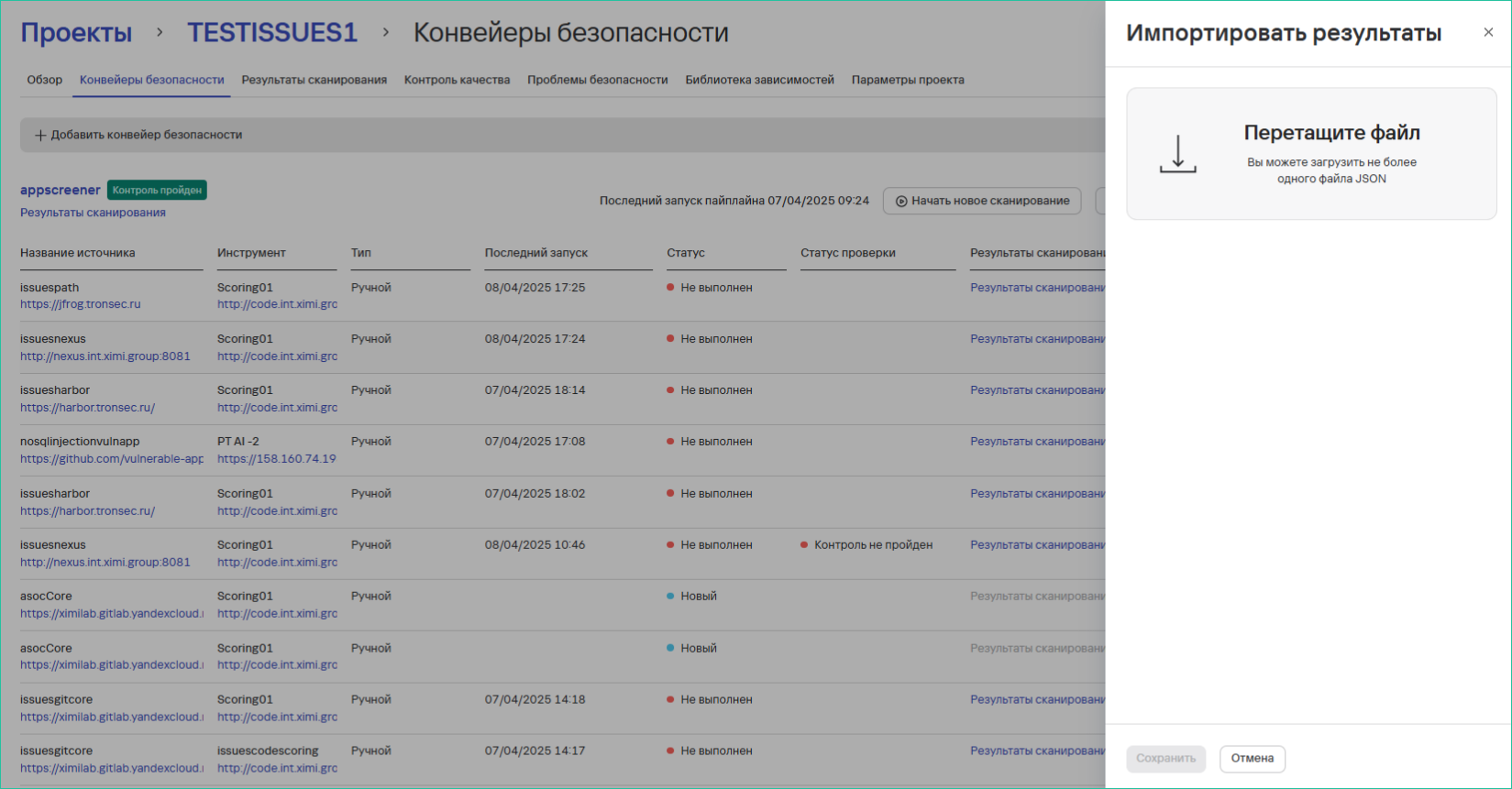
For more details on exporting reports from tool interfaces or using CLI, see Using CLI Tools.
Processing Statuses
- After upload, the SBOM status will change to Processing
- Upon successful processing:
- The status will change to Processed
- A link to the identified dependencies will appear in the Dependency Library tab
- The following will be displayed:
- Number of dependencies
- SBOM upload date
Viewing Dependencies
The complete list of dependencies is available in the Dependency Library section.
Report Export Examples
Exporting Reports from CodeScoring
To export a report from the CodeScoring tool, follow these steps:
- In the tool interface, navigate to SCA → Projects → Project Name.

- On the selected project's page, click the Export SBoM button and choose one of the presented versions; all versions are supported by the TRON.ASOC solution.
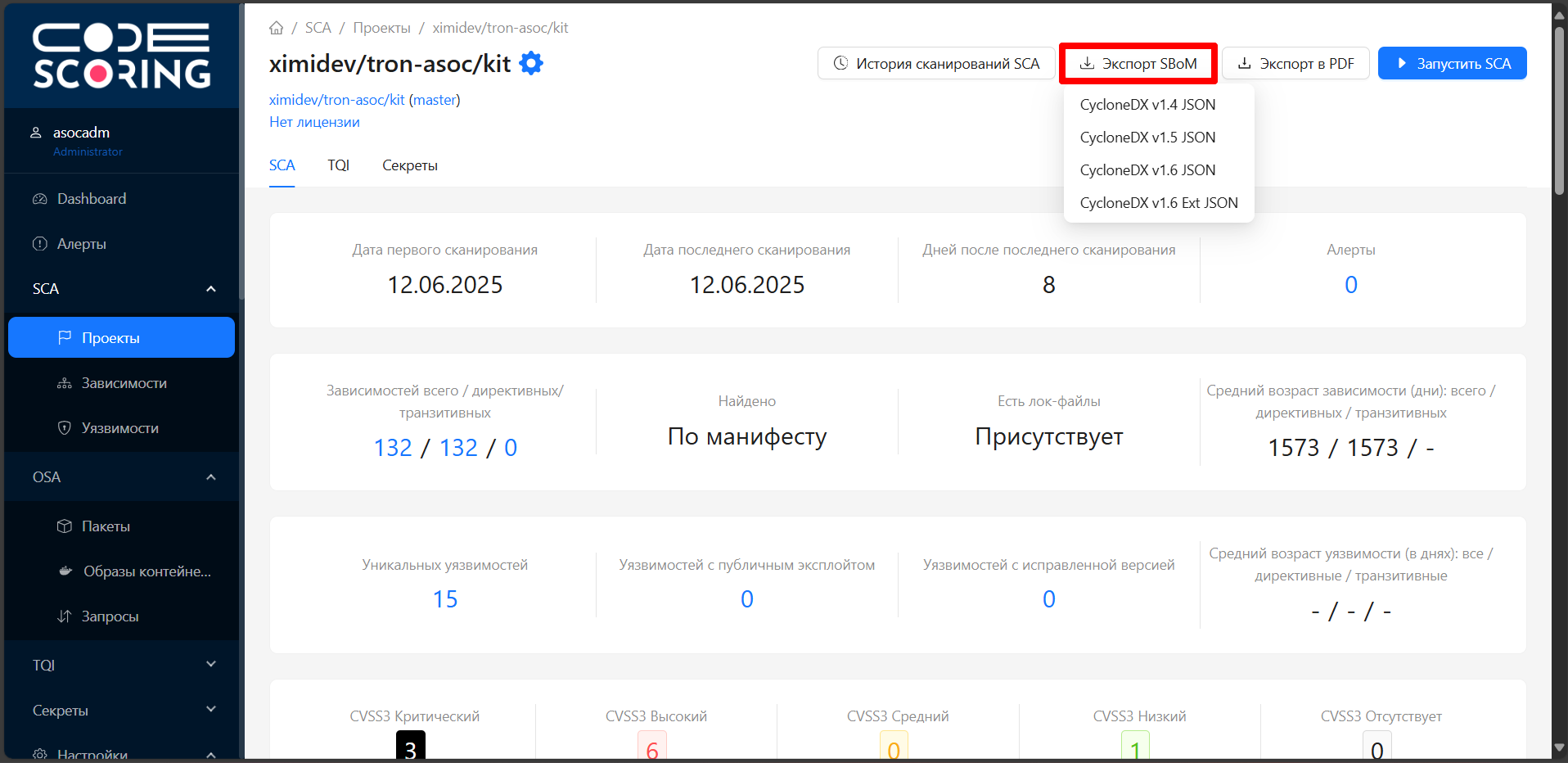
- Then, upload the report to TRON.ASOC following the instructions in Uploading SBOM Reports.
Exporting Reports from PT AI
To export a report from the PT AI tool, follow these steps:
-
In the tool interface, navigate to the Projects section.

-
Go to the detailed information page for the selected project.
-
Click the Generate Report button.
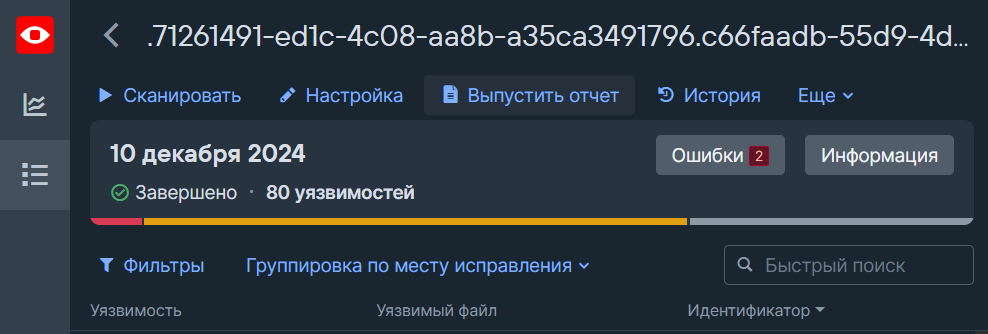
-
In the opened Generate Report window, select the JSON Format Report template.
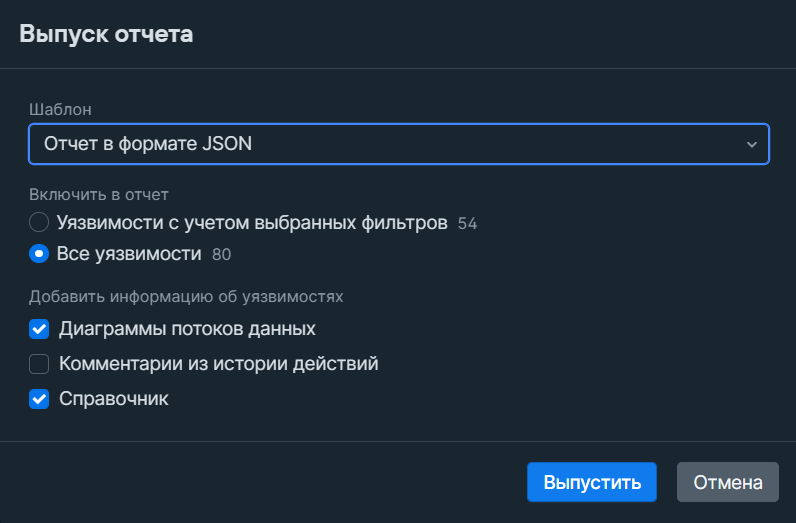
-
Click the Generate button.
-
Then, upload the report to TRON.ASOC following the instructions in Uploading External Reports.