Загрузка SBOM-отчета
Поддерживаемые инструменты
Возможность загрузки SBOM доступна для проверок безопасности, использующих следующие инструменты:
- KCS
- OWASP Dependency-Track
- Trivy
- Grype
- CodeScoring SCA
- Solar AppScreener SCA
Отображение статуса
Статус загрузки SBOM отображается для каждой проверки безопасности в разделе Проекты → Название проекта → Слои проекта
Поддерживаемые форматы
Система поддерживает загрузку SBOM-файлов в следующих форматах:
- SPDX
- CycloneDX
Процедура загрузки SBOM
Для добавления SBOM необходимо выполнить следующие шаги:
- Перейти в раздел Проекты → Название проекта → Слои проекта
- Выбрать необходимый проект из списка.
- Перейти во вкладку Слои проекта.
- Нажать кнопку дополнительных действий
 , расположенную напротив ранее добавленной проверки безопасности.
 - Выбрать действие Импортировать SBOM.
- Выполнить следующие действия в открывшемся окне:
- Загрузить JSON-файл в одном из поддерживаемых форматов
- Нажать кнопку Сохранить После этого в интерфейсе появится уведомление о начале загрузки SBOM. Процесс загрузки займет некоторое время
Подробнее о выгрузке отчетов из интерфейсов инструментов или с помощью CLI см. Использование CLI-инструментов.
Статусы обработки
- После загрузки статус SBOM изменится на В процессе
- При успешной обработке:
- Статус изменится на Обработано
- Появится ссылка на выявленные зависимости во вкладке Библиотека зависимостей
- Будут отображены:
- Количество зависимостей
- Дата загрузки SBOM
Просмотр зависимостей
Полный список зависимостей доступен в разделе Библиотека зависимостей.
Примеры выгрузки отчетов
Выгрузка отчета из Codescoring
Для выгрузки отчета из инструмента CodeScoring необходимо выполнить следующие шаги:
- В интерфейсе инструмента перейти в раздел SCA → Проекты → Название проекта.

- На странице выбранного проекта нажать на кнопку Экспорт SBoM и выбрать одну из представленных версий, все версии поддерживаются решением TRON.ASOC.
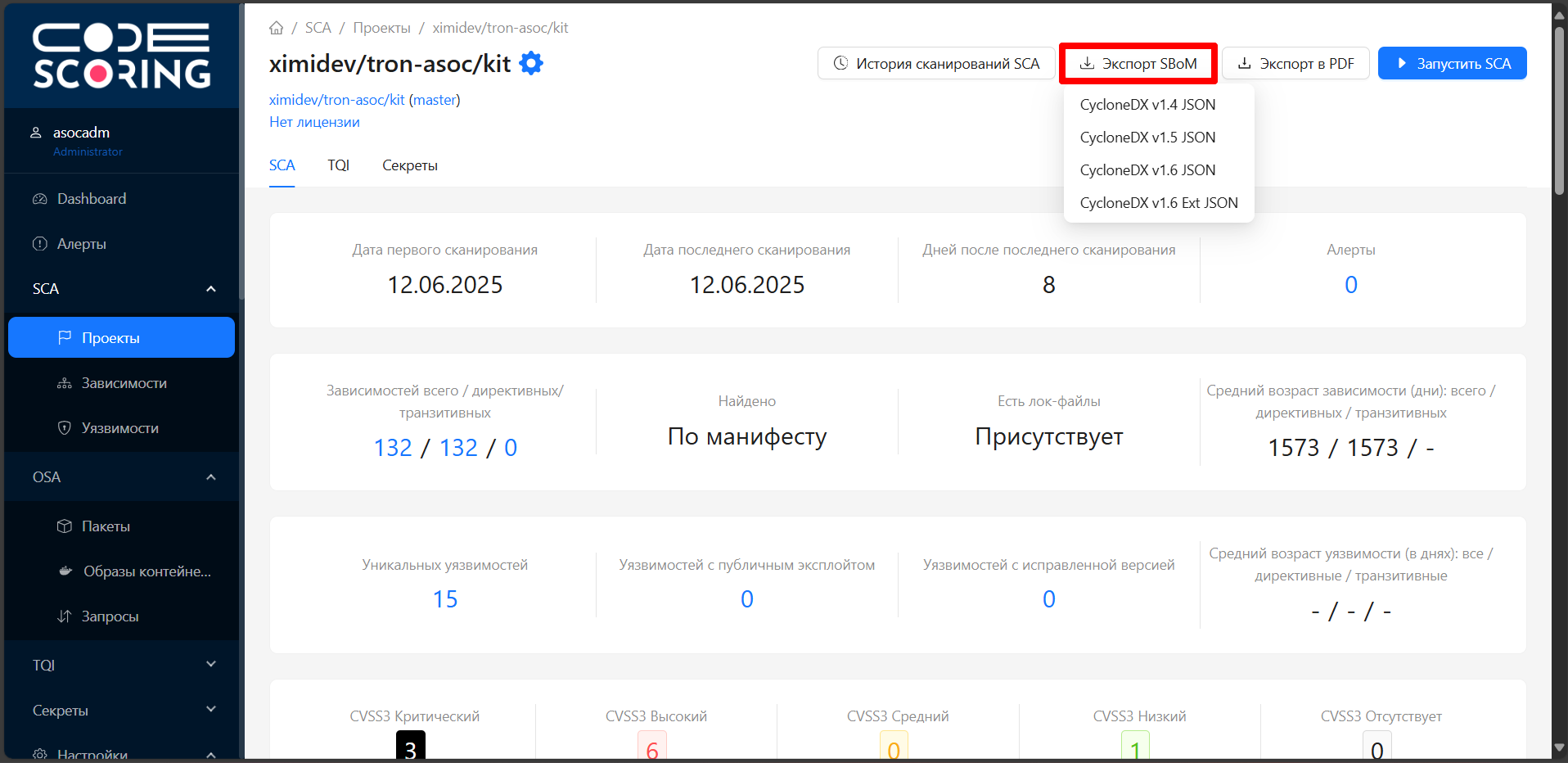
- Далее необходимо загрузить отчет в TRON.ASOC по инструкции Загрузка SBOM-отчета.
Выгрузка отчета из PT AI
Для выгрузки отчета из инструмента PT AI необходимо выполнить следующие шаги:
-
В интерфейсе инструмента перейти в раздел Проекты.

-
Перейти на страницу детальной информации по выбранному проекту.
-
Нажать на кнопку Выпустить отчет.
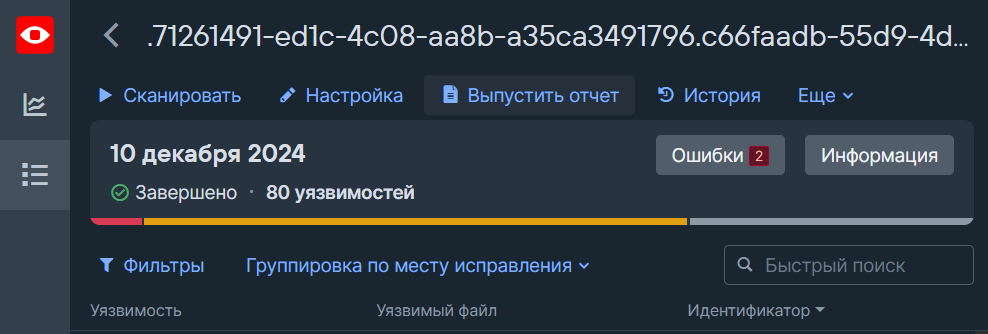
-
В открывшемся окне Выпуск отчета выбрать шаблон отчета Отчет в формате JSON.
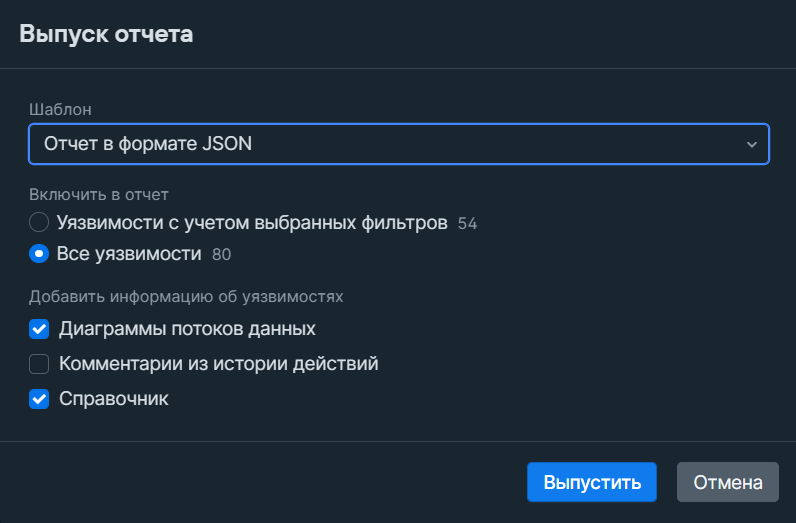
-
Нажать на кнопку Выпустить.
-
Далее необходимо загрузить отчет в TRON.ASOC по инструкции Загрузка внешнего отчета.