Response Rules
Response rules are necessary for configuring specific notifications and sending them to appropriate tools. This tool allows you to automate the sending of security issues to an already created task tracker integration. It is also possible to configure automatic sending of events to a group email address.
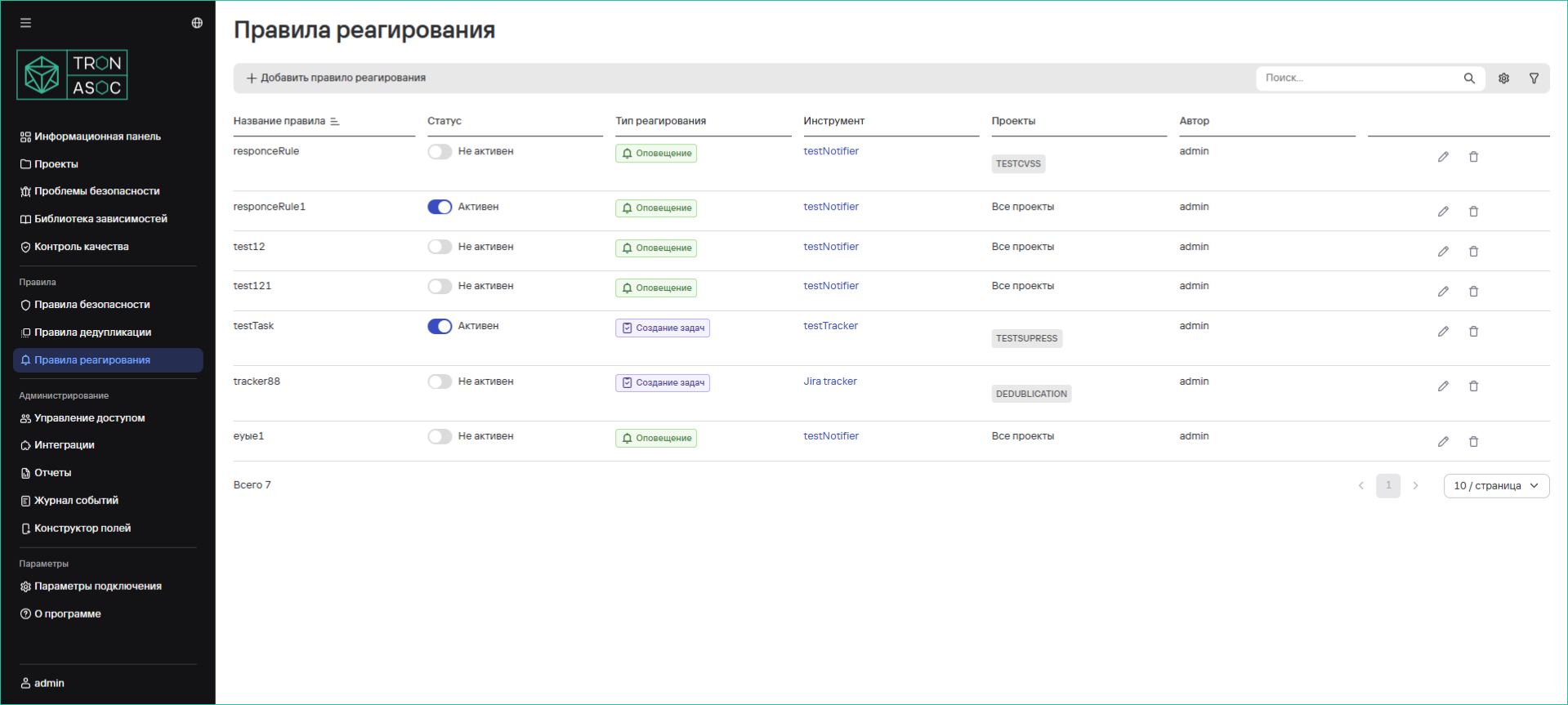
Creating a Response Rule
To create a response rule, follow these steps:
-
Navigate to the Response Rules section
-
Click the Add Response Rule button
-
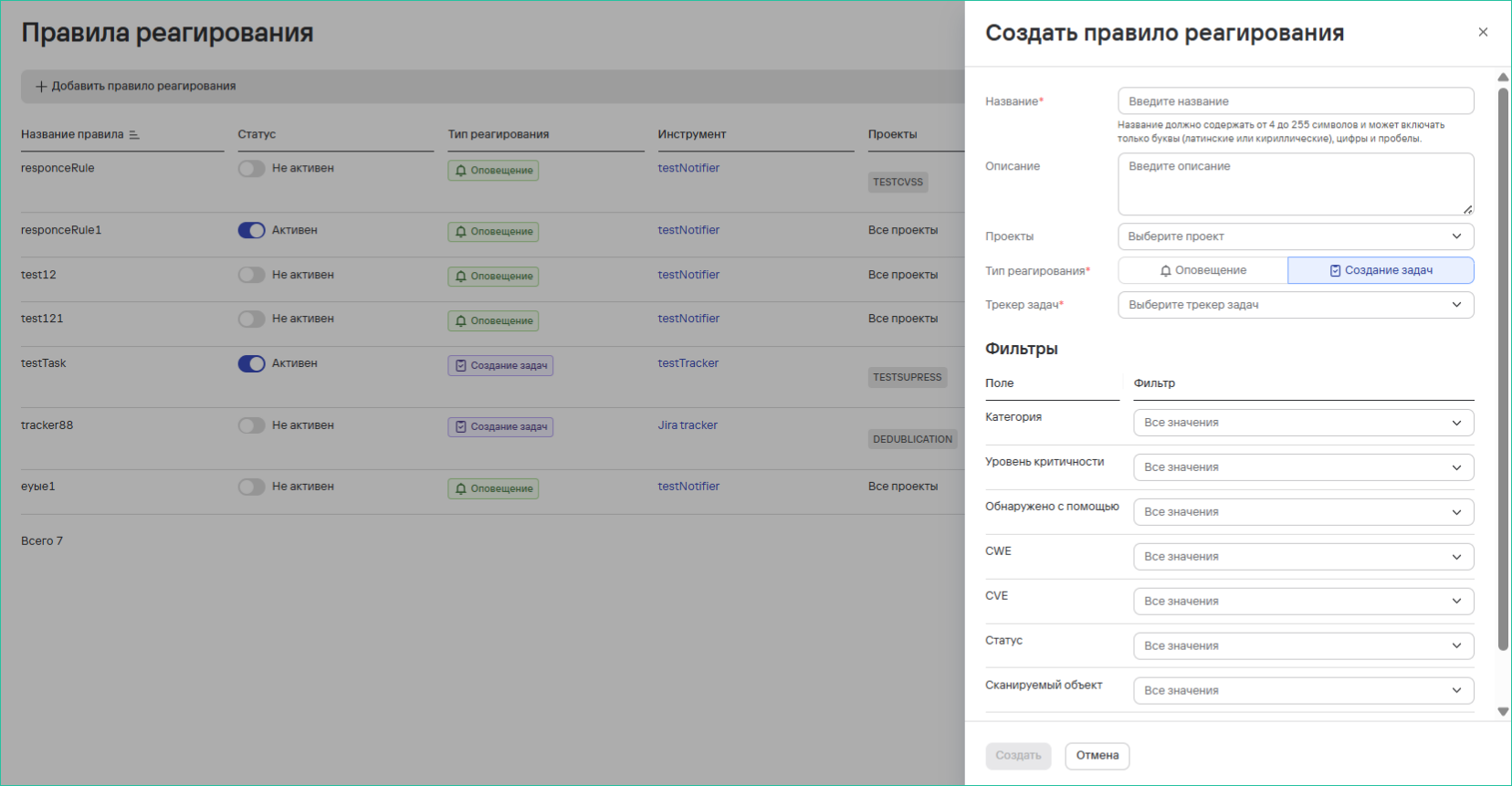
In the opened form, fill in the fields:
- Rule Name
- Description (optional)
- Projects - within which projects events or security issues will be collected
- Response Type - select the response type
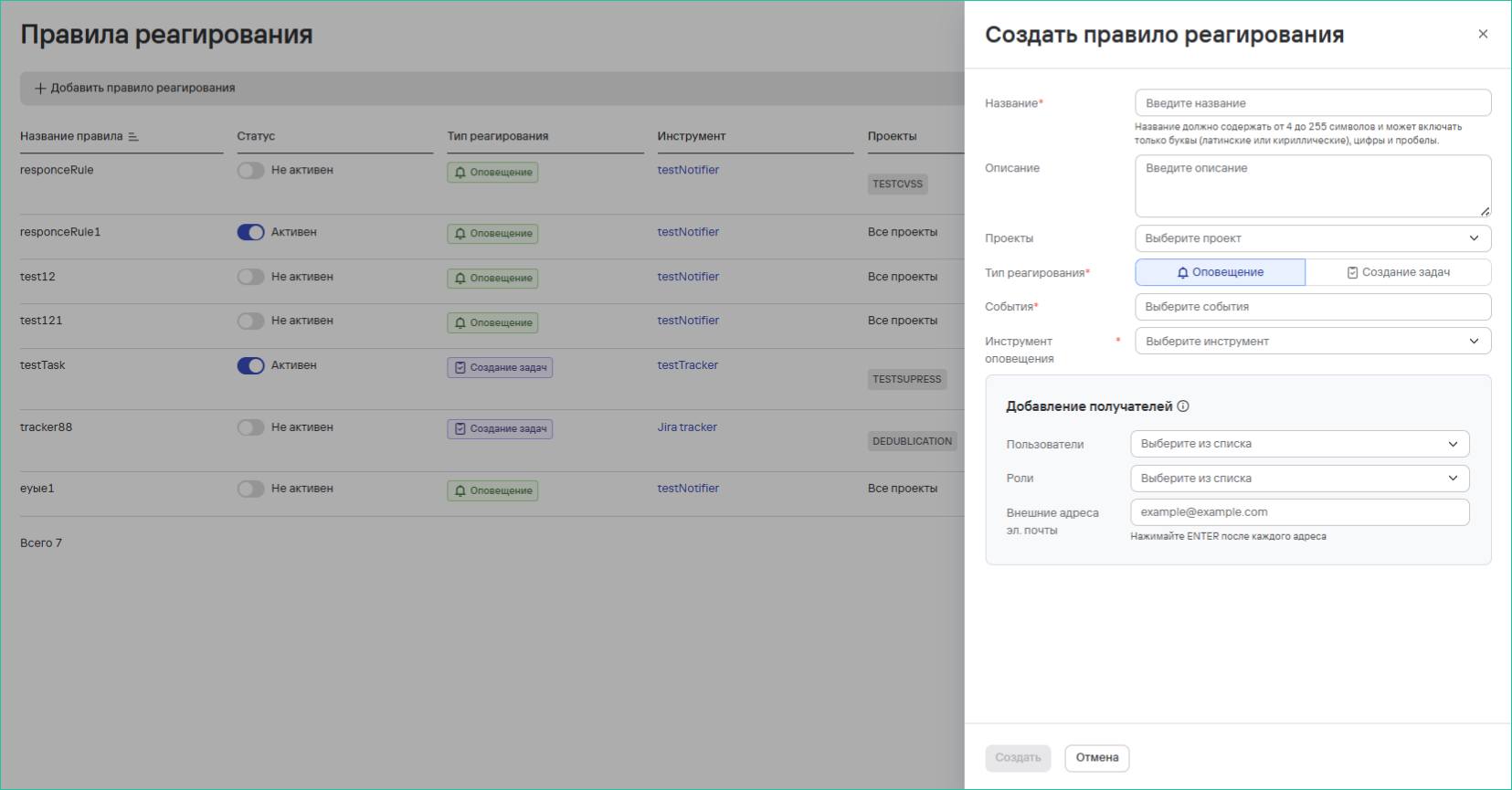
-
For the Notification type, fill in additional fields:
- Events - multiple selection from the list of system events
- Notification Tool - selection from created integrations
- Add Recipients block:
- Add specific users (by email in the profile)
- Add roles (send to users with this role)
- Add external email addresses in the "External Email Addresses" field
-
For the Create Tasks type, fill in:
- Task Tracker - selection from created integrations
- Filters - filtering conditions for security issues
 tip
tipThis response type allows flexible configuration for sending necessary security issues to the task tracker area.
-
After filling out the form, click the Create button