Projects
The Projects section includes a list of available projects that are checked for compliance with the company's security policies and quality standards. Each project can have its own security parameters and settings. Users can configure either a single project or multiple projects. It is also possible to view summary information about projects, delete, and edit projects depending on access rights.
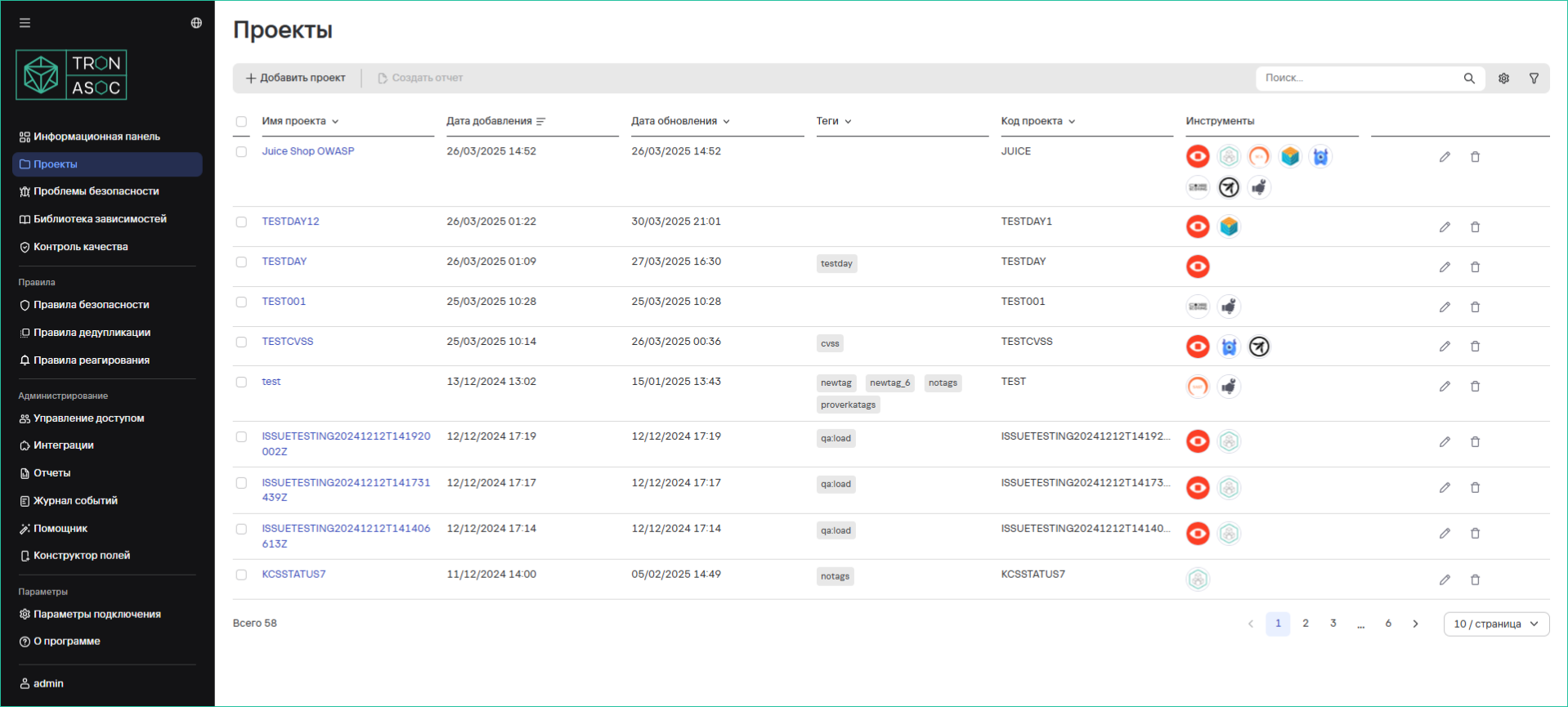
The projects table contains:
- Project Name
- Creation Date
- Update Date
- Tags
- Project Code
- Tools
Table Actions:
- Configure fields
- Search by name
- Filter by tags
- Sort by:
- Name
- Tag
- Project Code
- View details (click on the project name)
Creating a Project
To create a new project, follow these steps:
- In the Projects section, click the Add Project button
- Fill out the form:
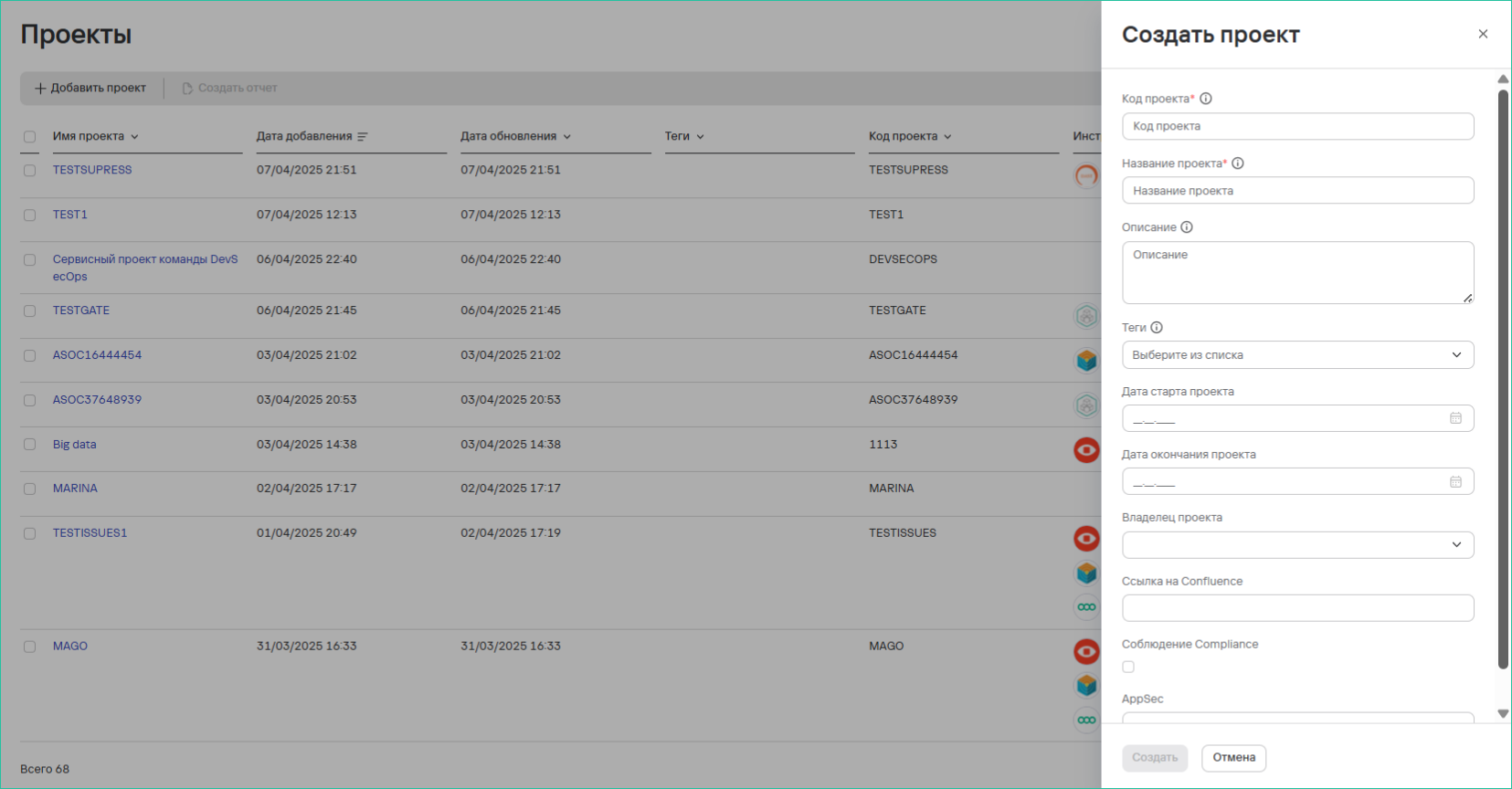
- Required fields:
- Project Code
- Project Name
- Additional fields (as needed)
- Required fields:
- Click the Create button
Recommendations for filling out some fields are marked with the icon  .
.
Editing a Project
To edit a project, use one of the methods below.
Method 1:
- In the Projects section, in the row of the desired project, click the edit button

- Make the necessary changes
- Click the Save button
Method 2:
- In the Projects section, go to the project page (click on the project name)
- Open the Project Parameters tab
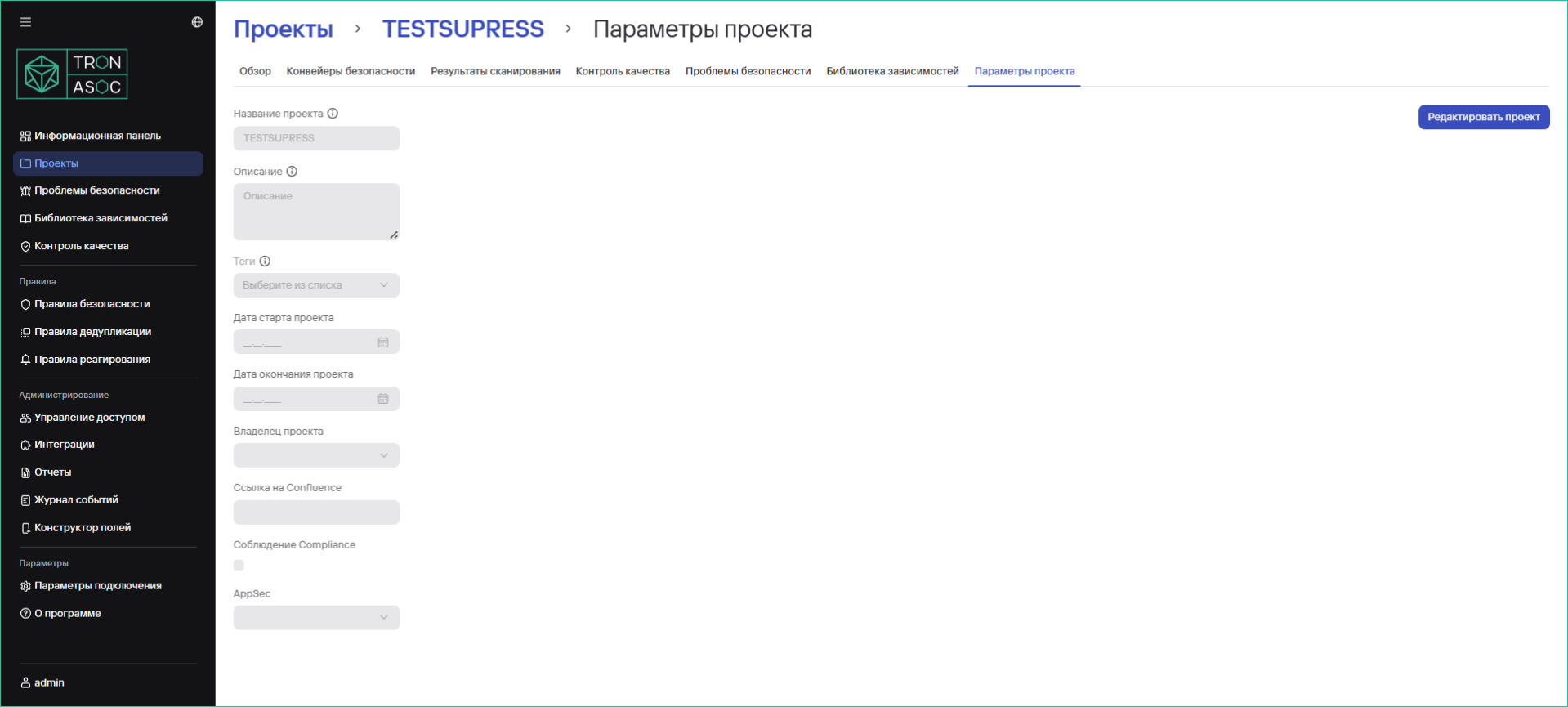
- Click the Edit Project button
- Click the Save button
Project Reports
To create a project report, use one of the methods below, depending on the report type.
Summary Report
- In the Projects section, select projects using the checkboxes

- Click the Create Report button
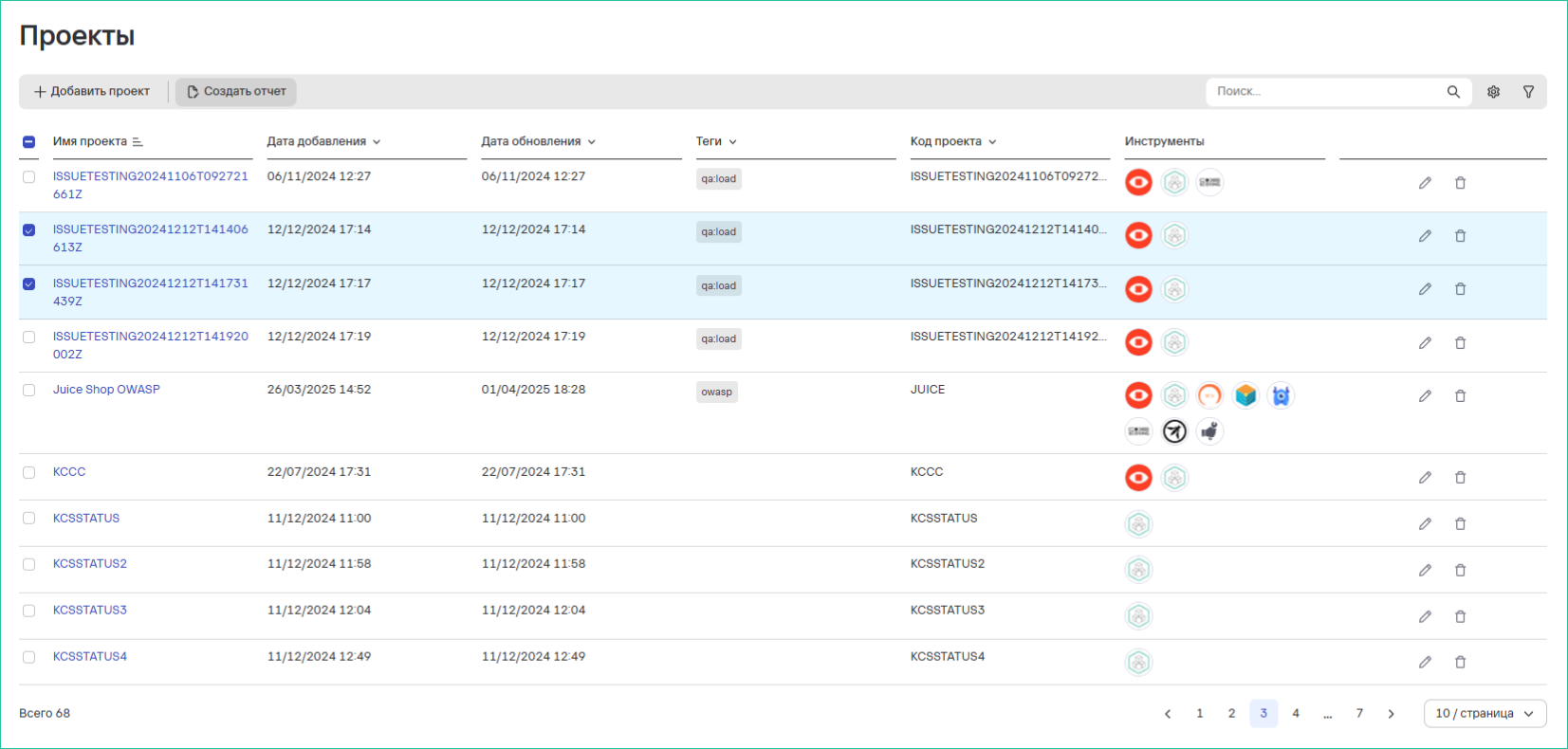
- Fill in the parameters; it is recommended to set the issue limit to no more than 80
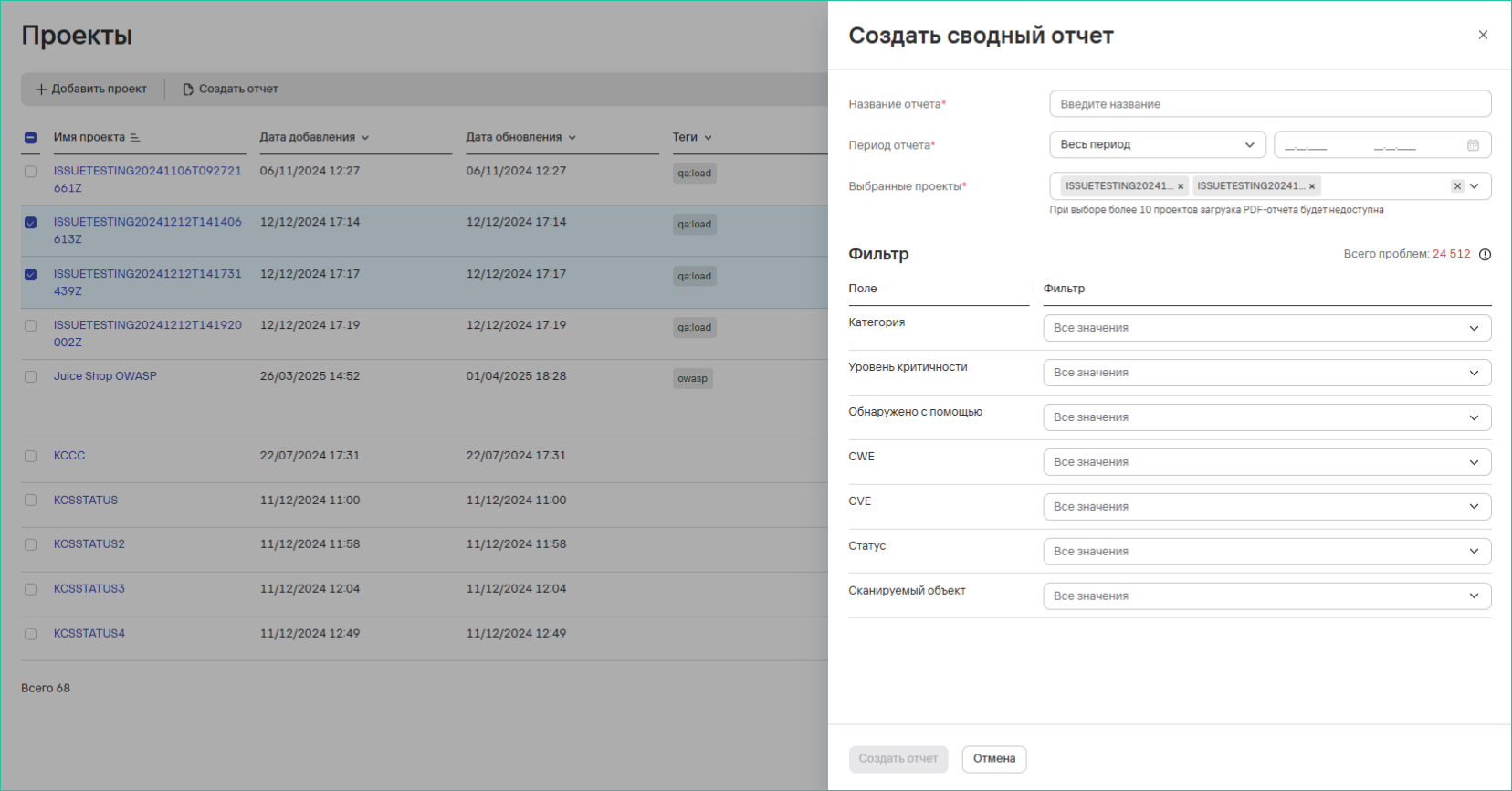
- Click the Create Report button. The report will appear in the Reports → Summary section.
Detailed Report
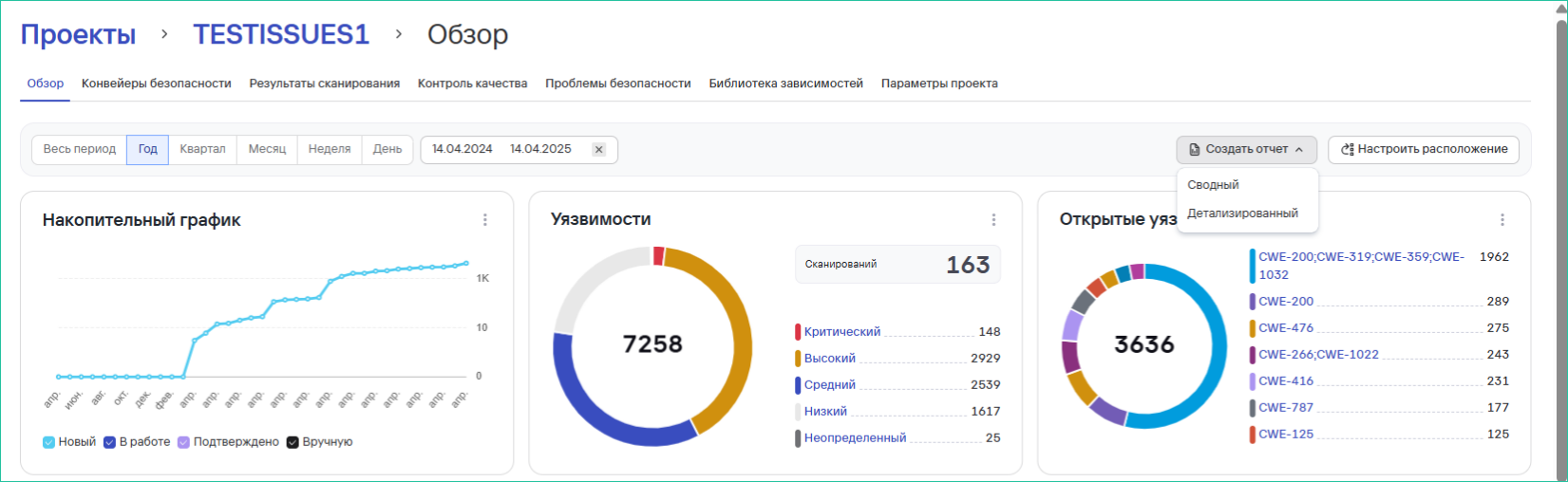
- In the Projects section, go to the project page (click on the project name)
- Click the Create Report → Detailed button
- Fill in the parameters:
- Report Name
- Filters
- Issue Limit (recommended no more than 80)
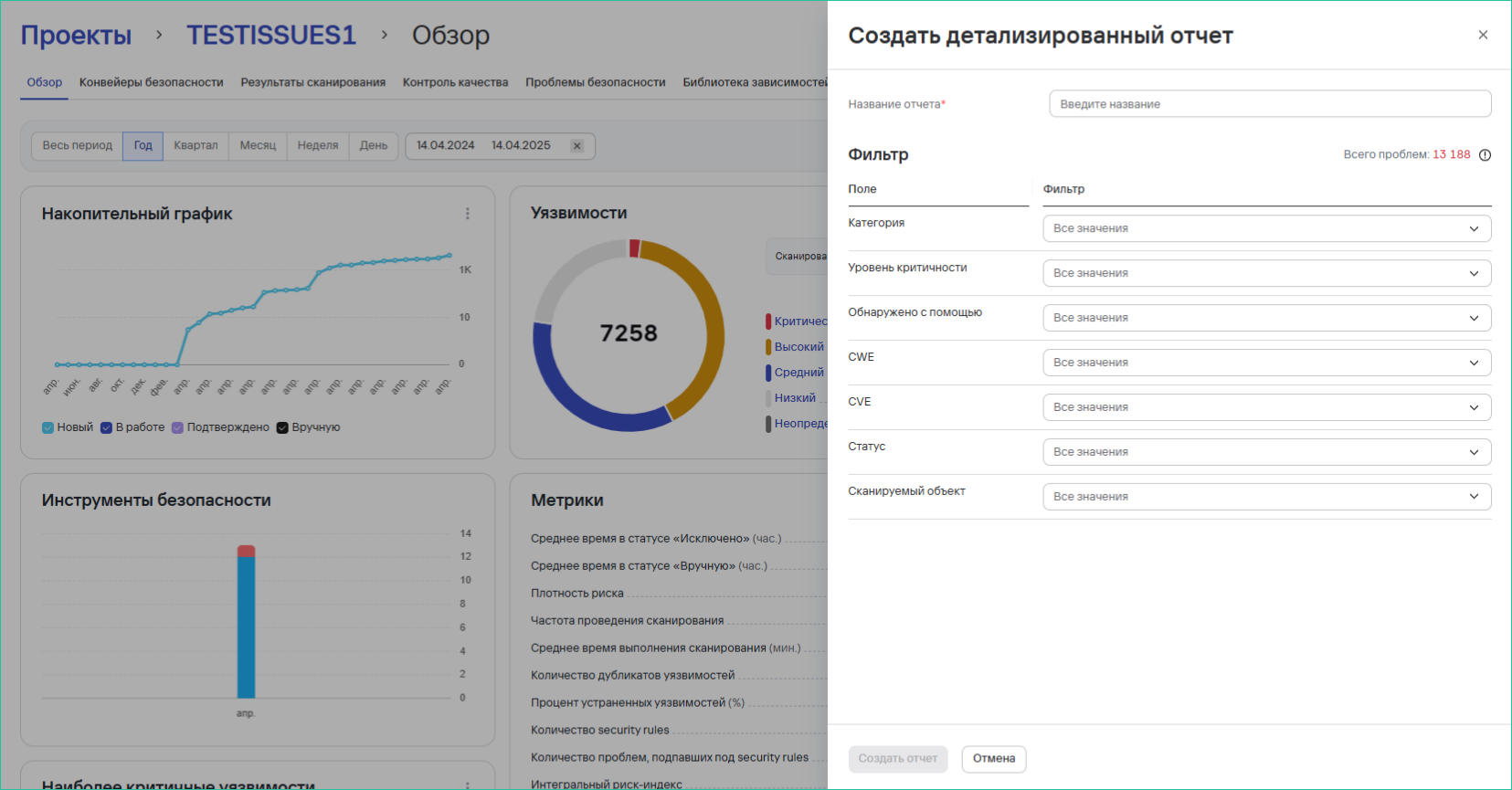
- Click the Create Report button. The report will appear in the Reports → Detailed section.
Project Overview
The Dashboard contains:
- Frequent vulnerabilities
- Severity parameters
- Detection sources
- Critical vulnerability ratings
How to open: In the projects list, click on the project name.
Configuring Widgets: Similar to the dashboard settings (see the corresponding section).
- All charts are updated once every 24 hours
- Working with projects requires appropriate access rights
- It is recommended not to create reports with more than 80 issues for optimal performance