Scan Sources
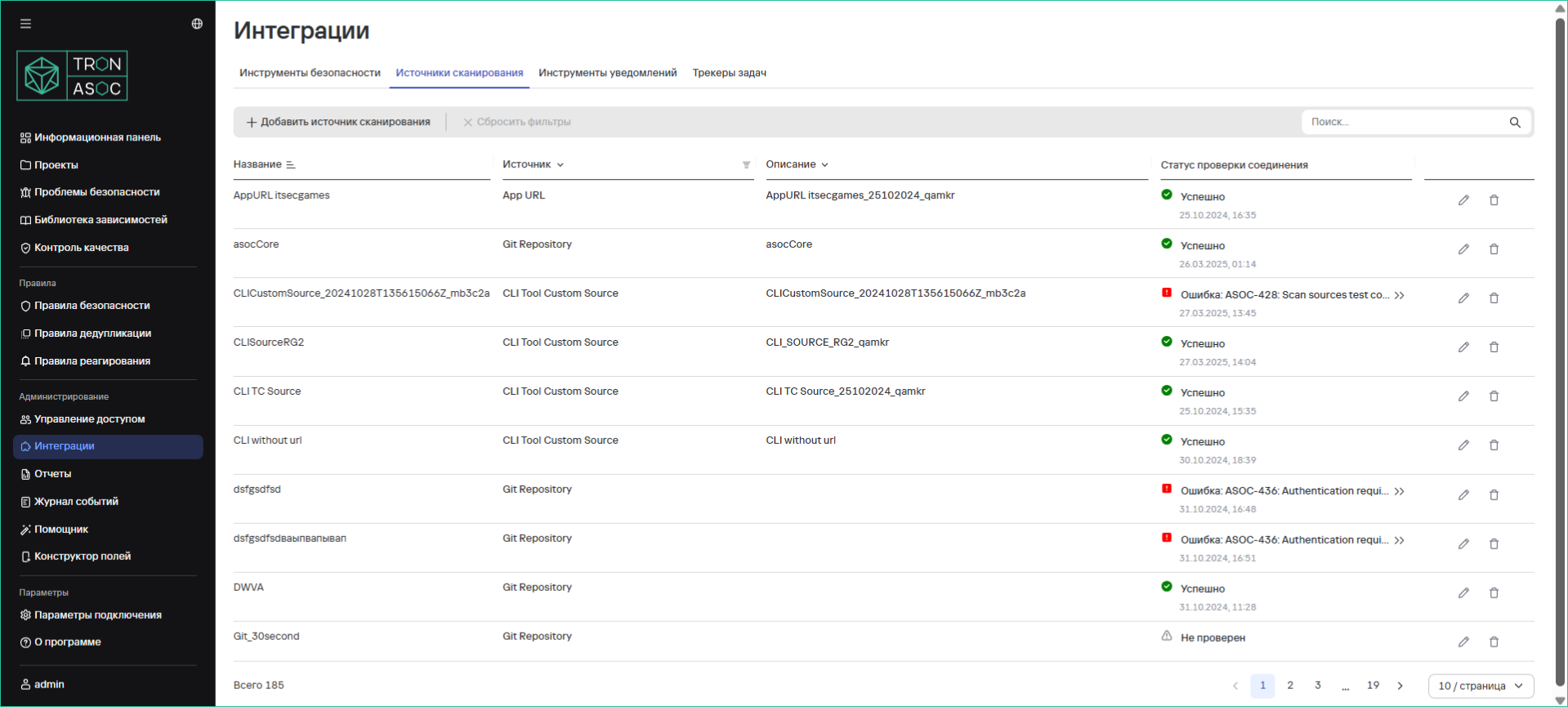
Viewing all connected scan sources is available in the Integrations → Scan Sources section. There is also the ability to sort by name, source type, description, and proceed to add, edit, or delete scan sources.
Supported Scan Sources
Git Repository
For a source in Git repository format, the following VCS (Version Control System) types are available:
- GitHub
- GitLab
- BitBucket (cloud and server)
- Other (other types can be connected)
When running scans using a BitBucket source, the specified port may be adjusted. For example, ssh://git@bitbucket.int.tronasoc.ru:0000/test/command.git may be formatted as https://bitbucket.int.tronasoc.ru:0000/test/command.git
After updating TRON.ASOC to a version higher than 1.2.1, it is required to reconfigure previously added integrations with Git Repository sources where the VCS type was not configured.
Other sources:
- Nexus
- CLI Tool
- Jfrog
- Harbor
- AppUrl
Connecting a Scan Source
To connect a scan source, follow these steps:
-
Navigate to the Integrations → Scan Sources section.
-
Click the Add Scan Source button.
-
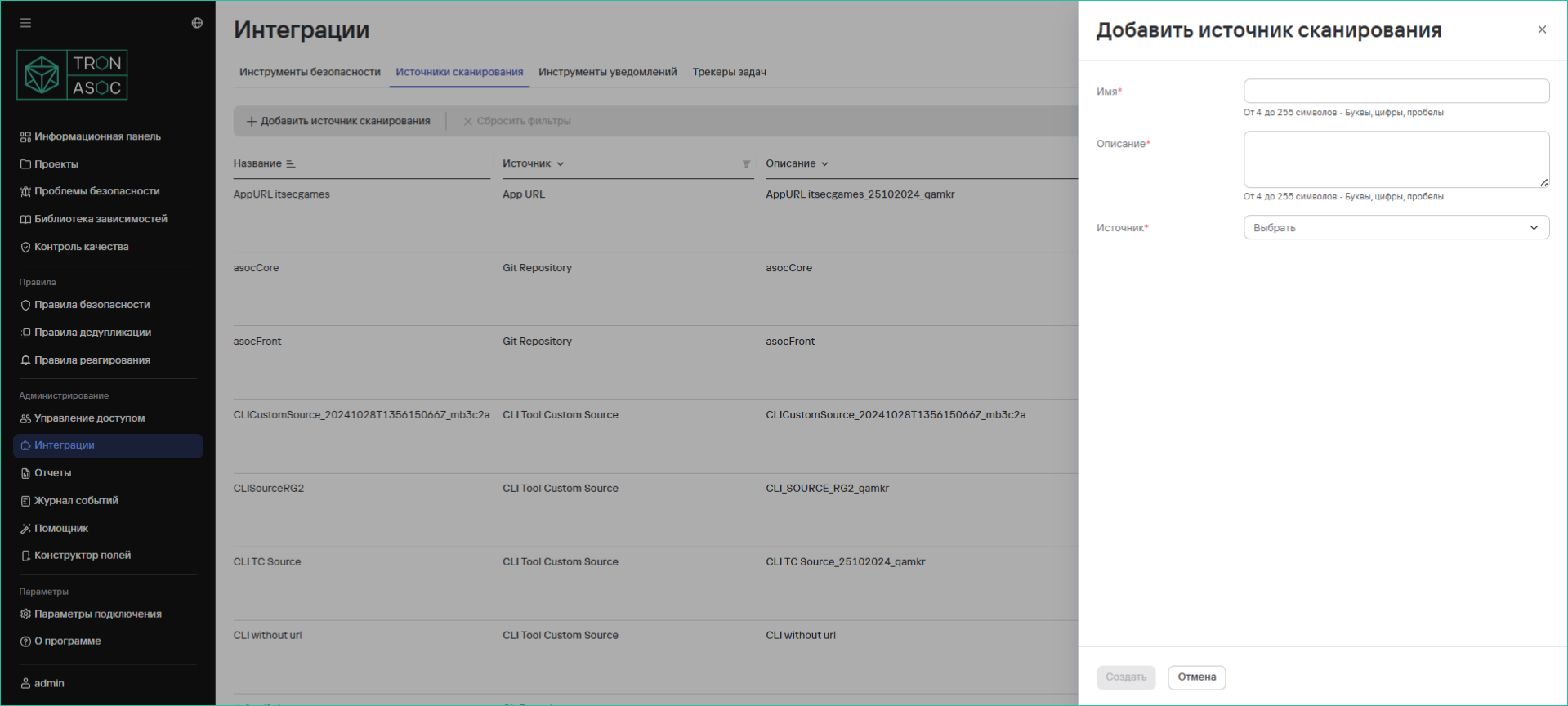
In the opened scan source addition form, fill in the fields:
-
Name
-
Description
-
In the dropdown menu of the Source field, select the scan source
-
-
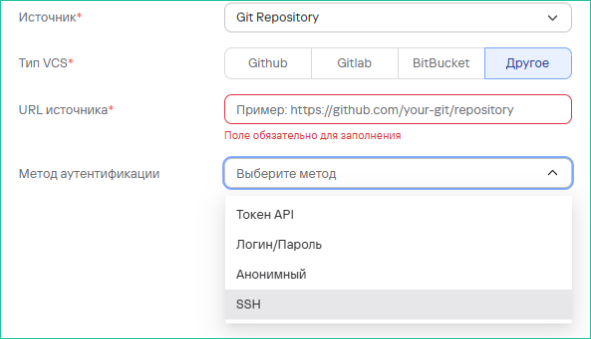
After selecting the source tool, fill in additional fields:
- Source URL
- Authentication Method - Filling this field at this stage is not mandatory, but without it, you cannot test the connection to the scan source.
-
Further fields to fill may differ depending on the chosen authentication method:
- If the method is specified and API token authentication is selected, fill in the API Token field
- If login and password authentication is selected, fill in the Login/Password fields
For the Git Repository source, several authentication types are available:
- API Token
- Login/Password
- Anonymous
- SSH (secure authorization method via SSH key, all SSH types are available except passphrase)
-
To test the connection, click the Test Connection button. The system will send a connection request to the source, and a corresponding notification will be displayed in the upper right corner of the user interface.
-
Then click the Create button.
Editing a Scan Source
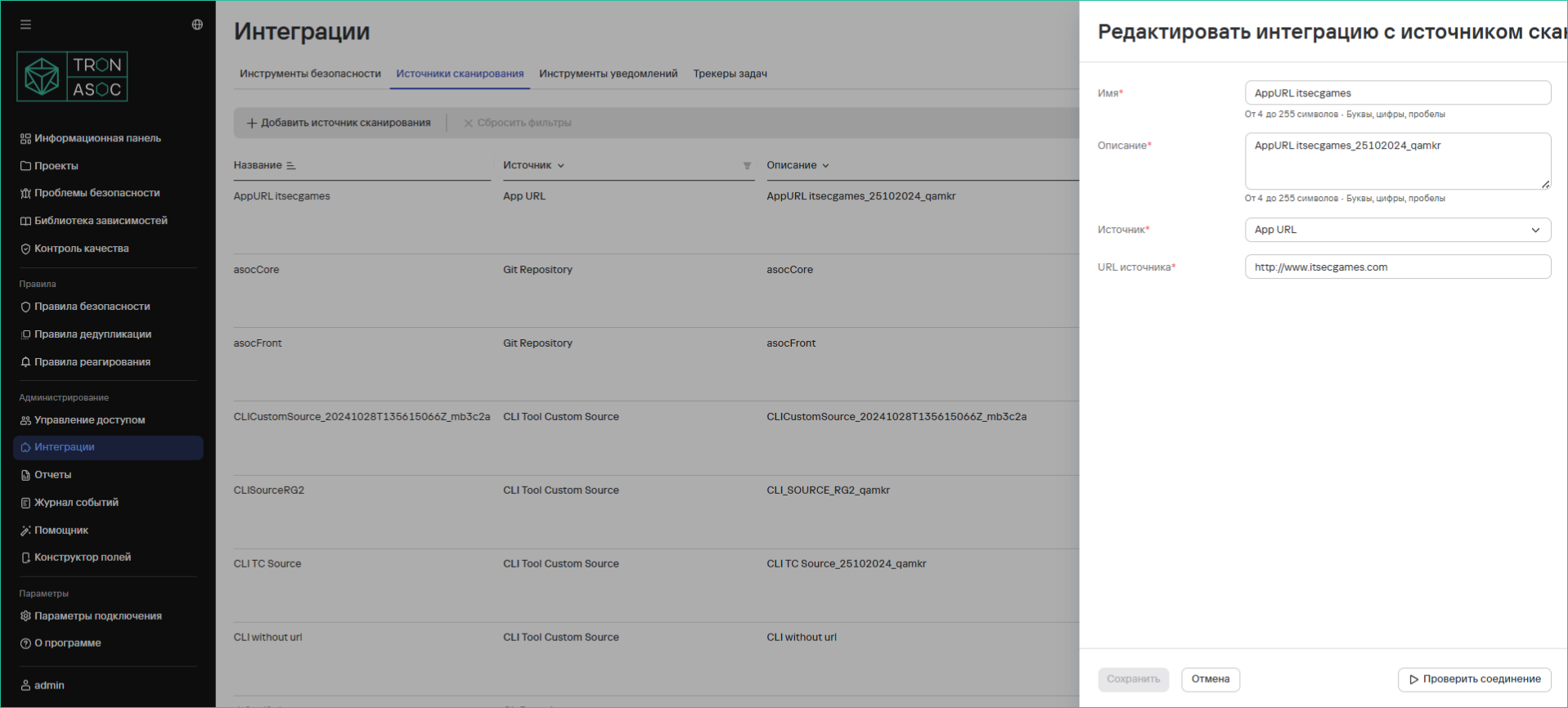
Editing a source is done using the  button in the corresponding scan source. The editing form is similar to the addition form, but the fields are filled with current data.
Deleting a Scan Source
To delete a scan source:
-
Go to the Integrations → Scan Sources section
-
Click the
 button in the row of the scan source you want to delete
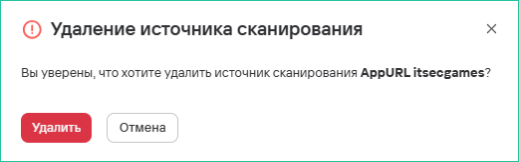
 -
In the opened window, confirm the deletion of the source