Actions with parsers
TRON.ASOC includes a parser builder that lets you create, edit, use, and delete parsers—custom schemas for parsing SARIF/JSON reports and integrating them with the system.
The builder uses the JSONata query and data transformation language. JSONata syntax supports logical operators, array searches, value mapping, and partial matches.
The TRON.ASOC engine implements a limited subset of JSONata, and the semantics of some operators differ from the reference language implementation. For a list of supported expressions, available functions, and differences from the reference implementation, see User parser configuration.
For more information about JSONata, see the official documentation.
You can use a third-party validation tool to check field paths against a sample report. Validate expression logic in TRON.ASOC: a result from a third-party tool doesn't guarantee the same result in the system.
When you save a parser, the system validates the entered JSON and the syntax of JSONata expressions. Successfully saving a parser doesn't mean that the expressions will return the expected values for a specific report.
To work with parsers, users must have the following permissions:
- View parsers;
- Create/edit parsers;
- Delete parsers.
Mapping fields
You can use only a predefined set of fields in the parser's JSON schema. These fields correspond to the TRON.ASOC model. Field names are case-sensitive. The system ignores fields that aren't listed in the table.
Each field contains a JSONata expression that returns a value from the report. The system passes all field values as strings.
| TRON.ASOC field | Field in the parser | Purpose and details |
|---|---|---|
| Category | category | Vulnerability category |
| Severity | severity | Severity level—a number from -1 to 4.A security tool can provide the severity level in any format. The configuration must convert it to this scale. The values critical, high, medium, and low map to the scale without additional mapping. You must convert all other values, including info, none, note, warning, and error, to the scale using $lookup. If the level value isn't included in the $lookup table, the field remains empty |
| CWE | cwe | CWE identifier in the CWE-XX format.A finding can contain multiple CWE identifiers |
| CVE | cve | CVE identifier in the CVE-YYYY-NNNN format.A finding can contain only one CVE identifier |
| Source file | source_file | Path to the file that contains the vulnerability |
| Line | line | Line number in the code |
| Library name | lib_name | Library name (for SCA) |
| Library version | lib_version | Library version |
| Object | source_object | Object that contains the vulnerability |
| Code | matched_code | Code fragment that contains the vulnerability |
| CVSSv2 | cvss_v2_score | CVSS v2 score |
| CVSSv3 | cvss_v3_score | CVSS v3 score |
| CVSSv4 | cvss_v4_score | CVSS v4 score |
| CVSS(?) | cvss_vu_score | CVSS score when the security tool doesn't specify the metric version |
| Exploitability | exploitability | Vulnerability exploitability score |
| Code elements | code_elements | Structured code elements. A server-side code adapter generates this field for ESLint, GitLab SAST, and PT AI/SASTAV. A custom parser doesn't populate it. This field isn't available for other security tools |
| Description | description | Place finding data that doesn't correspond to the fields above in the nested description.details object—see the rows below |
| — | description.details.info | Short finding description |
| — | description.details.detailedInfo | Full vulnerability description |
| — | description.details.recommendations | Remediation recommendations |
| — | description.details.refs | Links to sources |
| — | description.details.ratings | CVSS scores and vectors as a JSON string |
| — | description.details.message | Security tool classifications (OWASP, SANS, PCI DSS, NIST) |
| — | description.details.path | Data flow path |
| — | description.details.query | Name of the rule or function where the vulnerability was detected |
| — | description.details.matchDetails | Additional rule-matching conditions |
| — | description.details.platform | Language or platform of the vulnerable code |
| — | description.details.hash | Tool-specific finding identifier in the security tool report |
A server-side code adapter generates the code_elements field for the ESLint, GitLab SAST, and PT AI/SASTAV security tools. A custom parser doesn't populate this field: you can't create a JSONata expression that returns a nested code element structure.
The code_elements field isn't available for other security tools. If a report contains code element data, you can pass it as text in one of the description.details fields.
Each field contains a JSONata expression that returns a value from the report. The table below lists the available expressions.
| Expression type | Syntax | Example |
|---|---|---|
| Direct path | a.b.c | locations[0].physicalLocation.artifactLocation.uri |
| Element index | a[0] | cvss[0].score |
| Array flattening | a[].b | Results[].Vulnerabilities |
| Value filter | a[field = "value"] | cvss[version = "CVSS_V3"].score |
| Partial match | a[$ ~> /regex/] | tags[$ ~> /CWE/] |
| Fallback expression | expr1 or expr2 | numberLine or beginLine |
| Ternary operator | cond ? expr1 : expr2 | cweId != "" ? (\"CWE-\" & cweId) : \"\" |
| Concatenation | expr1 & expr2 | type.displayName & ": " & summary |
| Value mapping | $lookup({...}, expr) | $lookup({\"high\":\"3\"}, severity) |
The or operator in the parser builder doesn't work as a logical OR. It works as a fallback expression: it returns the first nonempty value, not true. This behavior differs from the operator's behavior in the reference JSONata implementation and the third-party validation tool.
The ternary operator doesn't apply the else branch when the field from the condition is missing from the finding. As a result, the field remains empty. Use the or fallback expression for optional fields.
For a complete list of differences, see User parser configuration.
Parser sections
The parser configuration supports the sections field—a list of subconfigurations. Each subconfiguration contains a path to an array of findings (items_path) and its own set of mapping fields (severity, category, and so on). Unlike the single configuration-wide mode, sections within sections are combined: the parser collects findings extracted from each section into the result for one report.
This removes the limitation that allowed a parser to extract found artifacts from only one report array at a time. If a security tool's report contains multiple independent arrays with different finding types—for example, a Trivy report contains vulnerabilities, misconfigurations, and secrets—you can describe all finding types with one parser that contains one section for each type:
{
  "sections": [
    { "items_path": "Results[].Vulnerabilities", "severity": "...", "category": "..." },
    { "items_path": "Results[].Misconfigurations", "severity": "...", "category": "..." },
    { "items_path": "Results[].Secrets", "severity": "...", "category": "..." }
  ]
}
items_path is the path to the array of findings in the report. The parser evaluates the other section expressions relative to an individual element in this array, not relative to the report root. For information about path syntax, access to parent object fields, and other section details, see User parser configuration.
Parser builder limitations
For fields generated from a SARIF rule description, such as category and cwe, the parser matches a finding to its rule description by the rule's positional index (ruleIndex), if the report includes it. The security tool's code parser matches them by the rule's string identifier (ruleId).
For correctly formatted reports, both methods return the same result. If ruleIndex points to the wrong rule in a report because of an error in the specific tool, the custom parser and the same tool's preconfigured code parser can return different data for the same finding.
The other parser builder limitations—unsupported language constructs, field value length limits, and merging findings by a composite key—are described in User parser configuration.
Create a new parser
To create a new parser, follow these steps:
- Go to Integrations.
- Select Parsers.
- In the Parsers section, select Add parser.
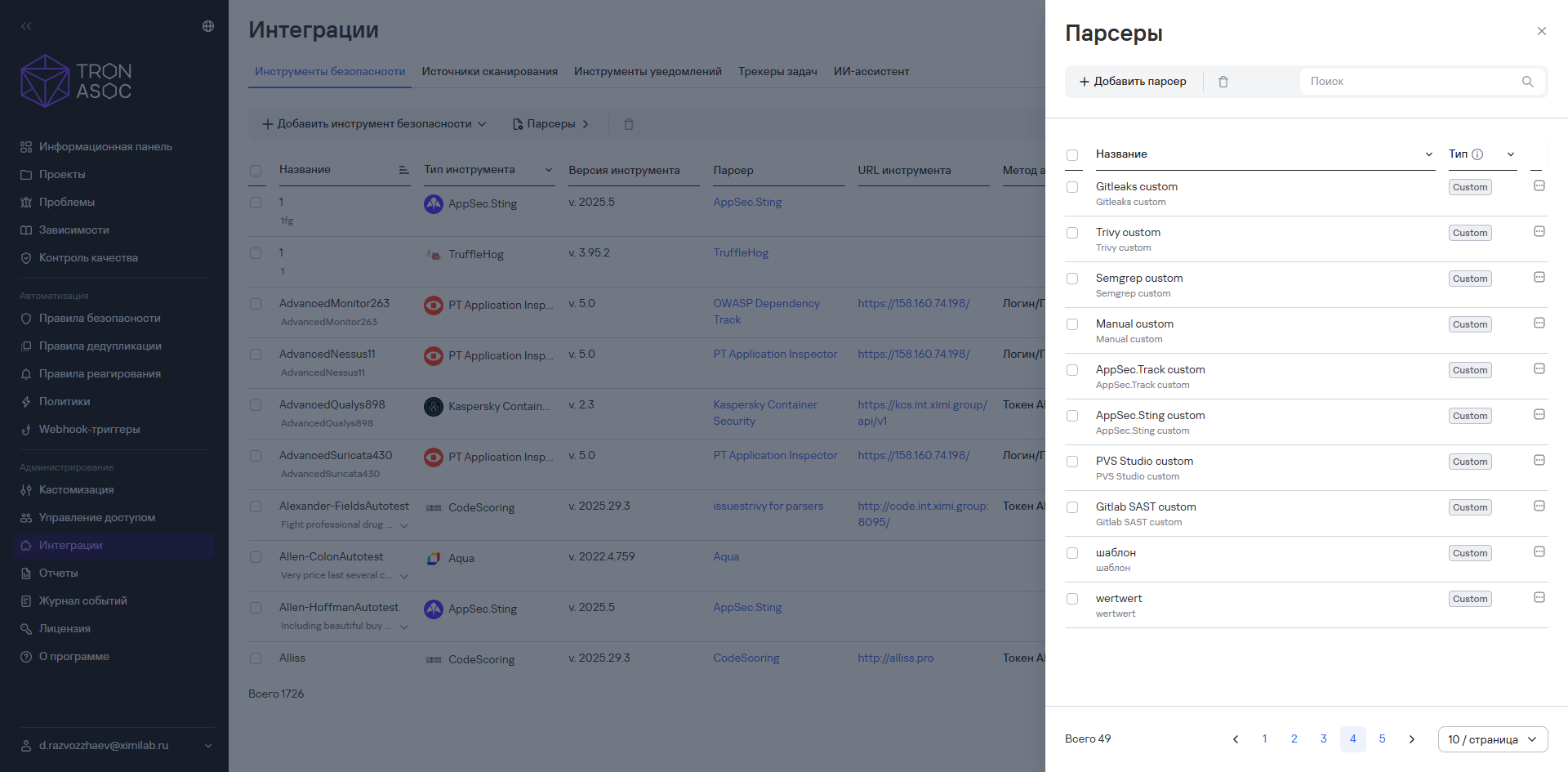
- In the add parser window, enter the following information:
- parser name;
- parser description;
- parser configuration in JSON format.
- Select Create.
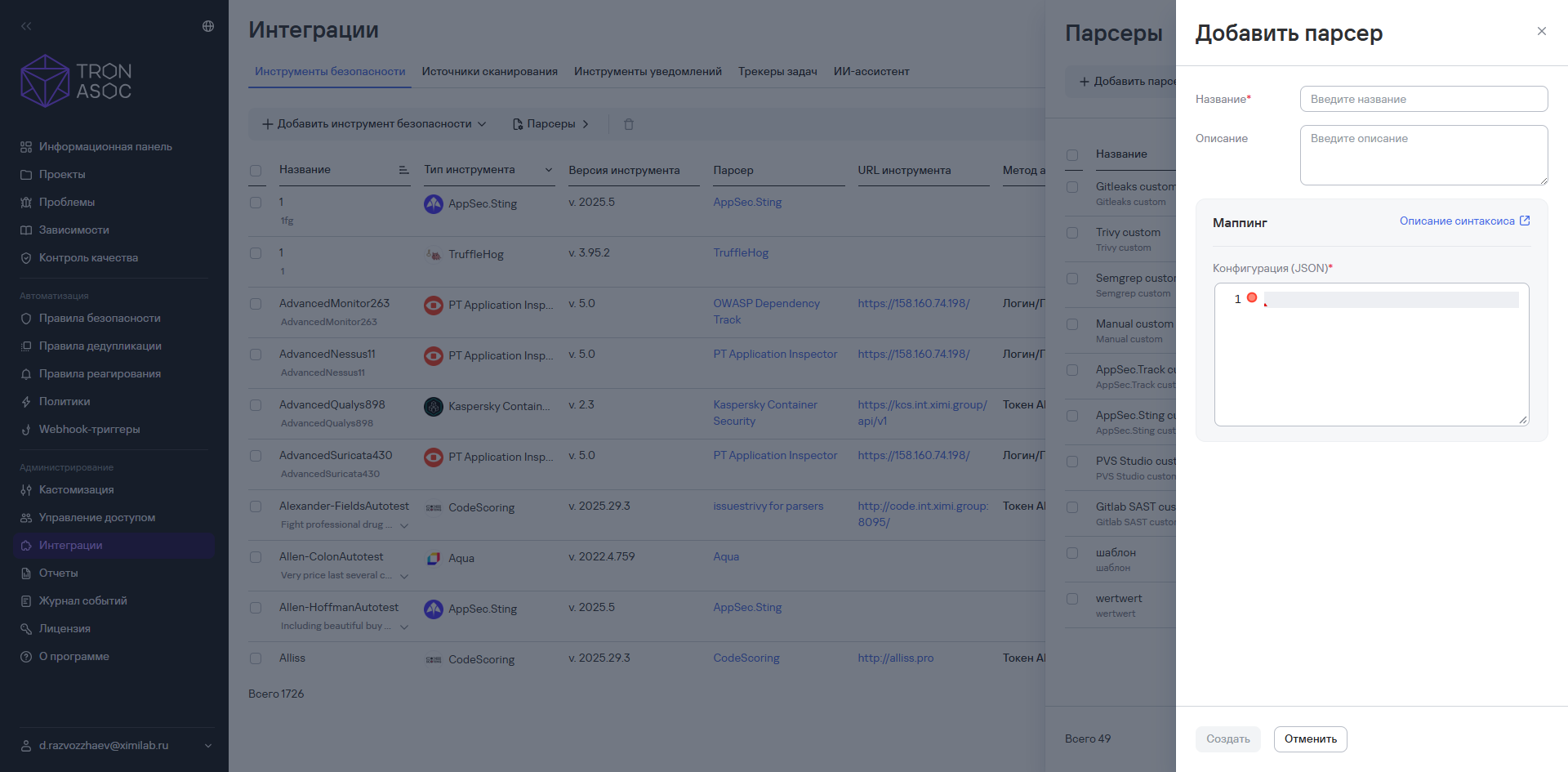
The new parser appears in the list of parsers in the Parsers section.
Parser example
The following example shows a minimal parser that extracts the vulnerability severity level and the path to the vulnerable file:
{
  "items_path": "runs[0].results",
  "severity": "$lookup({\"error\": \"4\", \"warning\": \"2\", \"note\": \"1\", \"none\": \"-1\"}, level)",
  "source_file": "locations[0].physicalLocation.artifactLocation.uri"
}
items_path specifies the array of findings. The field expressions are evaluated relative to an individual finding in this array. Expressions such as runs[0].results[0].level access only the first finding in the report and don't apply to custom parsers.
Create a new parser from an existing parser
To create a new parser from an existing parser, follow these steps:
- Go to Integrations.
- Select Parsers.
- Select the additional actions button (
 ) next to the required parser.
 - Select Use as template.
- In the add parser window, enter the following information:
- parser name;
- parser description;
- parser configuration in JSON format.
- Select Create.
The new parser appears in the list of parsers in the Parsers section.
When you create a parser from an existing parser, the system copies the source parser's JSON schema as it currently exists.
If you use one of the preconfigured SARIF parsers as the source—for example, SARIF: General—note that the system uses the preconfigured parser's code-based Go equivalent, not the JSONata configuration, while the security tool still has the preconfigured parser assigned. Automated equivalence tests verify that the two parsers correspond, but this doesn't guarantee that the copied schema covers every detail of the code parser's behavior. After you assign a custom parser, the system parses reports according to its configuration.
Create a parser for a security tool that TRON.ASOC doesn't support
If the system doesn't support a security tool, you can still upload and process scan results from that tool. To do this, create a parser that maps report fields in JSONata format. After you configure it, the system processes reports from the tool in the same way as reports from supported tools, and displays vulnerabilities in the security results.
To create a parser for an unsupported security tool, follow these steps:
- Get a sample report from the connected tool in JSON or SARIF format.
- Create the parser configuration—the mapping of report fields in JSONata format. For more information about the configuration syntax, available functions, and limitations, see User parser configuration.
- Create a new parser. For more information, see Create a new parser.
- Create a new integration with the security tool to import results. For more information, see Connect an integration with a custom security tool.
- When you configure the new integration, select the parser you created in step 3.
- Go to the required project in the Projects section.
- Select the layer where the scan will run, or create a new layer. For more information, see Create a layer from scratch and Create a layer from a template.
- Create a new security scan in the layer. For more information, see Create a security scan.
- Select the tool you created in step 4.
- Select a scan source, or create a new integration with a source. For more information, see Connect an integration with a scan source.
- Import a sample report from the connected security tool. For more information, see Import reports from security tools.
- Wait for the report processing to finish.
After processing finishes, the security scan status changes to Completed, and the detected vulnerabilities appear in the scan results.
Use this same sequence to validate a parser configuration. The system doesn't have a separate mode for validating a configuration against a sample report. You can see the parsing result after importing the report by reviewing the detected vulnerabilities and the fields that contain values.
To keep test runs separate from production data, perform the validation in a separate layer or security scan.
Assign a parser to a security tool
When you create a new integration, the system assigns a system parser that matches the selected security tool type. However, you can assign a different parser—system or custom—when you create or edit a security tool.
To assign a parser to a security tool, follow these steps:
- Create a new integration with a security tool. For more information, see Connect an integration with a security tool.
- Select the required parser from the Parser drop-down list.
- Select Create.
You can also assign a parser to a security tool while creating a new security scan:
- Create a new security scan. For more information, see Create a new security scan.
- Select the information icon (
 ) next to the Parser drop-down list.
 - Select Edit tool.
- In the window that opens, edit the security tool.
- Select Save.
An assigned custom parser takes precedence over the security tool's preconfigured parser. If you assign a custom parser to a tool, the system uses it to parse reports. This also applies to tools with a preconfigured SARIF parser—you can create and assign a custom SARIF parser for them as well.
If a security tool returns 0 vulnerabilities for a report that you know isn't empty, check which parser is assigned to the tool in its settings. The system parses the report with the assigned parser, regardless of which parser you edited most recently.
Edit a parser
You can't edit or delete preconfigured system parsers. These parsers have the System tag on the Parsers tab. You can view their configurations or use them as templates for creating your own parsers.
To edit a parser, follow these steps:
- Go to Integrations.
- Select Parsers.
- Select the additional actions button () next to the required parser.
- Select Edit.
- Change the parser data.
- Select Save.
The system applies the changes to the parser.
Changes to a parser configuration propagate to all security tools and security scans that use the parser, but they apply only to reports processed after the change. The system doesn't recalculate previously detected vulnerabilities: new fields won't appear for them, and changed values won't update.
To align the parsing results with the new configuration, process the report again. During reprocessing, the system closes vulnerabilities that the updated parser doesn't find and merges newly detected vulnerabilities with previously detected ones when their hashes match.
As a result, an incorrect parser configuration can cause not only new vulnerabilities to be missed but also previously detected vulnerabilities to be closed. Validate the configuration in a separate layer or security scan before assigning the parser to a security tool with production data.
Delete one or more parsers
To delete one parser, follow these steps:
- Go to Integrations.
- Select Parsers.
- Select the additional actions button () next to the required parser.
- Select Delete.
- In the modal window that opens, confirm that you want to delete the parser.
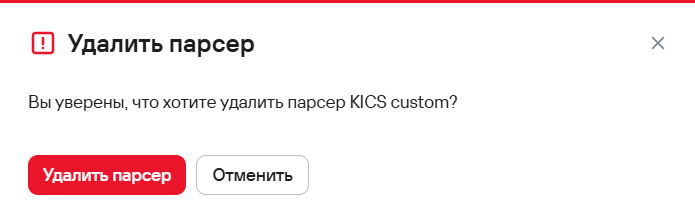
The system deletes the parser, and it no longer appears in the list of parsers in the Parsers section.
To delete multiple parsers, follow these steps:
- Go to Integrations.
- Select Parsers.
- Select the required parsers using the checkboxes (
 ).
). - Select the delete button (
 ) above the parser table.
 - In the modal window that opens, confirm that you want to delete the parsers.
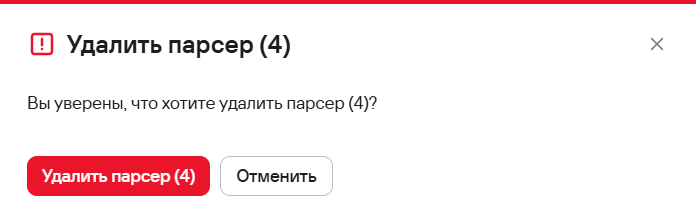
The system deletes the parsers, and they no longer appear in the list of parsers in the Parsers section.
If you delete a parser that's assigned to a security tool, the system assigns the tool the preconfigured parser that matches its type. The system continues to process reports from that tool according to the preconfigured parser's configuration.
Parser deletion is permanent. You can't restore a deleted parser using the system.