Источники сканирования
Просмотр всех подключенных источников сканирования доступен в разделе Интеграции → Источники сканирования. Также предусмотрена возможность отсортировать по названию, типу источника, описанию, перейти к добавлению, редактированию или удалению источников сканирования.
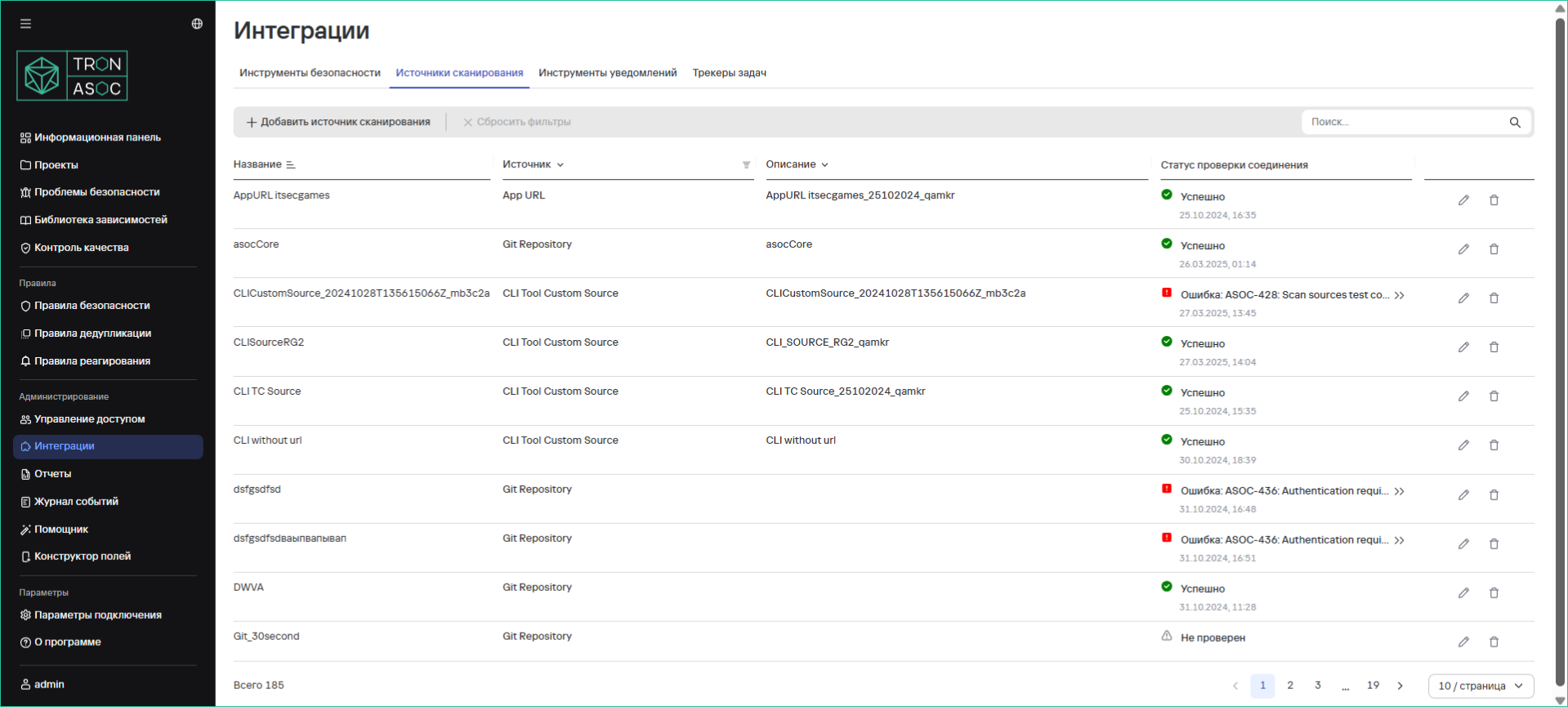
Поддерживаемые источники сканирования
Git Repository
Для источника в формате Git-репозитория доступны следующие типы VCS (системы контроля версий):
- GitHub
- GitLab
- BitBucket (облачный и серверный)
- Другое (возможно подключение других типов)
При запуске сканирований с использованием источника BitBucket указанный порт может быть скорректирован. Например, ssh://git@bitbucket.int.tronasoc.ru:0000/test/command.git в формат https://bitbucket.int.tronasoc.ru:0000/test/command.git
После обновления TRON.ASOC до версии выше 1.2.1 требуется повторно настроить ранее добавленные интеграции с источниками Git Repository, у которых не был настроен тип VCS.
Другие источники:
- Nexus
- CLI Tool
- Jfrog
- Harbor
- AppUrl
Подключение источника сканирования
Набор минимальных прав доступа для настройки источников сканирования:
- Просмотр источников
- Управление источниками
Подробнее о настройке прав доступа см. Настройка ролей.
Чтобы подключить источник сканирования, необходимо выполнить следующие шаги:
- Перейти в раздел Интеграции → Источники сканирования.
- Нажать кнопку Добавить источник сканирования.
- В открывшейся форме добавления источника сканирования заполнить поля Имя, Описание.
- Выбрать тип доступа к источнику сканирования:
- Глобальный — при выборе этого типа доступа источник сканирования будет доступен во всех проектах;
- Проектный — при выборе этого типа доступа источник сканирования будет доступен только в выбранных проектах. При выборе этого типа доступа также необходимо выбрать один или несколько проектов, в которых источник сканирования будет доступен.
- В раскрывающемся меню поля Источник выбрать источник сканирования.
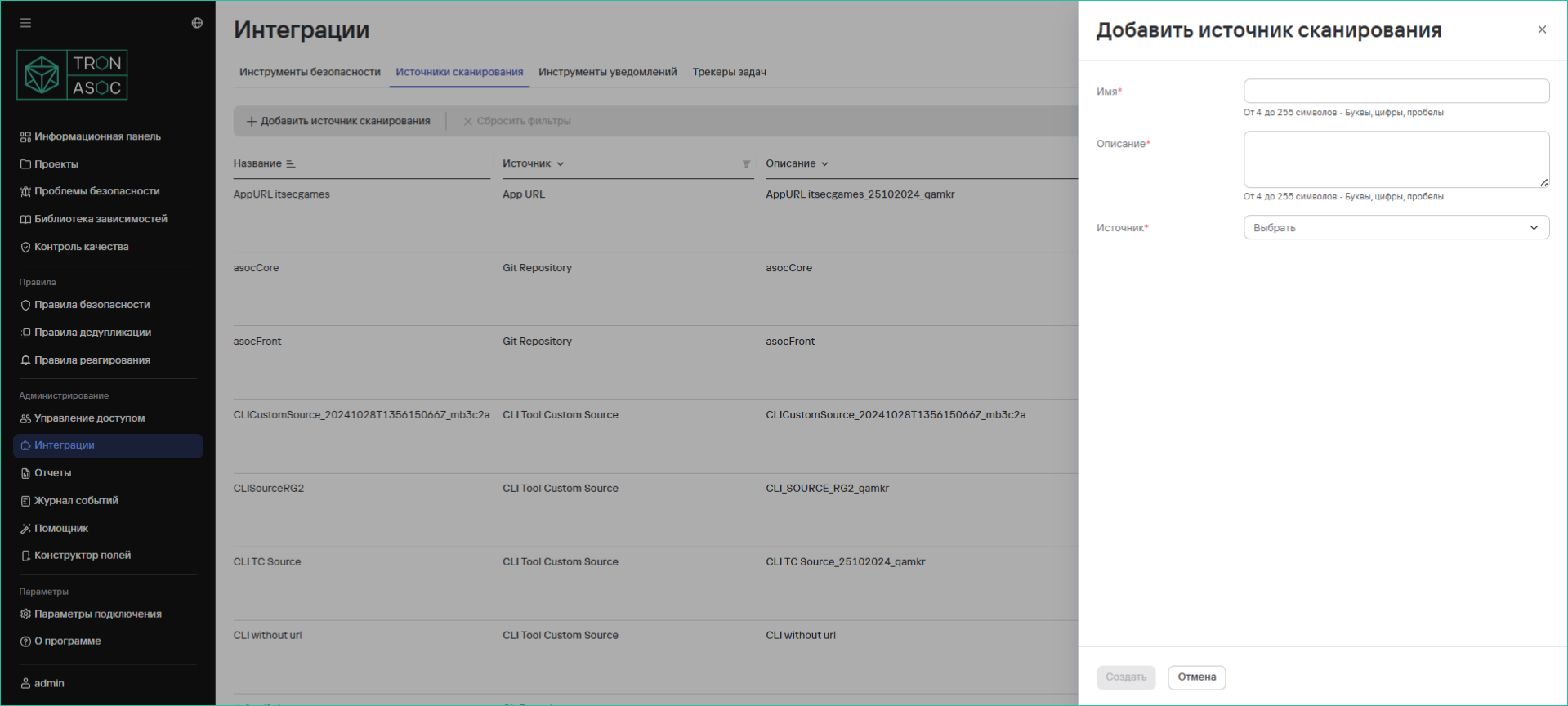
- После выбора источника сканирования необходимо заполнить дополнительные поля, специфичные выбранному на предыдущем шаге инструменту:
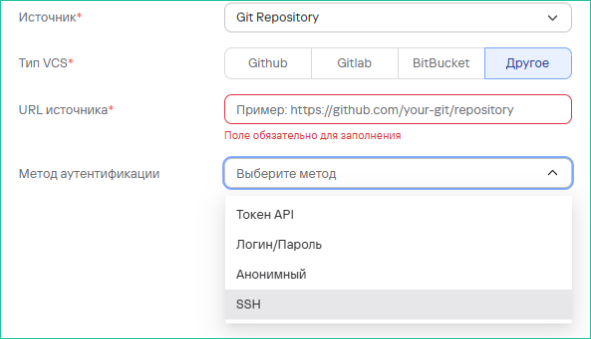
- URL источника
- Метод аутентификации - Заполнение поля на этом этапе не является обязательным, но без него нельзя будет осуществить проверку соединения с источником сканирования.
- Пропустить проверку соединения - при выборе этого параметра соединение с источником не будет проверяться перед запуском сканирования (применяется в случае, если отсутствует сетевой доступ к источникам)
- Далее поля для заполнения могут отличаться в зависимости от выбора метода аутентификации:
- Если метод указан и выбрана аутентификация по API-токену, необходимо заполнить поле Токен API
- Если выбран метод аутентификации по логину и паролю, нужно заполнить поля Логин/Пароль Для источника Git Repository доступны несколько типов аутентификации:
- Токен API
- Логин/Пароль
- Анонимный
- SSH (безопасный метод авторизации по SSH-ключу, доступны все SSH, кроме passphrase)
- Проверить соединение с источником, нажав кнопку Проверить соединение.
Проверка соединения доступна только в случае, если пользователь ранее корректно ввел данные для аутентификации. При правильно заполненных полях статус проверки должен быть успешным. Если соединение не установлено, нужно проверить корректность введенных данных и повторить попытку.
Система отправит запрос на соединение с источником и в верхнем правом углу пользовательского интерфейса отобразится соответствующее уведомление. 8. После ввода всех данных нажать кнопку Создать.
Редактирование источника сканирования
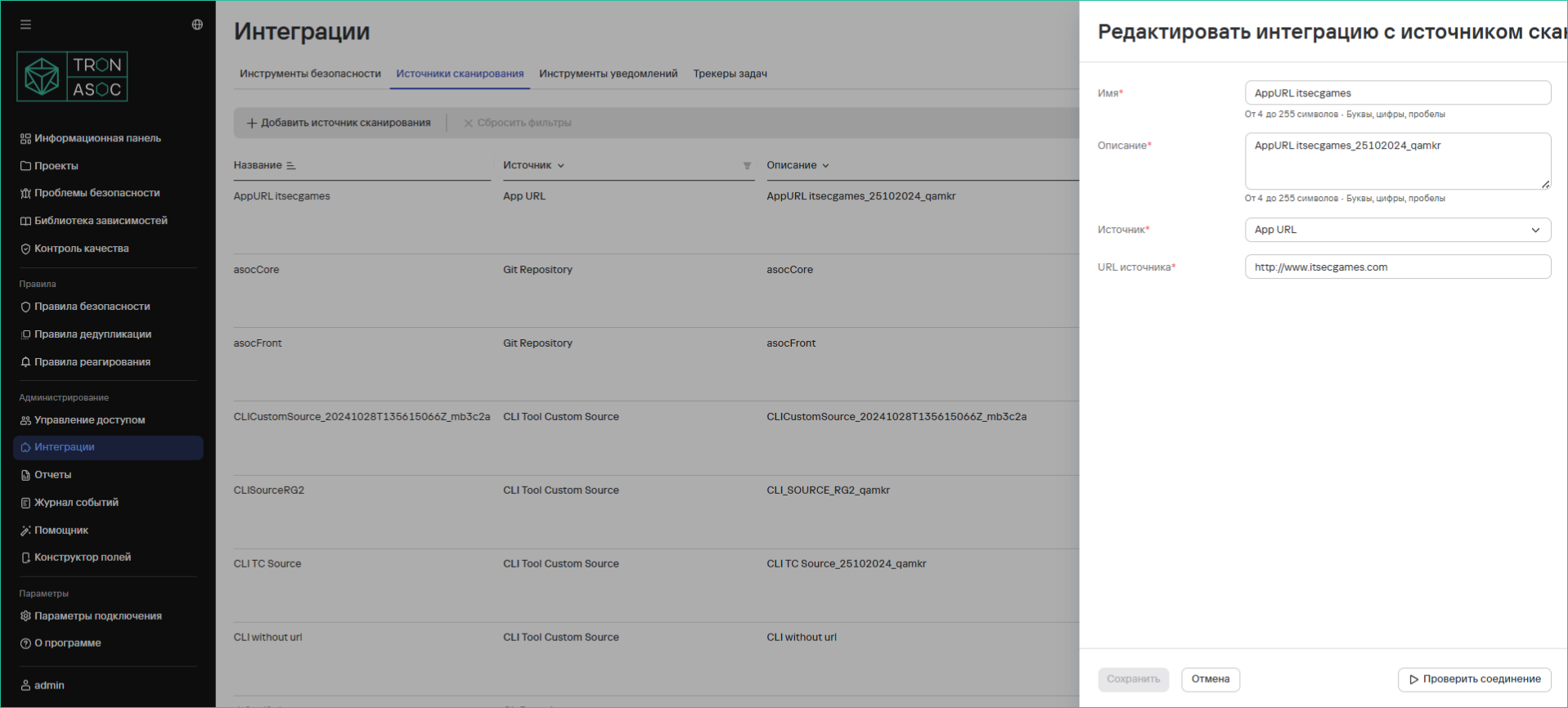
Редактирование источника производится с помощью кнопки  в соответствующем источнике сканирования. Форма редактирования аналогична форме добавления, но поля заполнены текущими данными.
Удаление источника сканирования
Для удаления одного источника сканирования необходимо выполнить следующие шаги:
- Перейти в раздел Интеграции → Источники сканирования
- Нажать кнопку удаления (
 ) в строке источника сканирования, который нужно удалить
 - В открывшемся окне подтвердить удаление источника сканирования.
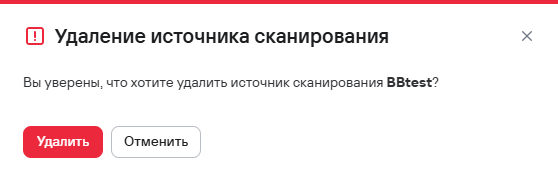
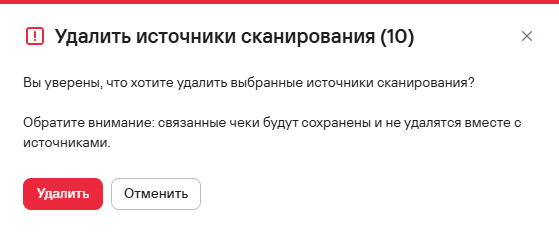
Для удаления нескольких источников сканирования необходимо выполнить следующие шаги:
- Перейти в раздел Интеграции → Источники сканирования
- Выбрать источники сканирования с помощью чекбоксов (
 )
) - Нажать кнопку удаления (), расположенную на панели над таблицей источников.
- В открывшемся модальном окне подтвердить удаление источников сканирования.
Комбинации источников сканирования и инструментов безопасности в проверках
На платформе реализованы следующие комбинации сочетаний источников и инструментов безопасности:
-
CLI инструменты (ESLint, Gitlab SAST, Trivy, Grype, KICS, Aqua, OWASP Dependency Track, Gitleaks) + CLI Custom source
Данные инструменты безопасности могут образовывать проверки только с CLI Custom source.
-
CLI инструменты с возможностью запуска в k8s (PVS Studio, Semgrep) + Git Repository
Данные инструменты поддерживают запуск. Инструмент запускается в k8s в виде job, получает данные из источника, проводит проверку безопасности и возвращает отчет с проблемами безопасности.
-
KCS/Appscreener Solar DAST + Nexus/Harbor/Jfrog
При создании такой проверки необходимо дополнительно заполнить Ветку/тег источника (можно несколько). Проверки запускаются, но можно также и импортировать отчет.
-
Appscreener Solar SAST/ Solar SCA/ PTAI + Git Repository
При создании такой проверки необходимо дополнительно заполнить Ветку/тег источника (можно несколько). Проверки запускаются, но можно также и импортировать отчет.
-
SASTAV + Git Repository
При создании такой проверки необходимо дополнительно заполнить Набор правил сканирования, а также связь Ветки/тега источника с коммитом. Проверки запускаются, но можно также и импортировать отчет.
-
CodeScoring + Git Repository/Nexus/Harbor/Jfrog
При создании такого чека необходимо дополнительно заполнить тип проверки безопасности - SCA, container SCA, secrets. В последнем случае предлагается выбрать конфигурацию секретов или загрузить новую. Далее заполняется Ветку/тег источника (можно несколько). Проверки запускаются, но можно также и импортировать отчет.
-
Manual tool + CLI Custom source
Данный тип инструмента безопасности может образовывать проверки только с CLI Custom source, т.к эти инструменты поддерживаются только для загрузки SARIF-отчетов.