Контроль качества
Платформа позволяет создавать и настраивать точки контроля качества ПО для каждого конвейера безопасности и проверки безопасности. Раздел Контроль качества позволяет пользователям управлять шаблонами контроля качества и отслеживать метрики, которые применяются для оценки качества программного обеспечения и выявления возможных отклонений от норм. К каждому конвейеру и проверке безопасности можно добавить один или несколько контролей качества, если это необходимо в рамках проекта.
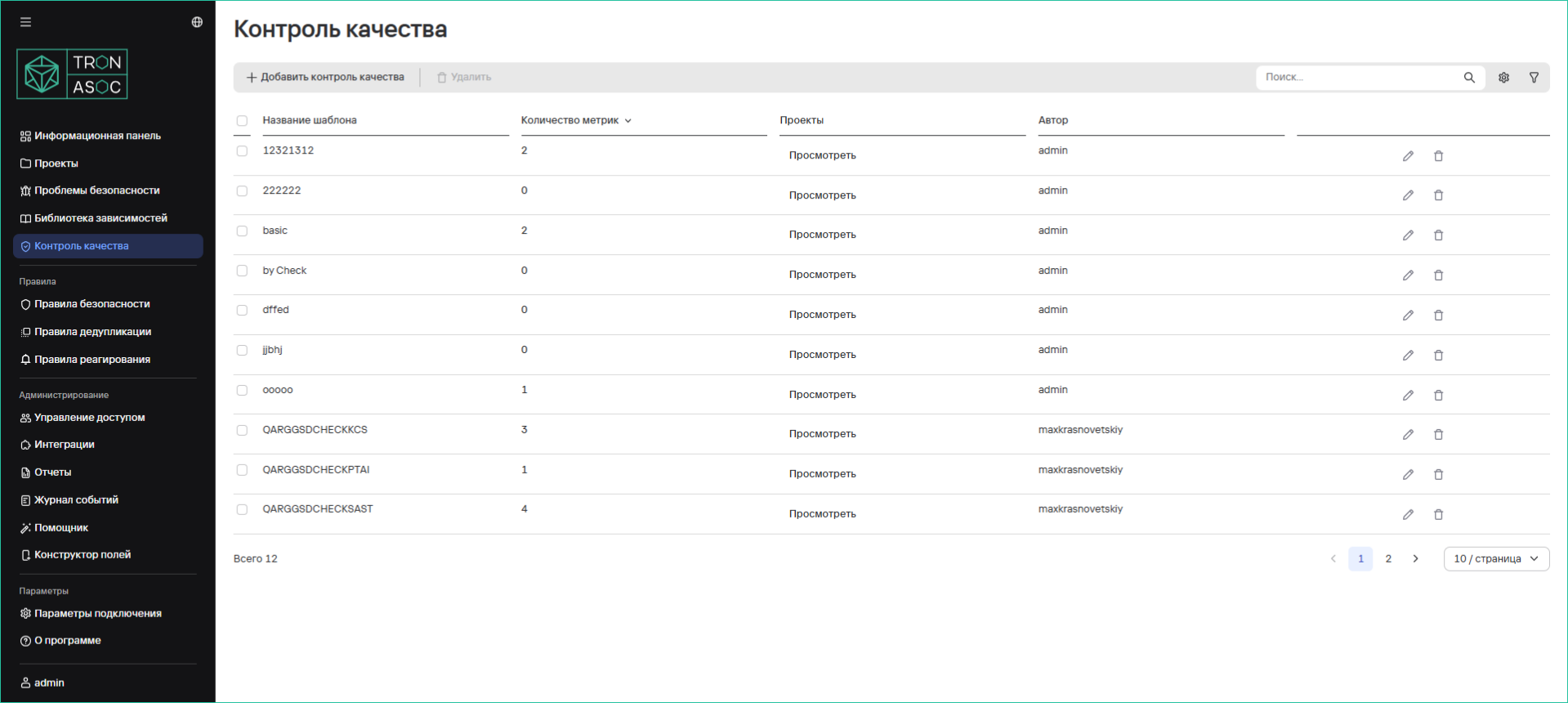 Таблица шаблонов контролей качества содержит список шаблонов, которые уже созданы и используются в системе.
Доступны следующие поля таблицы:
Таблица шаблонов контролей качества содержит список шаблонов, которые уже созданы и используются в системе.
Доступны следующие поля таблицы:
- Название шаблона – имя шаблона контроля качества.
- Количество метрик – показывает количество метрик, которые используются в данном шаблоне контроля качества.
- Проекты – список проектов, к которым привязан данный шаблон. Щелкнув по View, можно увидеть проекты, к которым применен этот шаблон.
- Автор – отображает имя пользователя, который создал данный шаблон.
В таблице доступна сортировка шаблонов по количеству метрик, названию или автору. Также возможно редактировать контроли качества. Для этого необходимо нажать на кнопку редактирования
 и внести изменения в открывшейся форме.
Добавление контроля качества
Контроль качества можно добавить как из конкретного проекта, так и из общего списка шаблонов контролей в разделе Контроль качества, который можно будет переиспользовать в нескольких проектах.
Чтобы добавить новый шаблон контроля качества, необходимо в разделе Контроль качества нажать кнопку Добавить контроль качества и в открывшейся форме указать название шаблона.
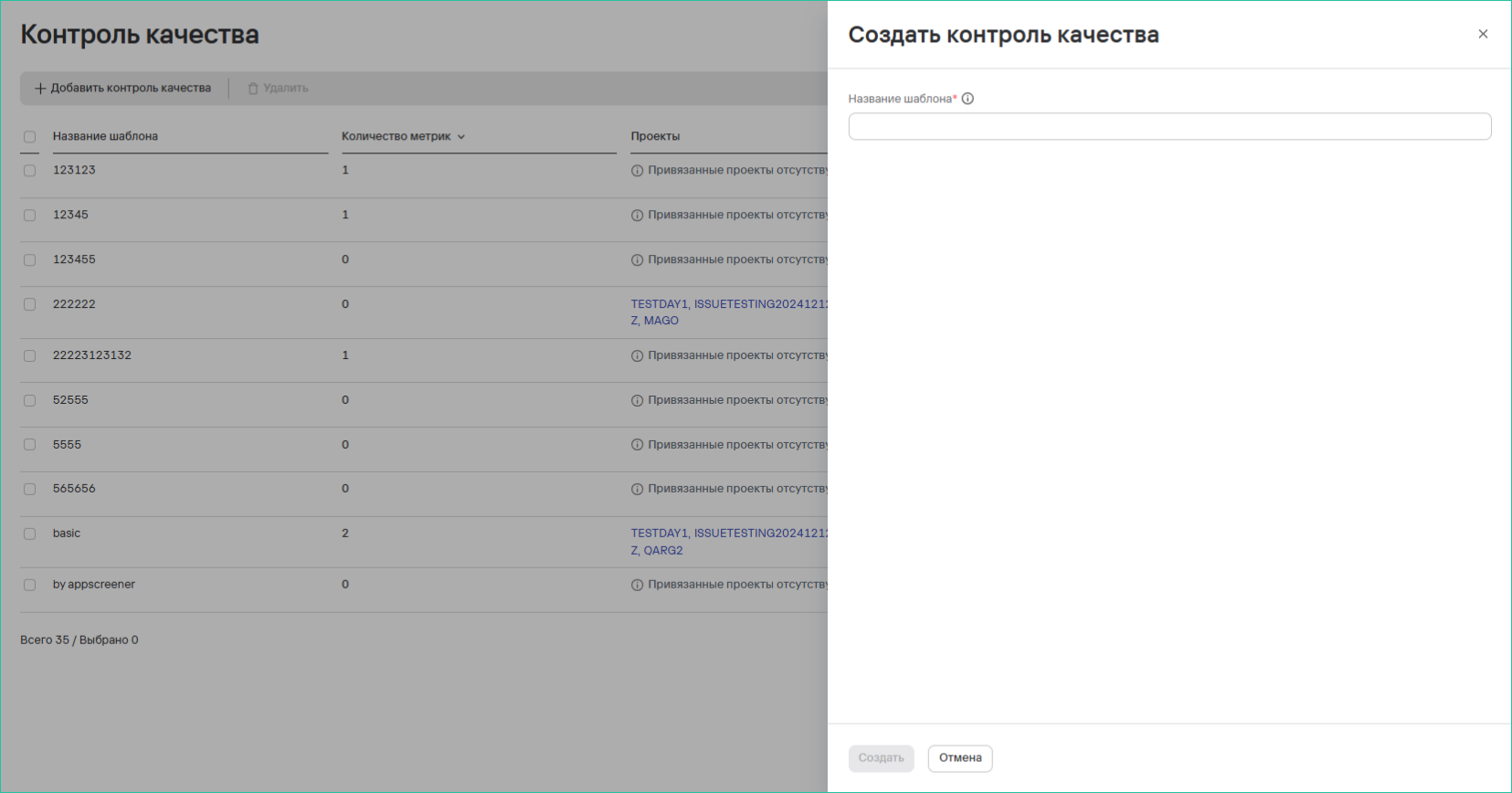 Созданный шаблон необходимо отредактировать с помощью кнопки редактирования , задать необходимые метрики для отслеживания качества и сохранить шаблон.
Удаление шаблонов производится с помощью кнопки удаления
Созданный шаблон необходимо отредактировать с помощью кнопки редактирования , задать необходимые метрики для отслеживания качества и сохранить шаблон.
Удаление шаблонов производится с помощью кнопки удаления  в списке шаблонов.
Для того, чтобы добавить Контроль качества в проекте, необходимо выполнить следующие шаги:
- В разделе Проекты → Название проекта → Контроль качества нажать на кнопку Добавить контроль.
- В раскрывшемся списке выбрать требуемый контроль или нажать на кнопку Создать новый контроль качества (в этом случае, откроется форма создания нового контроля).
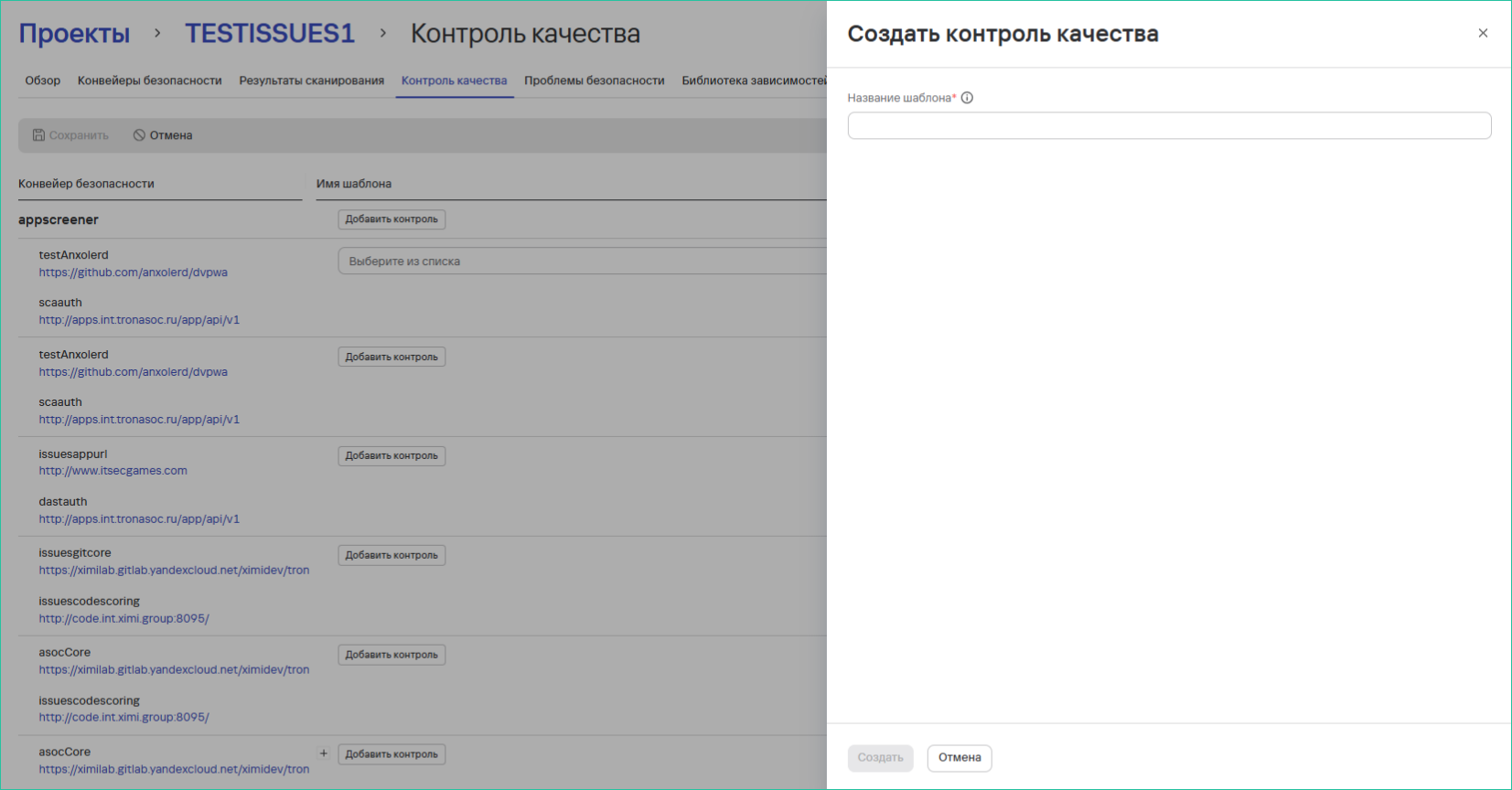
- Нажать на кнопку Сохранить. Результаты прохождения Контролей качества можно отследить в проекте в конвейерах и проверках безопасности.
Удаление контроля качества
Для удаления одного контроля качества необходимо выполнить следующие шаги:
- В разделе Контроль качества нажать кнопку дополнительных действий (
 ) возле необходимого контроля качества.
 - Выбрать вариант Удалить.
- В открывшемся модальном окне подтвердить удаление контроля качества.
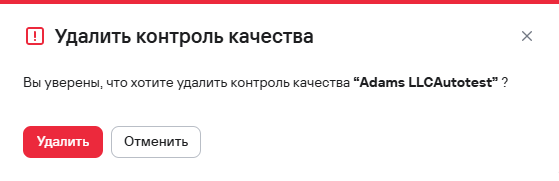
Для удаления нескольких контролей качества необходимо выполнить следующие шаги:
- В разделе Контроль качества выбрать контроли качества с помощью чекбоксов (
 )
) - Нажать кнопку удаления (
 ), расположенную на панели над таблицей контролей качества.
 - В открывшемся модальном окне подтвердить удаление контролей качества.
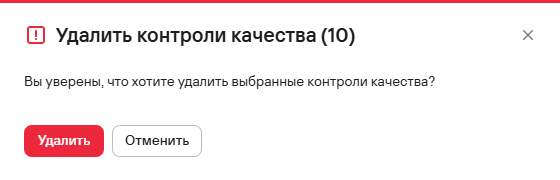
Просмотр детализированных метрик контроля качества
Пользователь может просматривать фактические значения метрик контроля качества в боковой панели. При нажатии на статус контроля качества система отображает список всех метрик с результатами последнего сканирования, что дает возможность определить, по каким метрикам контроль качества пройден или не пройден.
Для просмотра детализированных метрик контроля качества выполните следующие шаги:
- Откройте необходимый проект в разделе Проекты.
- Перейдите во вкладку Слои проекта.
- Выберите слой проекта со статусом Контроль пройден или Провален.
Далее откроется боковое меню, содержащее следующие данные:
- название контроля качества;
- названия метрик контроля качества;
- целевые значения метрик;
- фактические значения метрик (например,
 или
или  ).
).
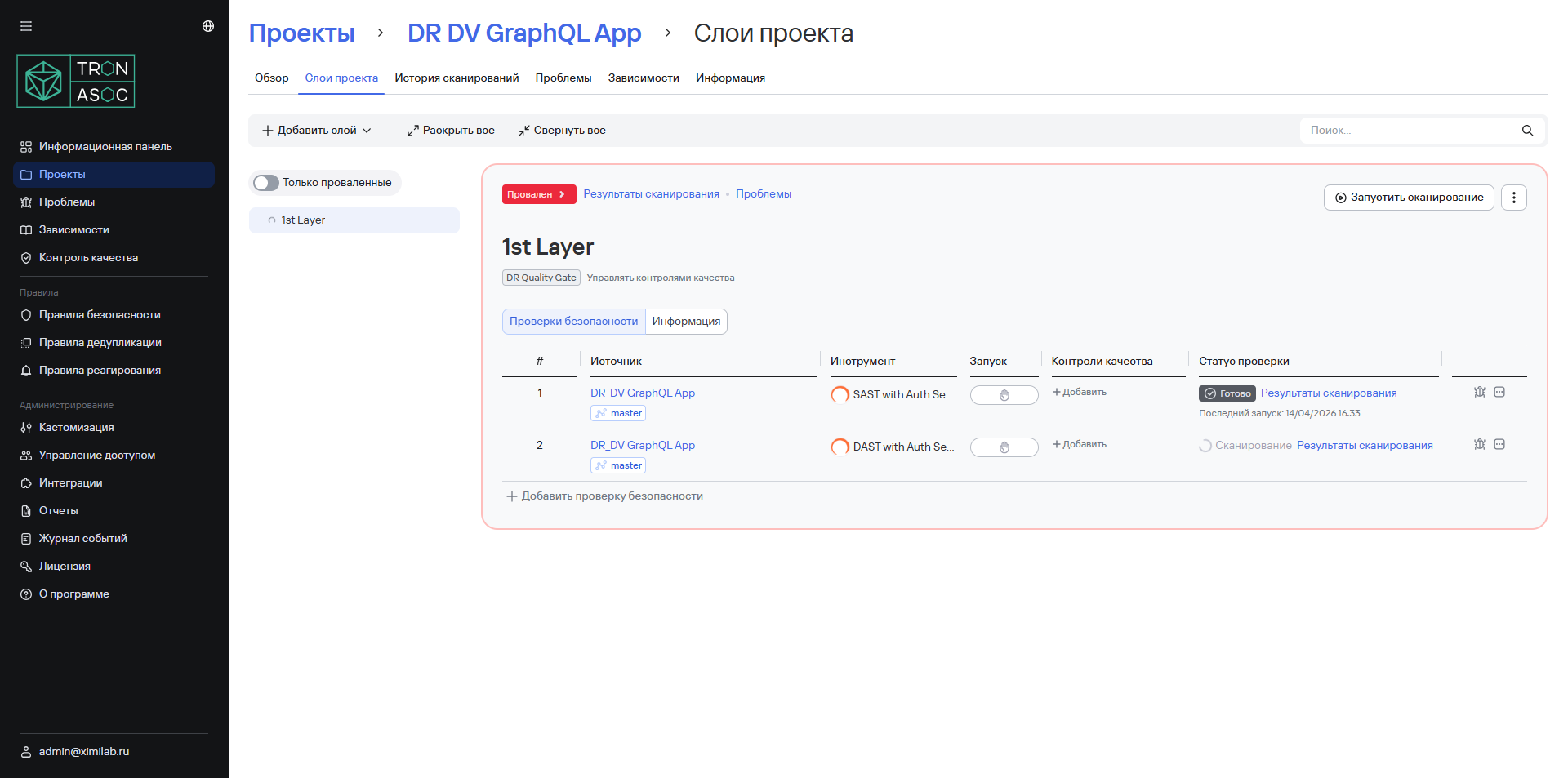
- Нажмите кнопку перехода к проблемам по метрике, расположенную в столбце Результат.
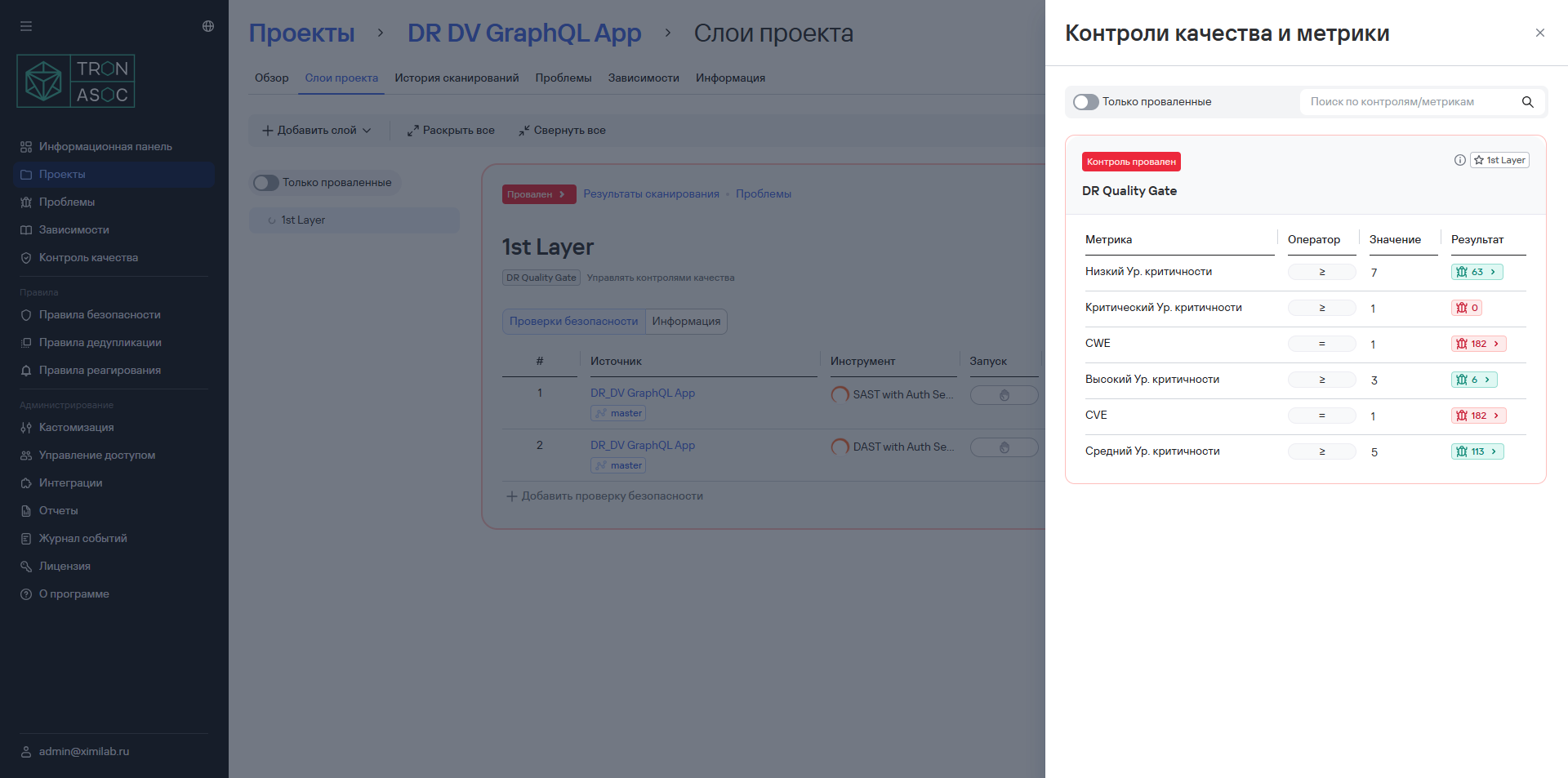
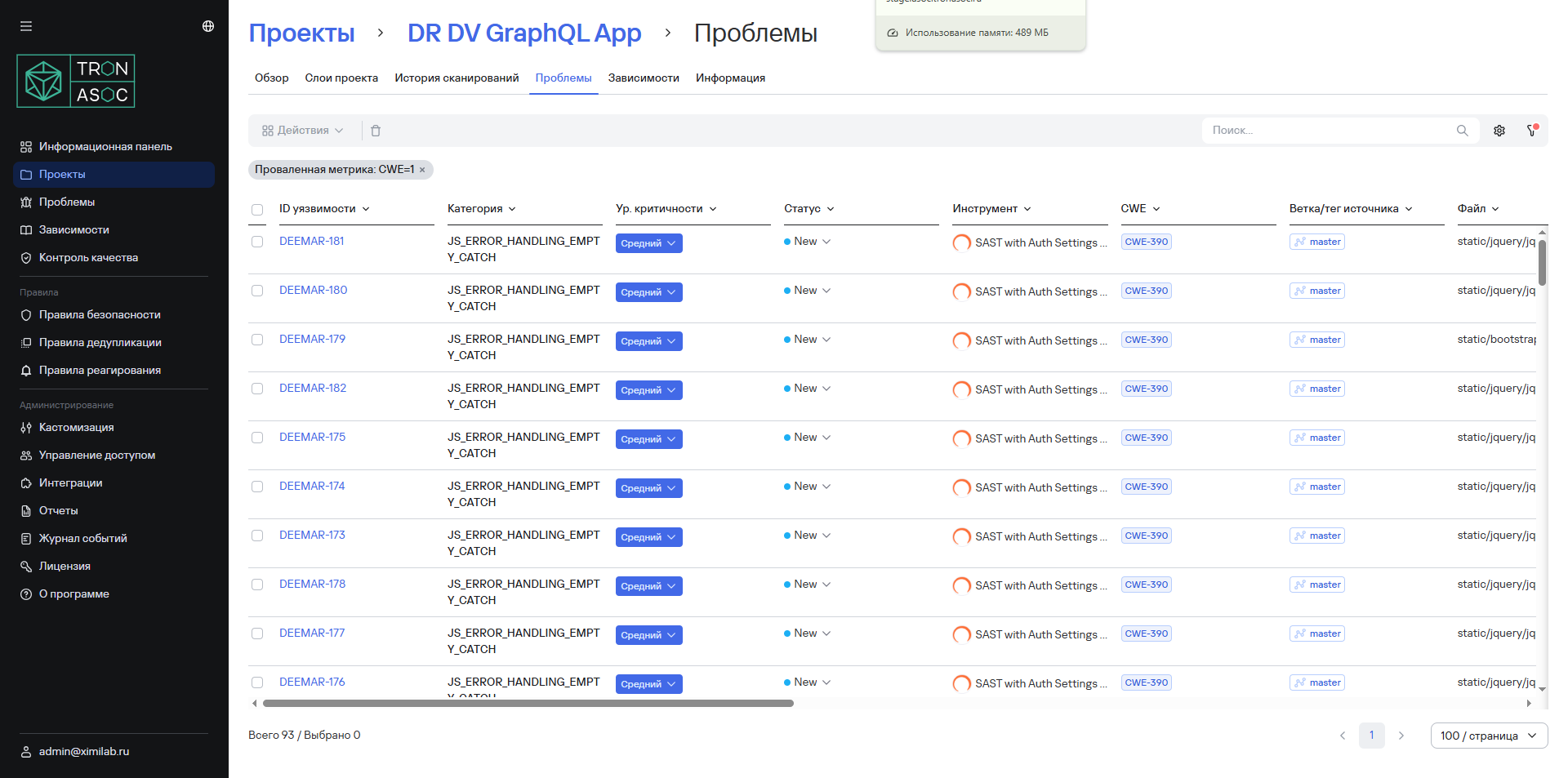
Далее откроется страница Проблемы, содержащая список уязвимостей, отфильтрованных по выбранной метрике.