Конструктор полей
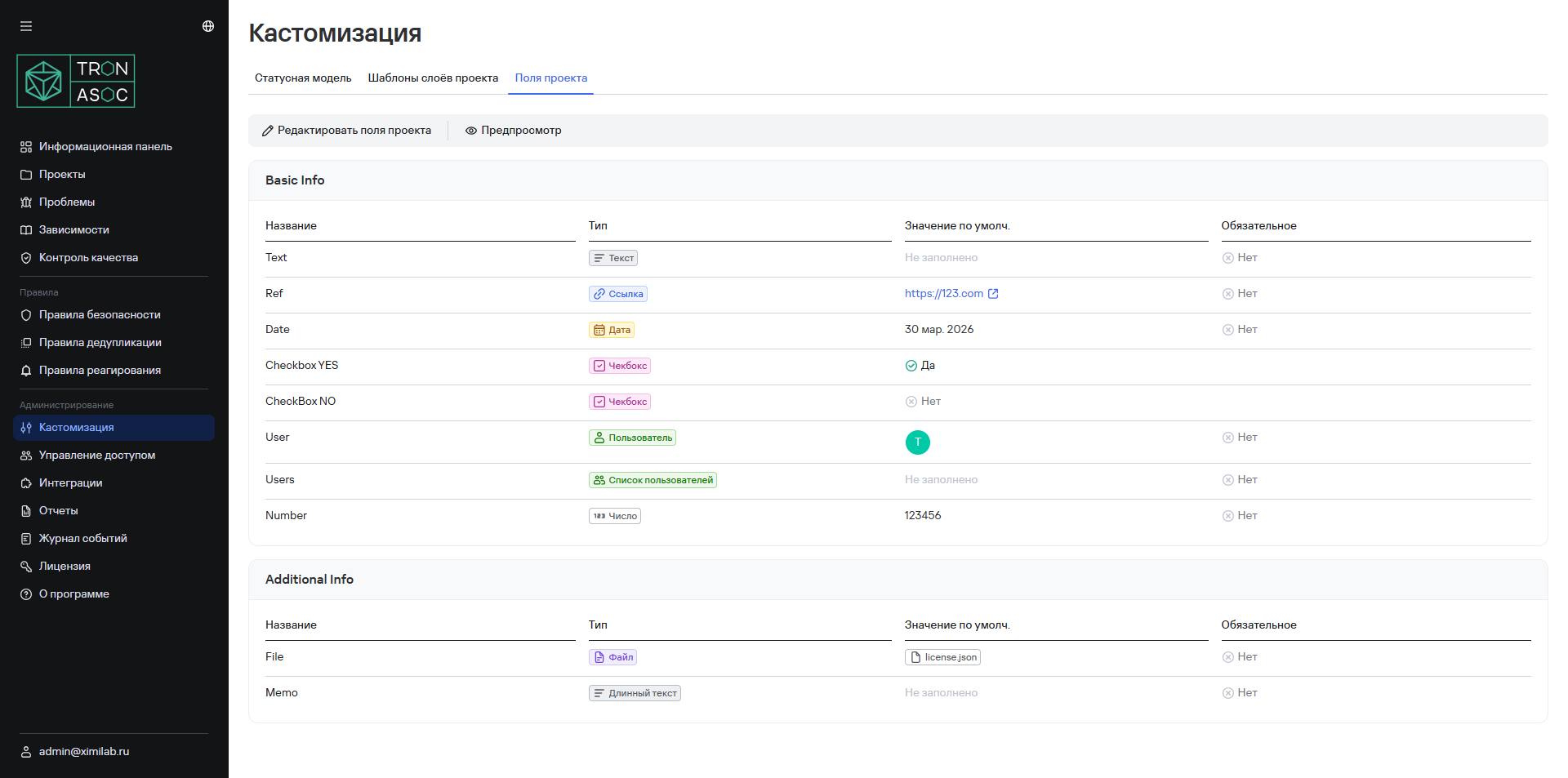
Раздел Конструктор полей позволяет создавать, настраивать и удалять пользовательские поля проектов. По умолчанию в системе есть только системные поля:
- Код проекта
- Название проекта
- Описание
- Теги
Добавление и настройка полей
Для добавления пользовательского поля необходимо выполнить следующие шаги:
- Перейти в раздел Кастомизация → Поля проекта.
- Нажать кнопку Редактировать поля проекта.
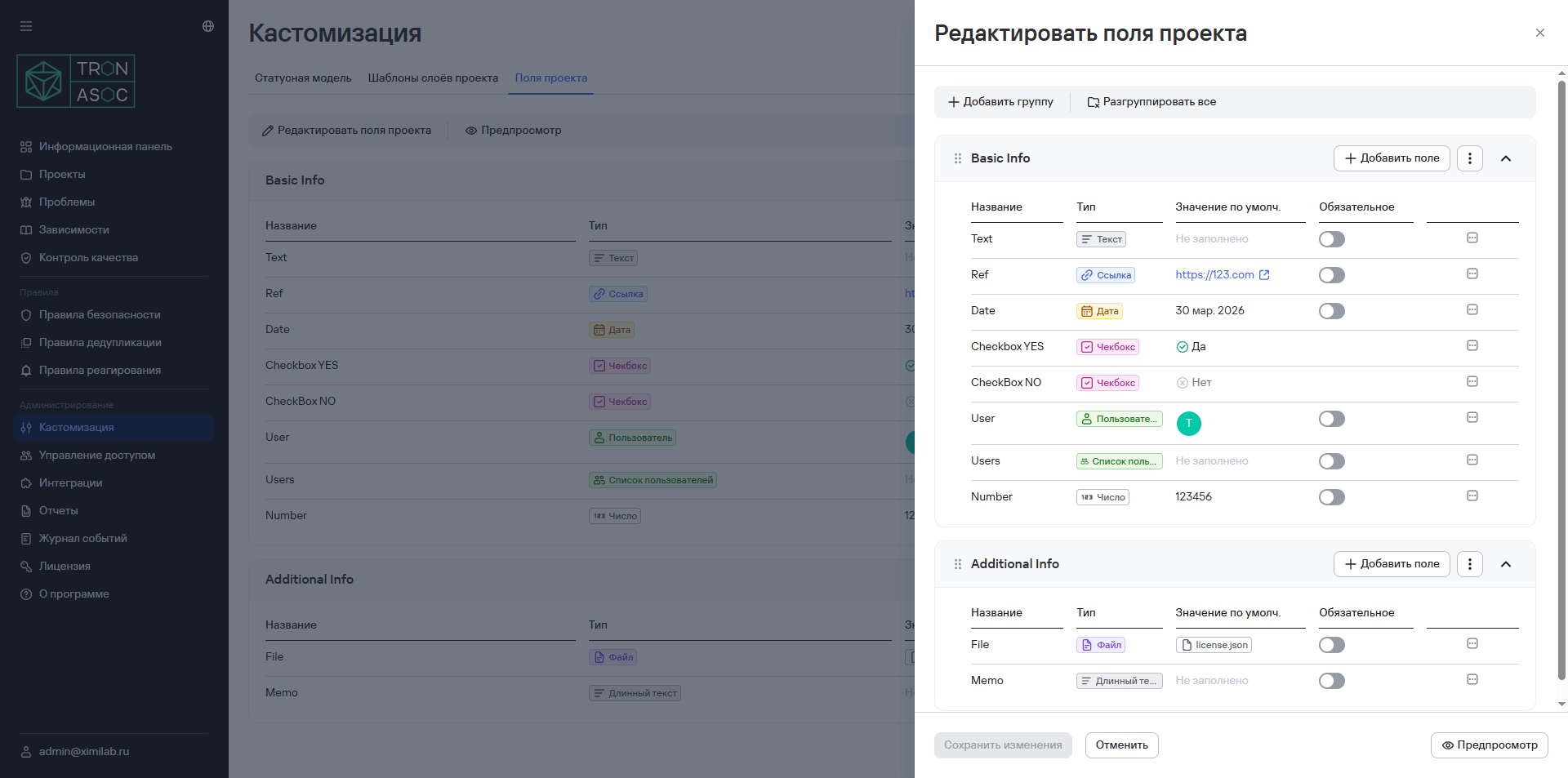
- В открывшемся окне нажать кнопку Добавить поле.
- Выбрать один из вариантов:
- Создать новое поле — при выборе этого варианта откроется окно создания нового поля, в котором необходимо заполнить параметры добавляемого поля;
- Использовать созданное ранее — при выборе этого варианта откроется окно создания нового поля, содержащее параметры, установленные при добавлении созданного ранее поля.
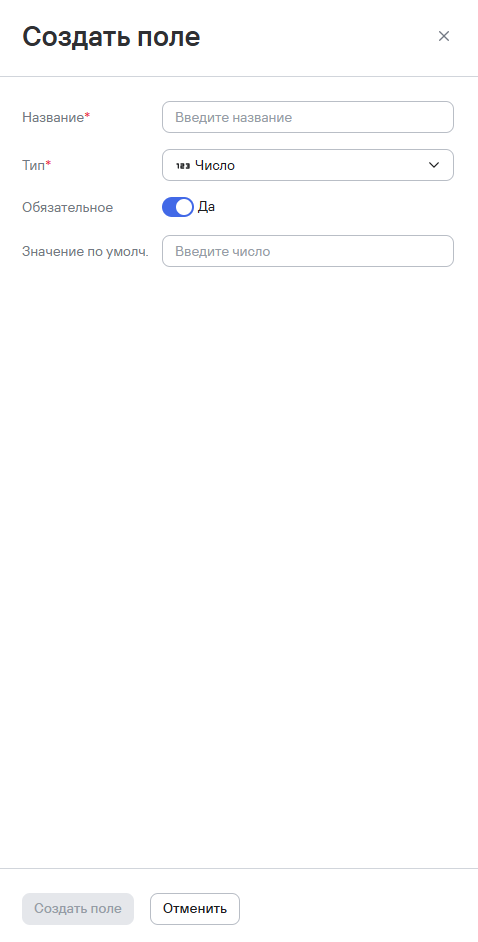
- Заполнить параметры добавляемого поля:
-
Название;
-
Тип — для выбора доступны следующие типы:
- Текст
- Длинный текст
- Ссылка
- Дата
- Чекбокс
- Пользователь
- Список пользователей
infoПоля Пользователь и Список пользователей доступны для изменения пользователям с правами на просмотр пользователей (разрешение Пользователи (Управление доступом) -> Просмотр пользователей). Подробнее см. Настройка ролей.
- Число
- Файл
infoВ рамках этого типа поля предусмотрена возможность загрузки только одного файла. Настройки ограничений по типам файлов и их размеру задаются через системный конфигурационный файл.
-
Обязательность поля
-
Значение поля по умолчанию
Кроме того, в окне редактирования полей проекта можно изменить обязательность поля с помощью переключателя Обязательное.
- Нажать кнопку Создать поле.
Редактирование полей в рамках проектов
После создания поля/группы полей автоматически появляются незаполненными в параметрах каждого проекта.
Для того, чтобы заполнить пользовательские поля к проекту, необходимо выполнить следующее:
- Перейти в раздел Проекты
- Выбрать необходимый проект из списка.
- Перейти во вкладку Информация.
- Нажать кнопку Редактировать.
- В открывшемся окне заполнить необходимые поля.
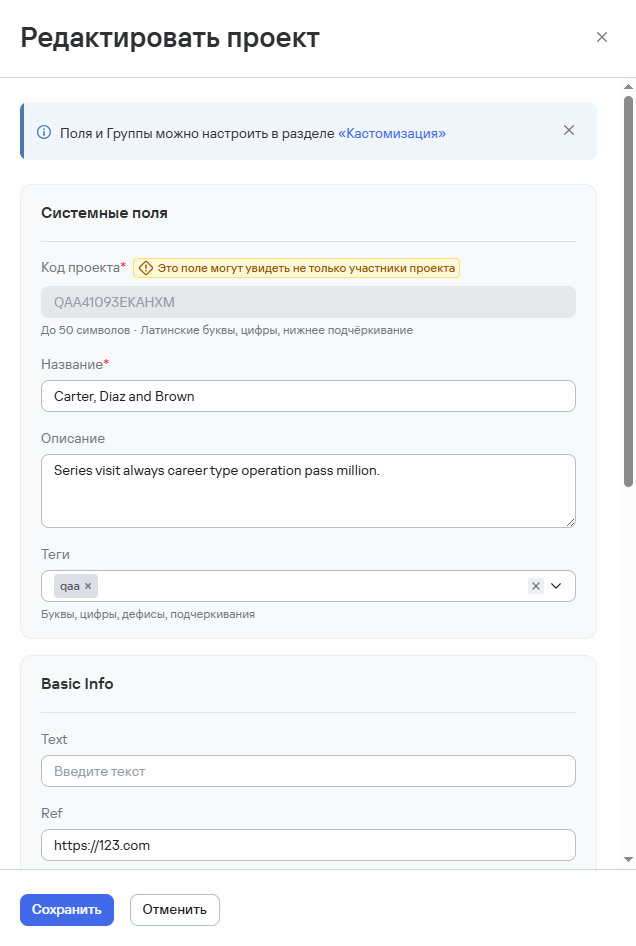
- После заполнения нажать кнопку Сохранить
Также заполнить пользовательские поля к проекту можно следующим способом:
- В списке проектов нажать кнопку дополнительных действий

- Нажать кнопку Редактировать
- Заполнить необходимые пользовательские поля
- После заполнения нажать на кнопку Сохранить